What Does It Mean When a Printer Is Offline and How to Fix It
When your printer shows offline, it means it can’t communicate with your computer due to connection, network, or software issues. This offline printer status often happens because of problems with cables, network settings, or drivers. Basically, your computer and printer aren’t “talking” to each other like they should.
To fix it, make sure your printer is powered on with cables securely connected and on the same network as your device. Check that it’s set as the default printer, clear any stuck print jobs, and restart the Print Spooler.
If problems persist, reinstalling drivers or using the Windows troubleshooter often helps. Keep exploring to uncover detailed steps and solutions.
Key Takeaways
- Printer offline means it cannot communicate via Wi-Fi, USB, Ethernet, or Bluetooth, blocking print jobs from processing.
- Common causes include lost network connection, faulty cables, “Use Printer Offline” mode, print spooler crashes, and driver issues.
- Power-cycle the printer, check cables, and ensure both printer and computer share the same network to restore connectivity.
- Cancel stuck print jobs and restart the Print Spooler service to clear jammed queues causing offline status.
- Use Windows troubleshooter to detect and fix offline mode, driver conflicts, and spooler errors automatically.
If your printer shows offline, don’t worry—it’s usually an easy fix. Just double-check your connections and network first.
Sometimes, a quick restart of your printer and computer can do the trick.
And if you’re stuck, running the troubleshooter can help identify the problem without much hassle.
What “Printer Offline” Means and Why It Happens
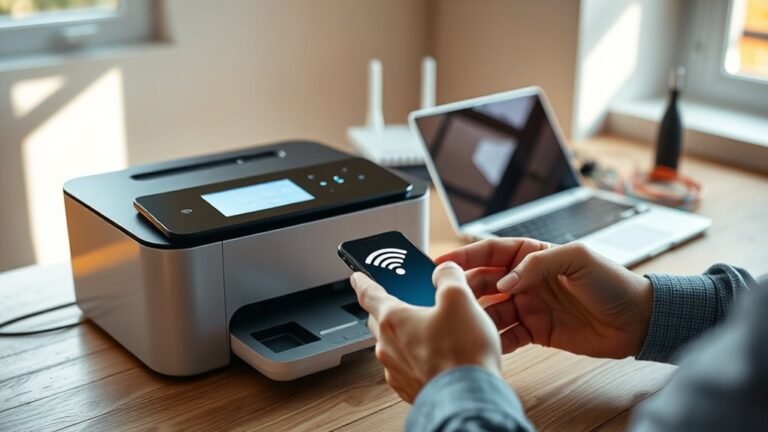
When your printer shows as offline, it means your device can’t communicate with it through the expected connection—whether that’s Wi-Fi, USB, Ethernet, or Bluetooth. So, it won’t accept print jobs.
A printer showing offline means your device can’t connect via Wi-Fi, USB, Ethernet, or Bluetooth, blocking print jobs.
The “Printer Offline” status often happens because of a lost network connection, like weak Wi-Fi or a router reboot. It can also be due to issues with USB or Ethernet cables.
Sometimes, Windows settings like “Use Printer Offline” enable offline mode without you realizing it. Other times, the Print Spooler service crashes, or outdated or corrupted printer drivers cause the problem.
You might also see the offline status if the printer queue is paused or the printer isn’t set as the default device. Knowing these causes helps you quickly figure out why your printer isn’t responding and get started on fixing it.
Check Your Printer’s Power and Cable Connections
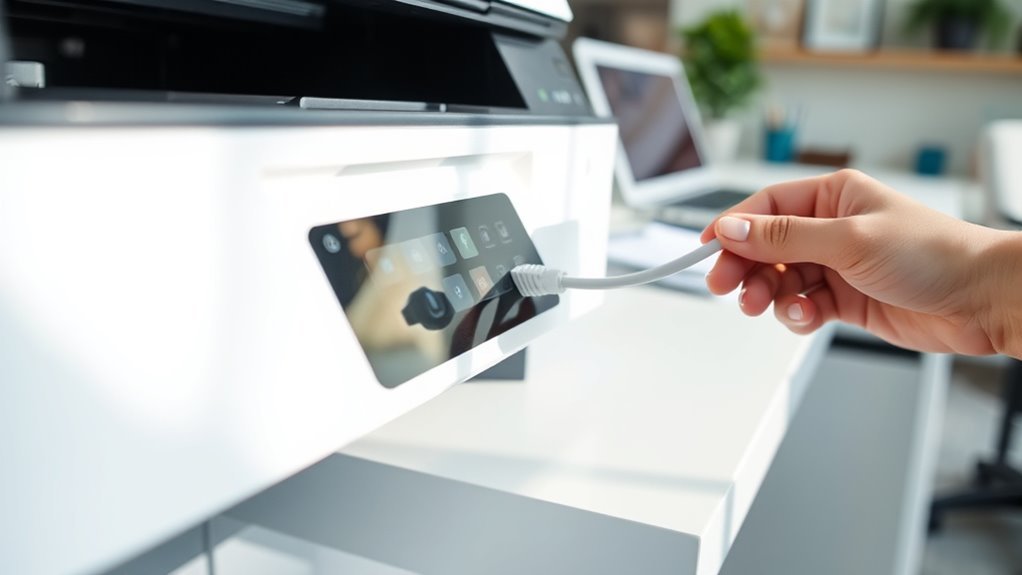
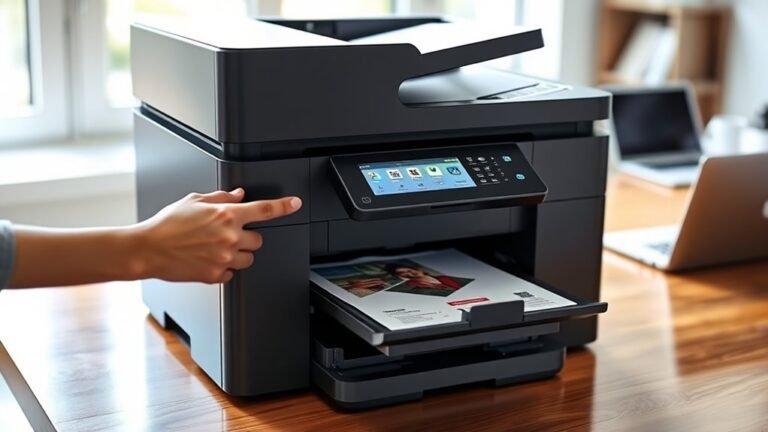
Start by confirming your printer is powered on and its power cable is securely plugged into a working outlet. If you’re unsure, unplug the power cable from the power outlet, wait 30 seconds, then plug it back in to power-cycle the printer fully.
Next, check all cable connections. Inspect your USB cable or Ethernet cable at both ends for damage and make certain secure connections.
If you suspect a faulty cable, try swapping it with a known-good one or plugging it into a different port on your computer or router. These steps help eliminate common connection issues that can cause the printer to appear offline.
Making sure the power and data cables are properly connected is a simple but essential fix to get your printer back online quickly.
Verify Your Printer and Computer Are on the Same Network
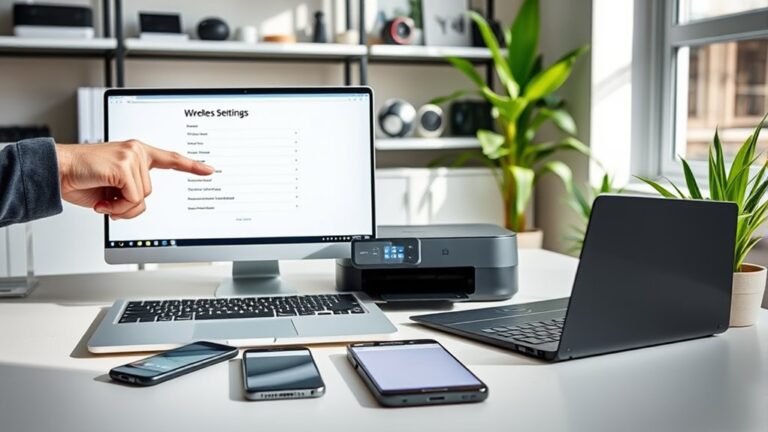
To make sure your printer communicates properly with your computer, confirm they’re both connected to the same network. A common cause of a printer offline status is that your devices are on different Wi‑Fi connections or network bands.
Check that both use the same SSID, avoiding guest or isolated networks that block local traffic.
Here’s what to do:
- Verify the printer’s IP address matches your router’s subnet and isn’t assigned outside DHCP range.
- Confirm your computer’s active network adapter has an IP address in the same subnet as the printer.
- Restart your router, printer, and computer, then reconnect the printer to the correct Wi‑Fi connection to refresh IP assignments.
Making sure both are on the same network helps prevent offline errors caused by network mismatches or router issues. It’s a simple step that saves a lot of troubleshooting later.
Set Your Printer as the Default Device in Windows
To set your printer as the default device, first go to your printer settings in Windows. If the option is unavailable, disable the “Let Windows manage my default printer” feature.
Then, confirm your printer is selected as the default to make certain print jobs go to the right device. This way, you won’t have to worry about choosing the printer every time you print. Easy, right?
Locate Printer Settings
- Access Printers & scanners via Settings > Bluetooth & devices or Devices.
- Select your printer and choose Set as default.
- Review and clear the print queue if printing issues persist.
If things aren’t printing like they should, this is usually a good place to start. Just a quick check here can save you some headaches!
Disable Auto Default Management
After setting your printer as the default and clearing the print queue, you should make sure Windows doesn’t override your choice.
On Windows 11, head to Settings > Bluetooth & devices > Printers & scanners, select your printer, and first turn off Let Windows manage my default printer. Then, click Set as default to prevent Windows from changing your selection.
In Windows 10, open Settings > Devices > Printers & scanners, pick your printer, open the queue, and choose Printer > Set As Default Printer. If prompted, confirm to stop Windows from managing your default printer automatically.
Disabling Let Windows manage my default printer stops Windows from switching the default to the last used network printer, which can cause offline errors. This guarantees your print jobs go to the correct device without interruption.
Confirm Default Printer Selection
Make sure your printer is set as the default device in Windows to avoid sending jobs to another printer or a virtual option like Microsoft Print to PDF. To confirm your default printer, open Settings and navigate to Printers & scanners.
If your default keeps changing, disable “Let Windows manage.” Then, select your printer and click “Set As Default.” After setting it, clear the print queue to send jobs correctly.
Follow these steps:
- In Windows 11, go to Bluetooth & devices > Printers & scanners to adjust default settings.
- In Windows 10, open Devices > Printers & scanners, select your printer, then choose “Set As Default Printer.”
If issues persist, try reinstalling the driver to make sure the default printer setting sticks after updates.
Clear and Manage the Print Queue to Fix Offline Status
To fix your printer’s offline status, start by viewing and canceling any stuck print jobs in the queue. Refresh the print queue to guarantee it accurately reflects your current tasks.
Clearing these jobs often helps your printer reconnect and resume printing smoothly. Give it a try, and you’ll likely see your printer come back online in no time.
View And Cancel Jobs
You can clear up many printer offline issues by checking and managing the print queue. Start by opening the print queue via Settings > Bluetooth & devices > Printers & scanners (Windows 11) or Settings > Devices > Printers & scanners (Windows 10).
Look for paused jobs or errors that block printing. To fix this, cancel jobs stuck in the queue.
- Use the Printer menu or ellipsis to select Cancel All or cancel individual jobs.
- If jobs won’t clear, restart the Print Spooler service to force removal.
- After clearing, send a test page; if offline persists, remove and re-add the printer.
Managing the print queue effectively helps resolve communication issues and gets your printer back online quickly. It’s usually a quick fix that saves you time and frustration.
Refresh Queue Status
Revitalizing the print queue can quickly clear up offline status issues by removing stuck or paused jobs that block communication with your printer. First, open the print queue through your system settings to see pending jobs.
Cancel stuck jobs by selecting and deleting them or using the cancel all option. Make sure “Use Printer Offline” is unchecked in the printer menu so your device stays online.
If jobs don’t clear, restart the print spooler via the Services panel or reboot your computer to reset the queue. After clearing the queue, print a test page to check connectivity.
Should problems persist, remove and reinstall the printer from your settings to restore a fresh queue and driver setup. This helps ensure smooth communication and resolves the offline status.
Restart the Print Spooler to Get Your Printer Back Online
When your printer shows as offline, the Print Spooler service on Windows often needs a quick restart to clear any stuck jobs and restore communication. To restart Print Spooler, open Services by pressing Windows+R, typing services.msc, then right-click “Print Spooler” and select Restart.
When your printer goes offline, restarting the Print Spooler service often clears stuck jobs and restores connection.
This often fixes issues caused by a jammed printer queue. You should also cancel all documents in the printer queue to permanently remove problematic jobs.
To effectively restart the Print Spooler and get your printer back online:
- Cancel all documents in the printer queue (Settings > Printers & scanners > Open queue > Cancel all).
- Stop the Print Spooler service before deleting spooler files (%SystemRoot%System32spoolPRINTERS) if problems persist.
- Restart the PC after restarting the service if the offline status continues.
This approach fixes many common Print Spooler and printer driver glitches. It’s usually a quick and easy fix that gets your printer working again.
Remove and Reinstall Your Printer and Drivers to Fix Offline Issues
Removing and reinstalling your printer and its drivers can often resolve offline issues caused by corrupted settings or driver conflicts. First, remove your printer via Settings (Windows 10 or 11), then uninstall the printer driver completely using Print Server Properties.
Next, download and install the manufacturer’s latest driver to guarantee compatibility. Restart your PC and printer, then Add a printer to reinstall it fresh.
If problems persist, restart the Print Spooler service to clear stuck jobs.
| Step | Action |
|---|---|
| Remove printer | Settings > Printers & scanners > Remove |
| Uninstall driver | Print Server Properties > Drivers tab |
| Download driver | Manufacturer’s website or Windows Update |
| Reinstall & restart | Add a printer > Restart Print Spooler |
Use the Windows Troubleshooter for Printer Offline Problems
If reinstalling your printer and drivers doesn’t fix the offline issue, you can use Windows’ built-in troubleshooter to quickly find and fix common problems.
In Windows 11, the printer troubleshooter looks for issues like Print Spooler errors, stuck print jobs, and network connectivity problems that might make your printer show as offline.
It can also check if “Use Printer Offline” is turned on and suggest things like power-cycling your printer or reinstalling drivers.
Here’s what the troubleshooter can do for you:
- Restart the Print Spooler service and clear any stuck print jobs
- Detect and turn off “Use Printer Offline” mode
- Recommend reinstalling drivers or adding the printer again if needed
Using this tool saves you time and often gets your offline printer working fully again.
Frequently Asked Questions
How Do I Get My Printer Offline Back Online?
To get your offline printer back online, start by restarting both the printer and your router. This simple step often fixes connection issues quickly.
Next, check your printer settings to make sure “Use Printer Offline” is unchecked. Sometimes printers stay offline because of this option being accidentally enabled.
Also, clear any stuck print jobs in the queue. They can block new jobs from printing properly.
Don’t forget to confirm that your printer is connected to the correct network. If it’s a wireless printer, double-check the Wi-Fi connection.
If things still aren’t working, try restarting the Print Spooler service on your computer. And if that doesn’t help, reinstalling the printer drivers might do the trick.
How Do I Enable Offline Printing on My Printer?
You might think offline printing means no printing, but you can enable it by pausing your print queue on Windows or macOS. Or, you can use your printer’s control panel or app to hold jobs and print them later when ready.
It’s pretty handy if you want to manage when your documents actually print. Just a few clicks and you’re good to go!
How Do I Get My HP Printer Out of Offline Mode?
You can get your HP printer out of offline mode by restarting it and making sure it’s properly connected to your network. Sometimes, a quick reboot is all it takes to fix the issue.
Also, check your printer settings and uncheck “Use Printer Offline.” This setting can accidentally get turned on, causing the printer to appear offline.
If that doesn’t work, try restarting the Print Spooler service on your computer. It helps manage print jobs and can sometimes get stuck.
And if you’re still having trouble, updating or reinstalling your printer driver might do the trick. Drivers that are outdated or corrupted can cause connectivity problems.
My Printer Is Offline. How Can I Fix This?
You can fix your offline printer by restarting it, your router, and computer. Clear stuck print jobs, and make sure “Use Printer Offline” is unchecked.
Also, confirm the correct network or connection is selected. If needed, update your printer drivers to keep everything running smoothly.
Conclusion
When your printer goes offline, it can feel like hitting a brick wall in the middle of your work. But don’t worry—you’ve got the tools to bring it back to life.
By checking connections, setting it as default, or clearing the queue, you can often fix the problem quickly. Restarting the spooler is another handy trick to get things moving again.
If all else fails, reinstalling drivers or using the troubleshooter will guide you through the next steps. Keep calm; your printer will be back online before you know it.
When a printer is offline, it usually means there’s a communication issue between your computer and the device. This can happen for many reasons, but the good news is, it’s usually easy to fix. Following simple steps like checking cables, setting the printer as default, or clearing print jobs often solves the problem. If not, more advanced fixes like restarting the print spooler or reinstalling drivers can help. Using built-in troubleshooters can also save time. So, whether your printer is offline due to connectivity issues or software glitches, these quick fixes will get your printer back online and working smoothly in no time.