How to Find a Printer in 5 Simple Steps
To find a printer, start by opening Settings and heading over to Bluetooth & devices. Then, select Printers & scanners. This is where you can manage all your printing devices easily.
Next, click Add a printer or scanner. Windows will search your network for available printers automatically. If your printer doesn’t show up, no worries! Just choose “The printer that I want isn’t listed” to add it manually.
You can enter your printer’s IP address or its shared name to find it. After adding it, make sure to install the correct drivers. Finally, print a test page to confirm everything’s working smoothly.
Keep exploring these simple steps to master printer setup and troubleshooting. It’s easier than you think!
Key Takeaways
- Open Settings, navigate to Bluetooth & devices, then Printers & scanners to view installed printers.
- Click “Add a printer or scanner” to let Windows scan for nearby printers on the network.
Make sure your printer is powered on and connected to the same Wi-Fi network as your PC.
This is key for your computer to find it easily.
If your printer doesn’t show up, click “The printer that I want isn’t listed.”
You can then add it manually by entering its IP address or hostname.
Finally, install the correct printer driver.
Print a test page to check everything is working properly.
Access Printers & Scanners Settings
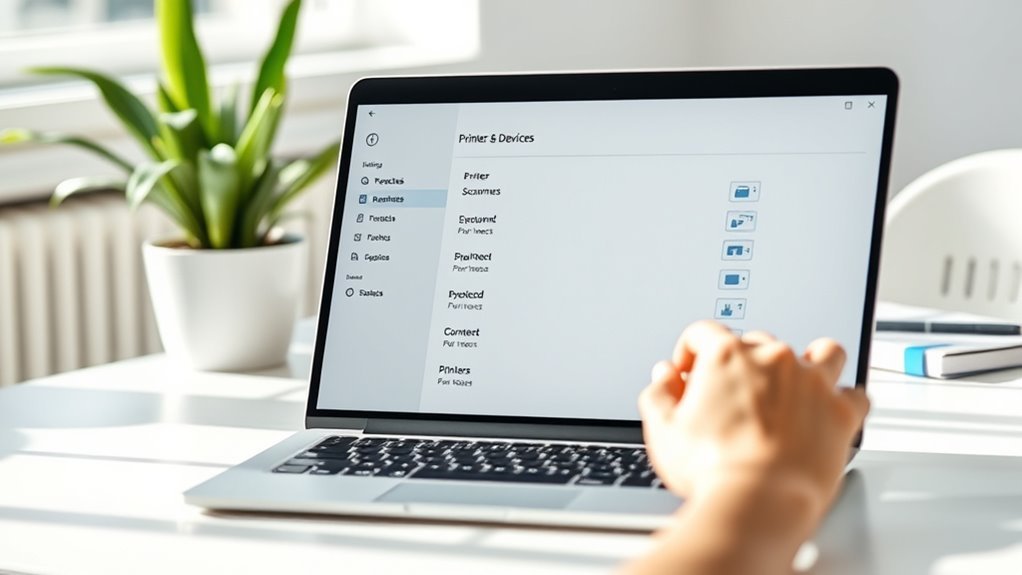
To access your printers and scanners, start by opening the Start menu and clicking on Settings, marked by the gear icon. Once you open Start and click Settings, navigate to Bluetooth & devices.
Open the Start menu, click Settings, then head to Bluetooth & devices to find your printers and scanners.
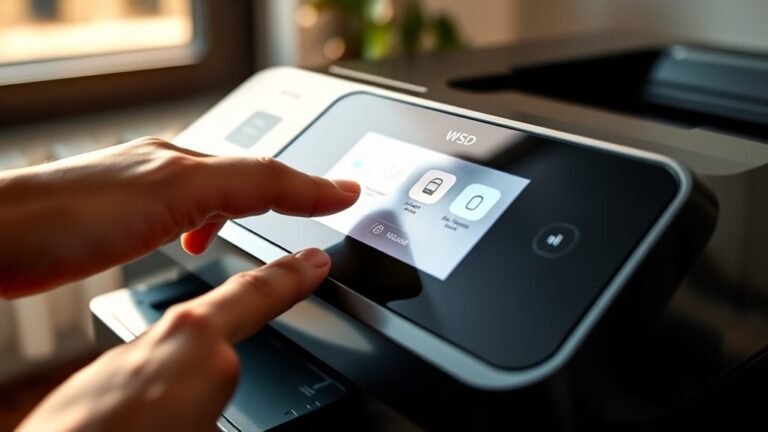
From there, select Printers & scanners from the left-side menu to view all devices you’ve installed. If you want to add a new device, look for the Add a printer or scanner button at the top of the page and click it.
Windows will then begin searching for available printers nearby. This is where you can manage your printer list, including removing any you no longer use.
Accessing Printers & scanners settings this way lets you quickly review and control your connected printing devices with ease. It’s a simple process that helps keep everything organized.
Start the Printer Discovery Process
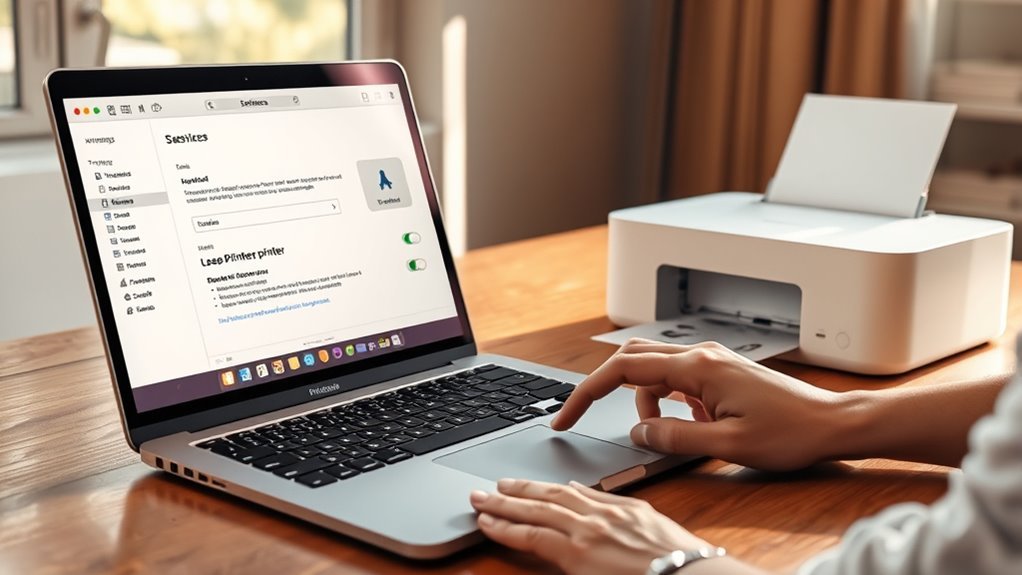
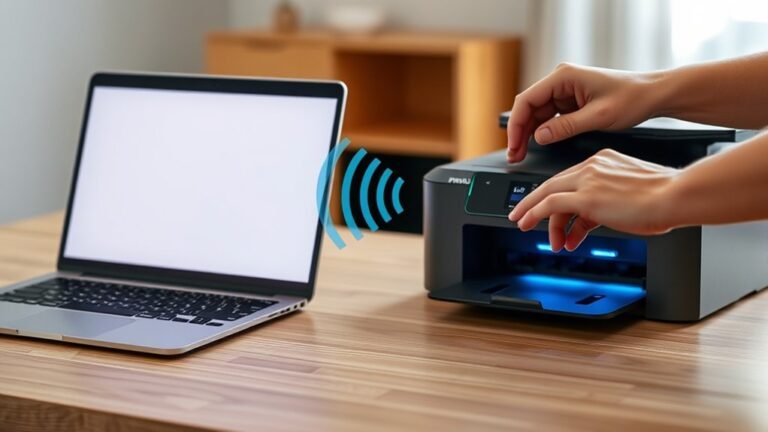
When you click Add a printer or scanner in the Printers & scanners settings, Windows immediately begins searching for available devices nearby. After you click Add, it scans your local network and connected devices for printers.
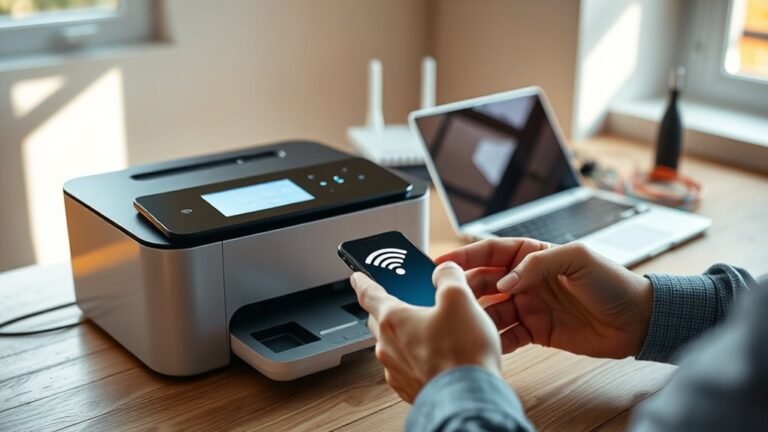
If your printer is wireless, make sure it’s powered on and connected to the same Wi-Fi network as your PC before starting discovery. For wired printers, confirm they’re connected to the router or switch and powered on.
Wait a few moments as Windows populates the list of printers it detects. If your printer doesn’t show up, you can use options like entering the printer’s IP address manually.
This starts the discovery process smoothly, helping you quickly find and add your printer. Easy, right?
Use the Manual Printer Addition Option
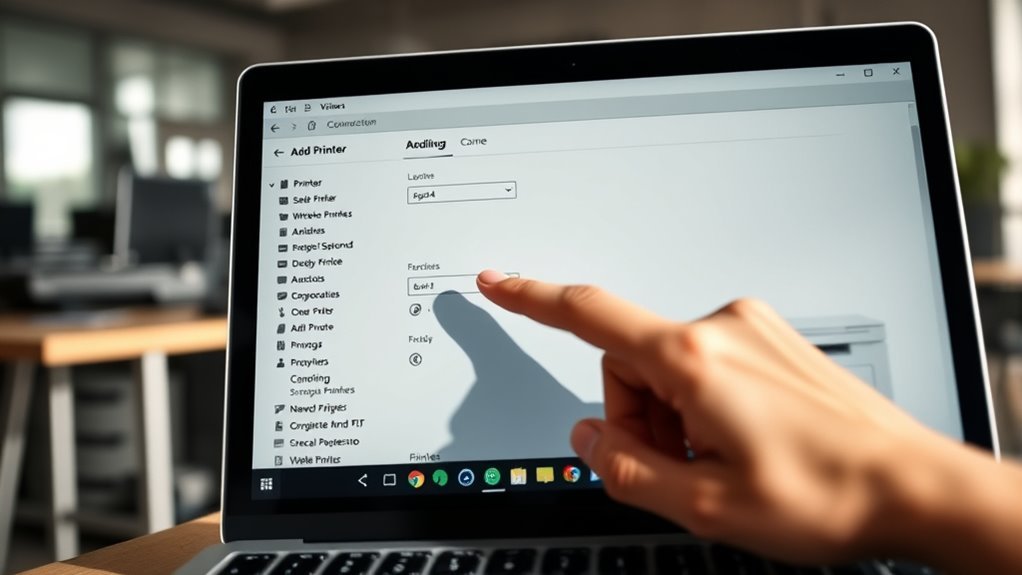
If Windows doesn’t find your printer automatically, you can add it manually through Settings. Go to Bluetooth & devices > Printers & scanners, scroll down, and click “The printer that I want isn’t listed.” This opens the Add Printer window.
Choose “Add a local printer or network printer with manual settings” and hit Next. Then, select “Create a new port,” and pick “Standard TCP/IP Port.” You’ll need to enter your printer’s IP address or hostname here.
Next up, select your printer’s manufacturer and model. If you have downloaded drivers, you can click “Have Disk” to browse for them. You can also name the printer and adjust sharing options before you finish.
Once you’re done, make sure to print a test page to confirm that the manual setup works correctly. This way, your printer will connect even if Windows can’t detect it automatically.
Enter Network or Shared Printer Details
Although Windows might not detect your printer automatically, you can enter the network or shared printer details manually to establish a connection.
Start by going to Settings > Bluetooth & devices > Printers & scanners and click “The printer that I want isn’t listed” to Add Device manually.
Then, select “Add a local printer or network printer with manual settings,” and choose to Create a new port using “Standard TCP/IP Port” to type the printer’s IP address or hostname.
If you’re adding a shared printer, select “Select a shared printer by name” and enter the exact UNC path with the correct case and spacing.
After installing drivers, print a test page to confirm the connection works.
This way, you’ll connect even when Windows can’t auto-detect your device.
Complete Printer Setup and Verify Installation
Begin completing your printer setup by opening Settings, finding Bluetooth & devices > Printers & scanners, and clicking Add a printer or scanner. Windows will search for available printers nearby or on your network.
If your printer doesn’t show up, click The printer that I want isn’t listed. Choose to add a local or network printer manually, then create a Standard TCP/IP port using your printer’s IP address.
Next, select the correct driver or install one from a downloaded file. Once installed, go back to Printers & scanners, select your printer, and Print a test page to confirm everything’s working.
If the test fails, make sure your PC and printer share the same network and update your drivers through Windows Update. This completes your setup and verifies installation.
Frequently Asked Questions
How Do You Find a Printer?
You find a printer by opening your device’s printer settings, letting it search nearby printers automatically.
If it doesn’t show up, you can add it manually using its name or IP address, then install the drivers.
It’s pretty straightforward once you get the hang of it! Just follow the prompts, and you should be good to go.
How to Find a Printer That Isn’t Showing Up?
If your printer’s playing hide and seek, check it’s powered on and on the same network.
If it still won’t show, add it manually by IP or name, then update or install drivers to seal the deal.
How to Set up a Printer Step by Step?
Unbox your printer and take out all the components. Install the ink cartridges and load paper into the tray.
Now, power on the printer. You can connect it to your computer using Wi-Fi or a USB cable—whichever works best for you.
Next, go to your PC’s settings and add the new printer. Sometimes, you might need to install drivers; if so, just follow the prompts.
Finally, print a test page to make sure everything is working perfectly. And that’s it—you’re all set!
How Do I Get My Printer to Show up on My Computer?
You’ll get your printer to show up by ensuring it’s powered on and connected to your network. Then, add it via Settings > Bluetooth & devices > Printers & scanners.
If your printer doesn’t show up automatically, try manually entering its IP address. That usually does the trick!
Conclusion
By following these five simple steps, you’ll find your printer just when you need it—right as you’re about to print that important document. Imagine sitting down, ready to send your work to paper, and boom, your printer pops up in the settings like it’s been waiting for you all along.
With a little patience and these tips, you’ll have your printer set up and ready before you even realize it. Finding a printer doesn’t have to be a headache. Just follow these easy steps, and you’ll be printing smoothly in no time.
Whether you’re connecting to a wireless printer or setting up a new device, these simple steps make the process straightforward. So, the next time you need to find a printer, remember these tips, and you’ll save time and avoid frustration. Happy printing!