How to Find WPS PIN on HP Printer in 3 Easy Steps
To find the WPS PIN on your HP printer, start by going to the Settings menu. From there, select Wireless or Network to access the connection options.
Next, choose Wi‑Fi Protected Setup, then pick the PIN option. This will display the 8-digit code on your printer’s screen. Keep in mind, the PIN appears only briefly, so be ready to use it quickly.
If your printer doesn’t have a display, no worries! You can use the push-button method instead.
Want to know how to handle connection issues or reset your network? Keep exploring for some helpful tips and tricks.
Key Takeaways
- On touchscreen HP printers, go to Settings → Wireless → Wi‑Fi Protected Setup. From there, select the PIN method to display the 8-digit WPS PIN.
- For basic LCD models, just navigate to Settings → Network or Wireless Settings → WPS → PIN. You’ll see the WPS PIN briefly on the screen.
- Printers without displays usually don’t show a PIN. Instead, they rely on the WPS push-button method for wireless setup.
- Keep in mind, the WPS PIN only displays for a short time. So, be ready to use it quickly during your router’s WPS connection process.
- If you don’t see the PIN option, try restoring network defaults. Go to Settings → Wireless → Restore Network Defaults, then give the WPS PIN procedure another shot.
What Is a WPS PIN and Why It Matters for Your HP Printer
When you want to quickly connect your HP printer to your Wi-Fi without typing in a long password, the WPS PIN comes in handy. The WPS PIN is an eight-digit, one-time code generated through Wi‑Fi Protected Setup that lets your HP printers join a wireless network swiftly.
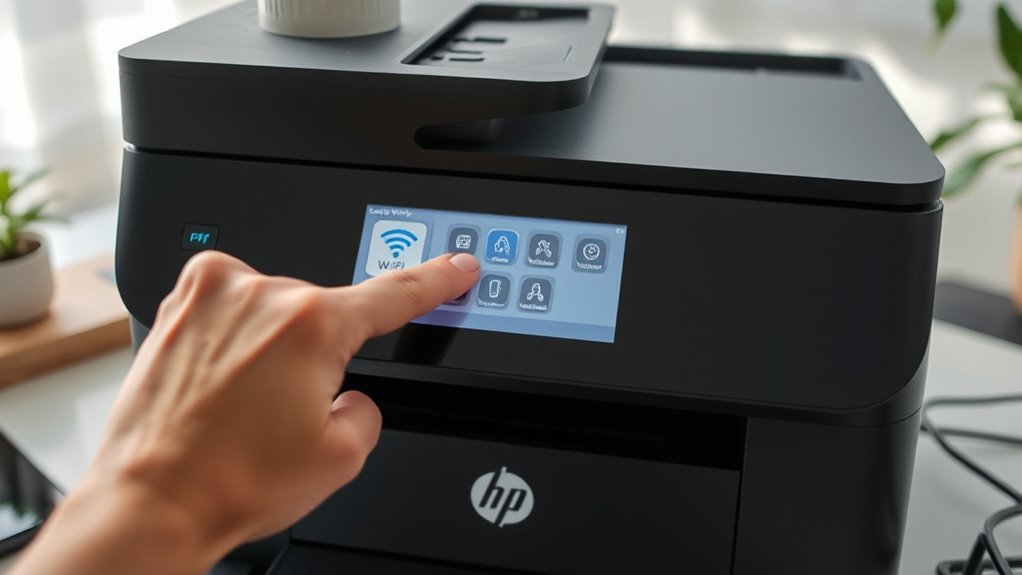
If your printer has a touchscreen, you’ll find the WPS PIN displayed briefly in the Wireless or Wi‑Fi Protected Setup menu on the control panel. Printers without displays usually rely on the WPS button instead.
How to Access the WPS PIN on Your HP Printer’s Control Panel
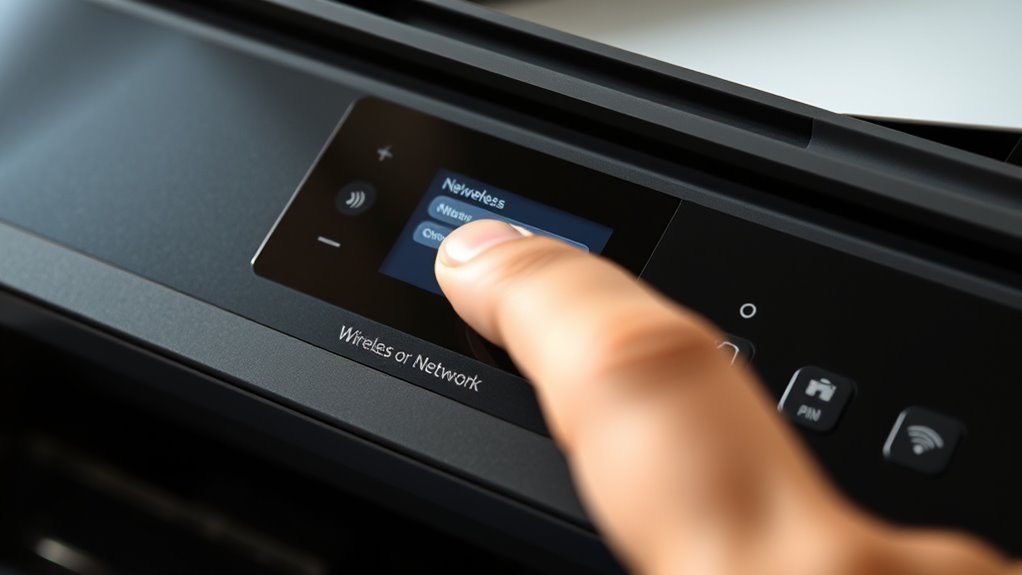
To access the WPS PIN on your HP printer’s control panel, start by browsing through the menu options tailored to your model. If you have a touchscreen HP printer, tap Settings → Wireless → Wi‑Fi Protected Setup and choose the PIN method. This will display an 8-digit WPS PIN on the LCD display.
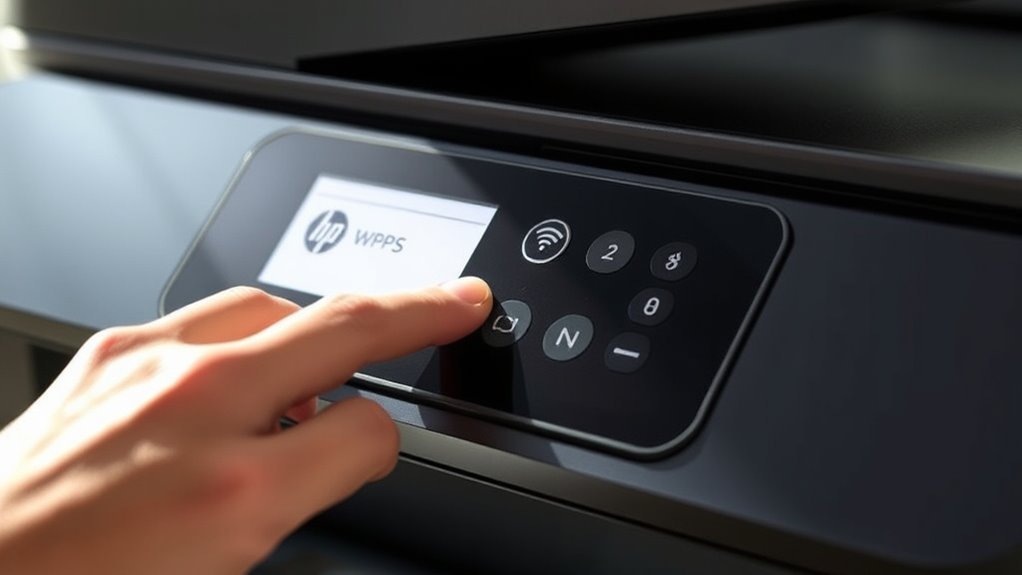
For printers with a basic LCD, go to Settings → Network or Wireless Settings → WPS → PIN to generate the PIN, which appears for about 8–10 seconds. If your HP printer lacks a display, it likely uses the WPS push‑button instead.
Can’t find the PIN option? Try resetting your network by selecting Settings → Wireless → Restore Network Defaults. Then, retry Wireless Setup to trigger the WPS PIN prompt on the control panel.
How to Troubleshoot HP Printer WPS PIN Connection Issues
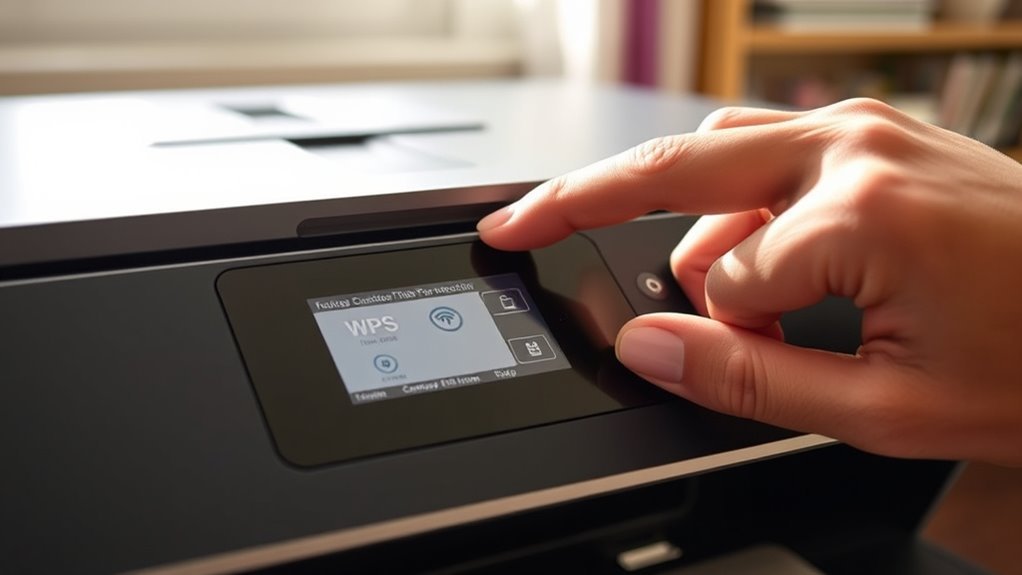
Locating the WPS PIN on your HP printer is just the first step toward connecting it wirelessly. If your router’s WPS feature is turned off or the WPS PIN has expired, your connection might fail.
Finding your HP printer’s WPS PIN is essential, but an inactive router WPS or expired PIN can cause connection issues.
Try starting the Wireless Setup Wizard again, or use the WPS push button method if your printer doesn’t have a screen. If Windows asks for a WPS PIN but you don’t see one, just cancel the wizard.
Then, print the Network Configuration Page and use the printer’s IP address for manual setup. You can also reset the network settings by going to Wireless > Settings > Wireless Settings > Reset, and then try the WPS PIN procedure again.
Keep in mind, some routers have WPS disabled by default. Plus, the push-button method is usually more reliable for a quick and secure setup.
Frequently Asked Questions
Where to Enter WPS PIN for HP Printer?
You enter the WPS PIN either on your router’s admin page under Wireless or WPS settings.
Or, you can enter it in the printer setup wizard on your computer or app when it asks for the printer’s WPS PIN during network setup.
It’s pretty straightforward once you know where to look!
How Do I Reconnect My HP Printer After Changing Wi-Fi?
To reconnect your HP printer after changing Wi-Fi, use the Wireless Setup Wizard on the printer’s control panel to select your new network.
If available, use the WPS PIN or push-button method to quickly reconnect.
It’s pretty straightforward once you get to the setup wizard. Just follow the prompts, and you should be back online in no time!
My HP Printer PIN Isn’t Working. What Can I Do?
Like trying an expired ticket to a concert, your HP printer’s WPS PIN might’ve expired. Restart the PIN process and make sure you enter it correctly.
Also, check your router settings. If that doesn’t work, try switching to push-button or app setup instead.
How to Find WPS Password?
You can find the WPS password by accessing your printer’s wireless settings. Then, select Wi-Fi Protected Setup and choose the PIN option.
The eight-digit code will appear briefly. So, be ready to enter it quickly during setup.
Conclusion
Finding the WPS PIN on your HP printer might seem tricky at first, but once you know the steps, it’s a breeze. While technology can sometimes complicate simple tasks, this small code bridges your printer and network effortlessly.
Don’t let a brief connection hiccup discourage you—remember, a few easy steps can turn frustration into seamless printing. Embrace the simplicity hidden within complexity, and your printer will thank you for it.
By following these straightforward steps to find the WPS PIN on your HP printer, you’ll enjoy a hassle-free way to connect your device to Wi-Fi. This quick process ensures your printer communicates securely and efficiently with your network. So next time you need to connect or reconnect, just remember these simple instructions. Your HP printer’s WPS PIN is the key to smooth, reliable printing without the stress.