What Is an MFP Printer and How to Use It
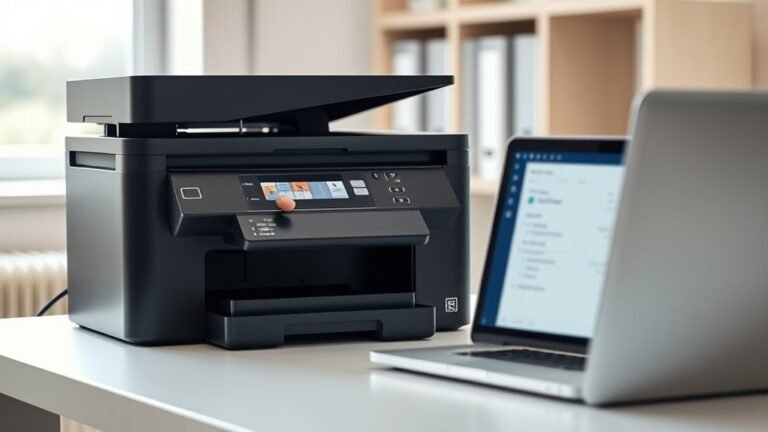
An MFP printer, also known as a multifunction printer, combines printing, scanning, copying, and faxing all into one convenient device. This all-in-one machine saves you both space and time, making it perfect for home offices or busy workplaces.
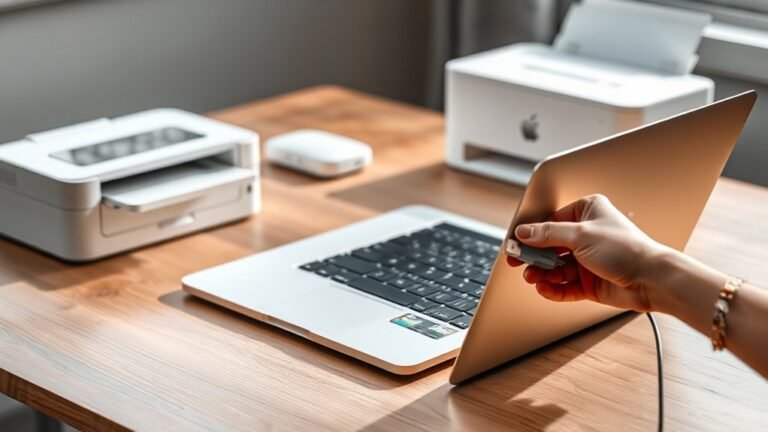
Setting up an MFP printer is straightforward—you just need to connect it to power and your network, load paper, and install the appropriate drivers on your computer.
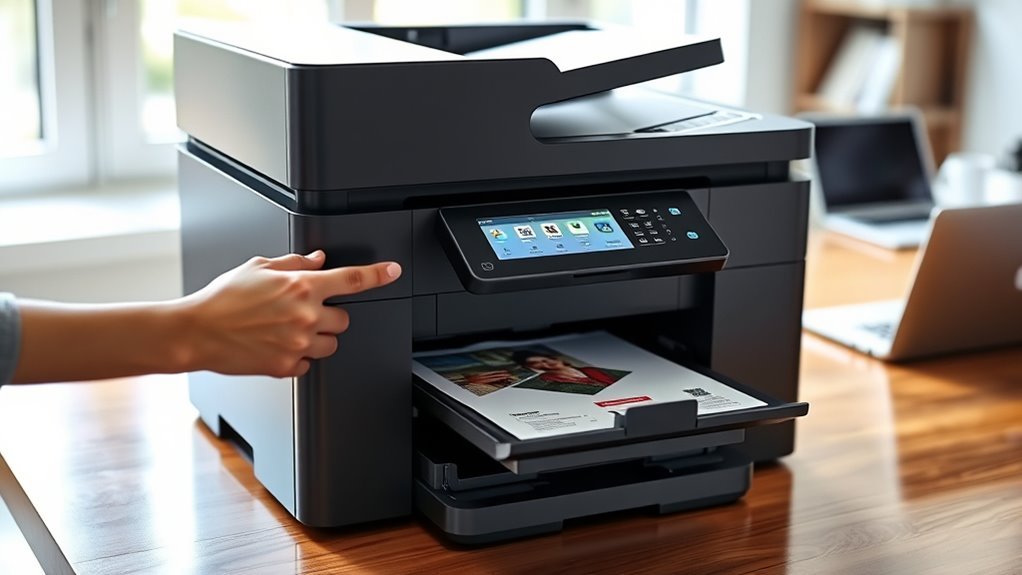
Once you’re up and running, the touchscreen interface makes it super easy to navigate. You can quickly copy documents, scan files directly to your email or folders, and even send faxes without any hassle.
Plus, many modern models support mobile and cloud printing, so you can print straight from your smartphone or access files from the cloud. Keep reading to find out how to get the most out of your MFP printer and how to maintain it for long-lasting performance.
Key Takeaways
- An MFP printer combines printing, scanning, copying, and faxing into one multifunction device. This helps save space and improves your workflow.
- To set up the MFP, start by connecting the power and network, either Wi-Fi or Ethernet. Then load paper, install toner, and finally install the drivers on your computer.
- You can use the touchscreen panel to select functions like copy, scan, fax, or secure print. Just follow the prompts to complete your job easily.
- Want to print or scan from your phone? Connect mobile devices using AirPrint, Mopria, manufacturer apps, or Wi-Fi Direct. This lets you print and scan without needing a PC.
- Keep your MFP in good shape by replacing toner when it runs low and clearing any paper jams. Also, remember to update the firmware and calibrate the device for the best print and scan quality.
Understanding Multifunction Printer Capabilities
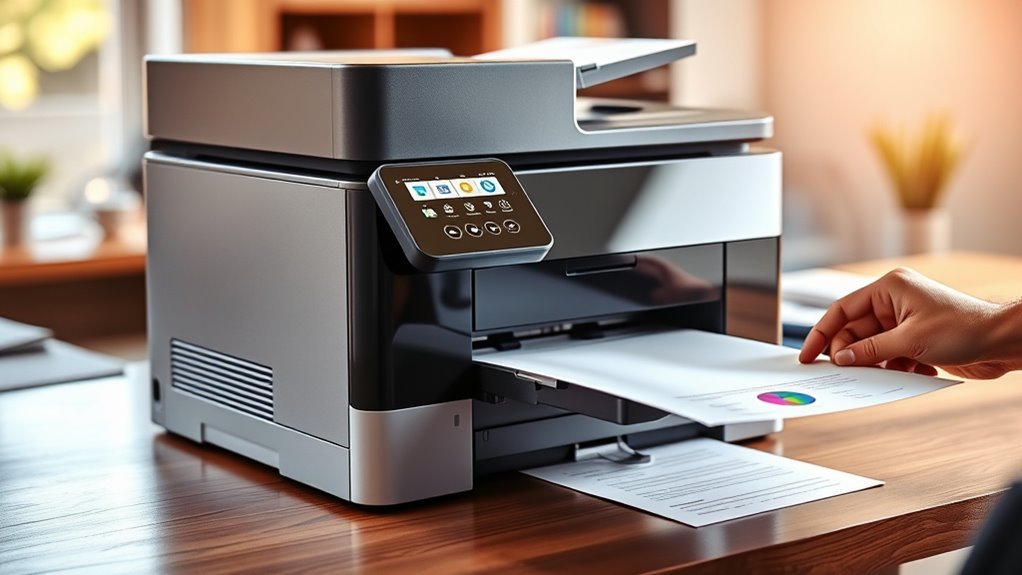
Although you might think an MFP is just a printer, it actually combines printing, scanning, copying, and faxing into one device, saving you space and cutting down on the need for multiple machines.
Multifunction printers offer more than basic tasks—they let you scan documents directly to email, folders, or cloud services like Google Drive, streamlining your workflow. You’ll appreciate how Workflow Automation simplifies repetitive jobs, such as batch scanning with searchable PDFs using OCR technology.
Many business-class models even support mobile and network connectivity options like Wi-Fi and AirPrint, so you can print or scan from your phone or tablet effortlessly. This integration boosts productivity and reduces clutter, letting you handle diverse document tasks efficiently without switching between different devices.
Setting Up Your MFP Printer
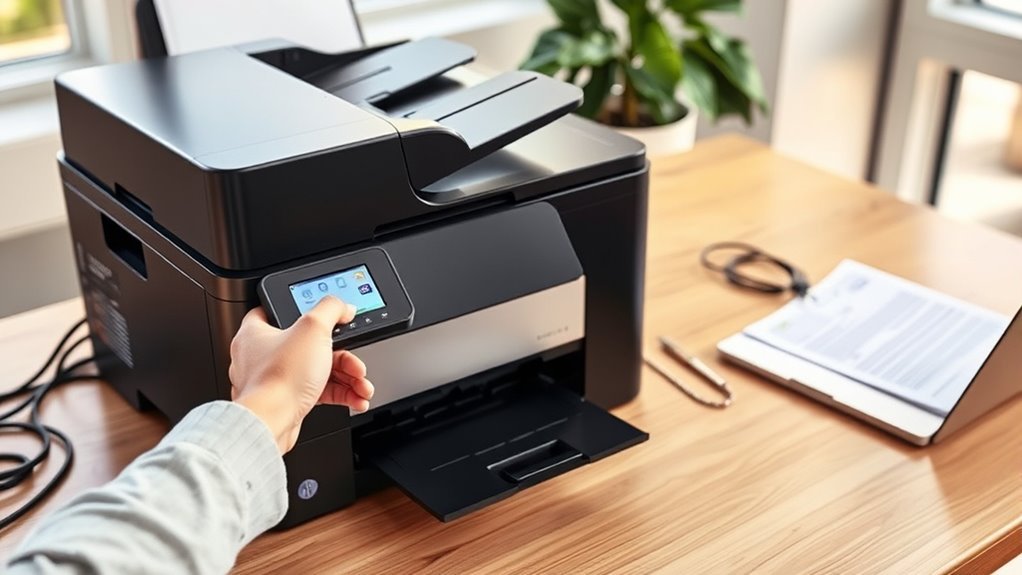
Before you start using your MFP printer, you’ll need to set it up properly by connecting power and network cables, loading paper, and installing the toner or ink cartridge.
Use the built-in touchscreen to complete network setup, choosing DHCP or static IP. Or, you can connect via Wi-Fi with SSID and password or WPS/NFC.
Install drivers on your PC or Mac, then verify connectivity by printing a test page.
Finally, configure scan-to-folder and other scan destinations by inputting network credentials. This ensures smooth multifunction printer (MFP) operation.
| Step | Action | Notes |
|---|---|---|
| Unbox & Connect | Power, Ethernet/Wi-Fi antenna | Load paper, install toner |
| Network Setup | DHCP/static IP or Wi-Fi setup | Use touchscreen wizard |
| Driver Installation | Install drivers & utilities | Verify with test print |
| Scan Destinations | Configure scan-to-folder/email | Enter credentials, test scans |
Operating Common MFP Functions
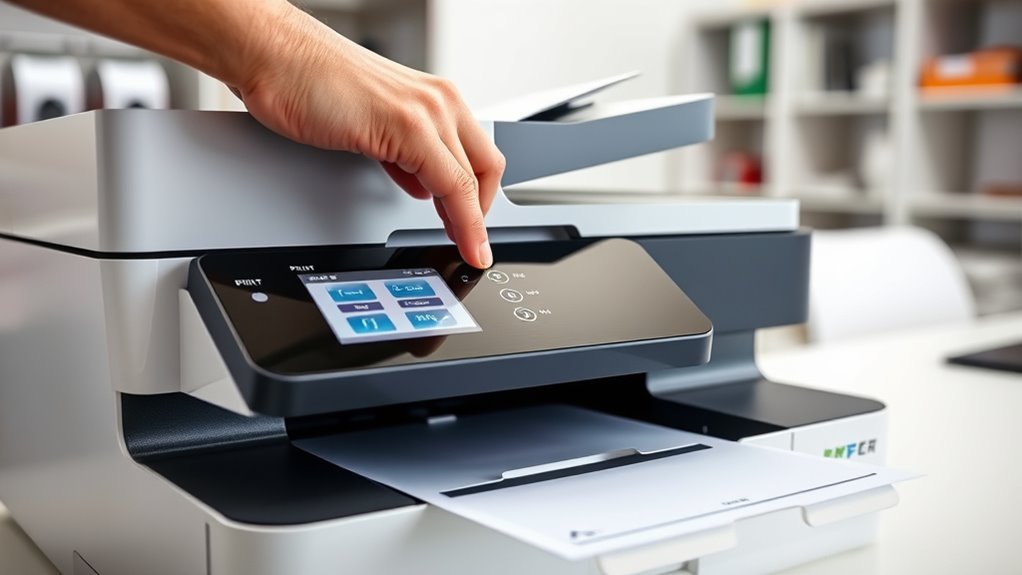
Once your MFP printer is set up, you can start using its core functions like copying, scanning, faxing, and secure printing. To copy, place your original on the glass or feeder, select “Copy,” choose copies and paper size, then press “Start.”
Start copying by placing your original, selecting copies and size, then pressing Start on your MFP printer.
For scanning, multifunction printers offer “scan to email” by selecting “Scan” → “Email,” entering recipients, choosing file format and resolution, then starting the job. You can also scan to network folders with similar steps.
Faxing involves selecting “Fax,” entering the number, setting resolution, and pressing “Send.” Secure printing helps protect sensitive documents—send your job with “Secure/Private Print” enabled, then authenticate at the MFP to release it.
These functions streamline office workflows efficiently. It’s pretty straightforward once you get the hang of it!
Connecting Mobile and Cloud Services
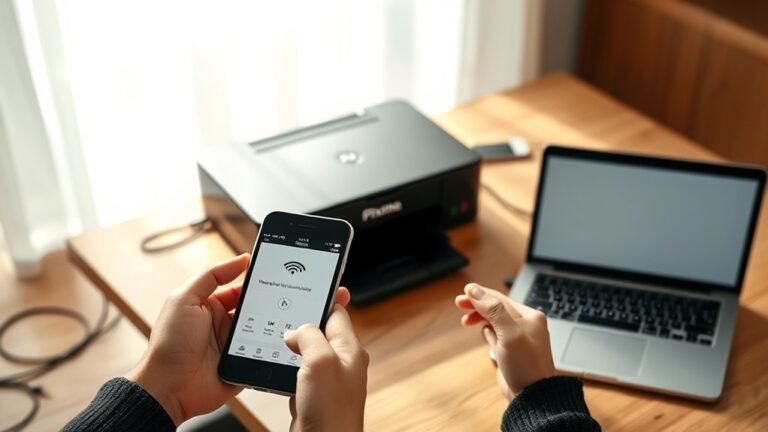
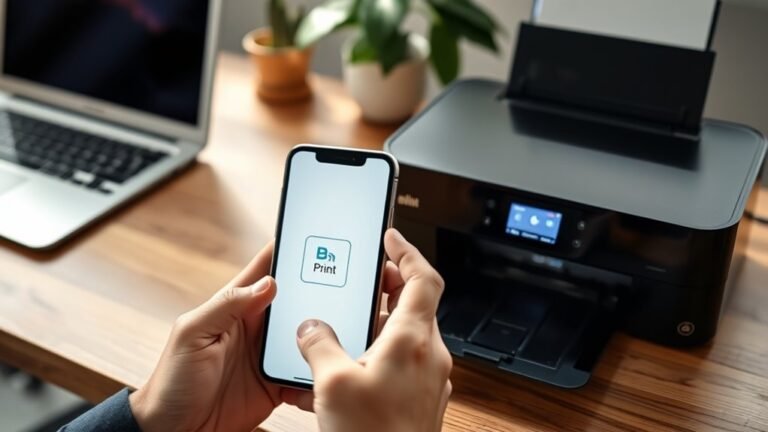
If you want to print or scan directly from your smartphone or tablet, most modern MFPs support mobile printing standards like Apple AirPrint and Mopria, plus optional apps from manufacturers. These features simplify your workflow without needing extra drivers.
Cloud integration lets you access and save documents from services like Google Drive or OneDrive right on the MFP. To keep your data safe, enable secure print release and encrypted transmissions.
Here are some key points for connecting mobile and cloud services:
- Use Wi-Fi Direct or NFC for quick, network-free printing and scanning.
- Configure cloud services once via OAuth for easy access.
- Create shortcuts on the MFP touchscreen for one-touch scanning to cloud folders.
- Enable secure print release to protect sensitive documents during mobile printing and cloud use.
Pretty straightforward, right? These tips can really make your mobile and cloud printing experience smoother and more secure.
Maintaining and Troubleshooting Your MFP
Keeping your MFP running smoothly goes beyond connecting it to mobile and cloud services. To maintain multifunction printers (MFPs), replace toner or ink cartridges once print density drops or low-supply warnings appear. Most laser MFPs need replacements below 10–15% to prevent streaks.
Clear paper jams carefully by following on-screen diagrams and powering off before removal to avoid damage. Use built-in diagnostic or calibration tools to fix color skew, registration errors, or faded scans. Color calibration improves print accuracy fast.
Regularly update firmware and drivers to fix bugs, enhance cloud/mobile compatibility, and improve security. For document management safety, secure or wipe the MFP’s internal hard drive. When retiring or servicing the device, use image-overwrite or encryption to prevent document data recovery.
Frequently Asked Questions
How Do Tiny Printers Work?
Tiny printers work by either heating thermal paper to create images or spraying tiny ink droplets onto paper.
You’ll connect via Bluetooth or USB, control prints with apps, and enjoy portable, efficient printing on the go.
Pretty handy, right? They’re perfect for quick prints without needing a bulky machine around.
How Do I Use My Printer?
You simply select your source, set size and style, then start sending your sheets swiftly.
Connect via Wi-Fi or app, choose print, copy, scan, or fax, and watch your work wonderfully whirl to life!
What Is a 7 Types Printer?
A 7 types printer means inkjet, laser, solid ink, dye-sublimation, thermal, LED, and 3D printers. Each uses different technology for various tasks like photos, documents, labels, or 3D objects—you’ll pick based on your needs.
How Does a Pad Printer Work?
A pad printer works by picking up ink from an etched plate with a soft silicone pad. Then, it presses the ink onto your irregular or curved surface.
This method ensures precise, consistent prints even on tricky shapes and textures. Pretty neat, right?
Conclusion
Now that you know how to use your MFP printer, you’re ready to streamline your tasks effortlessly. Did you know over 60% of offices rely on multifunction printers to save time and space?
By mastering its features, you’ll boost productivity and reduce clutter. Keep exploring its capabilities and connect it with your mobile devices for added convenience.
Don’t forget to maintain it well to enjoy smooth, efficient printing, scanning, copying, and faxing—all in one device. With an MFP printer, handling multiple tasks becomes easier and more efficient, helping you stay organized and productive every day.