How to Do Connect Printer to Wi-Fi in 5 Easy Steps
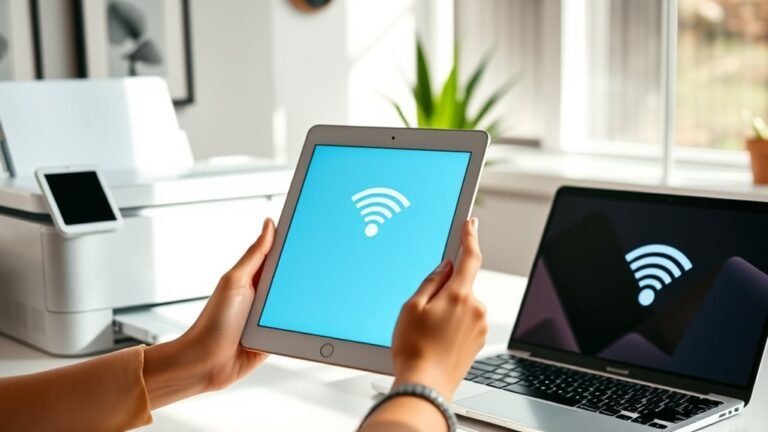
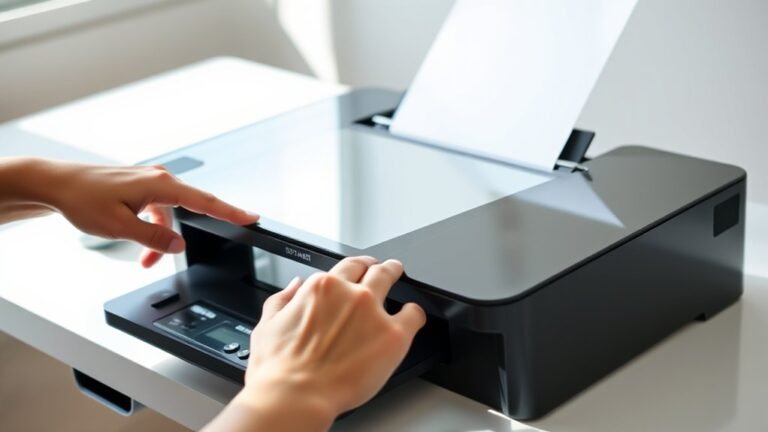
To connect your printer to Wi-Fi in five easy steps, first make certain it supports wireless and place it near your router. Turn it on, install cartridges, and enable Wi-Fi setup mode.
Next, use the Wireless Setup Wizard to select your network and enter the password. This step is crucial for establishing a smooth connection.
Then, download and install the latest software on your device. After that, add the printer through your system settings.
Finally, print a test page to confirm the connection is successful. Keep following to discover helpful tips and troubleshooting tricks to make your wireless printing experience seamless and hassle-free.
Key Takeaways
- Place the printer near the router, power it on, and load ink and paper before starting Wi-Fi setup.
- Enable wireless mode on the printer and use the Wireless Setup Wizard to select your Wi-Fi network.
- Enter your Wi-Fi password when prompted to connect the printer to your wireless network.
- Install the latest printer drivers from the manufacturer’s website and choose wireless connection during setup.
- Print a network test page to confirm connection and send a test print from your computer or mobile device.
It’s pretty straightforward, right? Just follow these simple steps, and you’ll have your printer connected in no time!
Preparing Your Printer and Network
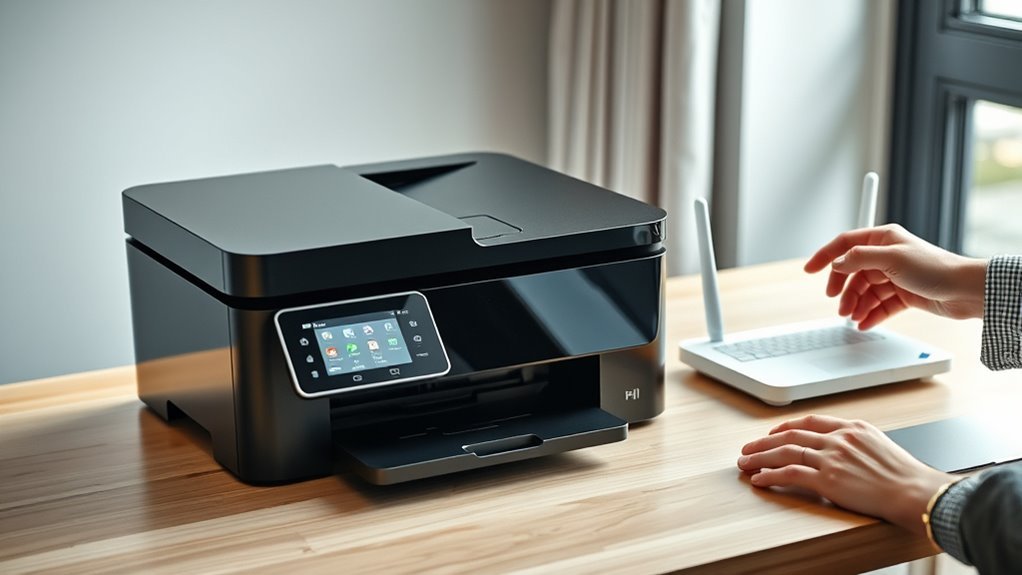
Before you connect your printer to Wi-Fi, make sure it supports wireless capability by checking the manual or the device itself. Many home printers are wireless, but some budget models aren’t.
Confirm your printer supports Wi-Fi by checking the manual or the device—some budget models lack wireless capability.
Once confirmed, place your wireless printer within 3 to 6 feet of your router during Wi‑Fi setup to guarantee a strong signal and avoid interference. Power on the printer, install ink or cartridges, and load paper.
Then enable its wireless function or enter Wi‑Fi setup mode using the control panel or touchscreen. Have your network’s SSID and Wi‑Fi password ready, and ensure your phone or computer is connected to the same network.
If both your router and printer support WPS, you can simply press their WPS buttons to pair them without typing the password. It’s a quick and easy way to get connected without any hassle.
Using the Wireless Setup Wizard to Connect
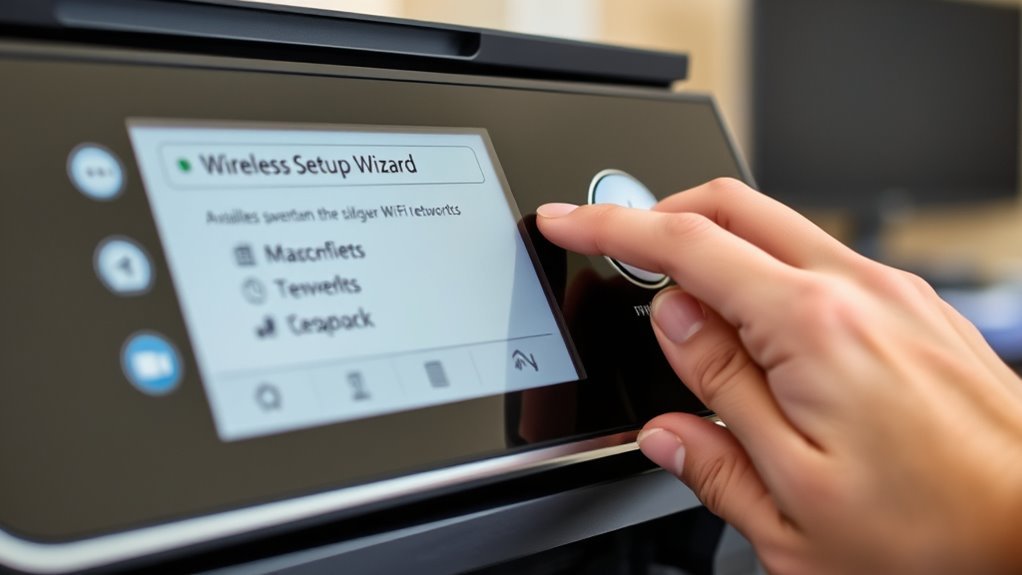
Once your printer is ready and within range of your router, you can use the Wireless Setup Wizard to connect it to your Wi-Fi network. On touchscreen wireless printers, open Setup or Network, then select Wireless Setup Wizard. The printer will scan for nearby networks—choose your Wi-Fi SSID from the list.
When prompted, enter your network password carefully using the on-screen keyboard, then confirm to start connecting. If your network doesn’t appear, move the printer closer to the router and make certain the router’s SSID broadcast is on. After that, just try again.
Once the wizard confirms success, print a network configuration or test page to verify connectivity. If connection fails repeatedly, reset the printer’s network settings to factory defaults and update its firmware before retrying the wireless setup wizard.
Installing Printer Software on Your Devices
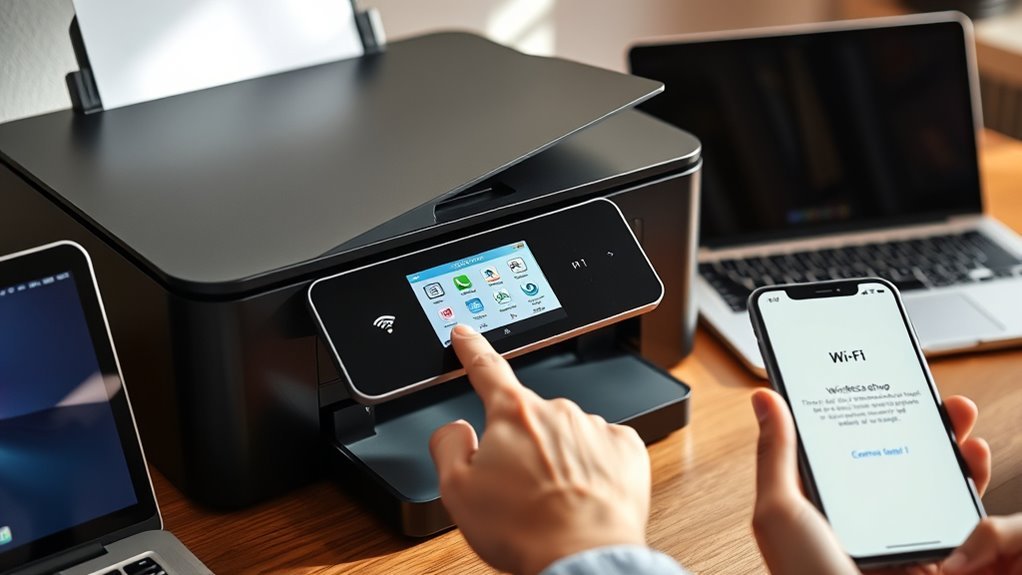
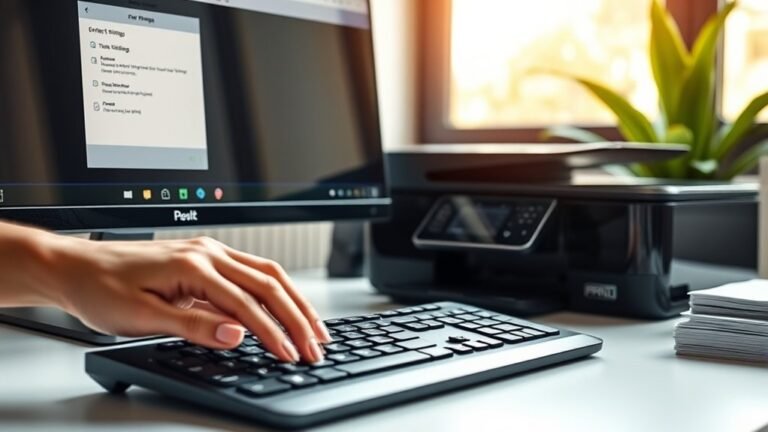
Getting your printer connected to your devices starts with installing the right software. Skip the CD and download the latest driver and full-featured package from the manufacturer’s website. This way, you get wireless setup tools and can update the printer’s firmware too.
Then, follow these steps:
- On Windows, select “Wireless” during installation and let the software find your printer automatically. If it doesn’t, you can manually add it using the printer’s IP address.
- On macOS, add the printer via System Settings or use the manufacturer’s package if proprietary drivers are needed.
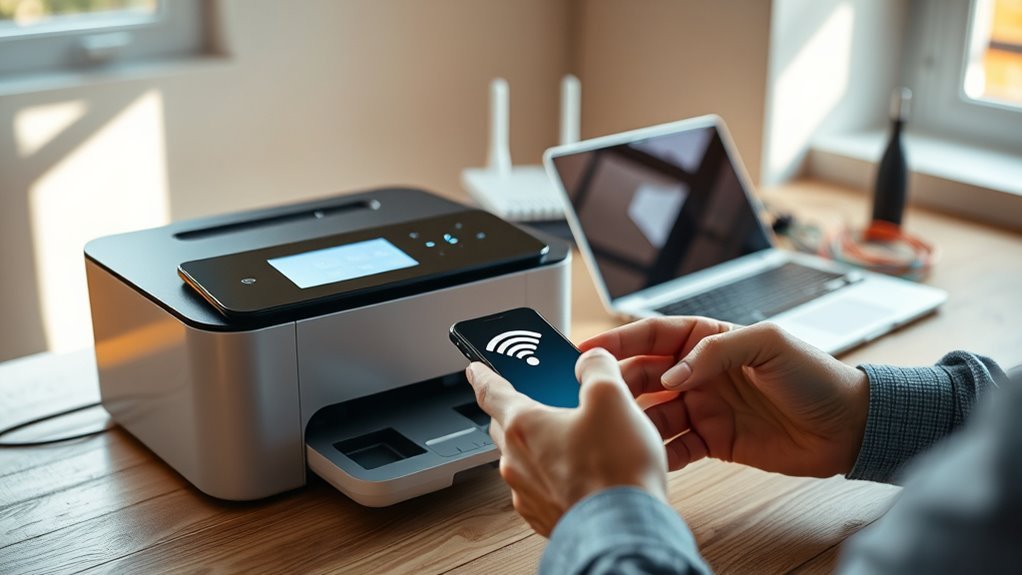
- For mobile devices, install the manufacturer’s app and complete Wi-Fi setup. Make sure your phone shares the same network as the printer.
After installation, print a test page to confirm your printer is properly connected and configured. Easy, right?
Adding the Printer to Your Computer or Mobile Device
To add your printer to your computer or mobile device, start by installing the latest driver or app from the manufacturer’s website.
On Windows 10 or 11, go to Settings → Bluetooth & devices → Printers & scanners → Add device, then select your printer once it appears. If it doesn’t show up, use Control Panel to add it manually.
On macOS, open System Settings → Printers & Scanners, click the + button, and pick your printer from the list or add it using its IP address.
For iPhone, iPad, or Android, install the printer’s app or use AirPrint/Default Print Service.
Just make sure your devices and printers are on the same Wi-Fi network so your print jobs send smoothly without connection issues.
Testing and Verifying Your Wireless Printer Connection
After setting up your printer on the Wi-Fi network, you’ll want to check that it’s properly connected and ready to print. To make sure everything’s perfect, follow these steps:
Once your printer is on Wi-Fi, verify connection and readiness with simple checks to ensure flawless printing.
- Print a network configuration or wireless test page from the printer’s Control Panel. Confirm it shows the correct SSID and an IP address like 192.168.x.x.
- From a device on the same Wi-Fi, enter the printer’s IP in a browser to load its web admin page. If it loads, your printer is connected to the network.
- Send test prints from all your devices (Windows, macOS, iPhone/Android) to verify drivers, apps, and AirPrint or Google Cloud Print compatibility.
If anything fails, reboot your router and printer. Then, double-check the SSID and security settings before trying again. It usually does the trick!
Frequently Asked Questions
How Do I Set the Wi-Fi on My Printer?
You’ll power on your printer, then access its network settings or wireless setup wizard. From there, select your Wi-Fi network and enter the password.
If your printer and router support it, you can use WPS for an easier connection. Just press the WPS button on your router and follow the prompts on your printer.
Finally, confirm the connection on your device. That’s it—you’re all set to print wirelessly!
Why Can’t I Connect to My Printer Wirelessly?
You can’t connect wirelessly because your printer and device might be on different networks. The password could be wrong, or the signal strength might be weak.
Sometimes, router settings block the connection without you realizing it. Also, your printer’s firmware and drivers might need updating. Give these a check and see if that helps!
Why Is My HP Printer Not Connecting to Wi-Fi?
Think of your HP printer like a lost traveler—it’s likely not connecting because of an incorrect Wi-Fi password, outdated firmware, router security settings, or weak signals.
Double-check these, and you’ll have it back on track in no time.
Does a Wireless Printer Need to Be Connected to the Router?
Yes, your wireless printer needs to connect to your router or local network so your devices can find it and send print jobs.
Make sure both the printer and your devices share the same Wi-Fi network for proper communication. This way, everything works smoothly and you can print without a hitch.
Conclusion
Connecting your printer to Wi-Fi is simpler than you might think. With just five easy steps, you can enjoy wireless printing from anywhere in your home or office.
Did you know that over 60% of households now use wireless printers for convenience? Once you’ve set up your printer using the wireless setup wizard and installed the software, you’ll save time and reduce clutter.
Give it a try—you’ll wonder how you ever managed without it! Setting up your printer to connect to Wi-Fi not only streamlines your workflow but also frees you from the hassle of cables. Wireless printing is perfect for busy homes and offices alike, letting you print documents, photos, and more from any device on the same network. So, follow these simple steps and start enjoying the convenience of wireless printing today!