How to Print From Android Phone to HP Printer in 7 Easy Steps
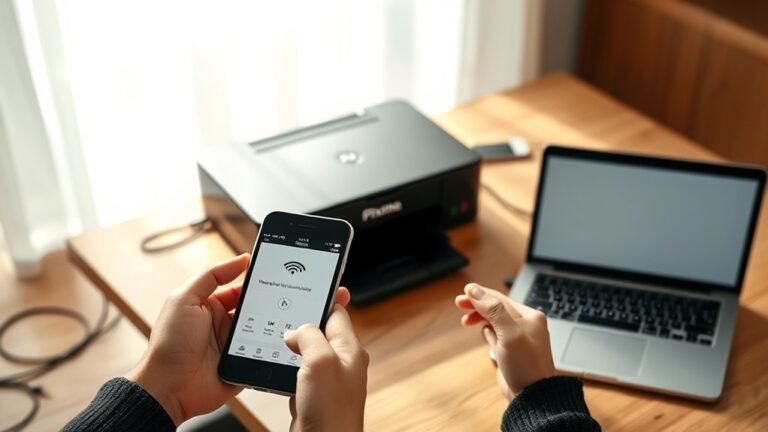
To print from your Android phone to an HP printer in 7 easy steps, first make sure both devices are connected to the same Wi-Fi network.
Then, download and install the HP Smart app from the Google Play Store. This app is essential for smooth communication between your phone and printer.
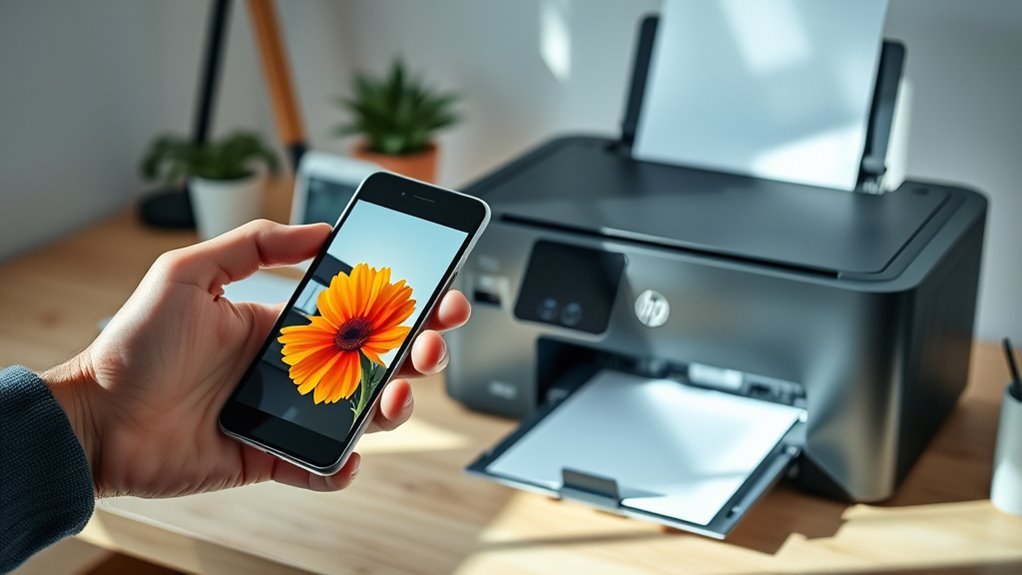
Next, open the document or photo you want to print on your Android device. Tap the share or print option, which usually appears in the menu or share icon.
After that, select your HP printer from the list of available devices.
Name your file and choose the format you prefer, such as PDF or JPG. You can also adjust settings like the number of copies and page orientation.
Finally, send your print job and watch it come to life.
Following these simple steps makes printing from your Android phone hassle-free. Keep reading for helpful tips and troubleshooting tricks to make your printing experience even better!
Key Takeaways
- Connect your Android phone and HP printer to the same Wi-Fi network. Alternatively, you can use Wi-Fi Direct for a direct connection.
- Next, install and open the HP Smart app. Sign in or create an HP account to manage your printer easily.
- Find the file you want to print on your phone and preview it. Then, select the Print option from the share menu or the app you’re using.
- Choose your HP printer from the Android print dialog. Make sure the printer is ready and adjust any print settings if needed.
- Finally, tap Print. You can keep an eye on the job status through notifications or the HP Smart app. Don’t forget to check the printer display to confirm your print is complete.
Set Up Your HP Printer and Android Phone Connection
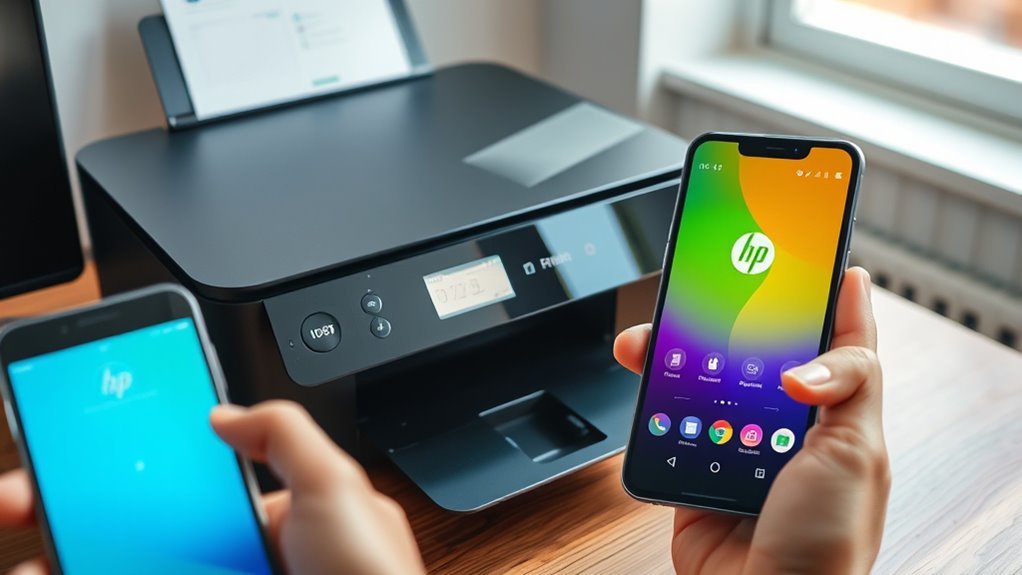
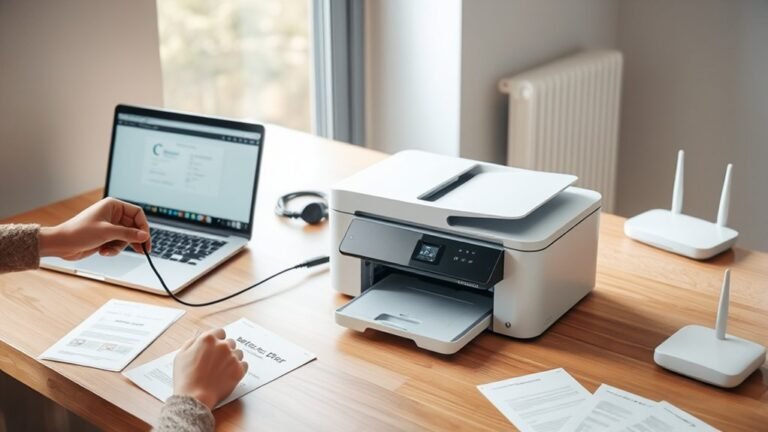
Before you start printing, make sure your HP printer is powered on and connected to the same Wi‑Fi network as your Android phone. You can verify the network name on the printer’s control panel.
Next, install the HP Smart app from Google Play. Then, sign in or create an HP account. This app guides you through setup, discovers your printer, and helps with driverless Wi‑Fi connections.
If your printer supports Wi‑Fi Direct, enable it and connect your phone directly to the printer’s network in Wi‑Fi settings. Also, confirm Mopria Print Service is enabled on your Android device for seamless printing without extra drivers.
Finally, open HP Smart to check for firmware updates. And don’t forget to keep your Android system updated to avoid connectivity issues.
Open the Document or Photo You Want to Print
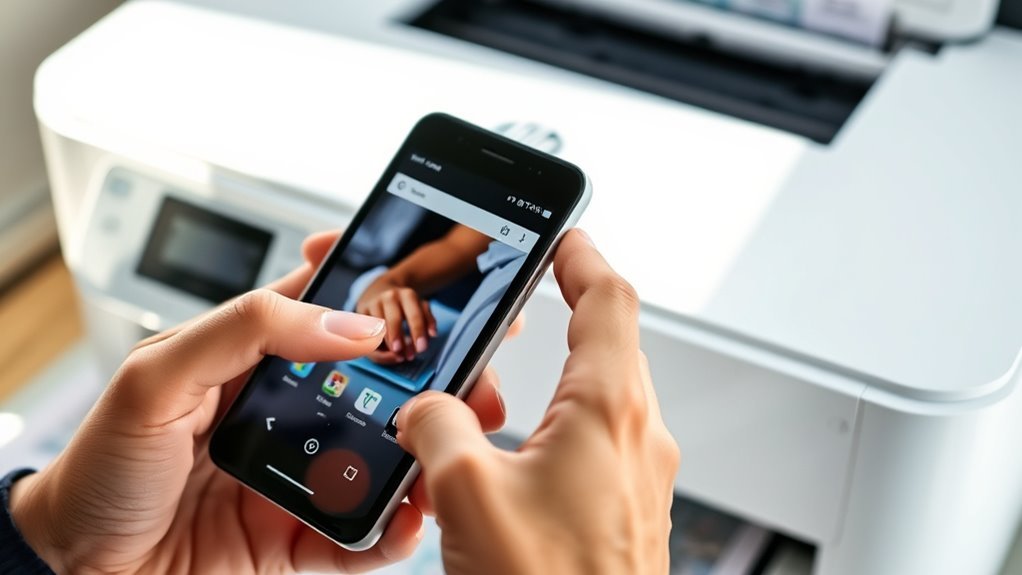
First, locate the file you want to print using your phone’s Files app, Google Photos, or the app where it was created. Tap the document or photo to open it fully, so you can access the print options.
Make sure the file format is supported and the content looks correct before moving on. It’s a good idea to double-check everything now to avoid any surprises.
Locate File on Device
To get started, open your Files or Photos app and navigate to the folder holding the document or image you want to print. Tap the file once to preview and confirm it’s the right version and orientation.
If your file’s in a cloud app like Google Drive or Dropbox, open that app, find the file, and download it locally if needed. For scans saved in the HP Smart app, check the Scans or Documents section.
Use the three-dot menu or share icon in the preview to access the Print option if it’s not immediately visible. It’s usually pretty easy to find once you know where to look.
| File Location | How to Access |
|---|---|
| Local Storage | Use Files or Photos app |
| Cloud Storage | Open Google Drive, Dropbox, OneDrive |
| Scanned Documents | Open HP Smart app’s Scans/Documents |
Select Document or Photo
Open the Photos or Files app on your Android device and navigate to the exact image or document you want to print. Tap the file to open it full-screen so you can double-check the content, page range, and orientation before printing.
If you’re working with a multi-page PDF, swipe through pages or use thumbnails to pick specific pages if your printing app allows it. Make sure the file is fully downloaded and not just a cloud preview—this avoids printing errors.
If the app you’re using doesn’t have a direct print option, tap the Share button and select “Print” or choose the HP Print Services or HP Smart app from the share menu. Just confirm your file format is compatible, like JPG for photos or PDF for documents, to guarantee smooth printing.
Access the Print or Share Option on Your Android Device
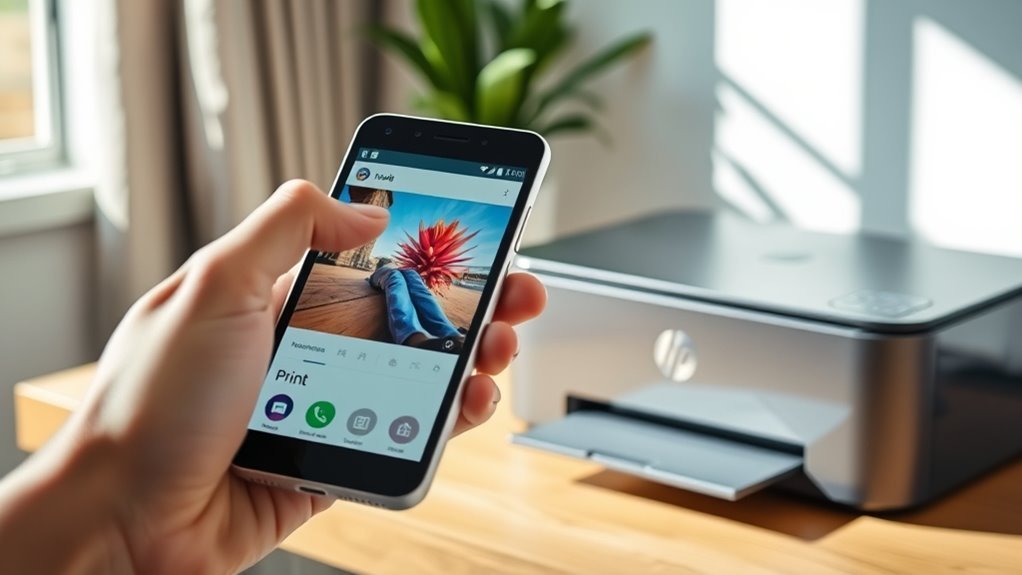
When you’ve scanned or located the document or photo you want to print on your Android device, tap the three-dot menu or the share icon. This will bring up options like “Share” and “Print” that many apps provide.
If you choose “Share,” look for a “Print” option or a printer icon in the share sheet. Tapping “Print” opens the Android Print Preview, letting you adjust settings like page range, paper size, and copies.
If you’re using the HP Smart app, after scanning, tap Save/Share. Then select “Share” followed by “Print” to find your HP printers connected via Wi-Fi or HP Smart services.
This step gets you ready to select your HP printer and finalize print settings in the next step.
Select Your HP Printer From Available Devices
When you open the print dialog on your Android device, tap the drop-down menu to locate your HP printer on the network. Make sure you select the correct printer and confirm its connection type, whether it’s Wi‑Fi, Wi‑Fi Direct, or cloud‑ready.
This helps guarantee your print job goes to the right device without any issues. Just double-checking saves you from printing to the wrong printer or facing connection problems.
Locate Printer on Network
To find your HP printer on the network, make sure your Android device connects to the same Wi-Fi network as the printer. Open your printing app—like HP Smart or the Android system Print menu—and tap Add Printer or Select Printer to scan for available devices.
Look for your printer by its full model name and IP address to avoid confusion with similar devices. If your printer doesn’t show up, check that its network is enabled and your app has location permissions for scanning.
Enabling mDNS/Bonjour on your router or using the printer’s WPS or QR code setup in the HP Smart app can speed up discovery. Just keep in mind, printers on a different network or guest Wi-Fi won’t appear.
Confirm Printer Connection
Make sure your Android phone and HP printer are connected to the same Wi-Fi network before selecting your printer from the list. Open the app you’re printing from, tap Share or the three-dot menu, then choose Print.
Select “Choose a Printer” to see available HP printers. Look for your exact printer model name, like “HP ENVY Photo 7855,” or an IP-style name such as “HP-OfficeJet-xx-xx” to avoid picking the wrong device.
If you don’t see your printer, enable Wi-Fi and location permissions for the app, restart both devices, and try again. You can also add the printer manually via its IP address under Advanced/Printers.
For HP+ or cloud printers, pick the “HP Smart” or “HP Print Service” entry to access full cloud printing features. It’s pretty straightforward once you get the hang of it!
Name Your File and Choose the Output Format
Several key steps help you organize your files effectively before printing. First, tap the filename field in the HP Smart or scanning app and enter a clear, descriptive name like “Invoice_2026-10-25.” That way, you can find it easily later.
Next, choose the output format right after naming:
- Select PDF for multi-page documents or searchable text.
- Pick JPG for single images or photos.
- For editable text, opt for PDF with OCR or high-quality PDF export.
Finally, confirm the filename and format before sharing or saving. This helps you avoid duplicates or unsupported formats.
Adjust Print Settings Like Copies and Orientation
After naming your file and choosing the output format, you can fine-tune how your document prints by adjusting settings like the number of copies and page orientation. Tap the three-dot menu or Settings icon in the Android print dialog to change the Copies field, entering how many copies you want—most apps support up to 99.
Adjust print settings like copies and orientation via the three-dot menu in Android’s print dialog for perfect results.
To switch orientation, select Layout or Orientation and pick Portrait or Landscape. This is especially helpful when dealing with wide tables or images.
Match the Paper Size to what’s loaded in your HP printer, like Letter or A4, to avoid unwanted scaling or cuts. You can also toggle Scale to Fit or choose Actual Size for precise printing.
If your printer supports it, enable Two-sided printing and select Long-edge or Short-edge binding depending on the layout. This way, you’ll get the best possible print result without any surprises.
Send the Print Job and Confirm Completion
To send your print job, tap the printer icon or choose Print from the app menu, then pick your HP printer from the list—make sure it’s showing as “Ready” or connected to the same Wi-Fi network.
Once selected, press the Print button to start. Next, keep an eye on the job status in your app or notification shade to see “Printing” and then “Print complete.”
If your printer supports e-print or web services, check its control panel or HP Smart app for confirmation. If the print doesn’t start quickly, open HP Smart or the printer’s web interface to manage pending jobs and check for errors like paper jams.
- Tap Print and select your HP printer.
- Press the Print button to send the job.
- Monitor status via app, notifications, or printer display.
- Troubleshoot delays by managing jobs and checking errors.
Frequently Asked Questions
How to Print From Android Tablet to HP Printer?
You connect your tablet and HP printer to the same Wi-Fi, install the HP Smart app, add your printer, open your file in the app, and tap print.
Alternatively, you can use Android’s Print menu to select your HP printer directly.
It’s pretty straightforward once you have everything set up! Just make sure both devices are on the same network, and you’re good to go.
How Do I Install an HP Printer?
Don’t beat around the bush—just unbox your HP printer, install cartridges, and load paper.
Power it on, and connect it to Wi-Fi.
Then, grab the HP Smart app to finish setup and start printing effortlessly.
Can I Use OTG to Print From My Phone?
Yes, you can use OTG to print from your phone if it supports USB OTG and your HP printer has a USB port.
Just connect with an OTG adapter and install the HP Print Service Plugin for best results.
It’s pretty straightforward once you have everything set up. Just make sure your phone and printer are compatible!
Why Can’t My Android Phone Find My Printer?
Your Android phone can’t find your printer if they’re on different Wi-Fi networks, or if the printer’s Wi-Fi is off. Another common issue is when print services are disabled on your phone.
Sometimes, network settings like firewalls or IP conflicts can block communication between your phone and printer. It’s a good idea to check these settings to get things working again.
Conclusion
Now that you’ve mastered printing from your Android to your HP printer, you’ve opened a smoother way to handle your documents and photos. Even if tech sometimes feels a bit tricky, you’ve taken a confident step toward effortless printing.
With these simple steps, you’re well on your way to turning digital tasks into easy wins, making your printing experience as seamless as it should be. Keep this guide handy for whenever you need a quick print!
Printing from your Android phone to an HP printer doesn’t have to be complicated. By following these easy steps, you can quickly connect and print without any hassle. Whether it’s important documents or your favorite photos, this method saves you time and frustration.
So, next time you need to print directly from your Android device, remember these tips for a smooth, efficient process. Enjoy the convenience of wireless printing with your HP printer anytime!