How to Replace the Drum on a Brother Printer in 10 Easy Steps
To replace the drum on your Brother printer, first turn it on and then let it cool to avoid burns.
Opening the front cover fully gives you access to the drum and toner assembly.
Next, grab the green handle and carefully remove the drum and toner assembly.
You’ll want to separate the toner from the drum by pressing the lock lever.
When unpacking the new drum, be careful not to touch the green drum surface — that part is delicate.
Take a moment to clean its corona wire for the best print quality.
After that, reinstall both the drum and toner together, then close the printer’s front cover securely.
Finally, reset the drum counter to clear the replacement message.
Follow these simple steps, and you’ll ensure a smooth and safe Brother printer drum replacement every time!
Key Takeaways
– Turn off the printer and let it cool for about 10 minutes before handling the drum to avoid burns.
This gives everything time to settle down and keeps you safe.
– Open the front cover fully and pull out the combined drum and toner assembly using the green handle.
Grab the green handle firmly so you don’t drop anything.
– Press the green lock lever on the drum unit, then lift the toner cartridge straight up to separate it.
It might feel a bit stiff, but it will come out easily once unlocked.
– Remove the replacement drum from its packaging without touching the green drum surface and remove all protective tape.
Be careful here—fingerprints can mess with print quality.
– Slide the toner cartridge into the new drum unit until it clicks, then reinstall the combined assembly into the printer.
Make sure everything clicks into place so it works properly.
Turn On and Let Your Brother Printer Cool Before Replacement
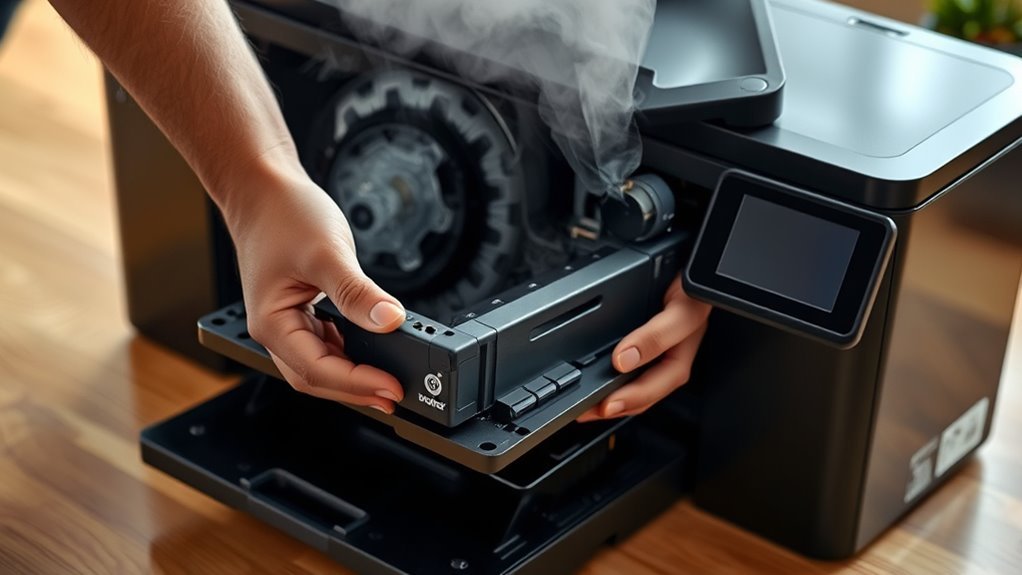
Before you start replacing the drum on your Brother printer, turn it on and open the front cover so the machine can recognize the change. Once the front cover is open, let the printer sit and cool down for ten minutes.
This wait is vital since the fuser and nearby parts can get hot during operation. Keep the printer powered on throughout this process to make certain it properly resets the drum counter after you install the replacement drum unit.
While waiting, have your replacement drum unit and compatible toner cartridge ready on a clean surface to minimize the time the cover stays open. If you’re unsure about cooling times or specific instructions for your model, consult the user guide to avoid any mistakes and make certain a smooth replacement.
Open Brother Printer Front Cover to Access Drum and Toner
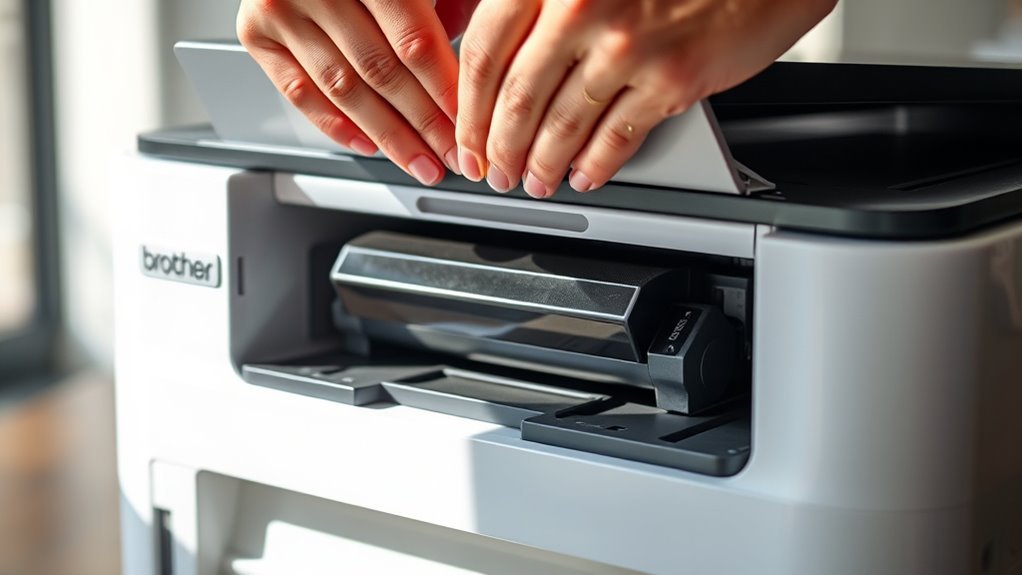
First, make sure your Brother printer is powered off and has cooled down to avoid any burns.
Next, locate the front cover—opening it will give you access to the drum and toner assembly inside.
Once open, you’ll be ready to remove the drum and toner for replacement or maintenance.
Power Off And Cool
When you turn off your Brother printer and open the front cover, you gain access to the drum and toner assembly. This also gives the machine about 10 minutes to cool down before you handle any internal parts.
Always power off the printer first to avoid electrical hazards. After opening the front cover, look for the green lever on the drum unit. Let the printer cool for ten minutes to prevent burns and avoid damaging components.
Then, you’ll be ready to remove the drum and toner safely. Make sure your workspace is clean and flat so you have a good spot to place the removed parts.
| Step | Action | Tip |
|---|---|---|
| Power off | Turn off printer | Avoids electrical hazards |
| Open front cover | Access drum and toner | Look for green lever |
| Cool for ten mins | Wait before touching parts | Prevents burns, damage |
| Identify drum unit | Locate assembly | Use good lighting |
| Remove drum/toner | Pull out carefully | Place on clean, flat surface |
Locate Drum And Toner
Power on your Brother printer and open the front cover to reveal the combined drum unit and toner cartridge assembly directly behind it.
Grip the assembly by its handle and pull it straight out toward you to remove it.
Inside the drum unit, you’ll see the toner cartridge, which you can identify by locating the green lever used to release it.
Once removed, place the assembly on a clean, flat surface with the green corona wire tab and drum-facing side up to prevent damage or contamination.
If you’re only replacing the drum, press down the green lever to separate the toner cartridge from the drum unit before proceeding.
This step guarantees you handle the drum and toner cartridge correctly for a smooth replacement.
Open Front Cover
To access the drum and toner assembly, make sure your Brother printer is turned on, then open the front cover by pulling the latch or handle. Before you open the front cover, allow the printer to cool for about ten minutes to avoid touching hot internal parts.
Once cooled, open the front cover fully until it locks in place, giving you clear access to the drum unit and toner. If your model has a secondary latch or front door release, disengage it to free the drum and toner assembly.
Now, carefully lift the drum and toner out as one unit. Keeping the printer powered on while removing the drum prevents errors and guarantees a smooth replacement process.
Remove the Drum and Toner Assembly
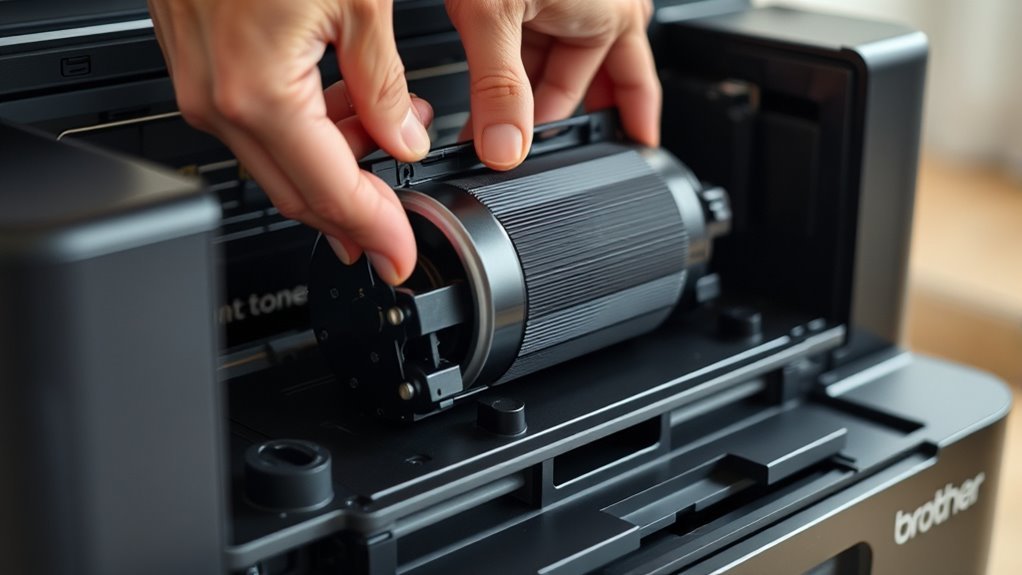
Before you remove the drum and toner assembly, make sure the printer is off and cooled down. Grip the assembly firmly and pull it straight out to avoid damage.
Once removed, press the green lever to separate the toner cartridge from the drum unit carefully. Just take your time with this step so nothing gets broken.
Accessing Drum And Toner
Start by turning off your Brother printer and opening the front cover. Then, wait about ten minutes to let the internal parts cool down before you access the drum and toner assembly.
Once it’s cooled, grasp the green handle firmly and pull the drum and toner assembly straight out of the printer as a single unit. Place this assembly carefully on a clean, flat surface to avoid any damage.
To separate the toner cartridge from the drum unit, press down the green lever and lift the toner cartridge out. Make sure you handle both components by their plastic parts only.
Avoid touching the drum surface or toner roller, since that could cause print defects. Now, you’re all set to safely remove or replace the assembly.
Removing Assembly Safely
Power down your Brother printer and open the front cover. Then, wait about ten minutes to let the internal components cool. This cooling period is essential to avoid burns or damage to the drum unit and toner cartridge.
Once cooled, firmly grasp the combined drum and toner assembly and pull it straight out through the front cover. Keep it level to prevent toner spills. Place the assembly on a clean, flat surface.
To separate the toner cartridge from the drum unit, press down the green lever carefully. Handle the drum unit by its plastic edges and avoid touching the green drum surface. This helps prevent print defects.
Following these steps guarantees you remove the drum and toner assembly safely. It also prepares you for the next step in replacing your Brother printer’s drum.
Separating Toner From Drum
Pull out the combined drum and toner assembly from your Brother printer’s front cover and set it on a clean, flat surface.
Press down the green lock lever on the drum unit, then carefully lift the toner cartridge to separate it from the drum. Avoid touching the drum’s green photoconductor surface or spilling toner by handling both parts by their plastic edges.
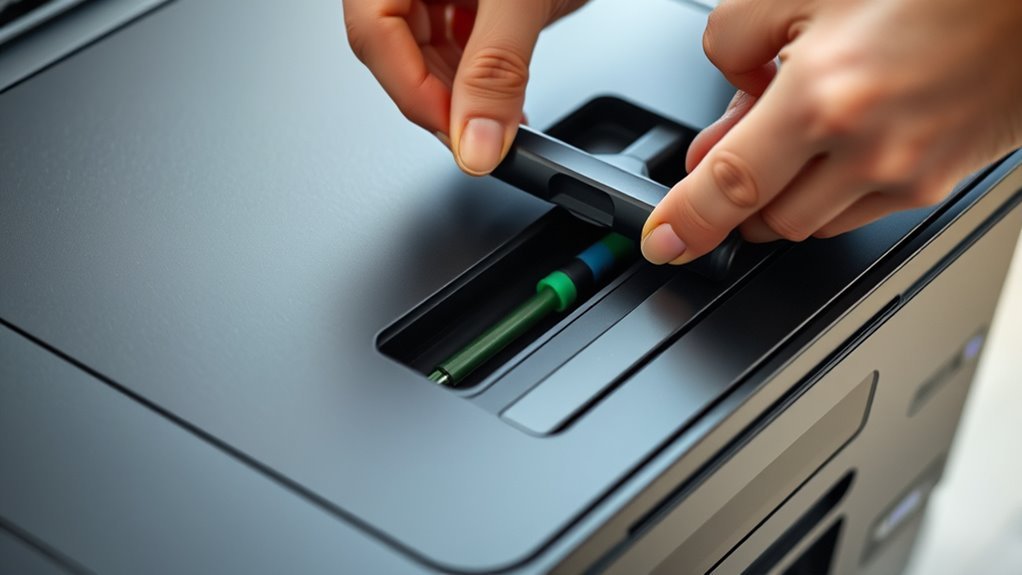
If you plan to reuse the toner cartridge, store it upright away from heat. Before installing a new drum unit, gently clean the corona wire by sliding its green tab back and forth.
| Step | Action |
|---|---|
| 1 | Open front cover |
| 2 | Pull drum and toner assembly |
| 3 | Press green lock lever |
| 4 | Separate toner cartridge |
| 5 | Clean corona wire if needed |
Separate the Toner Cartridge From the Drum Unit
To separate the toner cartridge from the drum unit, open your printer’s front cover and slide out the combined assembly as one piece. Place it on a clean, flat surface.
Press down the green lever on the drum unit to release the toner cartridge. Then, lift the toner cartridge straight up and out without tilting it. This helps avoid toner spills or damage.
Be careful not to touch the drum unit’s green corona wire or the drum-facing surfaces of the toner cartridge. Fingerprints or damage can affect print quality.
Handle the toner cartridge by its ends only. Doing this carefully keeps your drum unit intact and ready for replacement or cleaning, which helps maintain your printer’s performance.
Unpack and Prepare the New Drum Unit
Start by inspecting the drum unit packaging for any damage. Make sure you’re working on a clean, flat surface.
Handle the drum carefully, and try to avoid touching the green drum surface. This will help prevent any damage.
Keep everything organized so you can easily prepare the drum for installation. It makes the process a lot smoother!
Inspect Drum Unit Packaging
Before unpacking your new drum unit, double-check that the model number matches your Brother printer to avoid compatibility issues. Next, take a close look at the packaging for any damage. Also, verify the stated yield—it usually ranges from 12,000 to 15,000 pages for most units.
When you remove the drum unit from its protective bag, check that the green corona wire tab and all protective covers are intact. Make sure there are no bends or breaks.
Keep an eye out for clear, undamaged packaging that shows whether the unit is genuine or remanufactured. The drum unit itself should be clean, without toner residue or scratches on the gears.
Don’t forget to check for included accessories like instruction sheets and protective strips. These little extras can be really helpful!
Handle Drum With Care
Handling the new drum unit carefully guarantees its longevity and peak performance. Keep the drum unit in its protective packaging until you’re ready to install it. Avoid touching the green drum surface to prevent fingerprints or damage.
Let the printer cool for about ten minutes before you handle the drum assembly. This helps you avoid burns or harm to the components.
Remove all packing materials and protective tabs, and make sure you have the correct model for your printer. Slide the toner cartridge into the drum unit until you hear a click.
Then, gently clean the corona wire by sliding the green tab back and forth a couple of times. Always handle with care by holding the plastic housing and green handles.
Finally, store the drum upright in a cool, dry place away from direct light. This will keep it in the best condition until you need it.
Prepare Work Surface Clean
Once you’ve handled the drum with care and made sure the printer has cooled, set up a clean, flat workspace with good lighting. Lay down a lint-free cloth or paper towel on your clean work surface to catch any toner spills.
Before unpacking, double-check that you have the correct drum model for your Brother printer to avoid any fit issues. Keep the drum unit in its anti-static packaging until you’re ready to install it.
When you unpack, carefully remove all protective tape and plastic as instructed. Look for the green corona-wire tab on the drum unit—you’ll need it for cleaning later—but try not to touch the green surface to avoid damage.
Having everything organized really helps make the replacement go smoothly.
- Flat surface with bright lighting
- Lint-free cloth protecting the work area
- Drum unit sealed in anti-static packaging
Insert the Toner Cartridge Into the New Drum Unit
Place the new drum unit on a flat surface and carefully slide the toner cartridge, such as the TN-450, into it until you hear a click signaling it’s securely seated. Align the toner cartridge rails with the drum unit slots and push straight in—don’t angle or force it to avoid damage.
Once inserted, gently tug the toner cartridge forward to confirm it’s locked in place and won’t separate during installation. Handle the cartridge by its plastic parts and keep the assembly level to prevent toner spills.
Clean the Drum’s Corona Wire Before Installation
Before installing the toner cartridge into the new drum unit, slide the green corona wire cleaning tab firmly from left to right several times to clear away loose toner and debris. Make sure the tab faces the arrow, and always return it to the home position to avoid print streaks or damage.
Slide the green cleaning tab firmly left to right before installing the toner cartridge to prevent streaks and damage.
Never touch the corona wire or drum surface with your fingers, as oils or scratches can affect print quality. If the green tab is broken or missing, don’t try to clean the corona wire—replace the drum unit immediately.
Clean the drum unit on a flat surface to keep things steady. Remember, proper cleaning prevents streaks and guarantees smooth printing.
Visualize it like this: sliding the green tab smoothly left to right. A clean, shiny corona wire ready to work. And avoiding finger contact to keep the drum pristine.
Reinstall the Drum and Toner Assembly Into the Printer
Slide the drum unit and toner cartridge assembly firmly along the guide rails until it clicks into place. This ensures a secure fit inside your Brother printer.
Make sure the drum unit and toner cartridge are seated correctly to avoid printing errors. If the “Replace Drum” message keeps showing up, don’t worry.
Just remove and reseat the assembly carefully. Also, double-check that you have the correct drum model for your printer.
After inserting the assembly, open the front cover and reset the drum counter to clear any replacement alerts. This usually means pressing “Clear” or holding “Go,” depending on your model.
Properly reinstalling the drum unit and toner cartridge guarantees smooth operation and prevents damage. So, take your time aligning the assembly with the guide rails for a secure, precise fit.
Close the Front Cover After Installing Drum and Toner
Gently close the front cover once you’ve installed the drum and toner assembly to make sure everything seats properly. Always power on when closing the front cover so the printer can detect the new drum unit. This step is essential to avoid the persistent Replace Drum message.
If the message remains, open the cover and perform the model-specific drum counter reset before closing again.
Remember to close the front cover fully—not partially—to prevent paper feed errors or misalignment. After closing, check that the drum light is off, confirming the drum unit is recognized correctly.
Visualize this step as you:
- Slide the toner and drum assembly until it clicks securely.
- Close the front cover gently but firmly.
- Watch for the drum light turning off, signaling success.
Reset the Drum Counter to Clear ‘Replace Drum’ Message
Once you’ve closed the front cover and confirmed the drum light is off, you’ll need to reset the drum counter to clear the ‘Replace Drum’ message.
To do this, open the front cover and follow your model’s specific reset steps. For many MFC/DCP models, just press “Clear” then 1. HL-series printers require holding the Go button until all LEDs light up.
This reset doesn’t affect the physical drum but resets the internal drum counter, which triggers the Replace Drum message.
| Printer Model | Reset Method | Notes |
|---|---|---|
| MFC/DCP Series | Open front, press Clear, 1 | Common for many models |
| HL-Series | Open front, hold Go button | Hold until all LEDs light |
| Others | Consult user guide | Procedure varies by model |
Always reset the drum counter after you replace the drum. It’s a quick step that helps keep your printer running smoothly!
Frequently Asked Questions
Do You Have to Replace the Drum on My Brother Printer?
You don’t have to replace the drum immediately when the message appears. You can reset the drum counter and keep using it if the print quality’s still fine.
But eventually, replacing the drum is a good idea. It guarantees peak performance and helps prevent any damage to your printer.
How to Take the Drum Out of a Printer?
You don’t just magically pull the drum out; you switch off the printer and open the front cover. Then, wait for it to cool down a bit.
After that, gently slide the drum and toner assembly straight out—like revealing a secret treasure inside your machine. It’s easier than it sounds!
How Do I Reset the Drum Counter on a Brother Printer?
You reset the drum counter by opening the front cover. Then, press and hold the “Go” or “Clear” button until the LEDs light up. Once that happens, go ahead and release it.
Next, close the cover. The drum light should turn off after that. It’s a pretty simple process!
How to Replace a Drum in a Brother Printer?
You turn off your Brother printer, open the front cover, and wait. Then, you remove the drum and toner together, separate them, snap the toner into the new drum, reinstall, and reset the drum counter to finish.
You turn off your Brother printer first. Next, open the front cover and wait for a moment.
After that, take out the drum and toner together. Carefully separate the toner from the old drum.
Now, snap the toner into the new drum unit. Reinstall the combined drum and toner back into the printer.
Finally, don’t forget to reset the drum counter. This step is key to making sure your printer tracks the new drum correctly. And that’s it!
Conclusion
Replacing the drum on your Brother printer might seem tricky, but with these 10 easy steps, you’ve got it covered. Remember, “a stitch in time saves nine”—tackling this now prevents bigger issues later.
By following the process carefully, you’ll keep your printer running smoothly and produce sharp, clear prints. So, take your time, stay patient, and enjoy the satisfaction of a job well done!
Replacing the drum is a straightforward task that can save you time and money. Keeping your Brother printer’s drum in good shape means better print quality and fewer interruptions.
With these simple steps, you’ll master how to replace the drum on a Brother printer quickly and confidently. Trust the process, and your printer will thank you with crisp, professional results every time.