How to Change Ink Cartridge in HP Printer in 3 Easy Steps
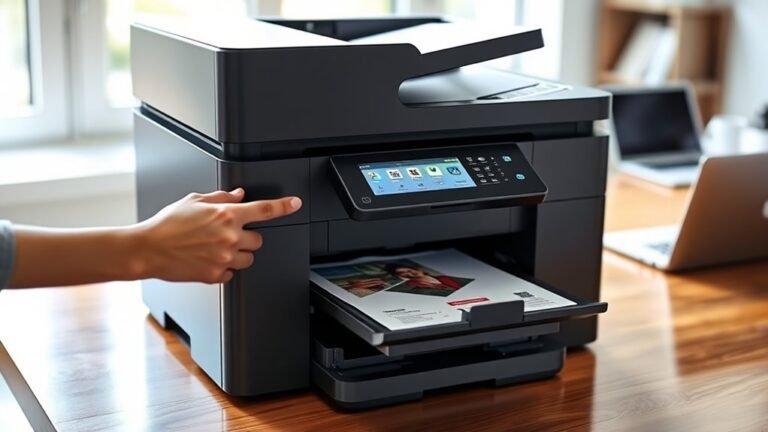
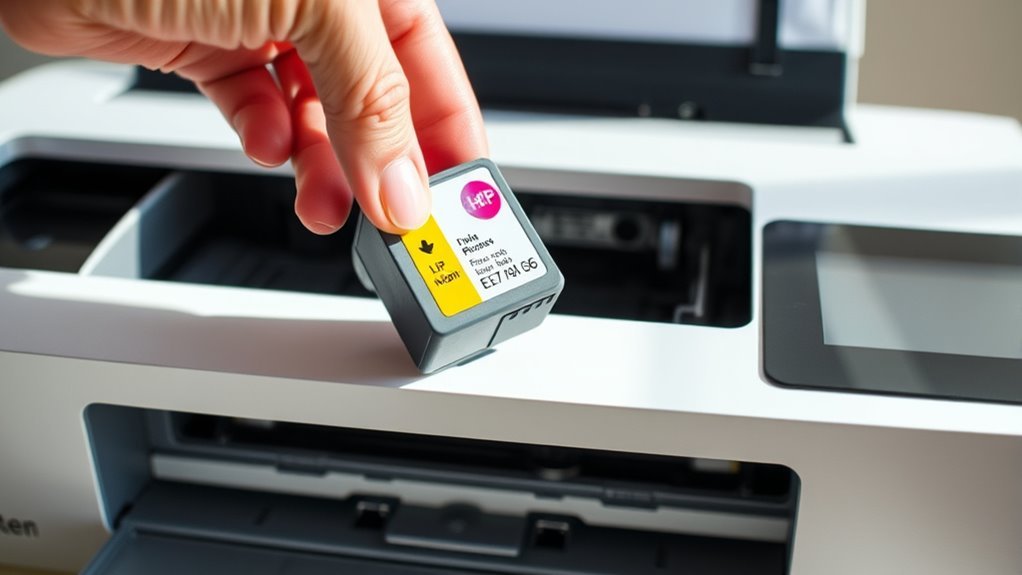
To change your HP printer ink cartridge in three easy steps, start by opening the printer cover. Wait for the carriage to stop moving before you do anything else. This is important to avoid damaging the printer.
Next, lift the cartridge latch gently and pull out the old cartridge by its handle. Be sure to handle it carefully to prevent any ink spills. Now, take your new cartridge and remove any protective tabs.
Insert the new cartridge into the slot and push it down until you hear a click. This ensures it’s securely in place. Finally, close the printer cover. Your printer will likely prompt you to align the cartridge, which helps maintain the best print quality.
Follow these simple steps, and you’ll have your HP printer ready to go in no time. Keep reading for some helpful tips to make this process even smoother!
Key Takeaways
- Open the printer cover and wait for the carriage to stop moving before accessing cartridges.
- Lift the cartridge latch and pull the old cartridge straight out by its handle.
- Remove orange protective tabs and plastic collars from the new cartridge before installation.
- Insert the new cartridge into the slot, clip it backward, then push forward and down until it clicks.
- Follow on-screen prompts to print and scan the alignment page for proper cartridge setup.
Preparing and Removing Old Ink Cartridges
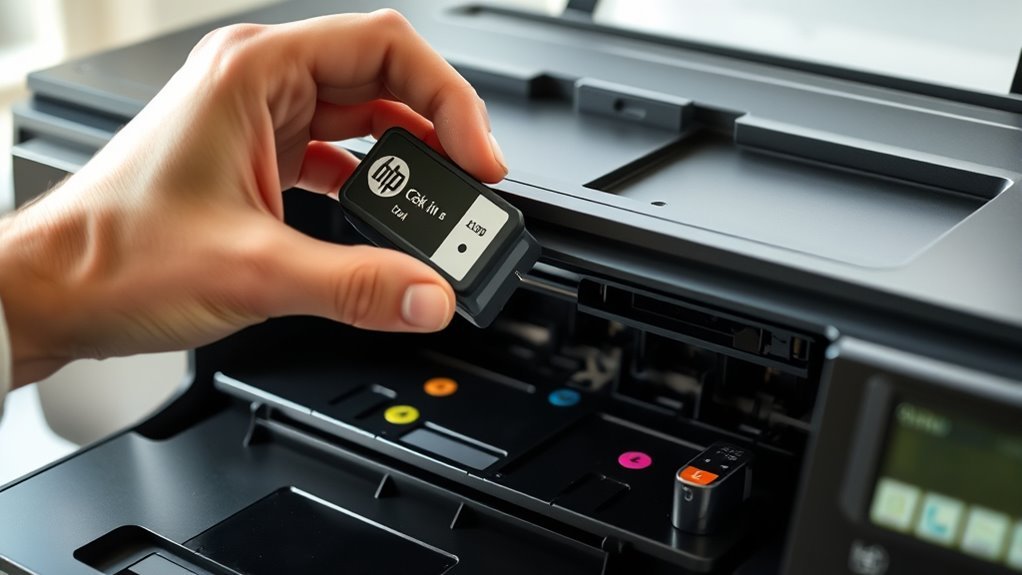
Before you begin, open the printer cover and wait until the carriage stops moving. This helps avoid damaging any parts. It’s important because the printer’s delicate components affect print quality.
Next, gently remove any orange transit tabs or protective pieces from the carriage area. Be careful not to force anything.
To remove the old cartridge, lift the cartridge latch or clip. Then pull the cartridge straight out by its handle. If it resists, double-check that the latch is fully raised before trying again.
Properly preparing and removing old cartridges helps keep your printer working well. Plus, it keeps your prints looking sharp.
Installing New Ink Cartridges Correctly
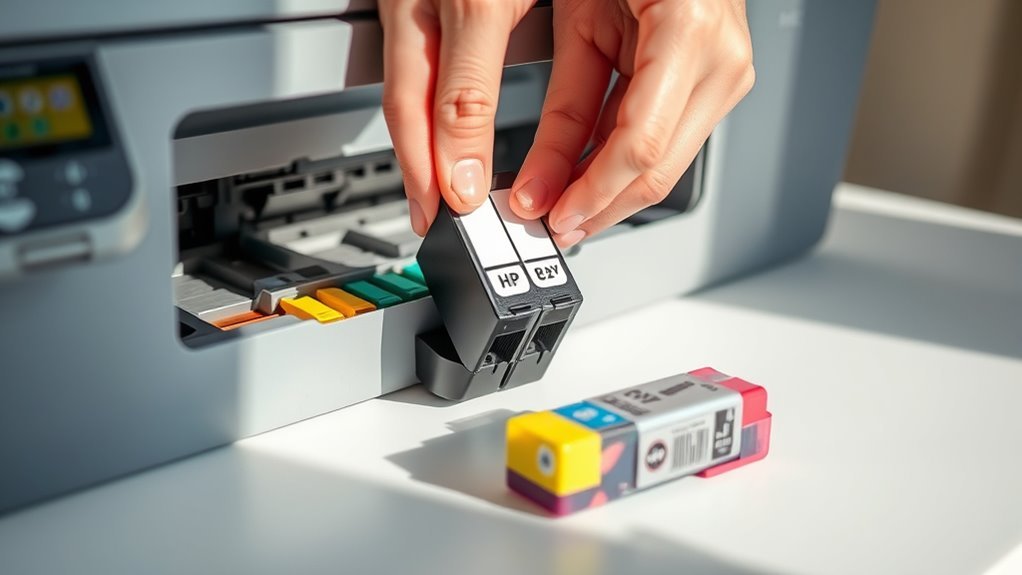
Once you’ve carefully removed the old cartridges, you’re ready to install the new ones. Start by gently removing the orange transit pieces from the cartridge; don’t pull hard as it can damage sensitive parts.
Next, take off the three plastic collars from the wider end—this exposes the contacts and nozzles, ensuring the cartridge seats correctly. Lift the printer latch, place the cartridge into its slot, clip it backward, then push forward and down until you hear a click locking it in place.
Push the cartridge down, move the front lever or carrier forward until it clips, then confirm installation on-screen or via the printer. Keep in mind, depending on your model, the installation steps might be slightly different but generally follow this pattern.
Aligning Cartridges and Testing Print Quality
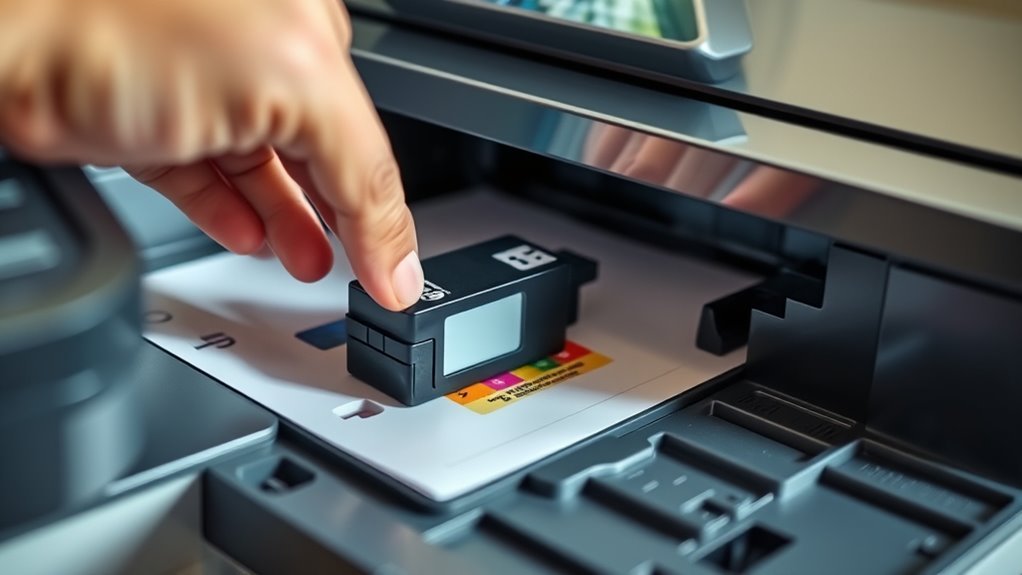
Although you’ve just installed the cartridges, you’ll need to align them to guarantee peak print quality. Once you hear the click, your printer will prompt you to start alignment and print an alignment page.
After installing cartridges, align them as prompted to ensure the best print quality.
Place this page face-down on the scanner glass, usually in the top-left corner. Then press the scanner button or select the on-screen “Scan” prompt. The easy to use automatic alignment takes a few seconds and improves sharpness and color registration.
If your printer asks during installation, make sure to push the cartridge down and clip the lever or back foot forward to activate the checking mechanism. If you still notice print quality issues, run a print quality diagnostic from the menu.
You can then repeat the alignment or perform nozzle cleaning as needed. This should help get your prints looking just right!
Frequently Asked Questions
How to Properly Install an Ink Cartridge?
You’ll gently remove protective pieces and pull off collars to expose ink ports. Then, insert the cartridge at an angle.
Clip it in, push down until it clicks, and lock the lever. Make sure the printer recognizes it before you go ahead and align the cartridges.
Why Is My HP Printer Printing Blank Pages?
Your HP printer’s blank pages are like a silent orchestra—check if cartridges are empty, misaligned, or blocked by protective tabs.
Run printhead cleaning, make certain proper paper loading, and use genuine cartridges for vibrant, ink-filled prints.
How to Change Ink HP Envy 6055E?
You’ll remove the orange clips and tape from new cartridges, take off plastic collars, insert them by clipping backward and pushing forward until they click, then secure with the lever.
Follow on-screen steps to finish setup.
It’s pretty straightforward once you get the hang of it! Just make sure the cartridges click into place properly before closing the cover.
How Do I Change the Ink in My HP Deskjet 2755E?
You open the cartridge door and wait for the carriage to stop moving. Then, lift the latch and remove the old cartridge.
Next, insert the new cartridge until it clicks into place. Close the door, and follow the on-screen prompts to align the cartridge.
Finally, print a test page to make sure everything is working fine. It’s pretty straightforward once you get the hang of it!
Conclusion
Now that you’ve swiftly swapped your spent cartridge, enjoy the smooth, seamless service of your HP printer. Installing ink is an easy, efficient endeavor when you follow these simple steps.
By aligning accurately and testing thoroughly, you’ll transform tired prints into vibrant visuals. Keep your printing perfectly polished and productive—your printer’s performance depends on your precise, proactive care.
So, stay sharp, stay steady, and savor spotless, stunning sheets every time! Changing the ink cartridge in your HP printer is not just about maintenance; it’s about ensuring every print is crisp and clear. With a little care and attention, you can keep your HP printer running smoothly and enjoy high-quality prints day after day.