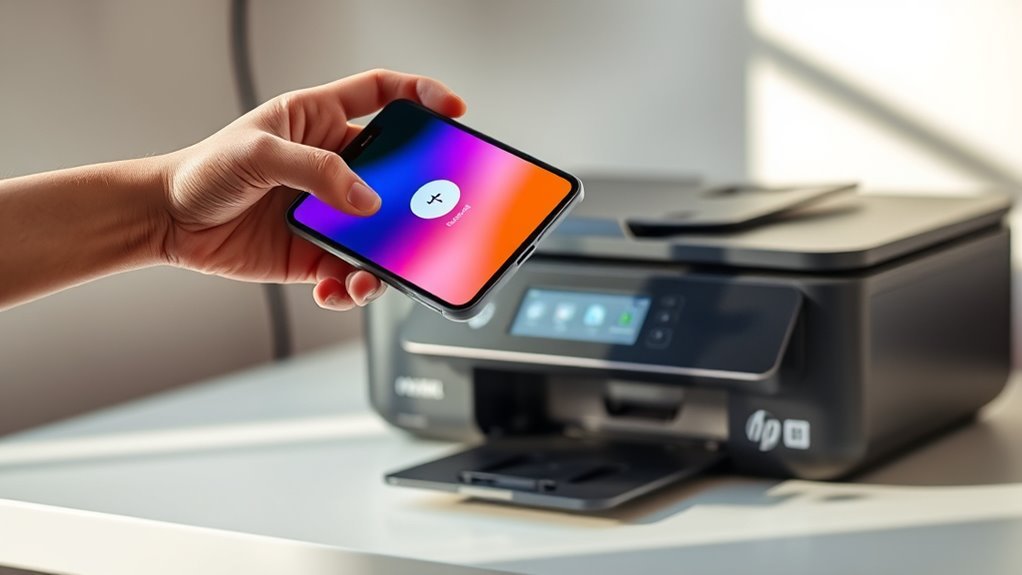
Connect Phone to HP Printer in 3 Easy Steps
First, make sure your phone and HP printer are connected to the same Wi-Fi network. If that’s not an option, you can also connect using the printer’s Wi-Fi Direct feature. This is a handy way to link your devices without a router.
Next, open the HP Smart app on your phone. Tap “Add Printer” to search for your HP printer and connect to it easily. The app makes the process straightforward, even if you’re new to printing from your phone.
Finally, print a test page from the app or directly from the printer’s control panel. This confirms that everything is set up correctly and ready to go.
If you run into any issues or want to explore more advanced setup tips, there’s plenty of helpful information available to guide you!
Key Takeaways
- Ensure your phone and HP printer are connected to the same Wi‑Fi network. Alternatively, you can use the printer’s Wi‑Fi Direct network.
- Next, install and open the HP Smart app on your phone. This will get you started with the printer setup process.
- In the HP Smart app, tap on Print, then select Add Printer. This helps your phone find and connect to the HP printer on the network.
- Just follow the on-screen prompts in the app to finish the connection. Make sure the printer shows up before you move on.
- If the printer isn’t detected right away, try restarting your phone, printer, and router. Then, give the setup another shot.
Get Your Phone and HP Printer Ready to Connect
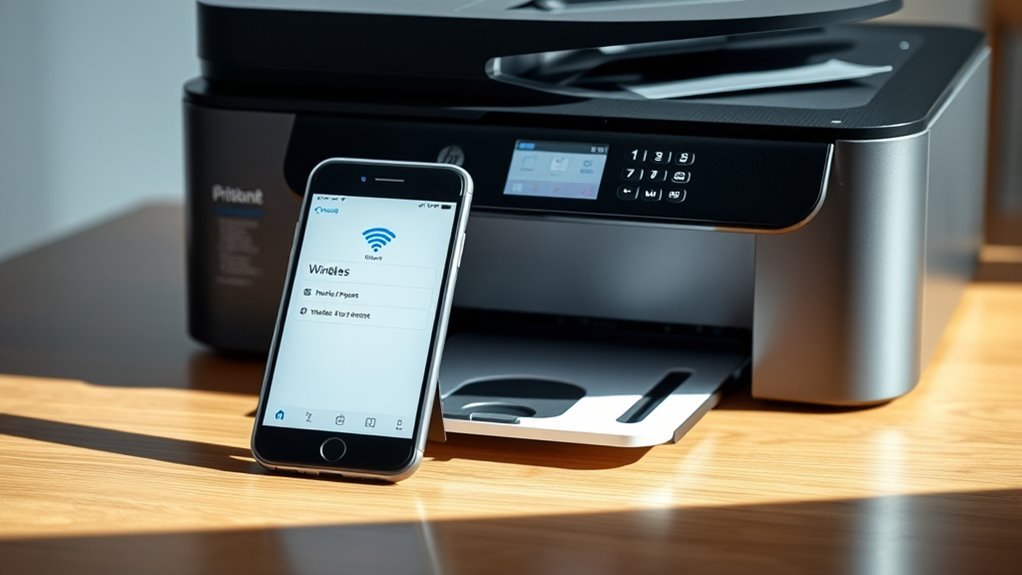
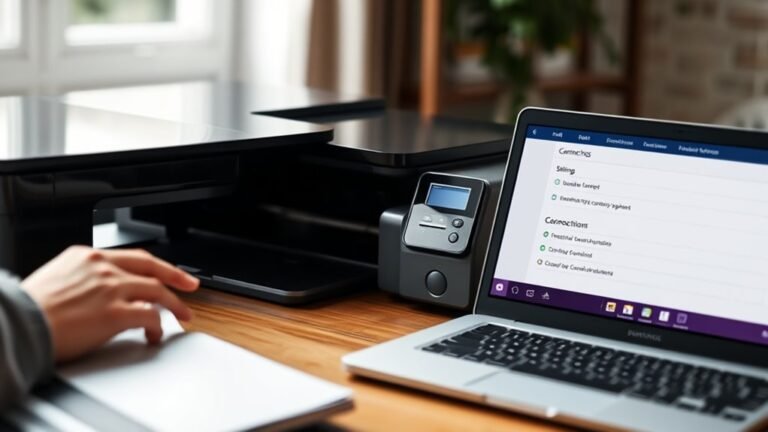
Before you connect your phone to your HP printer, make sure both devices are ready. First, guarantee your phone’s WiFi is turned on and connected to the same Wi‑Fi network as your HP printer.
If you plan to use Wi‑Fi Direct, connect your phone to the printer’s Wi‑Fi Direct network instead. Power on the HP printer, check for any error messages, and place it within strong Wi‑Fi range—ideally within 10–20 feet of your router.
Installing the HP Smart app on your phone is essential before adding the printer. If your router broadcasts separate bands, confirm your devices use the 2.4 GHz network for better compatibility.
If setup fails, restart the router, phone, and printer. Then, try again using the HP Smart app. It usually does the trick!
Connect Your Phone to Your HP Printer via Wi-Fi or Wi-Fi Direct
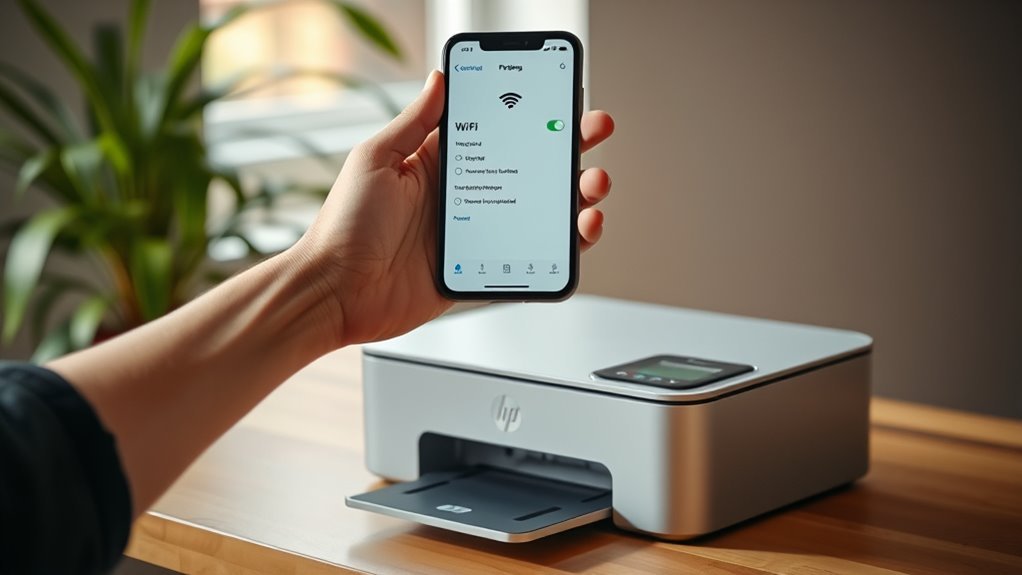
To connect your phone to your HP printer, start by making sure both devices are on the same Wi‑Fi network. Or, if necessary, connect your phone to the printer’s Wi‑Fi Direct network.
Download the HP Smart app or the HP Print Service Plugin to add the printer easily. For Wi‑Fi Direct, activate the WiFi password on the printer, then connect your phone to the printer’s SSID.
Using Web Services? Activate it on your printer to print via email. Also, confirm you’re on the 4 GHz or 2.4 GHz band as required.
| Step | Details |
|---|---|
| Network | Same Wi‑Fi network or Wi‑Fi Direct |
| App | HP Smart app or HP Print Service Plugin |
| Wi‑Fi Direct Setup | Enable, find SSID & activate WiFi password |
| Web Services | Activate to print using printer’s email |
| Frequency Band | Use 4 GHz or 2.4 GHz as printer supports |
Print a Test Page and Troubleshoot Connection Issues
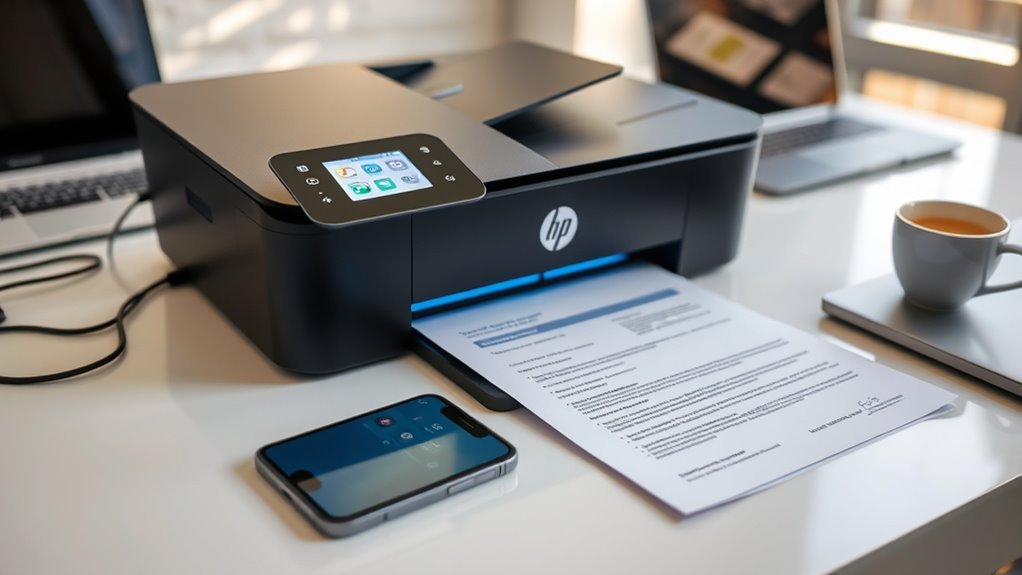
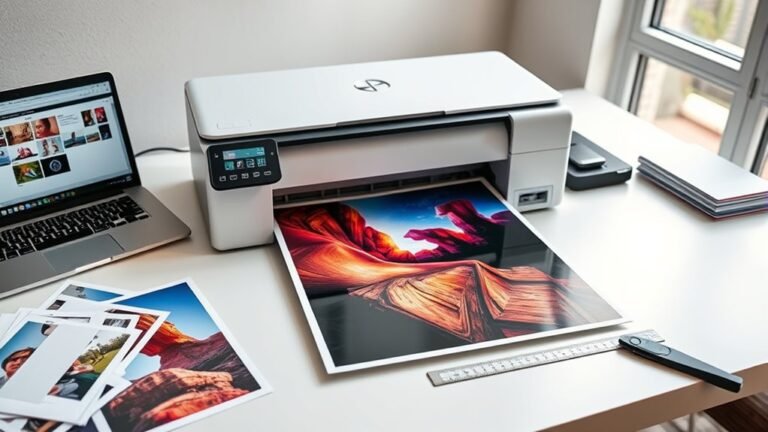
Once you’ve connected your phone to your HP printer, print a test page directly from the printer’s control panel. This helps confirm it’s powered on, error-free, and connected to the right network.
Check the Wi‑Fi network or Wi‑Fi Direct name and password on the printed report. On your phone, make sure Wi‑Fi is enabled and connected to the same network or directly to the printer’s Wi‑Fi Direct.
Next, open the HP Smart app and select Print > Add Printer to find your device. If it doesn’t show up, try restarting your HP printer, router, and phone, then give it another shot.
If printing still doesn’t work, double-check the Wi‑Fi password and reset network settings if needed. Also, update the firmware using the HP Smart app.
Use any error messages you get to help troubleshoot connection issues. And if you’re stuck, don’t hesitate to reach out to HP support for help.
Frequently Asked Questions
How Do I Connect My Phone to My HP Printer?
You connect your phone to your HP printer by installing the HP Smart or Print Service Plugin app. Make sure both your phone and printer are connected to the same Wi-Fi network.
Once that’s set up, just open the app or the print menu on your phone. From there, select your printer to start printing easily. It’s pretty straightforward!
What Is the HP Easy Start Printer Setup Software?
You might expect printer setup to be complex, but HP Easy Start simplifies it. It’s software that finds your printer, installs drivers, and guides you through Wi-Fi setup.
It also fixes issues so you don’t have to struggle. Makes the whole process way easier than you’d think!
How to Print Photos From Android Phone to Printer?
You’ll open the photo, tap Share or the menu, then choose Print. Make sure your phone’s connected to the printer’s Wi-Fi or use Wi-Fi Direct.
Also, it helps to install HP Smart or the Print Service Plugin for smooth printing. That way, everything runs more smoothly and you avoid any hiccups.
How to Connect iPhone to Printer Wirelessly?
Did you know over 80% of iPhone users rely on AirPrint?
To connect wirelessly, just make sure your iPhone and printer share Wi-Fi. Then, select your AirPrint-enabled printer from the print menu—no extra setup needed.
It’s really that simple! Just a couple of taps and you’re good to go.
Conclusion
So, there you have it—connecting your phone to your HP printer is almost as easy as forgetting why you needed to print in the first place. Just get both devices ready, link them via Wi-Fi or Wi-Fi Direct, and print a test page.
If it doesn’t work, blame the universe, then troubleshoot like a tech wizard. Who knew printing could be this much fun?
Now, go forth and print like a pro… or at least try to! With these simple steps, connecting your phone to an HP printer has never been easier. Whether you use Wi-Fi or Wi-Fi Direct, your phone-to-printer connection is just a few taps away. So next time you need to print documents, photos, or anything else, you’ll be ready to get it done quickly and hassle-free. Happy printing!