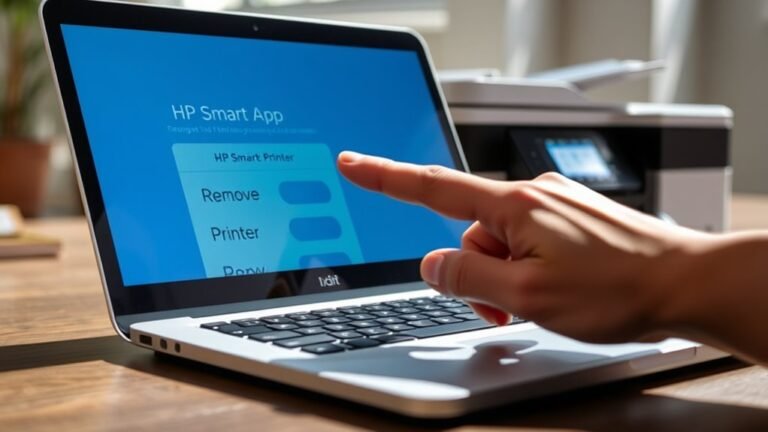
How to Remove a Printer From HP Smart in 3 Easy Steps
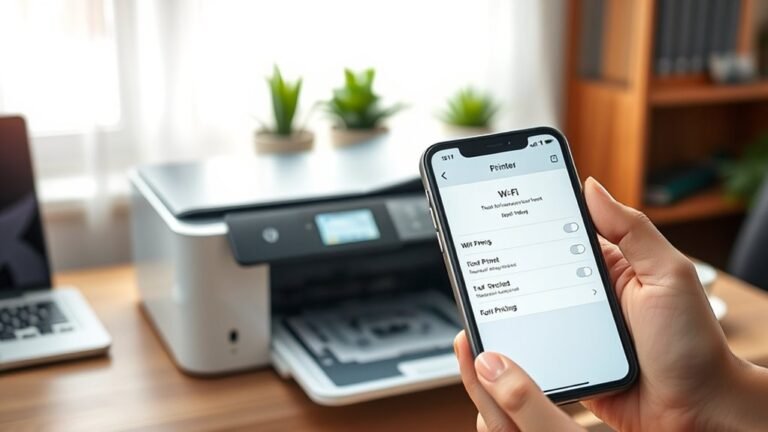
To remove a printer from HP Smart, first open the app and locate your printer in the Devices section. Next, tap the printer card, open the settings menu, and select “Remove Printer” or “Forget this device.” Then, confirm the removal.
Finally, restart the app to refresh the device list and make certain the printer no longer appears. If the printer still shows up, there are additional steps to fully clear it from your profile and app.
It’s pretty straightforward, but sometimes the app needs a quick restart to update everything properly. If that doesn’t work, don’t worry—there are other ways to make sure the printer is completely gone.