How to Connect Printer to Ipad Wirelessly in 10 Simple Steps
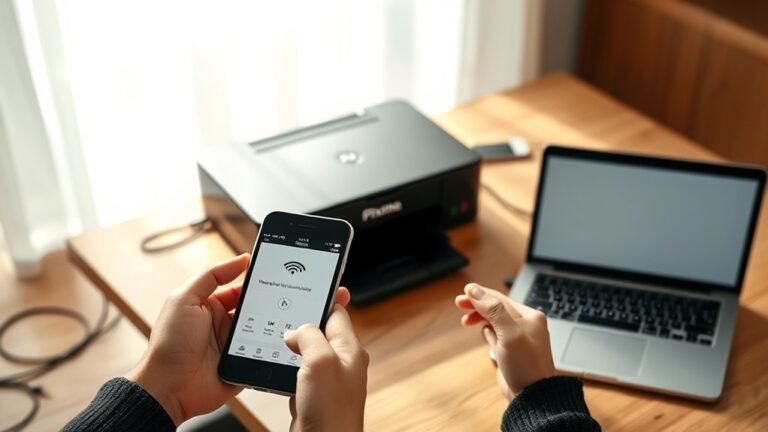
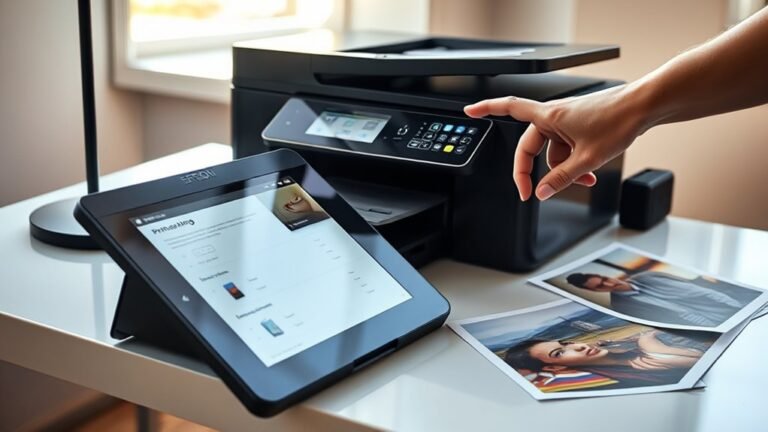
To connect your printer to your iPad wirelessly, first confirm your printer supports AirPrint and both devices are on the same Wi-Fi network. This is key to ensure smooth communication between your devices without any cables.
Power on your printer and iPad, then open the document or photo you want to print. Tap the Share or Options button, select your AirPrint-enabled printer, set your print preferences, and tap Print.
You can monitor the print job right from your iPad. Keep going to discover helpful tips for troubleshooting and advanced settings. It’s easier than you think!
Key Takeaways
- Confirm your printer supports AirPrint and update its firmware via the manufacturer’s website or app before connecting.
- Connect both your iPad and printer to the same Wi-Fi network with matching SSID and Wi-Fi band.
- Open the file or photo on your iPad, tap the Share button, then select Print from the options.
- Tap Select Printer, choose your AirPrint-enabled printer, and adjust print settings like copies and orientation.
- Tap Print to send the job wirelessly, then monitor or cancel the print job via the Print Center if needed.
Confirm Printer Compatibility With Airprint
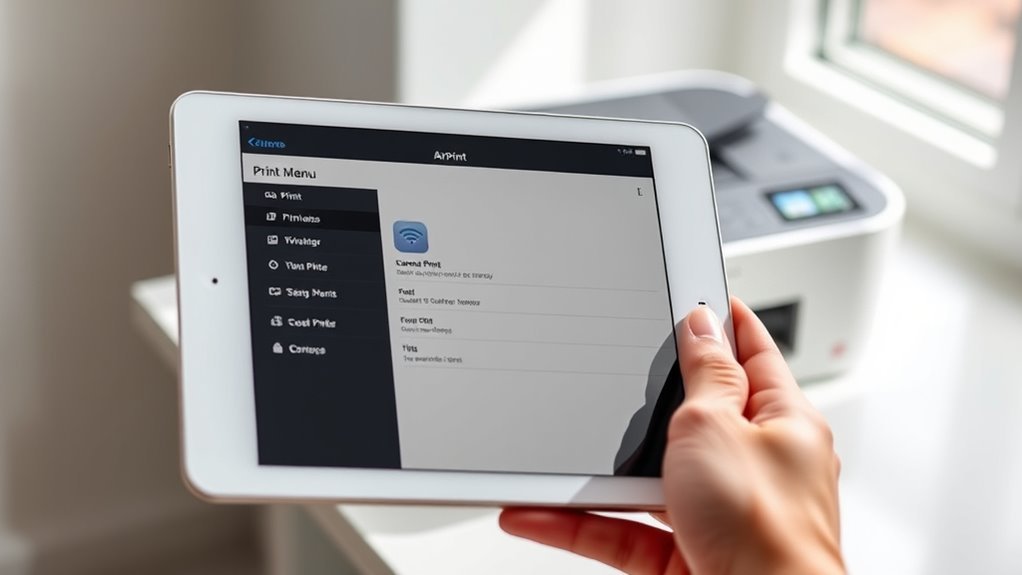
How do you know if your printer works with your iPad? The easiest way is to check if your printer supports AirPrint, Apple’s built-in wireless printing protocol.
Start by visiting the manufacturer’s website or the printer’s specs to see if it’s listed as an AirPrint-compatible printer. Make sure the model and its firmware are supported since some require updates.
Remember, the printer must connect directly to your Wi-Fi network; AirPrint won’t work if your printer is only USB-connected to a computer or uses Bluetooth.
If you’re still unsure, connect your printer to the network, open an app on your iPad, and try selecting the printer in the Print menu. If it appears automatically, your printer supports AirPrint and is ready to use wirelessly with your iPad.
Connect Printer and Ipad to the Same Wi-Fi Network
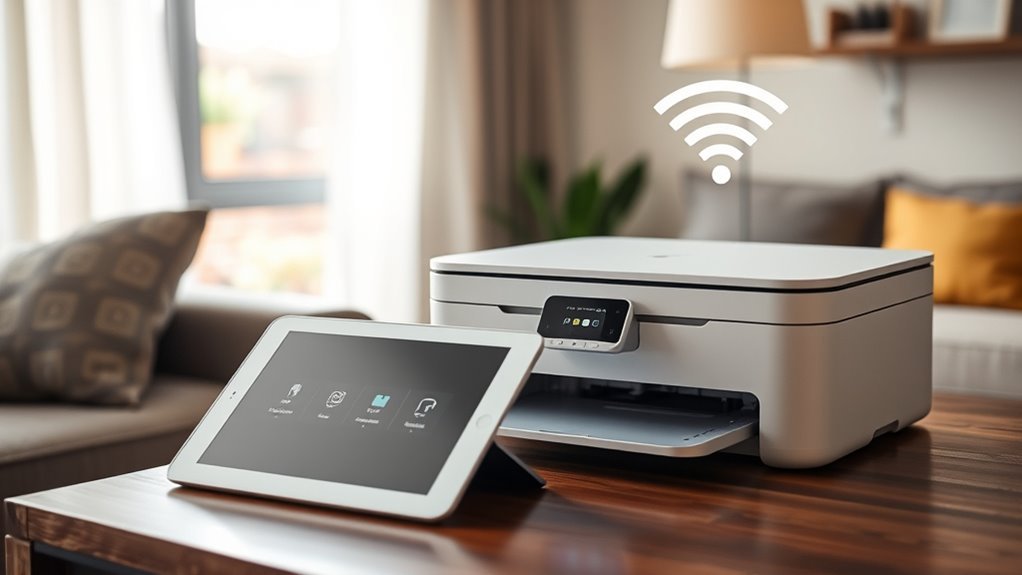
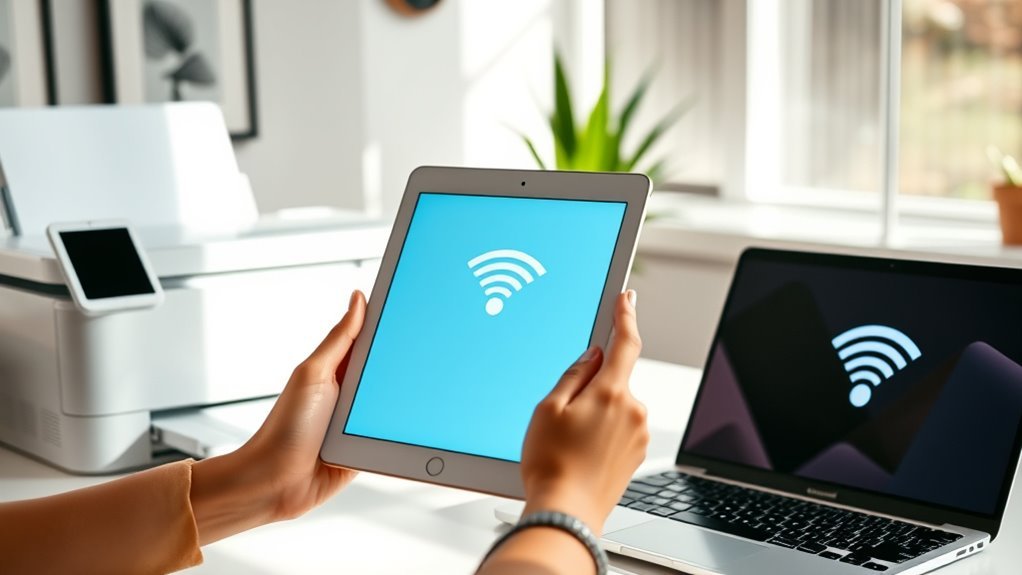
Once you’ve confirmed your printer supports AirPrint, the next step is making sure your iPad and printer connect to the same Wi-Fi network. Both devices must be on the identical network segment for AirPrint to work smoothly.
Ensure your iPad and AirPrint printer are on the same Wi-Fi network segment for seamless printing.
Check your printer’s network settings to confirm it has a valid printer IP address and isn’t offline. If your printer supports dual bands, connect both to the same 2.4 GHz or 5 GHz band.
Also, make certain your router doesn’t have client or AP isolation enabled, as this blocks device communication.
- Connect iPad and printer to the same Wi‑Fi network name (SSID).
- Verify printer IP address via the printer’s onboard display.
- Match Wi-Fi bands if printer supports 2.4 GHz and 5 GHz.
- Disable client isolation on your router.
- Confirm AirPrint printer appears when selecting “Print” on your iPad.
Power on Both Printer and Ipad
Power on both your iPad and printer, ensuring they have enough battery life or are connected to a reliable power source before you begin.
First, turn on the printer and wait for it to complete its startup routine. Check that no error lights are blinking and the wireless radio is enabled.
If your printer supports Wi-Fi Direct or creates its own network, make sure that feature is active.
Next, wake the screen on your iPad and unseal it so you can access settings for wireless printing. Confirm that both devices are ready for connection by verifying the printer appears in the iPad’s Wi-Fi or Bluetooth settings.
Properly powering on both printer and iPad is essential for a smooth wireless printing experience.
Open the Document or Photo to Print on Your Ipad
First, open the app that holds the file or photo you want to print and select it.
Before you print, make sure to preview the document carefully to check pages, orientation, and margins.
This helps you avoid wasting paper and ink with mistakes.
Select File or Image
To kick things off, open the app that holds your document or photo—like Files, Photos, or Mail—and tap the item to view it full-screen. Next, select the Share button (a square with an upward arrow) to reveal options.
If you see the Print option, tap it to open the print dialog. If not, you might need to save the file to the Files app or export it as a PDF first, then open it from there.
Before printing, make sure your document or image is fully loaded and not locked by another app.
Here’s what to do:
- Open the Files app or the app containing your file
- Tap your document or photo to open it
- Select the Share option
- Tap Print when it appears
- Choose the number of copies to print
Preview Before Printing
After selecting Print from the Share menu, you’ll want to preview your document or photo to make sure it looks just right before sending it to your printer.
Open the file in its app—Photos, Files, or Safari—and tap Share to find the Print option. AirPrint will show print settings like pages, copies, and orientation.
Use the preview thumbnail to swipe through pages, check margins, and zoom in on images for quality. It’s an easy way to catch any mistakes before printing.
| Page | Copies | Orientation |
|---|---|---|
| 1 | 2 | Portrait |
| 2 | 2 | Portrait |
| 3 | 2 | Portrait |
If no print option exists, save as PDF, open in Files, and preview before printing. This guarantees your printout matches your expectations perfectly.
Doing a quick preview first really saves you time and paper in the long run.
Locate and Tap the Share or Options Button
When you want to print from your iPad, start by tapping the Share or Options button within the app you’re using. In most apps like Photos, Safari, or Mail, the Share button looks like a square with an upward arrow or is labeled “Share.”
Other apps might use an Options menu, represented by three dots or a gear icon, to access printing features. Tapping these buttons reveals the menu where you’ll find various commands, including Print if supported.
Here’s where to look:
- Share button (square with arrow)
- Labelled “Share” button
- Options menu (three dots)
- Gear icon in some apps
- Scroll menu to find Print command
If you don’t see Print here, the app might not support direct printing. Just something to keep in mind!
Select the Print Option From the Menu
Once you tap the Share or Options button, look for the Print option in the menu and select it.
If you don’t see Print right away, scroll through the list or tap More to find it.
After that, you can choose your printer and adjust settings like copies or color before hitting Print.
Accessing Print Menu
To get started with printing from your iPad, open the app containing your document or photo and tap the Share or Action menu, then find and tap the Print option. If you don’t see Print immediately, scroll through the Share sheet or tap “More” to reveal additional actions.
After tapping Print, tap “Select Printer” to let your iPad search for AirPrint-enabled printers on your Wi-Fi network. If the app doesn’t support printing, save or export your file to Files or open it in an app like Mail, Safari, or Photos to access the Print command.
- Open the document/photo app
- Tap Share (square-with-arrow) or Action menu
- Look for and tap Print
- Tap Select Printer to find AirPrint printers
- Use supported apps if Print isn’t available directly
Choosing Print Settings
Tap the printer name or “Select Printer” to pick an AirPrint-enabled device on your Wi-Fi network. After selecting the printer, adjust your print settings to suit your needs.
Use the Copies field to specify how many copies you want. If your printer supports it, tap Options to enable duplex printing.
You can also select Paper Size, Orientation, and Color mode to save ink and match your document layout. Preview your job before printing to make sure everything looks right.
| Setting | Purpose |
|---|---|
| Select Printer | Choose AirPrint-enabled printer |
| Copies | Set number of print copies |
| Paper Size | Match document paper dimensions |
| Options | Enable duplex, color, orientation |
Choose Your AirPrint-Enabled Printer
Selecting an AirPrint-enabled printer guarantees seamless wireless printing from your iPad without extra setup. Before buying or connecting, confirm the printer explicitly supports AirPrint.
Make certain both your iPad and printer connect to the same Wi‑Fi network for smooth discovery. Check the printer’s firmware update status to ensure compatibility and performance improvements.
If you’re unsure about AirPrint support, the manufacturer’s app can help verify compatibility during setup.
- Verify “AirPrint” compatibility on the printer’s specs or manufacturer website
- Make certain the printer and iPad share the same Wi‑Fi network
- Confirm the printer’s firmware is up to date
- Check for an IP address in the printer’s network settings
- Use the manufacturer’s app (e.g., HP Smart, Canon PRINT) to confirm wireless support
Set Print Preferences and Number of Copies
After selecting your AirPrint-enabled printer, you can set the number of copies by tapping the + or − buttons next to Copies.
Take a moment to adjust print settings like page range, color options, and paper size if your printer supports them. These choices help guarantee your print job matches exactly what you need.
Adjust Print Settings
When you decide to print from your iPad, you can customize print settings to match your needs before sending the job. After selecting your AirPrint or manufacturer’s printer, tap Options to access various preferences.
You can set the number of copies and tweak other settings to make certain your printout looks just right. Here are some key adjustments you can make:
- Choose specific pages or ranges to print.
- Select double-sided or single-sided printing if your printer supports it.
- Pick paper size like A4 or Letter.
- Adjust print quality to Draft, Normal, or Best.
- For photos, set orientation and scale to fit the page.
These options help you control output and save paper, making printing from your iPad efficient and tailored. Pretty handy, right?
Select Copy Quantity
You can easily set the number of copies to print by tapping the Copies field or using the plus and minus buttons in the print dialog. After selecting Print from the app’s Share menu, AirPrint-compatible print dialogs let you choose up to the printer’s maximum copies, usually between 1 and 99.
Some printers or apps may limit this range, so check your options. If you want multiple copies of specific pages, adjust the app’s Page Range or From/To settings alongside Copies to control your output.
For large copy jobs, review printer settings for features like job-splitting or collate to keep your documents organized. You can always reopen the Share → Print dialog to change the number of copies before finalizing your print job.
Tap Print to Send the Job to the Printer
Once your document, photo, email, or webpage is open on your iPad, tap the Share or Actions button and select Print to start sending your job to the printer.
Open your file on iPad, tap Share or Actions, then select Print to begin printing.
Next, tap the Share menu, then Select Printer to pick an AirPrint-enabled printer on your Wi-Fi network. Adjust your print settings like copies, pages, or double-sided printing if available.
When ready, tap Print in the corner to send your job wirelessly. The iPad communicates directly with the printer without needing extra drivers.
Here’s a quick checklist:
- Tap the Share or Actions button
- Select Print from the menu
- Select Printer using AirPrint
- Adjust print settings as needed
- Tap Print to send the job
This simple process guarantees your document prints smoothly from your iPad.
Monitor and Manage the Print Job on Your Ipad
Frequently, keeping an eye on your print job’s status right from your iPad helps guarantee everything goes smoothly. After you print using AirPrint, open the App Switcher or tap the Print Center banner that briefly appears at the top to view active jobs and their status, like Printing, Paused, or Completed.
To cancel, open Print Center, select the job, then tap Cancel Printing or swipe up on its preview in the App Switcher. The Print Center on your Home Screen shows page count and progress but disappears once done.
If your job stalls, verify your browser and make sure your iPad and printer share the same Wi-Fi. Restart the printer, then resend.
For complex queues, check your printer’s display or its app for detailed management beyond the iPad’s Print Center.
Frequently Asked Questions
How Do I Connect My Printer to My Ipad Wirelessly?
You connect your printer wirelessly by ensuring it supports AirPrint, then selecting it from your iPad’s Print menu.
If it’s not AirPrint-compatible, don’t worry. You can use the manufacturer’s app or a print-server app for older printers to print smoothly.
How Do I Get My Ipad to Find My Printer?
You get your iPad to find your printer by connecting both devices to the same Wi-Fi network. Then, open the app you want to print from, select Print, and tap “Select Printer.”
If your printer doesn’t appear, try restarting both your iPad and printer. Also, double-check that both devices are connected to the same network and that your printer is turned on.
Why Can’t I Print From My Ipad to My Wireless Printer?
Well, your iPad probably thinks your printer’s playing hide-and-seek.
You can’t print because they’re not on the same Wi-Fi band, your printer isn’t AirPrint-compatible, or both devices desperately need firmware updates.
Try fixing that first!
How Do I Check if My Ipad Is Connected to My Printer?
You check your iPad’s printer connection by opening the Print dialog, selecting your printer under “Printer,” and confirming it appears.
Also, make sure both devices share the same Wi-Fi network. You can view active print jobs in Print Center to see if things are moving along.
Conclusion
Now that you’ve gracefully linked your iPad to your printer, you’re all set to effortlessly bring your digital creations into the physical world. With just a few taps, your ideas will quietly slip from screen to paper, making printing feel like second nature.
Embrace this smooth connection, and watch how your productivity flows without a hitch. Every print job becomes a seamless, almost magical experience right from your fingertips.
Connecting your printer to your iPad wirelessly is not only convenient but also boosts your efficiency. Whether it’s documents, photos, or presentations, printing from your iPad has never been easier. So, enjoy the freedom of wireless printing and make the most out of your iPad’s capabilities today!