How to Remove a Printer From HP Smart in 3 Easy Steps
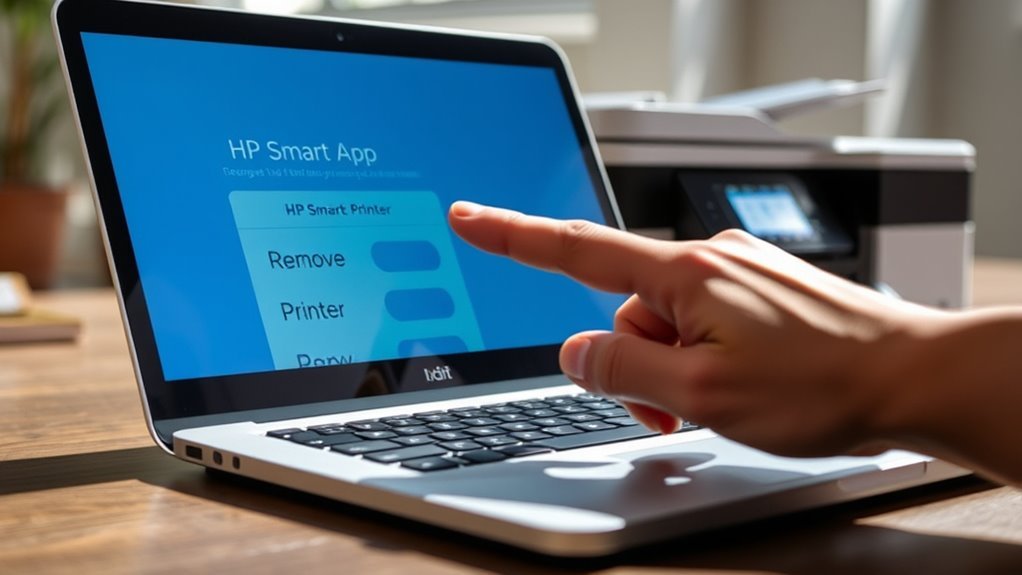
To remove a printer from HP Smart, start by opening the app and finding your printer in the Devices section. This is where all your connected printers are listed, making it easy to spot the one you want to remove.
Next, tap on the printer card to open its details. From there, go to the settings menu and select “Remove Printer” or “Forget this device.” You’ll be asked to confirm the removal, so just tap yes to proceed.
Finally, restart the HP Smart app to refresh the device list. This step helps ensure the printer no longer appears. If you still see the printer after this, don’t worry—there are extra steps you can take to fully clear it from your profile and app.
Key Takeaways
- Open the HP Smart app and go to the Devices section on the home screen. Tap the printer card to open device details and access the settings menu (gear icon).
- Select “Remove Printer” or “Forget this device” and confirm the removal when prompted.
- Close and restart the HP Smart app to refresh the device list and verify the printer is removed. If the printer remains, sign out of your HP Account, restart the app, then sign back in to clear cache.
Open HP Smart and Find Your Printer
To get started, open the HP Smart app on your iPhone or iPad and sign in with the HP Account you used to add your printer. Make sure your app is up to date by checking for any app updates in the App Store.
Once signed in, head to the devices section on the home screen, where you’ll see printer cards representing your connected printers. Tap the printer card you want to remove to open its device details page.
From there, access the settings menu, often indicated by a gear icon or three-dot menu. In the settings, look for options like “Remove Printer” or “Forget Device.”
If you don’t see these, try signing out and back in, or update the app to confirm the remove printer feature appears. It usually shows up once everything’s refreshed.
Remove the Printer and Confirm It’s Deleted
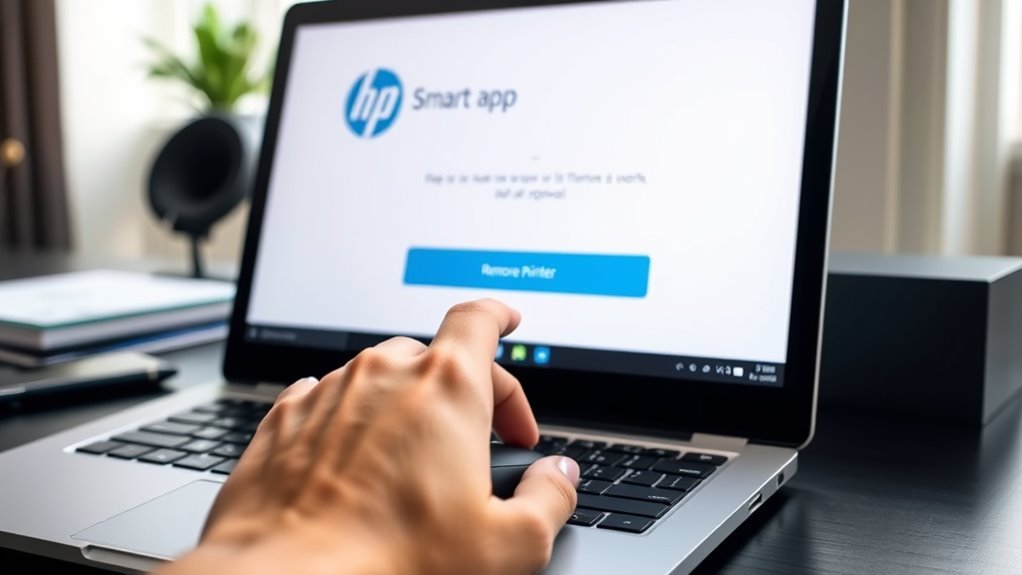
Head into the HP Smart app’s Devices tab and tap the printer you want to remove. Next, tap the gear icon and select “Remove Printer” or “Forget this device” to start. When prompted, confirm removal by tapping “Remove” or “Yes.” This unpairs the printer from your HP Account and deletes its settings.
To make certain the printer’s deleted:
- Check the Devices tab for its absence—only remaining devices or “No devices added” should appear.
- If it still shows, sign out and sign back into your HP Account in the app to refresh the device list.
- For persistent entries, visit hp.com/account, go to My Devices, and remove the printer there to fully clear it from your HP Smart profile.
Restart HP Smart and Verify Printer Removal
After you remove the printer from the Devices tab and confirm its deletion, close the HP Smart app completely—swipe it away on iOS or quit it from the app switcher. Then, restart the app to refresh devices and verify the printer no longer appears in the device list.
If it still shows, tap its tile, select the settings gear, and choose “Forget this Printer” to remove the printer again. Restart the app once more to confirm removal.
For persistent entries, sign out of your HP Account to clear app cache, restart HP Smart, then sign back in and check the device list. If the printer remains, reinstall the app by deleting it, performing an iPhone reboot, and downloading HP Smart from the App Store to make certain complete removal.
Frequently Asked Questions
How to Take Out Print From HP Printer?
You can remove a print job by opening the HP Smart app and tapping your printer.
Next, select “Print Jobs.” You’ll see a list of your current print tasks.
To stop or delete a job, just swipe left on it or tap the cancel icon next to it.
It’s pretty straightforward and helps you manage your prints easily!
How to Bypass HP Printer Block?
To bypass your blocked HP printer, boldly blacklist barriers by whitelisting its MAC address, restarting the print spooler, and clearing queued jobs.
You can also adjust account settings, clear app cache, and allow necessary firewall ports for flawless functionality. These steps usually get things running smoothly again.
How to Remove Printer on HP Smart App?
Open HP Smart, then tap your printer icon. Next, go to Printer Settings.
Scroll down a bit, and you should see “Remove Printer” or “Forget this Printer.” If you don’t see it right away, don’t worry.
Check the menu for any removal options. When you find it, just confirm the action to remove your printer.
How Do I Make My Phone Forget a Printer?
Old habits die hard, but you can make your phone forget a printer by going to Settings > Wi-Fi. Tap the “i” next to the printer’s network, and select “Forget This Network.”
Easy as pie!
Conclusion
So, you’ve just removed your printer from HP Smart—like a magician making it disappear without a trace. It’s almost ironic how something so stubbornly stuck on your device vanishes with just a few clicks.
Now, when you restart the app, your printer’s gone, leaving your screen strikingly empty. Who knew saying goodbye to technology could be this easy?
Sometimes, the simplest tricks are the most satisfying. Removing a printer from HP Smart doesn’t have to be complicated. With just three easy steps, you can quickly manage your devices and keep your app organized. So next time you want to remove a printer from HP Smart, remember—it’s as easy as a few taps, and you’ll have a clean, clutter-free printing experience in no time!