Why Is My Printer Showing Offline and How Do I Fix It?
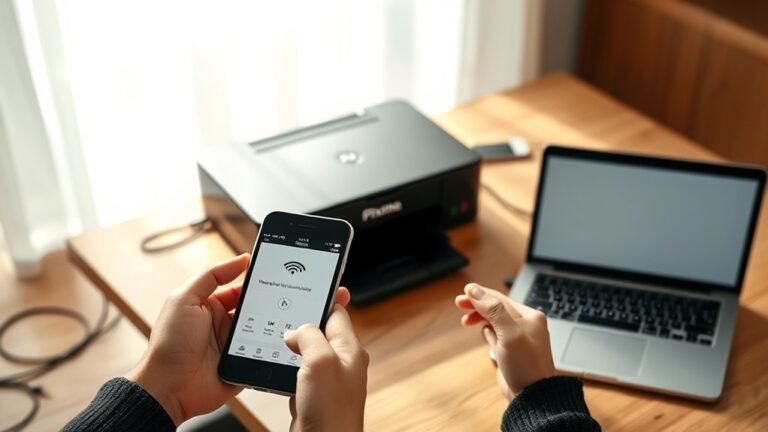
Your printer shows offline usually due to power, connection, driver, or print spooler issues. These are the most common reasons your printer might stop communicating with your computer or network. First, it’s a good idea to power cycle your printer and check all cables or Wi-Fi settings to make sure everything is connected properly.
Next, try running the Windows Printer Troubleshooter. This tool automatically detects problems and attempts fixes, which can save you time and hassle. Also, double-check that your printer is set as the default device and that the print queue is clear—sometimes stuck jobs cause the offline status.
If the problem keeps happening, don’t worry. Resetting the print spooler service and reinstalling drivers often restores communication between your computer and printer. Keep going for detailed steps on resolving these common problems, and you’ll have your printer back online in no time!
Key Takeaways
- Check and restart the Print Spooler service to clear stuck print jobs causing the offline status.
- Verify printer power, cables, and network connections, including Wi-Fi status and IP address configuration.
- Ensure the printer and computer are on the same network subnet and ping the printer IP to confirm network communication.
- Remove and reinstall the printer driver with the latest version from the manufacturer’s website to fix driver-related issues.
- Disable “Let Windows manage my default printer” and clear the print queue to prevent offline or paused job conflicts.
Run the Windows Printer Troubleshooter
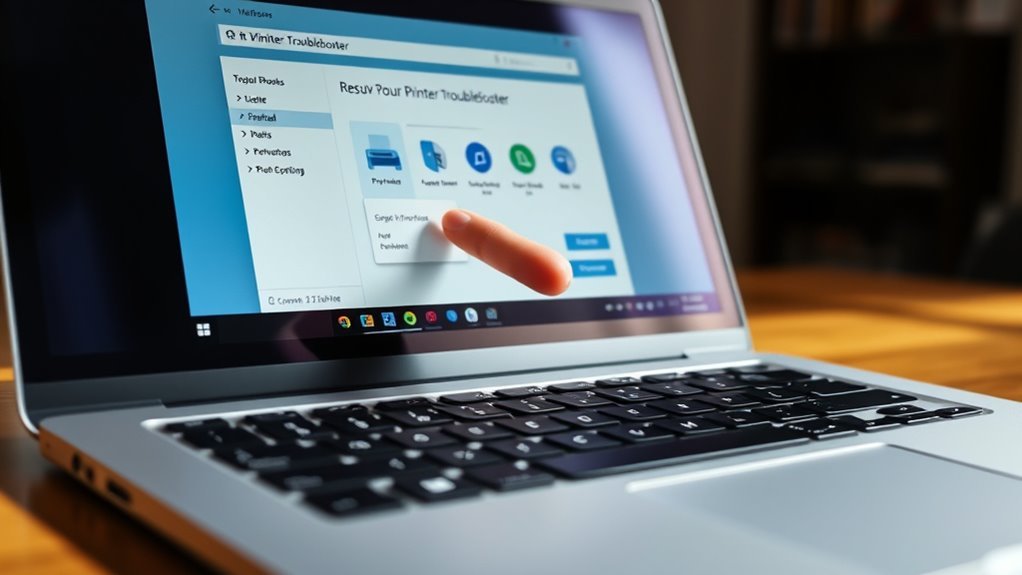
If your printer shows as offline, you can quickly run the built-in Windows Printer Troubleshooter to diagnose and fix common issues. On Windows 10 and Windows 11, head to Settings > System > Troubleshoot > Other troubleshooters, then select Printer and click Run.
This printer troubleshooter automatically checks for problems with power, drivers, network connections, and the Print Spooler service. It will attempt to restart the Print Spooler and can re-detect or reinstall your printer if it finds any configuration errors.
If you see a driver or permission error, note the message. Then, download the latest driver from your printer’s manufacturer and retry the driver reinstall through the troubleshooter.
This tool quickly handles many offline errors without manual steps, saving you time and effort. It’s a handy way to get your printer back online without hassle.
Power Cycle Your Printer and Check Connections
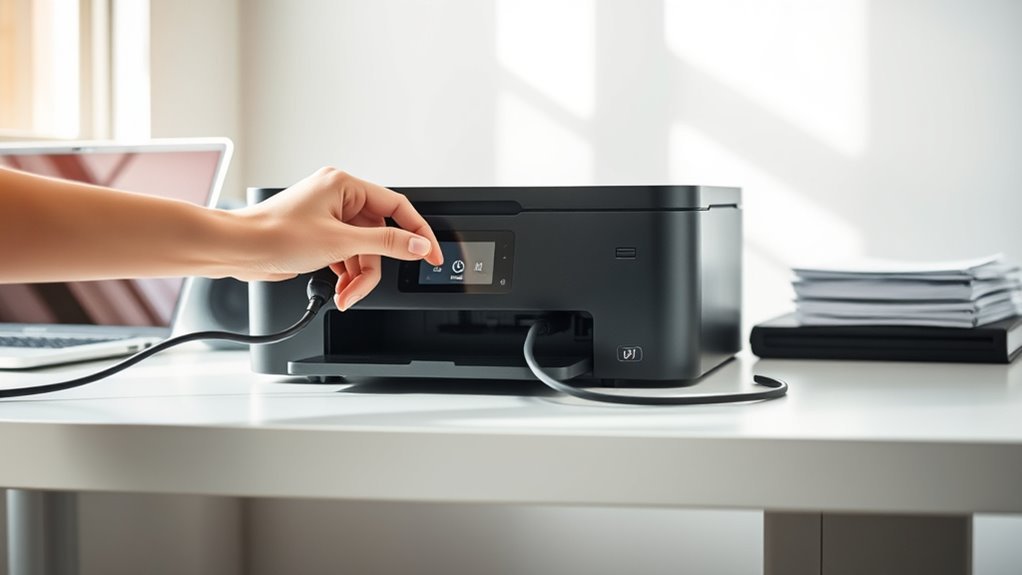
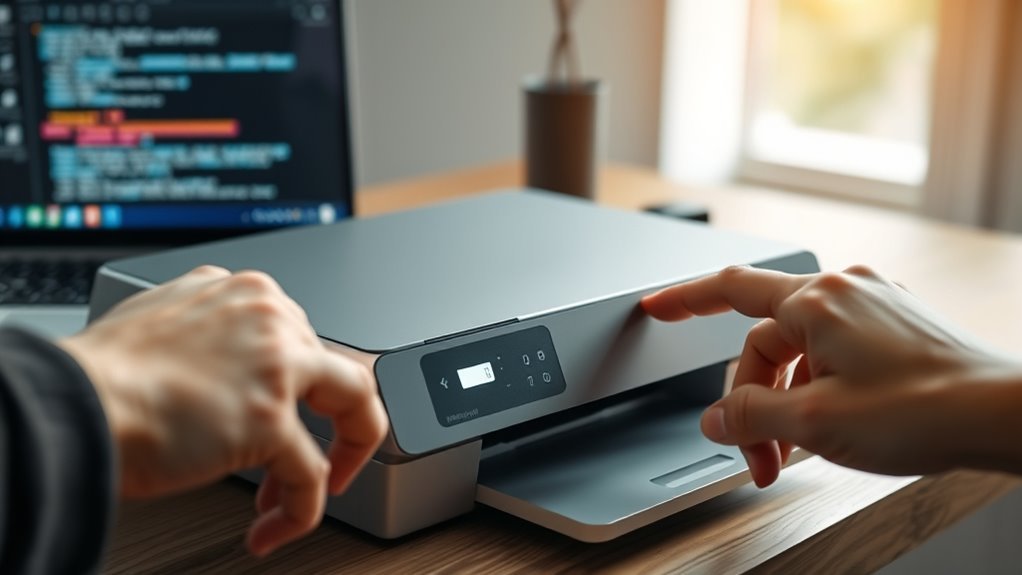
Start by turning off your printer and unplugging it for at least 30 seconds. Then, plug it back in and power it on.
Next, check that all cables are firmly connected and undamaged. This includes power, USB, or Ethernet cords.
This simple reset often clears errors and helps your printer reconnect properly. Give it a try!
Restart Printer Properly
Power cycling your printer can often clear up offline issues by fully resetting its hardware and network connections. To do this properly, turn the printer off using its power button, unplug the power cord for 30–60 seconds, then plug it back in and power on.
While the printer is off, restart your computer and router to rebuild connections. After reboot, check the printer’s display to make certain it’s connected to Wi-Fi or print a Network Configuration Page to verify the IP address.
| Step | Action | Purpose |
|---|---|---|
| 1 | Turn the printer off | Power down hardware |
| 2 | Unplug power cord | Discharge capacitors |
| 3 | Restart your computer | Refresh network connections |
| 4 | Power on printer | Reestablish network connection |
| 5 | Check Network Configuration Page | Confirm printer is online |
Verify Cable Connections
Double-checking your printer’s cable connections can quickly resolve offline issues caused by loose or faulty wiring. Start by power cycling your printer: turn it off, unplug the power cable for 30–60 seconds, then plug it back in and power on.
Make sure the power cable is firmly connected to both the printer and a reliable outlet. If you use a USB printer, verify the USB cable is securely plugged into the printer and computer—try a different port or cable if needed.
For Ethernet printers, confirm the Ethernet cable clicks into both the printer and router, and the link/activity LEDs are lit. Finally, check your printer’s connection status on the Wi‑Fi network to ensure it matches your computer’s network.
Reconnect if needed, and don’t forget to restart your computer to refresh network settings. It often helps to clear up any lingering connection troubles.
Verify Printer Network Configuration
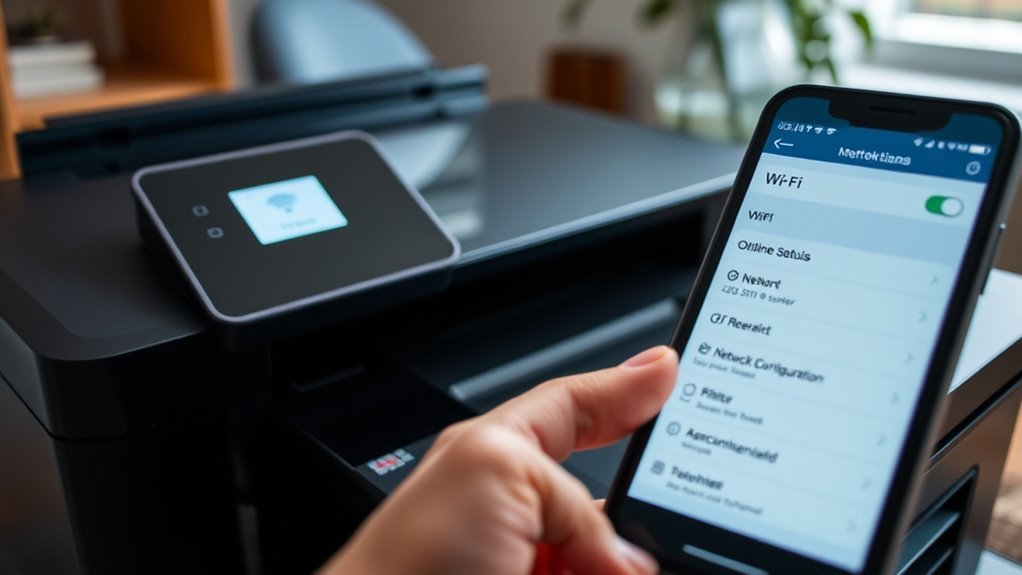
Start by checking your printer’s Wi-Fi connection and printing its Network Configuration Page to confirm the IP address and network settings.
Make sure the IP is valid and matches the subnet of your computer to guarantee they’re on the same network. If the IP keeps changing, set a static address or a DHCP reservation to avoid connection issues.
Check Wi-Fi Connection
When verifying your printer’s network configuration, print a Network Configuration or Wireless Report directly from the printer’s control panel. This will show you its exact SSID and IP address.
Make sure your printer Wi‑Fi connects to the same SSID as your computer. Different networks or bands (2.4 GHz vs 5 GHz) can cause offline issues.
Check the printer’s Wi‑Fi status icon for “Connected” and review the signal strength. Weak signals often disrupt the network connection.
If your printer uses DHCP, confirm the IP address hasn’t changed since setup. If it has, update your computer’s printer port or set a static IP via your router.
Finally, run the printer’s wireless setup or reconnect to Wi‑Fi after power cycling the device. This should help restore proper network communication.
Confirm Network Settings
Several key network settings determine whether your printer stays online or goes offline. Start by printing the printer’s Network Configuration Page to check its current IP address, subnet mask, gateway, and connection type—Wi‑Fi or Ethernet.
Make sure the printer’s IP address matches your computer’s network segment, so both share the same subnet (like 192.168.1.x). Verify the printer’s Wi‑Fi status on its display to confirm it’s connected to the correct SSID with a strong signal, or check Ethernet link lights if wired.
If your printer uses DHCP, confirm the IP address hasn’t changed since installation. If it has, consider creating a DHCP reservation or assigning a static IP.
You can also open the printer’s embedded web server by entering its IP address in a browser to review and adjust network settings as needed.
Printer IP Address Verification
To verify your printer’s network configuration, print its Network Configuration or Status Page from the control panel to view the current IP address, subnet mask, gateway, and connection type. Check that the printer IP is on the same subnet as your PC to guarantee communication.
Next, ping the printer’s IP from your computer; if it doesn’t respond, there might be a network or power issue.
If your printer’s IP changes frequently or doesn’t match the Windows printer entry, assign a static IP on the printer or set a DHCP reservation in your router to keep it consistent.
Finally, open the printer’s Windows Properties, go to the Ports tab, and confirm the selected port uses the current printer IP. Replace any WSD or outdated TCP/IP port with a Standard TCP/IP port for reliable connectivity.
Set Your Printer as the Default Device
Make sure your printer is set as the default device to prevent print jobs from going to the wrong or offline printer.
Setting your printer as the default stops print jobs from being sent to the wrong or offline device.
On Windows 11, go to Settings > Bluetooth & devices > Printers & scanners. Select your printer, disable “Let Windows manage my default printer” if it’s enabled, and then click Set as default.
For Windows 10, open Settings > Devices > Printers & scanners. Select your printer, open the queue, then choose Printer > Set As Default Printer to lock it in.
You can confirm the default printer by checking for the “Default” label in Printers & scanners or Control Panel.
If your printer is networked, assign a static IP or DHCP reservation before setting it as default. This helps avoid IP changes that can cause offline issues.
Doing this guarantees smooth, reliable printing every time.
Manage the Print Queue and Clear Stuck Jobs
When your printer stops responding, checking the print queue can help you spot and clear any stuck jobs blocking new print tasks. Open the print queue via Settings > Bluetooth & devices > Printers & scanners, then select your printer and open its queue.
Use the Printer menu to uncheck “Use Printer Offline” and make sure no documents are paused or showing errors. If jobs won’t cancel, you’ll need to stop the Print Spooler service, delete files in C:WindowsSystem32spoolPRINTERS to clear stuck jobs, then restart the service.
After clearing the queue, send a test page to verify your printer is online and processing correctly. Managing the print queue effectively prevents print jobs from freezing and keeps your device ready to print.
Reset the Print Spooler Service
Clearing stuck print jobs sometimes isn’t enough to bring your printer back online. You need to reset the Print Spooler service, which manages print job queues. Start by opening Services (services.msc), locate the spooler service, and stop it.
Then, clear spool files by deleting everything in C:WindowsSystem32spoolPRINTERS. This removes corrupt jobs causing offline status. Afterward, restart spooler by starting the spooler service again or running “net stop spooler” and “net start spooler” in an elevated Command Prompt.
Restarting the spooler service often fixes errors from stalled jobs. If it won’t start, check Event Viewer for errors and confirm the spooler is set to Automatic. This spooler troubleshooting step resets the queue but won’t fix port or driver issues, so verify those separately.
Remove and Reinstall Printer Drivers
If your printer keeps showing offline despite troubleshooting, it’s time to remove and reinstall the printer drivers to eliminate corrupted or outdated files. Start by removing your printer in Settings > Printers & scanners, then confirm Remove device and restart your PC to clear residual components.
Next, uninstall any vendor printer software and open Print Server Properties → Drivers tab to remove the driver package completely. Download the correct driver package from the manufacturer’s site for your model and Windows version.
After that, use Add a printer to reinstall it, creating a Standard TCP/IP port with the current printer IP for network printers. If print jobs still get stuck, restart the Print Spooler service and delete files in C:WindowsSystem32spoolPRINTERS before trying again.
Frequently Asked Questions
How Do I Get My Printer to Go Back Online?
You can get your printer back online by checking connections and disabling “Use Printer Offline” in settings. Sometimes, a quick restart of the Print Spooler service can do the trick.
If there are any stuck jobs, clearing them out might help. Also, make sure the printer’s IP address matches the port settings—this little detail often gets overlooked.
And if nothing else works, reinstalling the drivers could be the solution. It’s a bit of a hassle, but it usually fixes the problem.
How Do I Get My HP Printer Out of Offline Mode?
You can get your HP printer out of offline mode by opening the printer queue, clicking “Printer,” then unchecking “Use Printer Offline.”
Also, try restarting your printer, PC, and router to refresh connections.
Sometimes a quick reboot can fix connection issues and get your printer back online.
How Do I Disable Offline Printing?
You disable offline printing by opening the printer queue, selecting the Printer menu, and unchecking “Use Printer Offline.”
If that’s greyed out, restart the Print Spooler service, then try disabling offline mode again.
Sometimes, a quick restart of the service does the trick! Just give it a shot and see if that helps.
My Printer Is Offline. How Can I Fix This?
You’ll check power, reconnect cables, restart the printer, verify your PC and printer share the same network, uncheck “Use Printer Offline” in settings, clear stuck jobs, restart the Print Spooler, or reinstall the driver to fix it.
First, make sure your printer is actually powered on and all cables are snugly connected. Sometimes a loose cable or a simple power issue is the culprit.
Next, give your printer a quick restart. It’s amazing how often that does the trick.
Also, double-check that your PC and printer are connected to the same network. If they aren’t, they won’t be able to communicate.
Go into your printer settings and uncheck the “Use Printer Offline” option if it’s selected. That setting can cause your printer to appear offline.
If print jobs are stuck in the queue, clear them out. Sometimes a jammed print job can freeze things up.
Restart the Print Spooler service on your computer. This service manages print jobs and restarting it can resolve glitches.
Finally, if none of that works, try reinstalling your printer driver. A fresh driver can fix a lot of stubborn problems.
Conclusion
Don’t let your printer’s offline status feel like an unsolvable mystery! By running the troubleshooter, checking connections, and managing print jobs, you’ll have it back online in no time.
If things still act stubborn, resetting the spooler or reinstalling drivers usually does the trick. With these steps, you’ll conquer printer issues faster than a lightning bolt.
Turning frustration into smooth, seamless printing every time is possible. So, when your printer is showing offline, remember these quick fixes to get back to printing without a hitch!