How to Change Ink on Epson Printer in 3 Easy Steps
To change ink on your Epson printer, start by powering it on and opening the printer cover to access the cartridges. This is the first step in replacing your Epson ink cartridges and keeping your printer running smoothly.
Next, raise the ink lever and carefully remove the empty cartridge without forcing it out. Be gentle here to avoid any damage. Then, shake the new cartridge gently, remove its protective cover, and insert it until it clicks securely.
Finally, close the cover and press the ink button to start charging. This process helps your printer recognize the new ink and get ready for printing. Follow these simple steps and you’ll soon see how easy it is to maintain your Epson printer’s performance!
Key Takeaways
- Power on the Epson printer and open the ink compartment by lifting the cover and ink levers.
- Remove the empty ink cartridge by pinching and pulling it straight out without forcing.
- Shake the new cartridge gently, remove the protective cover, and insert it into the correct slot until it clicks.
- Secure the cartridge by locking the ink lever or closing the cartridge flap.
- Close the ink compartment, start the ink charging process, and run a nozzle check to confirm installation.
Power On and Access the Cartridge Area
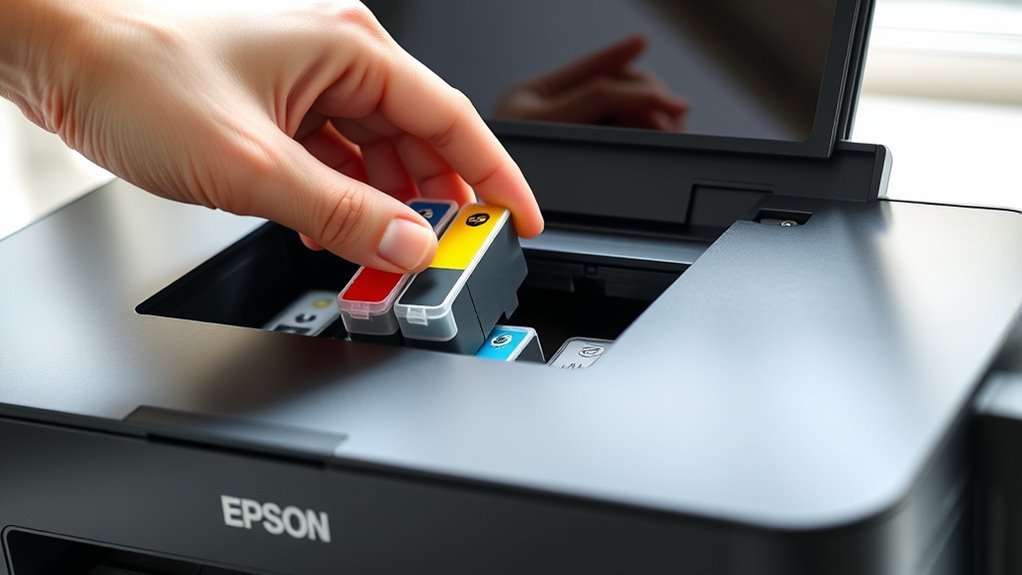
Before you change the ink, make sure your Epson printer is powered on and the power light stays steady. If it’s flashing, wait until it stops before proceeding.
Ensure your Epson printer is on and the power light is steady before changing the ink cartridge.
First, lower the paper tray to clear your workspace. Then, open the printer cover to expose the print head carriage.
Wait for the carriage to stop moving and align with the arrow before you reach inside. Next, push in at the top to open the ink compartment cover carefully.
Inside, you’ll see individual ink levers; raise these to release them. Don’t force the print head carriage or try to move it by hand.
If needed, press the ink/check button briefly to get the carriage into the correct position for cartridge access.
Remove the Empty Ink Cartridge
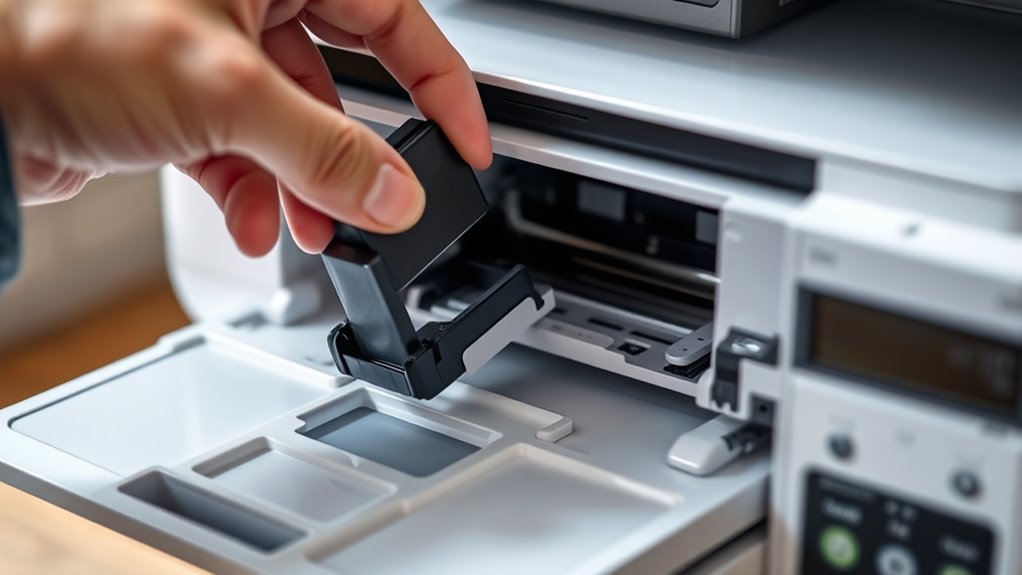
Gently open the individual cartridge flap and pinch the ends of the empty cartridge to pull it straight out without forcing, ensuring you don’t damage the holder’s hooks. Always make sure the printer is on and the print head has stopped before you remove the ink cartridge.
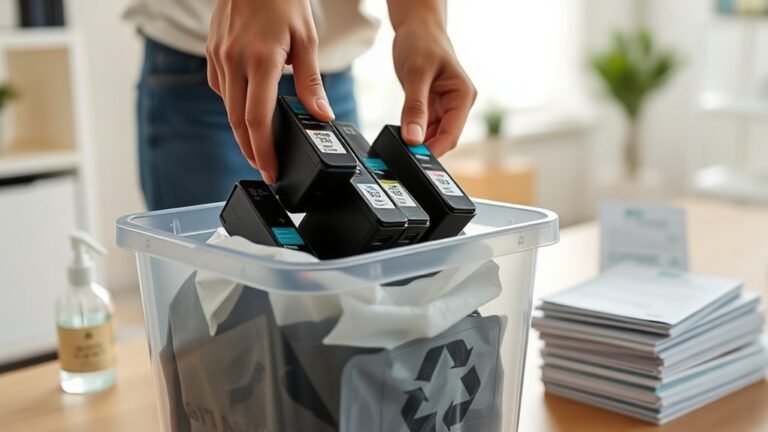
If you don’t have a replacement ink cartridge ready, leave the empty cartridge installed to protect the print head from drying. After removal, dispose of the empty cartridge responsibly, recycling it if possible.
Be cautious—if ink gets on your skin, wash your hands thoroughly with soap and water. If the ink light stays on, reinsert the cartridge to confirm it was removed correctly or check the printer’s display to identify which ink cartridges still need replacing.
Install the New Ink Cartridge and Complete Setup
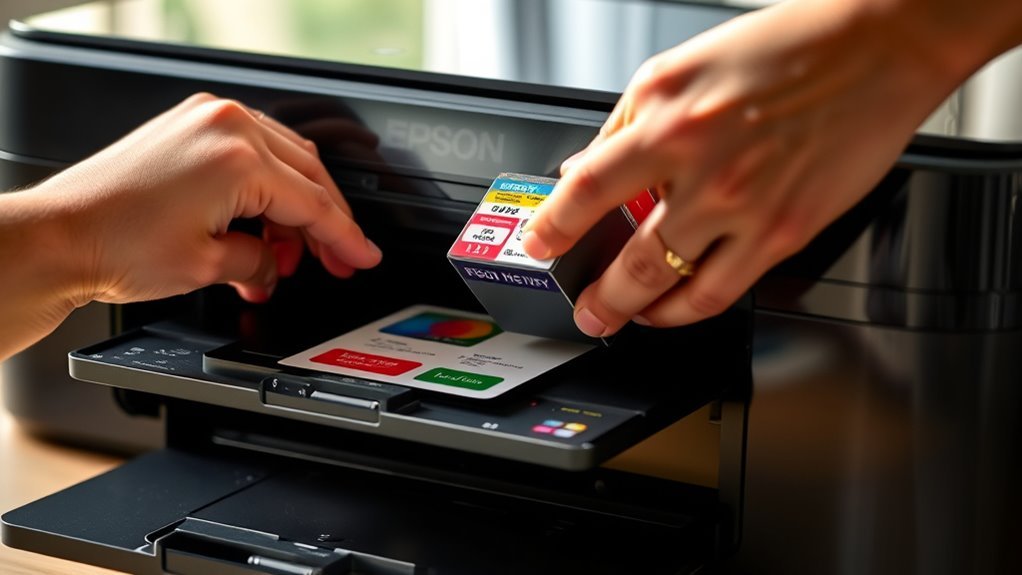
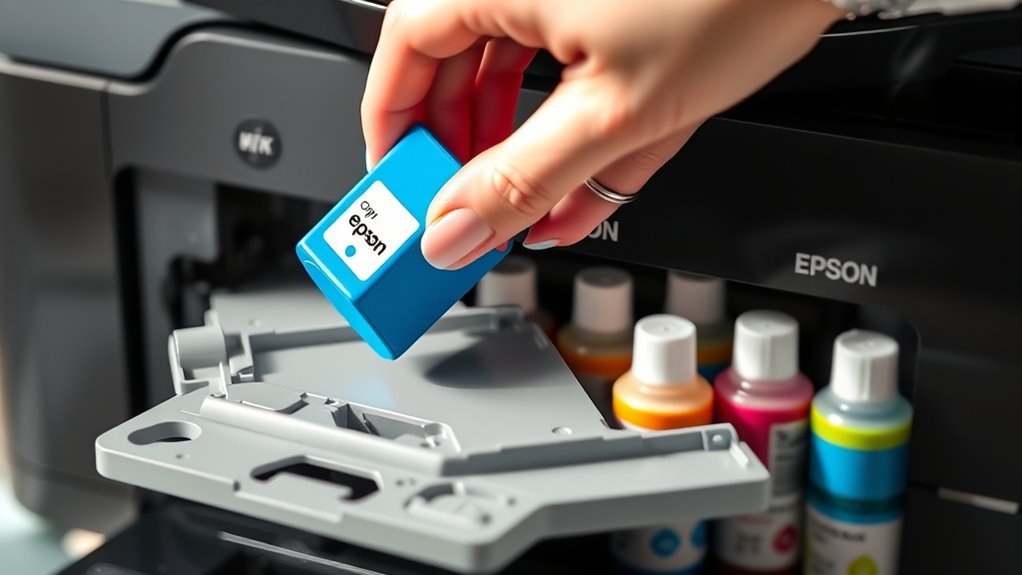
Take the new ink cartridge out of its packaging and give it a gentle shake 4–5 times while still sealed to mix the ink inside. Next, remove the protective cover carefully, avoiding touching the copper chip.
Gently shake the sealed ink cartridge 4–5 times, then remove the cover without touching the copper chip.
Hold the cartridge with the arrow pointing toward the printer and insert it vertically into the correct color slot until it clicks in place—don’t force it. Then, lock the ink lever or close the individual cartridge flap to secure it.
Close the ink compartment cover unless your model uses 220 ml cartridges. Press the printer’s ink icon button or follow the on-screen prompt to start ink charging. This process takes a few minutes and shouldn’t be interrupted.
Afterward, run a head cleaning and print a nozzle check to confirm successful installation and quality. Easy, right? Just take your time and you’ll be all set!
Frequently Asked Questions
How to Change the Ink Cartridge in an Epson Printer?
You open the ink compartment, lift the cartridge lever, and remove the empty cartridge.
Next, shake the new one gently before inserting it firmly into place.
Close the lever, and then start the ink charging process.
If needed, run a cleaning cycle afterwards to ensure everything prints smoothly.
How to Change Epson Printer to Print Last Page First?
Think of your print job like a book flipped backward. You can set your Epson printer to print the last page first by enabling “Reverse pages” in the print dialog or printer properties. Just make sure to do this before printing your document.
It’s a handy trick when you want your pages in the right order as they come out. So, next time, try flipping that setting and see how it works for you!
How Do I Replace the Ink Cartridges in My Epson XP 4200 Printer?
You power on your Epson XP 4200, open the front cover and scanner. Then, you remove the empty cartridge by squeezing and pulling it out.
Next, insert the new one carefully until it clicks. After that, close everything up.
Finally, start the ink charging process. It’s pretty straightforward!
How Do I Reset My Epson Printer Without the Resetter?
They say, “Where there’s a will, there’s a way.” You can reset your Epson printer by powering it off, unplugging it for 10 minutes, then holding the power button for 10-15 seconds.
Or, if you prefer, try using the maintenance menu to restore the defaults. It’s a handy option that doesn’t require any extra tools. Just a little patience, and you’re good to go!
Conclusion
Now that you’ve breezed through replacing your Epson ink cartridge, you’re all set to keep those vibrant prints flowing smoothly.
Changing ink might seem like a small task, but it’s a little moment of care that keeps your printer happy and your projects looking sharp. With just a few simple steps, you’ve given your printer a fresh start—making sure your next masterpiece is just a click away.
Easy, right? Changing ink on an Epson printer is a quick and straightforward process that anyone can master. Regularly updating your ink cartridges not only ensures consistent print quality but also helps maintain your printer’s performance over time. So, next time your prints start to fade, remember these simple steps to change ink on your Epson printer and keep your projects looking their best!