How to Put a Printer Online When It Shows Offline
If your printer shows offline, the first thing to do is check and clear any stuck print jobs in the print queue. Sometimes, a jammed print job can stop your printer from communicating properly with your computer.
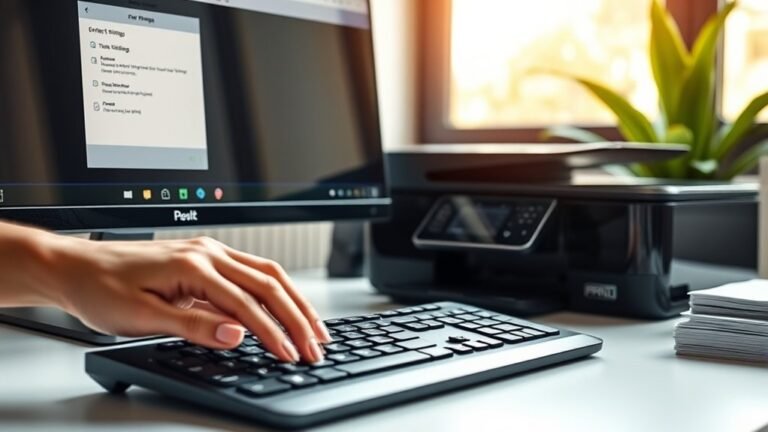
Next, open the printer settings and look for the option “Use Printer Offline.” If it’s checked, simply uncheck it to bring your printer back online. This small step often resolves the issue quickly.
If that doesn’t work, try restarting the Print Spooler service. You can do this through the Services app or by using the Command Prompt. Restarting this service resets communication between your computer and printer.
Still no luck? You might want to remove the printer from your Windows settings and then add it back again. This can fix any connection glitches that are causing your printer to stay offline.
Give these steps a try to get your printer back online fast and reliably.
Key Takeaways
- Check and uncheck “Use Printer Offline” in the printer queue to switch the printer status back online. This simple toggle often does the trick.
- Restart the Print Spooler service via Windows Services to clear stuck print jobs and reset the queue. It’s like giving your printer a quick refresh.
- Verify the printer is powered on, connected to the network, and has no paper jams or low ink alerts. Sometimes the issue is something simple like that.
- Remove and re-add the printer in Windows Settings, using the correct IP address for network printers. This can fix connection glitches that happen from time to time.
- Clear the print queue by canceling all documents to remove any jobs causing the printer to stay offline. Stuck jobs can really mess things up, so it’s worth checking.
Common Reasons for Printer Offline Status
Printers often go offline when they lose connection to your network or encounter a hardware hiccup. You might see this if your printer’s IP address changes or if Wi-Fi drops out, causing your computer to lose touch with the device.
Printers go offline when network connections drop or hardware issues disrupt communication with your computer.
Also, Windows has a “Use Printer Offline” option that, if enabled, deliberately marks the printer as offline—make sure to uncheck this in the printer menu.
Hardware issues like the printer being powered off, paper jams, or low ink can also trigger offline status. Outdated drivers or firmware often break communication, so keeping them updated helps.
If you want to use printer functions smoothly, regularly check these common causes to prevent your printer from going offline unexpectedly.
How to Check and Clear the Print Queue
When your printer shows offline status, a common culprit is a clogged print queue. To fix this, right-click your printer in Control Panel > Devices and Printers and select “See what’s printing” to view pending jobs.
If jobs are stuck, open the Printer menu and choose “Cancel All Documents” to clear the backlog. You can also restart the Print Spooler service to rebuild the queue.
After clearing or restarting, uncheck “Use Printer Offline” to reconnect.
| Step | Action | Purpose |
|---|---|---|
| 1 | See what’s printing | View pending print jobs |
| 2 | Cancel All Documents | Clear stuck or large jobs |
| 3 | Restart Print Spooler service | Refresh print queue |
| 4 | Uncheck “Use Printer Offline” | Allow reconnection to printer |
Disabling the “Use Printer Offline” Mode
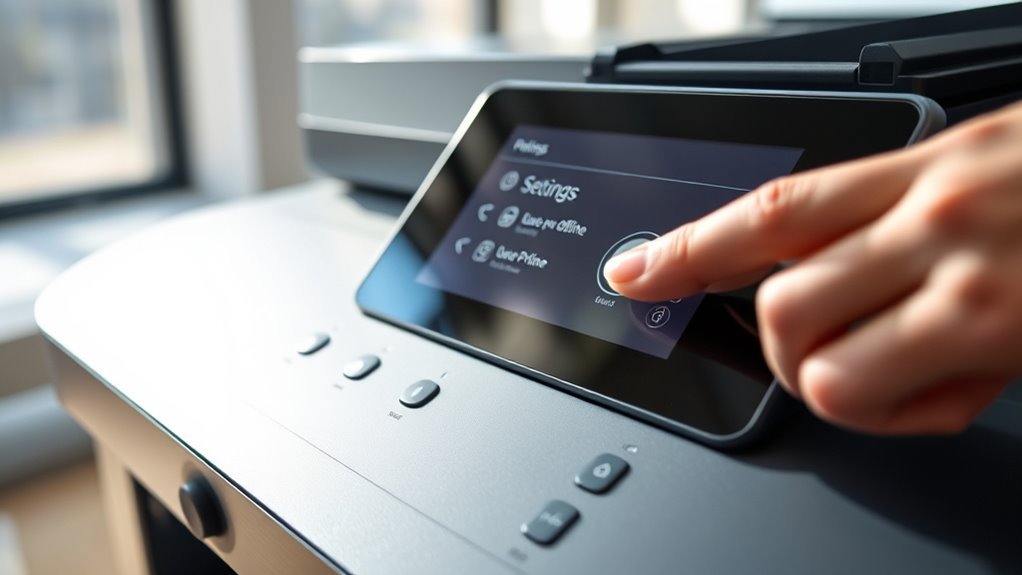
To bring your printer back online, start by opening its queue through Control Panel or Settings and checking the “Use Printer Offline” option under the Printer menu. If you see a check mark next to “Use Printer Offline,” click it to clear the selection. This action tells your system to stop forcing the printer offline mode, allowing it to reconnect.
Once unchecked, your printer’s status should switch to Online within seconds. If the option is grayed out or your printer remains offline, you’ll need to take additional steps, but don’t worry, those come next.
After successfully disabling the “Use Printer Offline” mode, make sure to cancel any stalled print jobs to prevent delays. This simple fix often resolves common printer offline issues quickly.
Restarting the Print Spooler Service on Windows
Restart the Print Spooler service on your Windows PC to clear locked printer ports and stuck print jobs. These issues might be causing your printer to show as offline.
Open Services by pressing the Windows key, typing “services.msc”, and hitting Enter. Then find “Print Spooler,” right-click on it, and select Restart. This resets the spooler and often switches your printer online quickly.
If the Restart option isn’t available, stop the service first. Then, clear the files in `C:WindowsSystem32spoolPRINTERS`—you’ll need admin rights for this. After that, start the service again.
You can also restart the spooler using Command Prompt with admin rights. Just run `net stop spooler` then `net start spooler`. Once you’ve restarted it, check the print queue and the Printers & scanners settings to confirm your printer is online.
| Action | Description |
|---|---|
| Open Services | Press Windows key, type “services.msc” |
| Restart Print Spooler | Right-click “Print Spooler” → Restart |
| Clear Spooler Files | Delete files in spool folder (admin) |
| Use Command Prompt | Run `net stop spooler` & `net start spooler` |
Removing and Re-Adding Your Printer in Windows Settings
If restarting the Print Spooler service doesn’t bring your printer online, removing and re-adding the device in Windows Settings can help reset its configuration. Open Settings > Bluetooth & devices > Printers & scanners, select your printer, and click Remove.
Next, click Add device or Add a printer to open a new window where Windows searches for available printers. If your printer is networked, select it from the list or choose “The printer that I want isn’t listed” to add it by IP address.
For network printers, add a Standard TCP/IP Port using the printer’s IP to avoid port issues. Reinstalling often restores correct drivers and ports.
After adding, print a test page and confirm the printer’s status shows Online in Settings. That way, you’ll know everything is set up properly.
Frequently Asked Questions
How Can I Troubleshoot My Printer?
You can troubleshoot your printer by checking its connection, clearing the print queue, restarting the print spooler service, and removing then re-adding the printer.
Make sure it’s powered on and properly connected to your device or network. If it’s wireless, double-check that it’s connected to the right Wi-Fi network.
Sometimes, just restarting the printer or your computer can fix the issue too. Give these steps a try before diving into more complex solutions.
Why Does My Canon Printer Say It’s Offline Even Though It’s Connected?
It’s frustrating when your Canon printer says it’s offline, even though you’ve just connected it. Usually, it’s a simple glitch like a wrong IP, a checked “Use Printer Offline” box, or a sleepy printer needing a wake-up.
Sometimes, the printer just needs a quick restart or a nudge to get back online. Don’t worry, these problems are usually easy to fix!
My HP Printer Says It’s Offline but It’s Connected. What Can I Do to Fix This?
You should open the print queue and uncheck “Use Printer Offline.” Then, cancel any stuck jobs you see. After that, restart the Print Spooler service.
If that doesn’t help, try removing your HP printer from your device and then add it back again. This usually fixes the offline issue. Give it a shot!
How to Fix Printer Not Printing?
Check your printer’s connection and make sure it’s online. Clear any stuck print jobs, restart the Print Spooler service, and update or reinstall the printer drivers.
These steps usually fix printing issues quickly. If not, you might want to check for hardware problems or contact support. It’s often easier than it sounds!
Conclusion
Getting your printer back online doesn’t have to feel like chasing shadows. Start by checking the print queue to see if any jobs are stuck. Sometimes, disabling the “Use Printer Offline” option can do the trick.
If that doesn’t work, try restarting the print spooler service. This refreshes the connection between your computer and printer. Another simple fix is to remove your printer from your device and then add it again.
With a little patience and these quick fixes, you can easily bring your offline printer back to life. Whether it’s a jammed queue or a miscommunication between devices, these steps will help you put your printer online and keep it reliable. Soon enough, your printer will be ready to tackle your next print job without missing a beat.