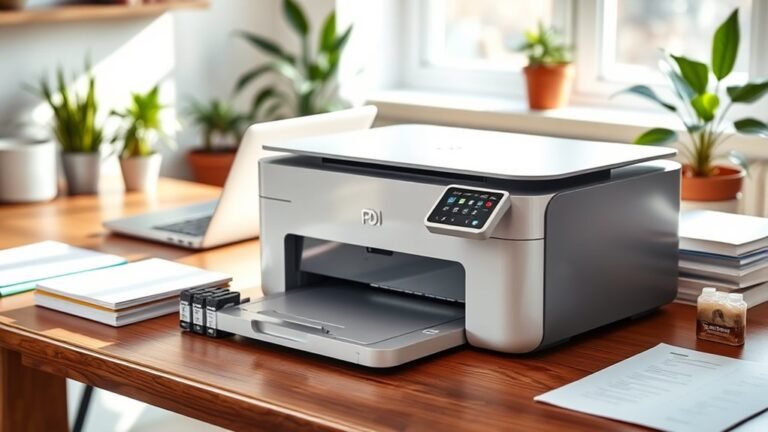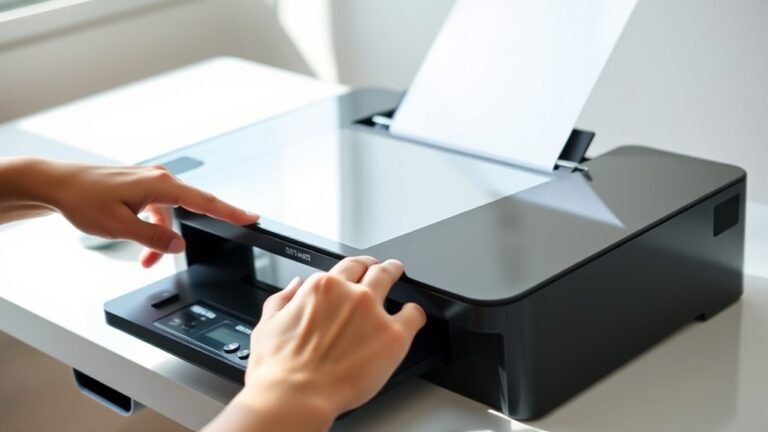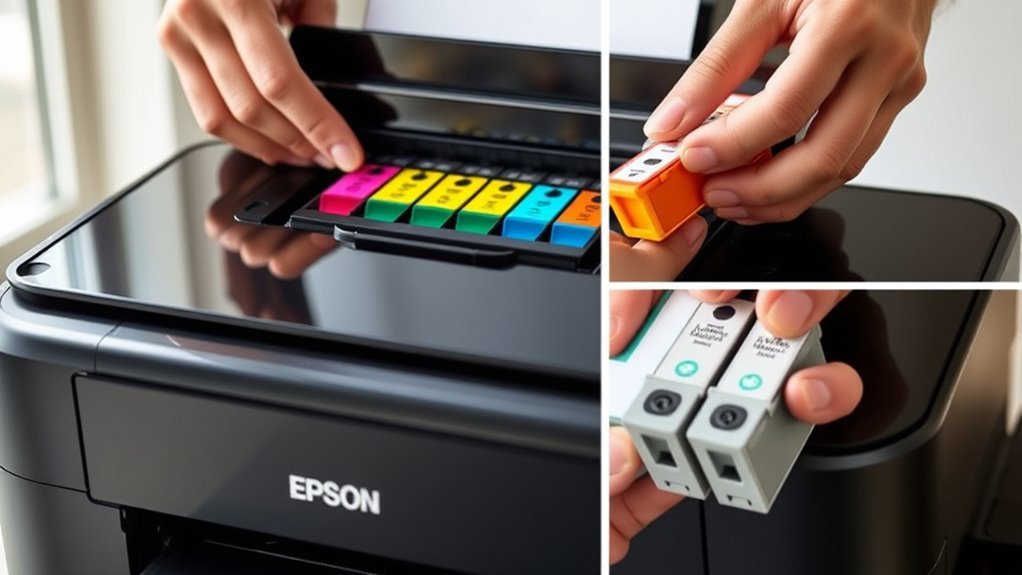
How to Replace Ink in Epson Printer in 3 Simple Steps
To replace ink in your Epson printer, start by removing the outer packaging from the new cartridge. Then, peel off the pull tab on top to break the internal vacuum. This step is important to make sure the ink flows properly when you install it.
Next, take a quick look for any foam wedges or plastic clips that might be blocking the cartridge from seating correctly. If you see any, just remove them so the cartridge fits snugly in place.
Finally, install the cartridge carefully. Avoid touching or removing the thin film on the bottom because the printer will pierce it automatically during installation. Just follow these simple steps, and you’ll have your Epson printer up and running smoothly in no time!
Key Takeaways
- Remove outer packaging and any clear plastic from the ink cartridge. Leave the foam wedge or clip only if it doesn’t block the pull tab.
- Next, identify and firmly pull the paper or plastic tab on the cartridge top. This breaks the vacuum and lets the ink flow.
- Take off any foam wedge or plastic clip from the cartridge top. This step helps the cartridge seat properly during installation.
- Don’t remove or tamper with the thin film on the cartridge bottom. The printer will pierce this automatically.
- Finally, install the cartridge right after prepping it. Make sure you don’t touch the nozzles or any internal parts so it works correctly.
Remove Packaging and Pull Tab to Prepare Your Epson Ink Cartridge
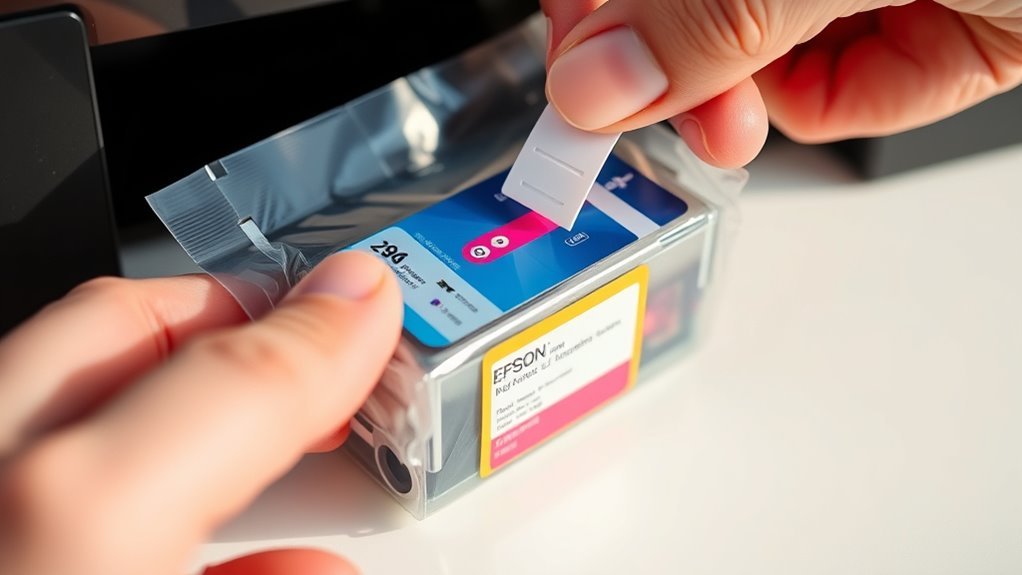
To get your Epson ink cartridge ready, start by taking off the outer packaging and any clear plastic so you can see the cartridge. Leave any small foam wedge or pushing clip in place unless it blocks the top pull tab.
Next, find the paper or plastic pull tab on the cartridge’s top. Grasp it firmly and pull straight off to break the internal vacuum, allowing ink to flow.
Be careful not to remove or tamper with the thin film on the cartridge’s bottom. It stays intact and will be pierced automatically during installation.
After you remove the pull tab, your cartridge is set for installation without any extra steps or manual piercing. This simple prep guarantees your Epson cartridge functions perfectly right away.
Remove Any Foam Wedges or Clips From the Epson Ink Cartridge
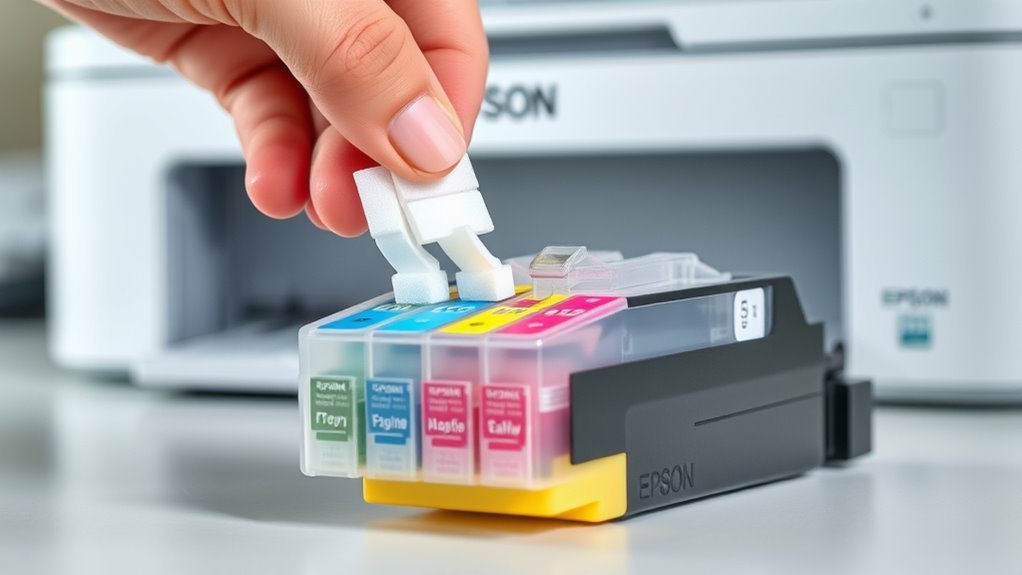
Look closely at the top of your Epson ink cartridge once you’ve unboxed it. Some models come with a small foam wedge or plastic clip that you’ll need to remove before installation. This piece usually sits near the pull tab and is easy to spot.
Check the top of your Epson cartridge for a small foam wedge or clip before installing.
Removing it makes certain the cartridge seats properly without damaging delicate parts. To remove the foam wedge or clip, follow these steps:
- Gently pull out the foam wedge or unclip the plastic piece without squeezing the cartridge body.
- Avoid touching the nozzle or internal components to prevent damage.
- If you don’t see any foam wedge or clip, you can skip this step and proceed to the next.
Just keep in mind, this removal doesn’t replace the need to pull the standard tab that breaks the vacuum seal. So, don’t forget that part!
Install the Epson Ink Cartridge Without Removing the Bottom Film
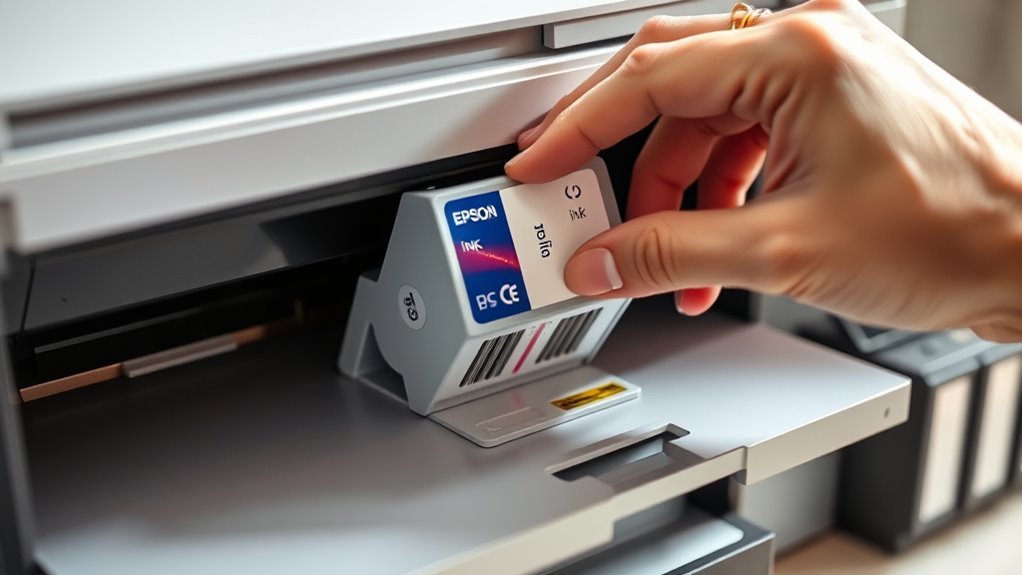
Although it might be tempting to peel off the thin film on the bottom of your Epson ink cartridge, you should leave it intact. This film is vital because the printer’s ink port will pierce it automatically when you properly install the cartridge.
Removing it prematurely can cause ink spills or leaks and disrupt ink flow. After unboxing, just remove the pull tab on top to break the internal vacuum and any foam wedges or pushing clips obstructing the tab.
Don’t puncture or peel the bottom film under any circumstances. If you’re unsure about what to remove, a careful visual check is enough—only take off the pull tab or obvious obstructions.
Following this guarantees a clean, efficient cartridge installation every time.
Frequently Asked Questions
How to Bypass Epson Printer Ink?
You can bypass Epson printer ink by using third-party cartridges or resetter tools to trick the ink sensor. But be careful—this might void your warranty, cause errors, or reduce print quality.
How to Refill an Epson Printer?
To refill your Epson printer cartridge, start by removing the pull tab. Be careful not to pierce the bottom film while doing this.
Next, refill the cartridge with compatible ink carefully. Once done, make sure to reseat the cartridge properly so it fits snugly.
After that, run a nozzle check to see if the ink is flowing correctly. It’s a good idea to align the print head afterward for the best printing results.
How Do You Change the Ink in Your Printer?
You remove the old cartridge, pull the tab on the new one to break the seal, avoid piercing the bottom film, insert it firmly until it clicks,
then close the cover and let your printer recognize the ink. Easy, right? Just take it step by step, and you’ll be good to go!
Why Does My Epson Printer Keep Saying to Replace the Ink Cartridge?
Your Epson printer keeps saying to replace the ink cartridge because it might not detect ink flow due to a mis-seated cartridge or an unremoved pull tab.
Sometimes, chip issues can also cause this problem. Or, the printer’s firmware might be tracking genuinely low ink levels.
Basically, it’s either a physical issue with the cartridge or the printer is telling you it’s time for a new one.
Conclusion
Replacing your Epson ink cartridge is as easy as pie when you follow these simple steps. Just remember to prepare the cartridge by removing packaging and pull tabs. Clear away any foam wedges or clips before installation.
Install it carefully without peeling off the bottom film. With a little care, your printer will be back in action in no time.
Changing ink in your Epson printer doesn’t have to be complicated. By following these quick and easy steps, you can keep your printer running smoothly and produce vibrant prints every time. So go ahead, replace that Epson ink cartridge confidently, and enjoy printing sharp, colorful documents and photos without hassle. You’ve got this—happy printing!