How to Fix a Printer Offline With a Step-By-Step Guide
To fix your printer offline, start by checking that the blue Wi-Fi indicator is solid. Make sure both your printer and device are connected to the same network. This simple step often solves many connectivity issues right away.
Next, disconnect any USB or Ethernet cables, then restart your printer and computer. It sounds basic, but a quick reboot can refresh connections and clear up glitches.
After that, use your printer’s Wi-Fi Setup Wizard or the HP Smart app to reconnect to Wi-Fi. If problems continue, try running the Diagnose & Fix tool. It can automatically find and solve network or driver issues.
If the printer still shows offline, resetting network settings and re-adding the printer usually does the trick. Keep going to uncover more detailed troubleshooting steps that will get your printer back online in no time!
Key Takeaways
- Check the printer’s blue Wi‑Fi light; a solid light means it’s connected. If it’s blinking, that usually means it’s offline or disconnected.
- Make sure the printer and your computer are on the same Wi‑Fi network. You can do this by matching the SSIDs and double-checking the subnet details.
- Try restarting both the printer and the router. After that, use the Wi‑Fi Setup Wizard to reconnect the printer with the right network credentials.
- You can also use the HP Smart app’s Diagnose & Fix tool. It helps detect and automatically fix connectivity or configuration problems.
- If things still aren’t working after all these steps, it’s a good idea to contact HP Support. They can help with advanced troubleshooting and check for any hardware issues.
Check Printer Wi-Fi Indicator and Network Connection
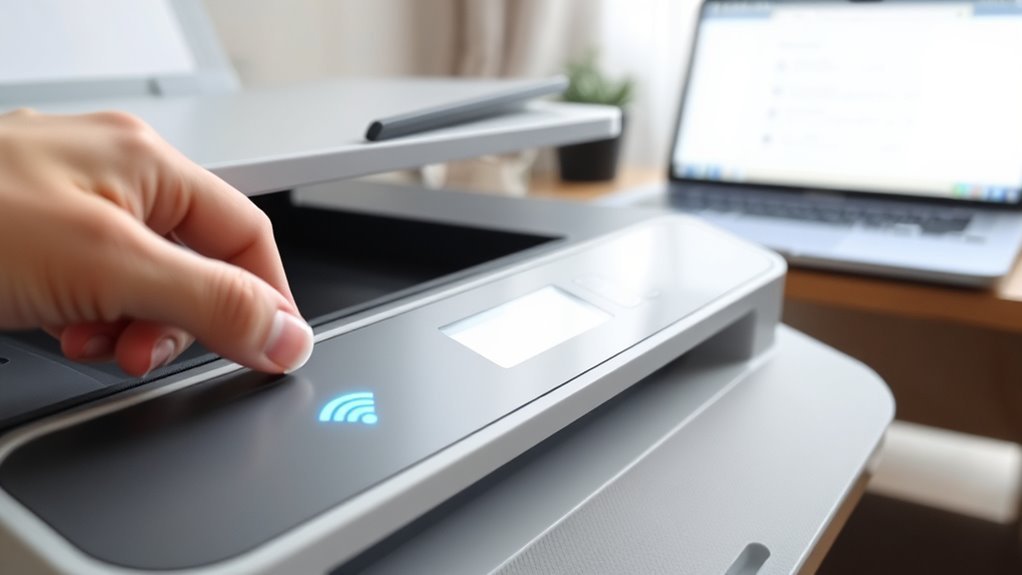
To fix a printer offline issue, start by checking the Wi-Fi indicator on your printer. Look at the control panel and find the blue light next to the Wi-Fi symbol.
If the light is solid, your printer has a local wireless connection. But if it’s blinking, your printer isn’t connected to the network.
Make sure your printer is within about 8 meters (26 feet) of the router to avoid a weak signal. If you’ve recently changed your network or password, reset the printer’s network settings.
Then, use the Wi-Fi Setup Wizard on the control panel to reconnect with the correct SSID and password. Also, disconnect any USB or Ethernet cables before troubleshooting wireless connectivity.
This helps verify the printer can join the wireless network properly.
Confirm Printer and Computer Are on the Same Network
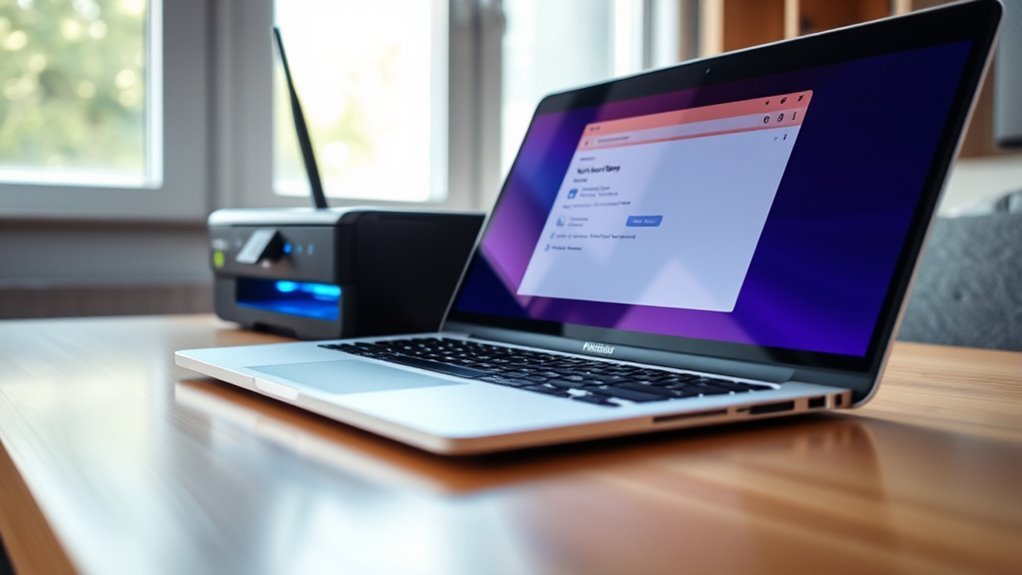
Before troubleshooting further, make sure your printer and computer are connected to the same network. Check the printer’s control panel for a solid blue Wi-Fi icon, confirming it’s connected.
Ensure your printer and computer share the same network, confirmed by a solid blue Wi-Fi icon on the printer.
Verify the network name matches the SSID shown on your computer or mobile device. On Windows or macOS, click the network icon and guarantee it’s linked to the same SSID as the printer.
If you’re using Ethernet, confirm the cable connects both devices to the same router and that their IP addresses share the same subnet (like 192.168.1.x).
On mobile devices, check Wi-Fi settings for the exact network name and, if possible, the printer’s IP address to guarantee it’s on the same segment. If they differ, reconnect your printer to the correct network using its Wi-Fi Setup Wizard.
Check USB and Ethernet Cable Connections Directly
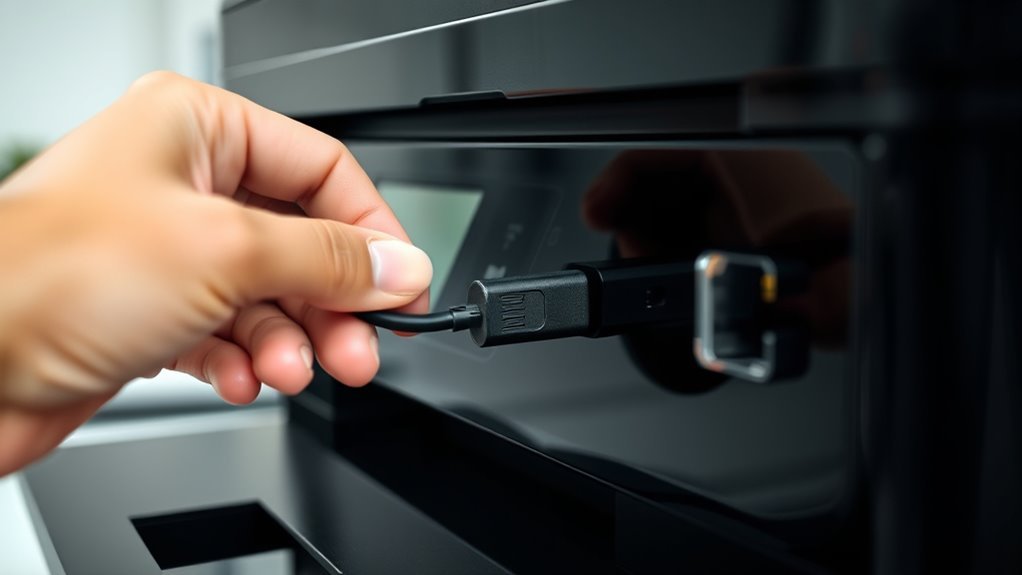
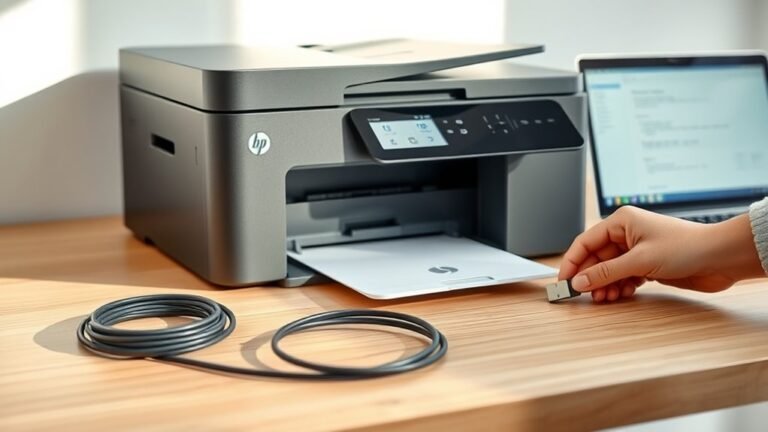
Make sure your USB or Ethernet cable is plugged directly into your computer or router, not through a hub or docking station. Check that the cable is fully seated and shows an active connection light if it’s Ethernet.
Also, avoid using both USB and Ethernet at the same time by disconnecting the unused cable to prevent conflicts. It’s a simple step, but it helps keep things running smoothly.
Verify Direct Cable Connections
Double-checking your printer’s cable connections can quickly reveal why it’s showing as offline. Make sure USB cables plug directly into the printer and your computer—not a hub—and keep the length under 3 meters.
For Ethernet, connect the cable straight to your router or switch, avoiding hubs. Inspect both ends for damage like frayed wires or bent pins.
If you spot any issues, replace the cable with a known-good one. Secure connections prevent communication errors and offline status.
Avoid USB And Ethernet Simultaneously
If you’ve confirmed your cables are properly connected, the next step is to make certain you’re not using both USB and Ethernet cables at the same time. Using both can cause network conflicts, making your printer appear offline.
Follow these steps:
- Disconnect either the USB or Ethernet cable from the printer.
- For USB, connect the cable directly to your computer and keep it under 3 meters to prevent signal issues.
- For Ethernet, plug the cable directly into your router or a managed switch—avoid hubs or docking stations.
- After unplugging the unused cable, power-cycle your printer and verify the connection via its network settings or status lights.
This makes certain your printer uses only one connection method, keeping it online and responsive.
Restart Printer and Computer to Fix Offline Issues
Restarting both your printer and computer often resolves offline issues by clearing temporary network or spooler glitches. Begin by turning off your printer and unplugging its power cord from the wall for 60 seconds.
Then, plug it back into a direct wall outlet and power it on. On your computer, close all apps and programs before restarting to refresh drivers and the print spooler.
After both devices reboot, check that the blue light next to the Wi-Fi symbol on your printer is steady. This confirms a local network connection.
If you use USB, make sure the cable connects directly to your computer (not a hub) and is under 3 meters. For Ethernet, power-cycle both the printer and router.
Also, verify the Ethernet cable plugs directly into the router without using USB simultaneously. That should help get things back online!
Reset Your Printer’s Network Settings and Reconnect Wi-Fi
Once you’ve restarted your devices and secured proper connections, resetting your printer’s network settings can clear persistent wireless issues. Here’s how to do it:
- On the printer control panel, go to Menu → Utilities → Settings → Network, select Restore Network Settings, then confirm to reset to factory defaults.
- Use the Wi-Fi Setup Wizard (Menu → Wi-Fi → Wi-Fi Setup Wizard → Start) to find your SSID, enter the exact WPA/WPA2 password, and tap Submit.
- Make sure the printer is within 8 meters (26 feet) of the router with a solid blue Wi-Fi light, and disconnect any USB or Ethernet cables beforehand.
- Confirm both printer and your device are on the same network by checking the network names on each.
This resets your wireless connection and helps resolve offline status caused by network glitches. Give it a try — it usually does the trick!
Remove and Re-Add Your Printer in the HP App
First, make sure you have the HP Smart app installed on your device. Then, remove your printer from the app to clear any offline status.
This helps refresh the connection. After that, just re-add the printer by following the prompts.
It’s pretty straightforward and should get your printer back online in no time!
Download And Install HP App
Download and install the HP Smart app from the Apple App Store, Google Play Store, or start.hp.com/install on your mobile device or PC. Once installed, follow these steps to remove and re-add your printer:
- Open the app, tap your printer, select “Remove from app,” and confirm to delete it.
- Tap the plus (+) icon, choose your printer when it appears, and follow the on-screen prompts.
For wireless setups, make sure your printer and device share the same Wi-Fi network. Then, complete the Wi-Fi Setup Wizard.
After adding the printer, go back to the home screen. Print a test page or run Print Diagnostics to confirm it’s online.
This process refreshes your printer’s connection. It often resolves offline issues quickly.
Remove Printer From App
To remove your printer from the HP Smart app, open the app and tap your printer on the home screen. Then select “Remove” or “Remove device from app” and confirm.
This deletes the printer profile from the app but won’t reset the printer’s network settings, so your Wi-Fi credentials stay intact.
After removal, tap the plus (+) icon or “Add a printer” to start searching again. Make sure your device is on the same Wi-Fi network as the printer.
The printer should be powered on and within roughly 8 meters (26 ft) of your router. If the app can’t find your printer, try disconnecting any USB or Ethernet cables.
You can also run the printer’s Wi-Fi Setup Wizard from the control panel, then try adding it again. It usually does the trick!
Re-Add Printer Successfully
When you remove your printer from the HP Smart app, you can quickly add it back by tapping the plus (+) icon and choosing your printer from the list that appears.
To do this successfully:
- Make sure your printer is on, within 8 meters of your router, and disconnected from USB or Ethernet cables.
- Tap the plus (+) icon, select “Choose a printer,” and wait for the app to scan for available printers on your Wi-Fi network.
- Once your printer appears, select it and follow the on-screen prompts like connecting to Wi-Fi or updating firmware.
- After setup, confirm the printer shows as online in the app and print a test page to verify the connection.
This process re-establishes your printer’s wireless connection and resolves offline issues efficiently.
Just follow these steps, and you should be back up and running in no time!
Run the Diagnose & Fix Tool in the HP App
While running the Diagnose & Fix tool in the HP app, you’ll start by opening the app on your desktop and selecting your printer from the home screen. Next, scroll down to Diagnostics and click Diagnose and Fix to launch the process.
The tool may take several minutes to complete, so don’t close the app while it’s running. It checks for connectivity or configuration issues and provides step-by-step instructions if needed, like restoring network settings or reinstalling drivers. It also tries to fix problems automatically.
When it’s finished, the tool shows the results and suggests what you can do next. If the problems don’t go away, make sure to note any error messages and follow the troubleshooting steps provided.
Just remember, this tool is only available in the desktop HP app and is designed to help fix common reasons why your printer might be offline.
When to Contact HP Support If Printer Offline Issues Persist
If running the Diagnose & Fix tool in the HP app hasn’t cleared up your printer’s offline status after applying all suggested fixes, it’s time to reach out to HP Support. You should contact them when:
- The blue Wi-Fi indicator blinks or stays off even after resetting network settings and reconnecting with the Wi-Fi Setup Wizard.
- Firmware updates fail or your printer repeatedly goes offline after updating, signaling a need for advanced diagnostics.
- You’ve confirmed all power, USB, and Ethernet connections are correct and restarted your devices, but the issue persists.
- Suspected hardware problems like network adapter faults, control-panel errors, or frequent paper-feed and power failures occur.
HP Support can guide you through troubleshooting or arrange repairs if necessary. Don’t hesitate to get in touch—they’re there to help!
Frequently Asked Questions
How to Take a Printer From Offline to Online?
You’ll want to restart your printer and make sure it’s connected to the correct Wi-Fi network.
If it’s still offline, try restoring the network settings. Then, reconnect using the Wi-Fi Setup Wizard.
If that doesn’t work, remove the printer from your device and add it again. That usually does the trick!
How Do I Reconnect a Printer to a Computer?
Think of reconnecting your printer like reuniting old friends—you just need to make sure both devices “speak” the same language.
Connect via Wi-Fi or USB, then add the printer again through your computer’s settings to restore communication.
It’s pretty simple once you get the hang of it! Just follow the steps, and you’ll be printing in no time.
My HP Printer Is Connected to Wi-Fi but Is Offline. What Can I Do to Fix This?
If your HP printer is connected but offline, try restarting both the printer and your computer.
Make sure they’re both connected to the same Wi-Fi network.
If that doesn’t work, you can restore the printer’s network settings. Then, reconnect it using the Wi-Fi Setup Wizard or the HP app.
This usually does the trick! Give it a shot and see if your printer comes back online.
How to Fix Printer Not Printing?
Sometimes your printer just needs a little encouragement. Check connections, restart devices, and make sure it’s on the right network.
If issues persist, remove and re-add the printer in the app to restore smooth printing.
Conclusion
Just like a ship piloting stormy seas, your printer might face offline waves, but with these steps, you’re the skilled captain steering it back to smooth sailing. Checking connections, restarting devices, and resetting settings act as your compass and anchor.
If the storm persists, HP Support is your lighthouse guiding you safely ashore. Stay patient and persistent, and soon your printer will be back online, ready to deliver smooth sailing for your tasks.
Dealing with a printer offline error can feel frustrating, but following this step-by-step guide makes it manageable. By ensuring your printer is properly connected and restarting both your printer and computer, you often resolve common issues quickly. Resetting your printer settings can also clear up any misconfigurations causing the offline status. Remember, if these steps don’t work, reaching out to HP Support can provide expert help. With patience and persistence, fixing a printer offline problem is within your reach, and your printer will be back online, ready to print without interruption.