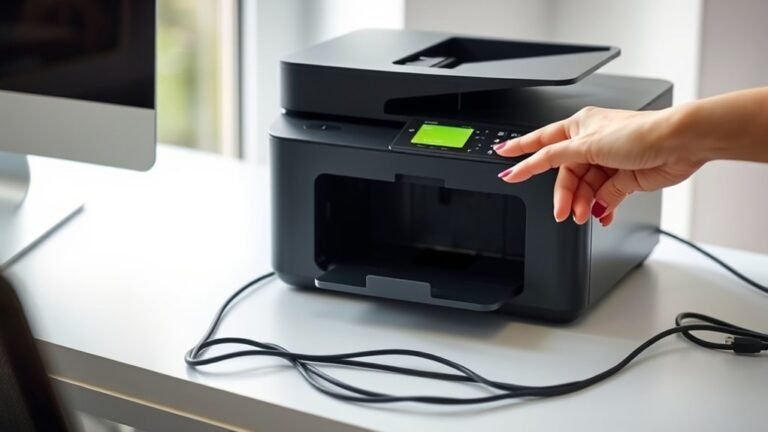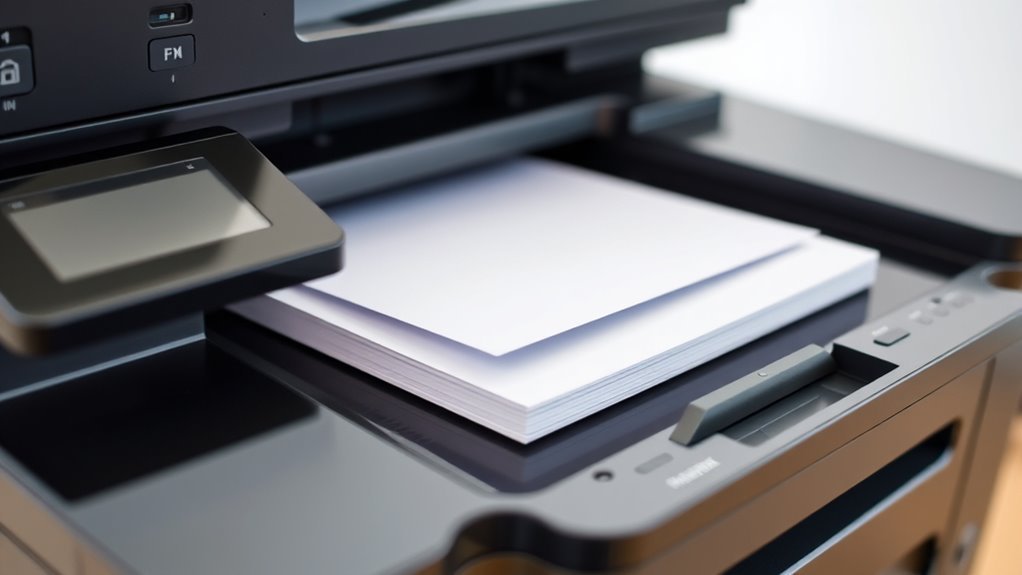
What Does ADF Mean on a Printer?
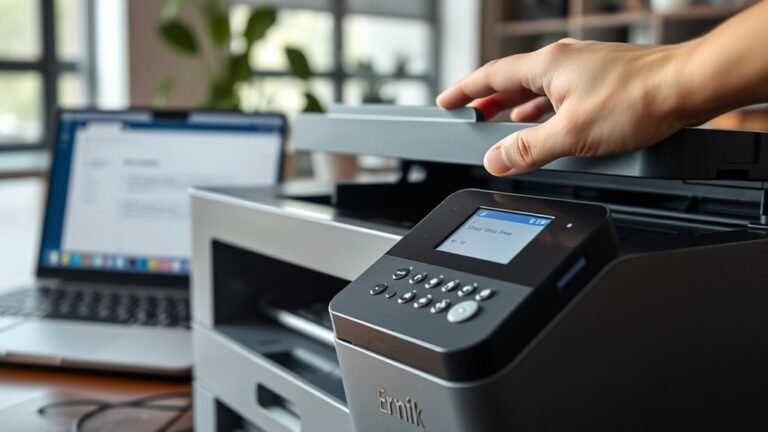
ADF stands for Automatic Document Feeder on your printer or scanner. It’s a handy feature that lets you scan or copy multiple pages without handling each one individually, saving you time and effort.
You just load a stack of documents, and the ADF feeds pages one by one automatically. It can even handle double-sided scanning if your device supports it.
This feature is perfect for batch jobs like contracts or reports. Keep going, and you’ll discover how ADFs work, their types, and handy tips for smooth operation.
Key Takeaways
- ADF stands for Automatic Document Feeder. It’s a handy feature on printers and scanners that lets you load multiple sheets automatically.
- It feeds pages one by one, so you can scan or copy multi-page documents without having to babysit the machine.
- ADF makes batch processing a breeze and saves you time when dealing with invoices, reports, or contracts.
- Some ADFs are duplex-capable, meaning they can scan both sides of a sheet in one go or by flipping the paper automatically.
- Overall, using an ADF is way more efficient than scanning documents manually on the glass, especially when you have a lot of pages to handle.
What Is an Automatic Document Feeder and Why You’ll Love It
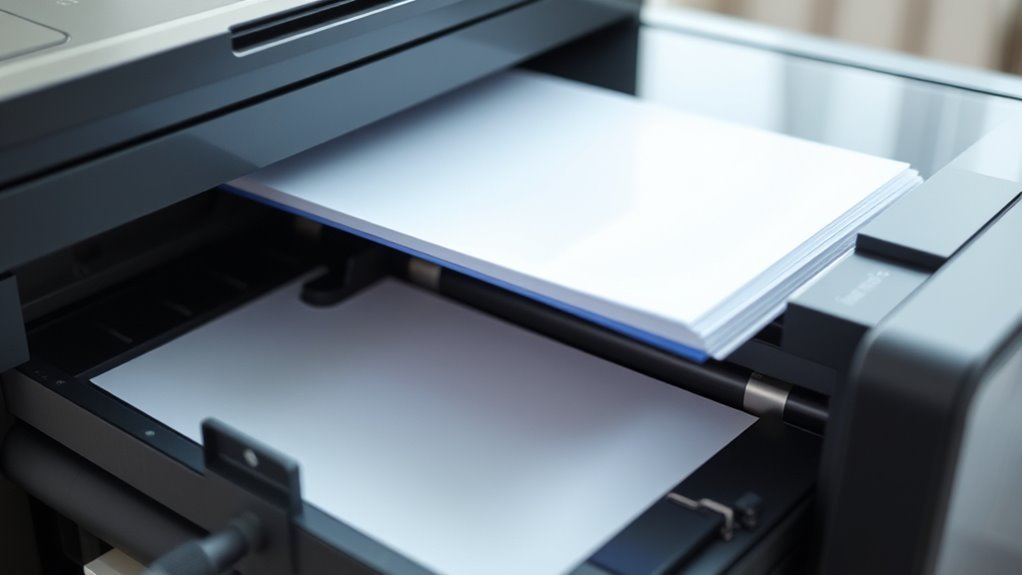
Although scanning multiple pages by placing each one on the glass can be tedious, an Automatic Document Feeder (ADF) makes the process effortless by holding and feeding a stack of pages automatically. You can load up to 30 sheets on many home or office models, with some high-capacity units handling over 100.
The ADF supports common paper sizes like A4, Letter, and Legal, but works best with uniform sheets free of staples or damage. If your ADF is duplex-capable, it scans both sides in one pass, speeding up two-sided document handling.
To avoid jams, load pages print side up, align the guides, and extend the exit tray. Using an Automatic Document Feeder (ADF) saves you time and streamlines multi-page scanning tasks.
Who Should Use a Printer With an Automatic Document Feeder?
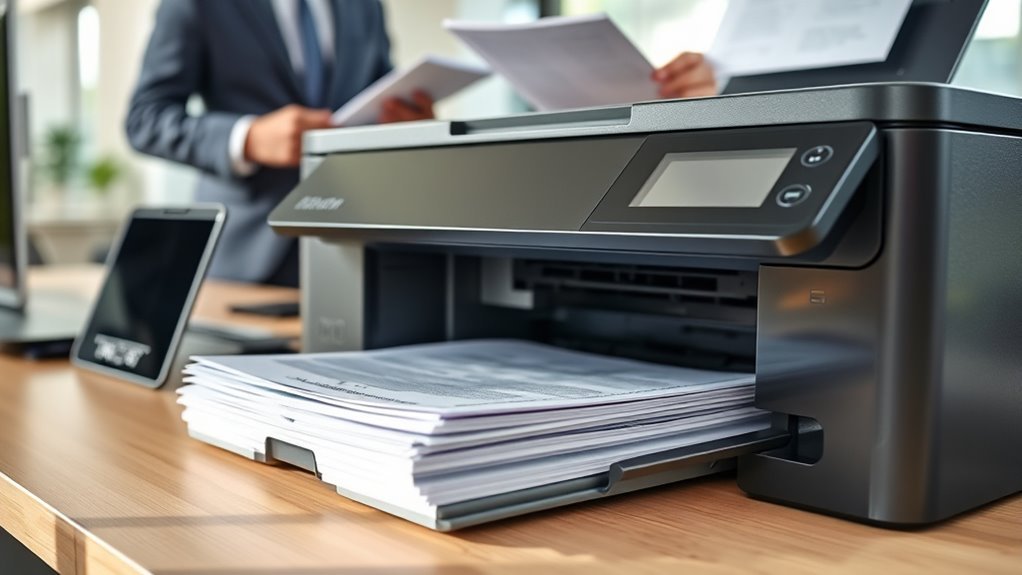
Frequent users who handle multi-page documents will find a printer with an Automatic Document Feeder (ADF) invaluable. If you work in an office or department processing invoices, contracts, or reports regularly, an ADF saves you time by scanning or copying batches automatically.
For frequent two-sided scanning, a duplex ADF (DADF) speeds things up by scanning both sides in one pass, minimizing jams. If your job involves creating searchable PDFs with OCR, an ADF that feeds 30+ sheets lets you digitize documents without interruption.
However, if you’re a mobile professional or handle low volumes, a small-capacity ADF or none at all might suit you better due to size and cost. And remember, avoid using an ADF for delicate or thick originals; use the flatbed scanner instead.
How an Automatic Document Feeder Works
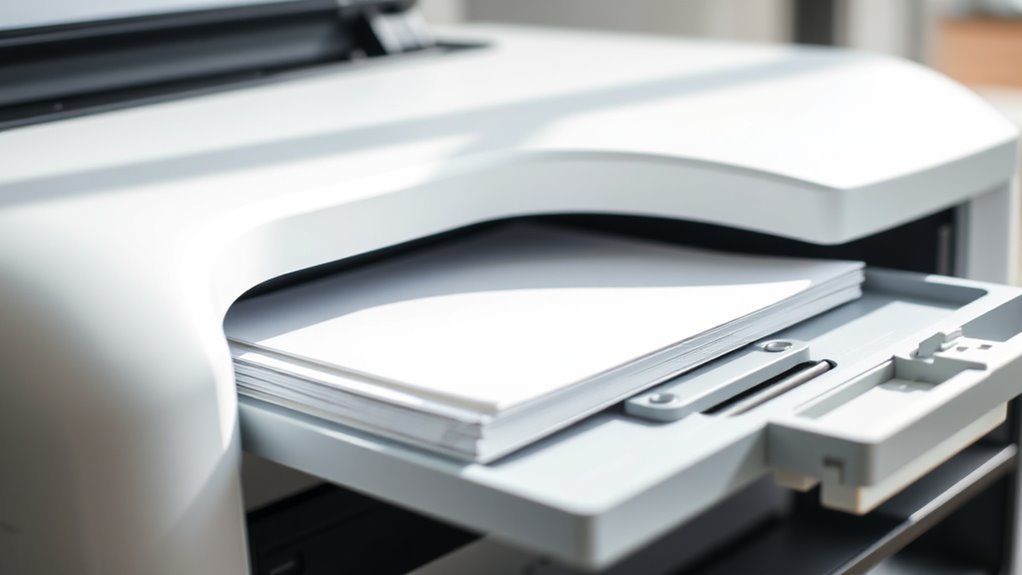
You’ll find that the ADF uses rollers to feed each page one by one across a scanning area without needing your help.
If your printer supports duplex scanning, it can capture both sides of a sheet in a single pass or flip the paper to scan the other side.
Let’s take a closer look at how these feeding and duplex processes work.
Feeding Mechanism Overview
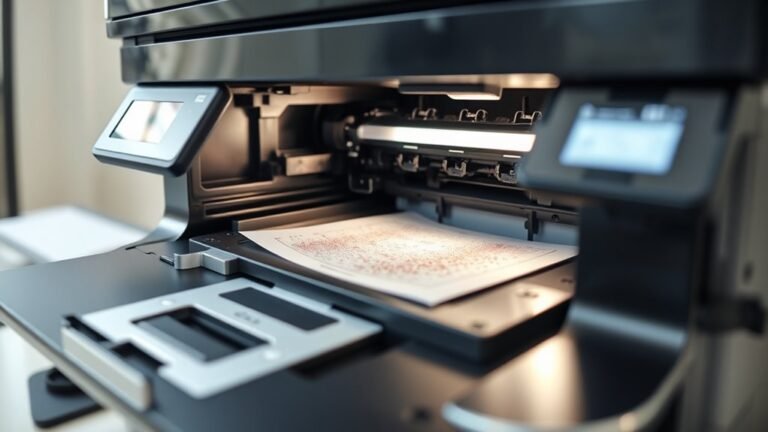
An Automatic Document Feeder (ADF) simplifies scanning by automatically pulling sheets one at a time from a stack and moving them across the scanner. The ADF uses a tray-and-roller assembly on top of your printer to hold sheets, then feed rollers transport each page over the scanning element.
You’ll typically load between 10 and 100 sheets, aligning edge guides and placing pages face up with the top edge toward the feeder. The ADF handles standard document sizes and thicknesses, but staples, folds, or wet ink can cause jams.
Common issues like dirty feed rollers or worn separation rollers may lead to misfeeds or double feeds. Keeping the ADF clean and properly aligned guarantees smooth, reliable feeding during your scanning tasks.
Duplex Scanning Process
Discover how duplex-capable Automatic Document Feeders (ADFs) scan both sides of your documents efficiently, either by capturing both sides in a single pass or by flipping pages to scan the second side.
Single-pass duplex ADFs use dual scanning sensors to scan both sides simultaneously, boosting speed and reducing jams. Alternatively, reversing ADFs (RADFs) scan one side, flip the sheet mechanically, then scan the other side—slowing throughput and stressing thicker papers.
To get the best results, load your ADF with up to its maximum capacity, aligning pages and avoiding staples, folds near edges, or wet ink. Typical duplex-compatible ADFs handle documents about 85–216 mm wide and 127–356 mm long.
They work well with thickness between 0.07–0.16 mm and paper weight of 58–122 g/m² for reliable feeding. Just make sure your documents fit within those specs, and you’ll be good to go!
Single-Pass vs. Reversing ADFs: Which Type Fits Your Needs?
When deciding between single-pass and reversing Automatic Document Feeders (ADFs), consider how often you scan double-sided documents and the types of materials you handle. Single-pass ADFs scan both sides of a sheet simultaneously, making them ideal for heavy duplex workflows.
They speed up scanning, reduce jams, and lower the risk of alignment errors. If you frequently process invoices, contracts, or large OCR batches, a single-pass ADF will save you time and hassle.
On the other hand, reversing ADFs scan one side, then flip the page to scan the other, which slows down the process and can cause issues with thick or delicate paper. If you only scan double-sided documents occasionally and want a budget-friendly option, a reversing ADF might fit your needs.
What Paper Sizes and Conditions Work Best With an ADF
To get the best results with your ADF, use standard paper sizes like A4, Letter, or Legal within the recommended dimensions. Make sure your documents are free from staples, wrinkles, or tears.
Also, avoid mixing different paper sizes in one load. Following these guidelines helps your ADF feed smoothly and prevents jams.
Supported Paper Dimensions
Many ADFs handle paper widths ranging from 85 to 216 mm (3.3 to 8.5 inches) and lengths from 127 to 356 mm (5 to 14 inches). This means they can accommodate everything from checks to legal-size documents.
The Automatic Document Feeder (ADF) works best when you load sheets of the same size. It’s typically optimized for A4, Letter, and Legal dimensions.
To guarantee smooth feeding, use paper with a thickness of 0.07–0.16 mm (58–122 g/m²). Preferably, choose high-quality bond paper for the best results.
If you’re dealing with mixed sizes, make sure to align the top edges. Also, adjust the input-tray guide carefully to prevent jams.
Sticking to these supported paper dimensions will help your ADF deliver reliable, consistent scanning and copying without interruptions. It’s a simple way to keep things running smoothly!
Document Condition Requirements
Although ADFs handle a range of paper sizes, you’ll get the best results by feeding documents free of staples, paper clips, holes, wrinkles, or any rear carbon coating. The Automatic Document Feeder (ADF) works best with high-quality bond paper measuring 85–216 mm wide and 127–356 mm long, such as A4, Letter, Legal, and checks.
Paper thickness should be between 0.07 and 0.16 mm to guarantee smooth feeding. Avoid folded edges within 5 mm of the sheet’s edge and don’t use multipart forms or bound documents. Make sure ink is dry before loading.
For peak performance, load up to 30 sheets of the same size, stacking no higher than 6 mm. Properly aligned edges reduce misfeeds and keep the ADF running efficiently. Just take a little extra time to line things up, and you’ll save yourself some hassle later on.
Mixed-Size Sheet Handling
When feeding mixed-size sheets through the ADF, you’ll want to line up the top edges carefully and adjust the edge guide to keep everything steady.
Mixed-size document feeders handle sheets from about 85 to 216 mm wide and 127 to 356 mm long. For the best results, use clean, flat sheets within 0.07–0.16 mm thickness and 58–122 g/m² weight.
Avoid folded, stapled, or wet-ink documents in the ADF; use the flatbed instead. Aligning and ordering mixed sizes prevents jams and misfeeds.
| Paper Size | Dimensions (mm) | Notes |
|---|---|---|
| A4 | 210 × 297 | Most common |
| Letter | 215.9 × 279.4 | Widely supported |
| Legal | 215.9 × 355.6 | Longer documents |
| Check | 85 × 127 | Special support size |
How to Load Documents Properly Into an Automatic Document Feeder
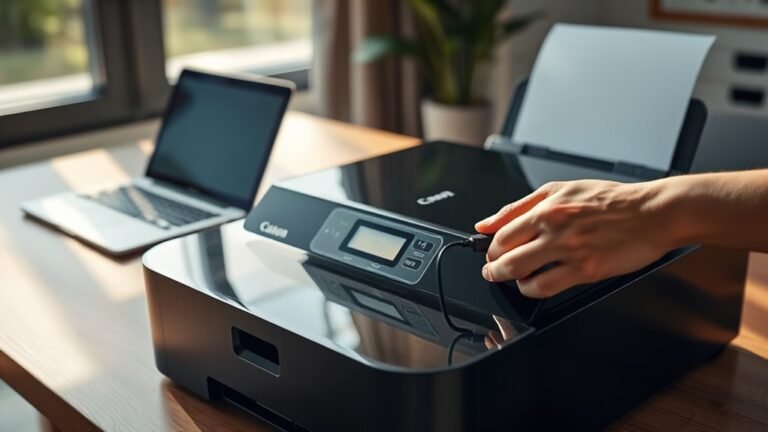
To get your documents fed smoothly through the Automatic Document Feeder (ADF), start by sliding the input-tray edge guide fully to the right. Then, place up to 30 sheets of 17 lb paper, printed side up with the top edge facing into the feeder.
Next, slide the guide gently to touch the paper edge. Make sure all sheets are the same size—A4, Letter, or Legal—and align their top edges before loading.
Remove staples, paper clips, and any objects. Also, check that ink is dry and pages have no holes, rips, wrinkles, or folds within 5 mm of the edges.
Don’t forget to extend the metal support on the ADF output tray, especially for longer sheets, so pages exit neatly. And avoid using the ADF for photos or thin media; use the scanner glass instead.
Common Issues With ADFS and How to Fix Them Quickly
If your ADF isn’t feeding sheets properly, you’ll want to check the feed and separation rollers first. Worn rollers often cause the first sheet to fail feeding.
Dirt on the narrow ADF glass strip can cause lines or smudges on scans. So, clean it with isopropyl alcohol and a lint-free cloth.
Error messages about the ADF cover often signal misaligned sensors. Just reseat the feeder and clear any debris you find.
For jams, make sure to align edges properly and don’t overload the ADF beyond its thickness or weight limits. That usually does the trick.
| Issue | Cause | Quick Fix |
|---|---|---|
| Feeding failure | Worn rollers | Clean or replace rollers |
| Smudges or lines | Dirty ADF glass strip | Clean glass with alcohol |
| Error messages | Misaligned sensors | Reseat ADF, check guides |
| Frequent jams | Overloaded/misaligned documents | Align edges, don’t exceed limits |
How Modern ADFs Make Your Workday Easier
How can a modern ADF transform your daily scanning tasks? An Automatic Document Feeder (ADF) lets you load up to 30 sheets—sometimes even more depending on the model—so you don’t have to place each page manually.
If your ADF supports duplex scanning, it can capture both sides of a page in a single pass, speeding up your work markedly. You can scan standard paper sizes and thin documents reliably, as long as you follow guidelines like removing staples and using dry ink.
The ADF feeds pages one by one, boosting productivity for bulk scanning tasks like invoices or contracts. Just remember to keep the ADF’s glass and rollers clean to avoid jams and maintain scan quality throughout your busy workday.
Frequently Asked Questions
How to Use ADF on Epson L5290?
You load up to 30 sheets printed side up into the Epson L5290 ADF. Then, slide the guide to touch the paper edge.
Make sure to align mixed sizes by the top edges. And try to avoid photos or valuable originals—this helps prevent jams or damage.
How to Use Document Feeder HP Printer?
Think of your HP printer’s document feeder as a helpful librarian sorting pages. You’ll load your sheets face up, edge guided, then let the feeder whisk them through.
What Does ADF Stand for in Printing?
ADF stands for Automatic Document Feeder. It lets you load multiple pages at once, so your printer or scanner feeds them automatically.
This saves you time and effort, especially with multi-page documents or double-sided scanning. Pretty handy, right?
What Is Platen Vs ADF?
You’d think scanning’s a breeze, but platen vs. ADF really matters!
You’ll use the platen glass for single, delicate pages, while the ADF handles stacks automatically, saving you from an endless paper shuffle nightmare.
Conclusion
You won’t believe how much easier your life gets with an Automatic Document Feeder! It’s like having a tiny office assistant who never sleeps, instantly feeding pages while you sit back and relax. No more wrestling with paper, no more tedious scanning one sheet at a time.
Whether you’re drowning in documents or just want a smoother workflow, an ADF turns chaos into calm in seconds. It saves you time and effort by handling multiple pages automatically, which is especially handy for busy offices or home setups.
Trust me—you’ll wonder how you ever managed without it! An ADF on a printer truly streamlines your printing and scanning tasks, making your workday more efficient and less stressful. If you want to improve productivity and reduce hassle, an Automatic Document Feeder is definitely a game changer.