How to Set Up a Printer in 5 Easy Steps
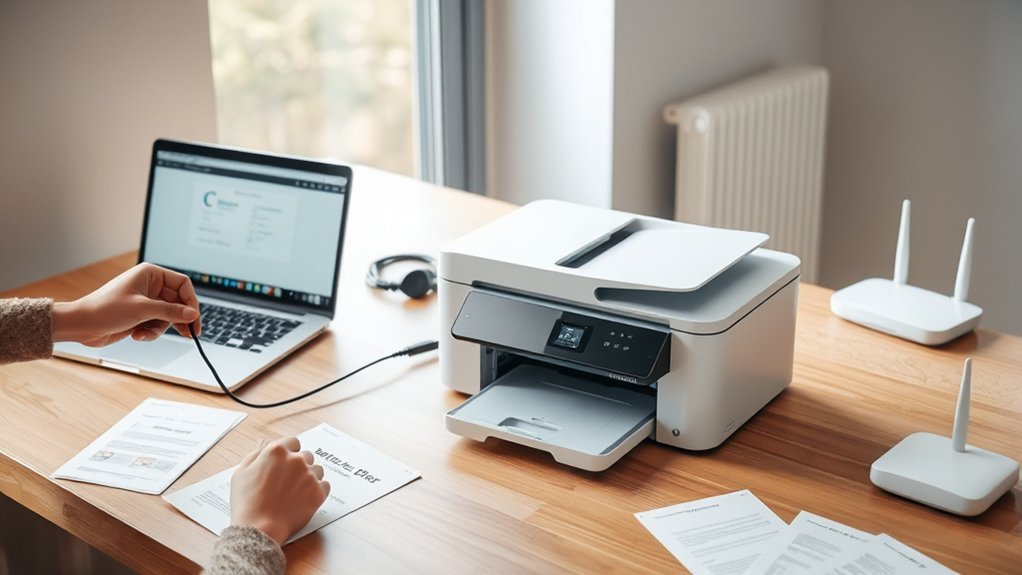
To set up your printer in five easy steps, start by clearing a workspace and gathering all necessary materials like ink and cables. Having everything ready before you begin makes the process smoother and quicker. Setting up a printer doesn’t have to be complicated—just follow these simple steps, and you’ll be printing in no time.
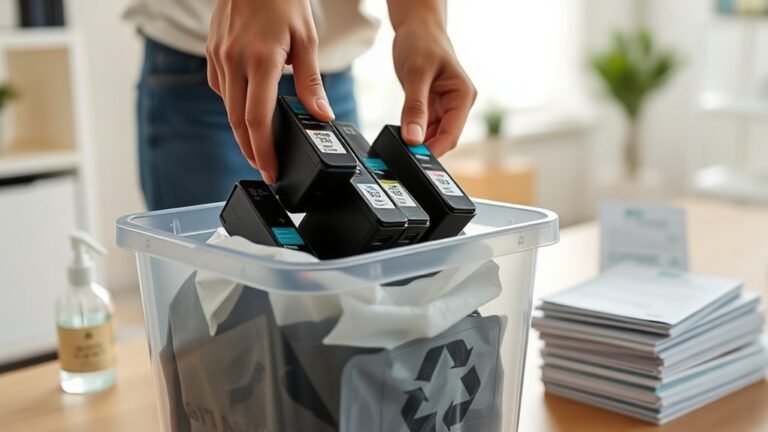
Next, unpack the printer and install the ink or toner carefully. Take your time here to avoid any spills or mistakes.
Then, connect your printer to power and your Wi-Fi or use a cable. This step is important so your computer and printer can communicate.
After that, install the latest software and drivers on your computer. This ensures your printer works efficiently with your system.
Finally, print a test page and adjust settings for the best quality. This way, you can make sure everything’s working perfectly before you start printing documents or photos.
Keep going to uncover helpful tips for smooth operation.
Key Takeaways
– Prepare a clean, level workspace near a power outlet and Wi-Fi router within 30 feet for easy printer setup.
It’s best to have everything handy before you start.
– Unbox the printer, remove all packaging, and install ink or toner cartridges securely at room temperature.
Make sure the cartridges click into place properly.
– Connect the printer to power and your network via Wi-Fi, Ethernet, or USB, ensuring a stable connection.
You want to avoid interruptions during setup.
– Download and install the latest printer drivers from the manufacturer’s website, following on-screen instructions.
This keeps your printer running smoothly with your computer.
– Print a test page, check quality, and adjust settings or run calibration if needed for optimal performance.
It’s a quick way to make sure everything is working just right.
Prepare Workspace and Gather Materials
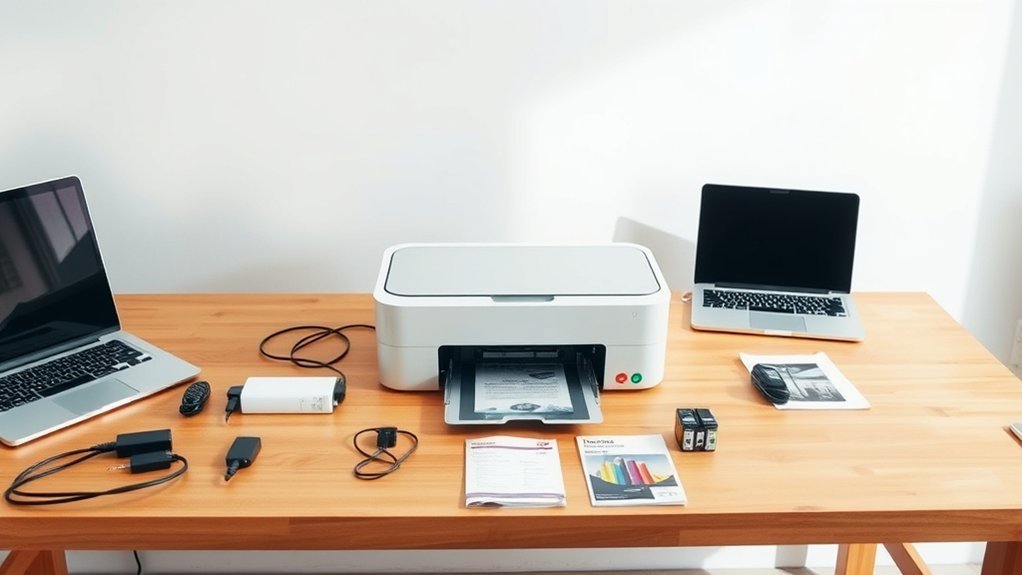
Before you begin setting up your printer, clear a 24-inch radius around the workspace to guarantee easy access and prevent any obstructions. Choose a stable, level surface near a grounded power outlet and within 30 feet of your Wi-Fi router for ideal wireless setup.
Make sure your workspace is free from dust, water, and high-traffic areas to protect the printer during installation. Next, gather all necessary materials: the printer itself, power and connection cables, ink or toner cartridges, paper, and any relevant installation guides or tools.
Keep the printer manual and driver software handy for quick reference throughout the setup process. By preparing a clear area and assembling all materials beforehand, you’ll streamline the installation and avoid unnecessary interruptions.
Unpack Printer and Install Ink or Toner
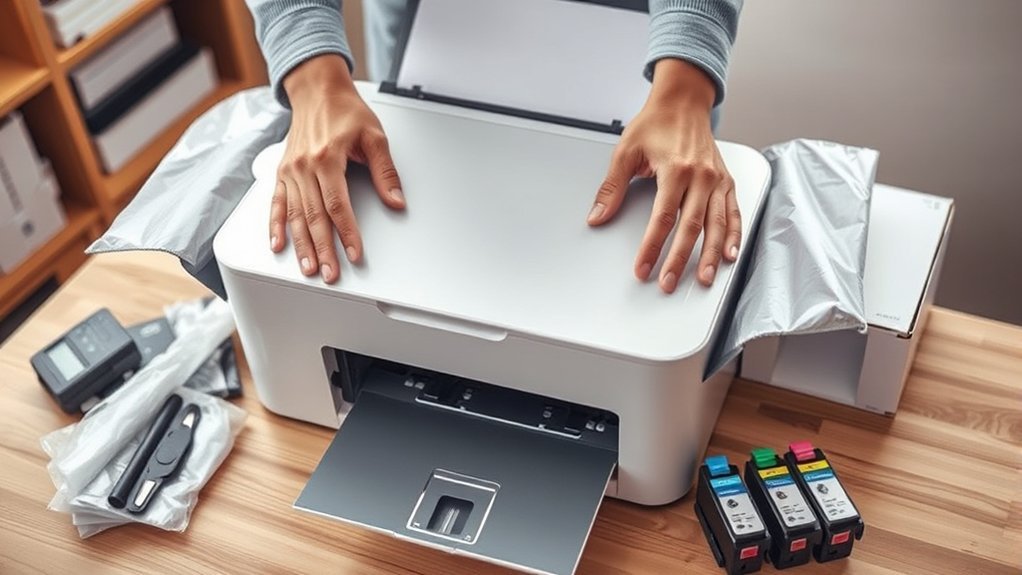
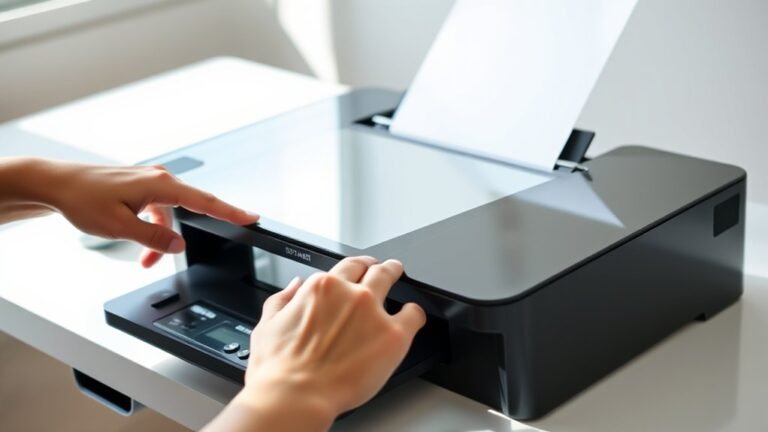
With your workspace ready and materials gathered, you can now unpack the printer. Carefully remove all packaging, tape, and protective materials to avoid any damage during printer setup.
Next, handle the ink cartridges gently—avoid touching contacts or nozzles to prevent clogs or damage. Make sure the cartridges reach room temperature before installation for peak performance.
Insert each cartridge firmly into its designated slot until you hear a click, confirming a secure fit. Finally, close all access doors to prevent jams and ensure safety.
| Step | Tip |
|---|---|
| Unpack | Remove all protective materials |
| Handle Ink Cartridges | Avoid contacts and nozzles |
| Cartridge Temperature | Let cartridges reach room temperature |
| Install Cartridges | Insert firmly until clicking |
| Close Access Doors | Secure to prevent paper jams |
Connect Printer to Power and Network
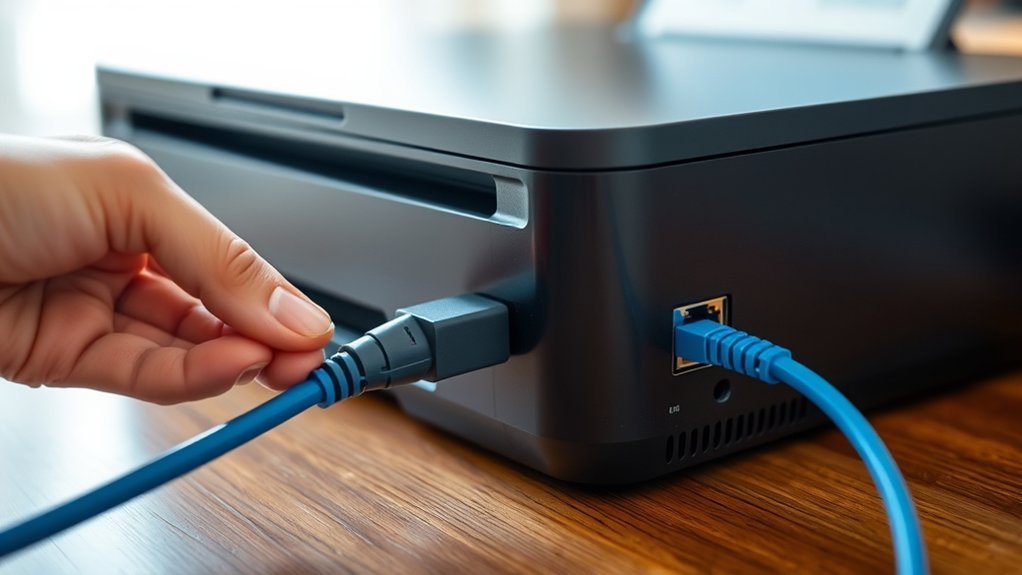
Once you’ve unpacked the printer and installed the ink or toner, plug the power cord into a grounded outlet and press the power button to turn it on.
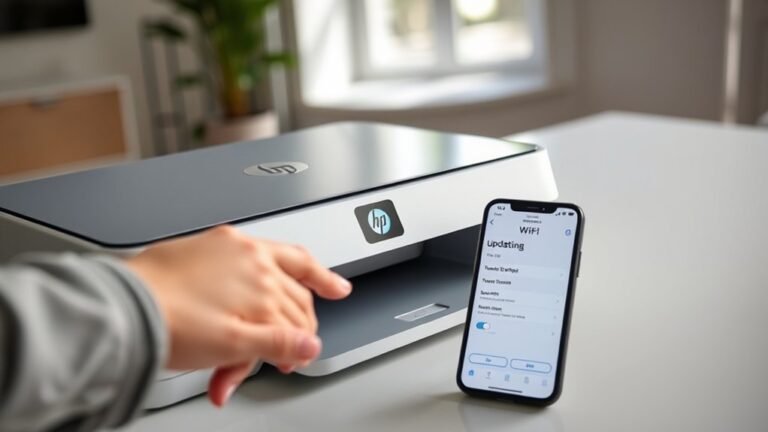
Next, connect your printer to your network for smooth setup. If you’re using Wi-Fi, make sure the printer is within 30 feet of your router to keep a strong signal.
Use the printer’s control panel or setup wizard to select your Wi-Fi network and enter the password. Alternatively, you can connect via an Ethernet or USB cable, depending on your printer’s instructions.
Finally, confirm the printer’s indicator lights show a stable connection, like a solid Wi-Fi or network icon. This lets you know it’s properly connected and ready for the next setup steps.
Install Printer Software and Drivers
After connecting your printer to power and the network, the next step is to install the printer software and drivers on your computer. First, download the latest printer drivers from the manufacturer’s official website or use the setup disc.
Before installing, uninstall any outdated drivers to avoid conflicts. Run the installation wizard and follow the on-screen prompts to connect the software with your printer.
Make sure your computer is online during installation to allow automatic downloads and updates. When done, restart your computer to finalize the integration with your operating system.
| Step | Action | Tip |
|---|---|---|
| 1. Download | Get drivers from official site | Avoid third-party sources |
| 2. Run Installation | Follow installation wizard | Connect to the internet |
| 3. Restart | Reboot your computer | Ensures proper driver setup |
Test Printer and Adjust Settings
Although you’ve installed your printer software and drivers, you should print a test page to confirm everything works correctly. Access your computer’s printer settings to initiate a print test page, which helps verify the installation and printer function.
After the test print, carefully check the print quality by examining color accuracy, text clarity, and any streaks or banding. If you notice issues, use the printer’s control panel or software to run calibration or cleaning processes.
Then, adjust your printer settings—such as paper type, print quality, and color options—to improve the output. Don’t forget to print another test page to ensure your adjustments have enhanced the print quality and that your printer is ready for regular use.
Frequently Asked Questions
What Is the Easiest Printer to Setup and Use?
The easiest printer to set up and use is a wireless all-in-one with built-in Wi-Fi and a guided setup wizard. You’ll breeze through installation, especially with AirPrint or Mopria support for quick, driver-free printing from your devices.
It’s super convenient because you don’t have to deal with complicated cables or software. Just follow the steps, and you’re good to go in no time!
Why Is My Printer Not Connecting to My Printer?
Your printer isn’t connecting because it might be off, out of Wi-Fi range, or on a different network. Check its settings, restart your printer and router, update firmware, and make certain no firewall blocks the connection.
Try turning your printer off and on again. Sometimes, just restarting your devices can fix connection issues.
Also, double-check that your printer is actually connected to the right Wi-Fi network. If it’s too far from the router, the signal might be weak.
Don’t forget to update your printer’s firmware. Outdated software can cause problems.
And lastly, make sure your firewall isn’t blocking the printer. Firewalls sometimes get a little too protective!
How Do I Set up a Printer in the USA?
You just connect your printer to power, link it to your Wi-Fi, then add it on your device through printer settings.
Make sure to download drivers from the manufacturer’s US site. It helps to ensure everything runs smoothly.
Once that’s done, print a test page to confirm everything works. Easy, right?
How Do I Set up My HP Printer?
You’ll find setting up your HP printer easier than expected—just unpack it, connect to Wi-Fi using the wizard or WPS, install drivers from HP’s site, and print a test page.
You’ve got this!
Conclusion
Setting up your printer is like planting a seed—it starts with the right preparation and care. Soon, it’ll flourish, printing all your important documents smoothly.
By following these simple steps, you’ve laid a solid foundation for hassle-free printing. Now, with your printer ready to go, you can focus on what really matters.
Knowing that your new device will deliver crisp, reliable results whenever you need them brings peace of mind. Happy printing! With your printer set up correctly, you’re all set for efficient, high-quality printing whenever you want.