How to Fix HP Printer Offline in 5 Easy Steps
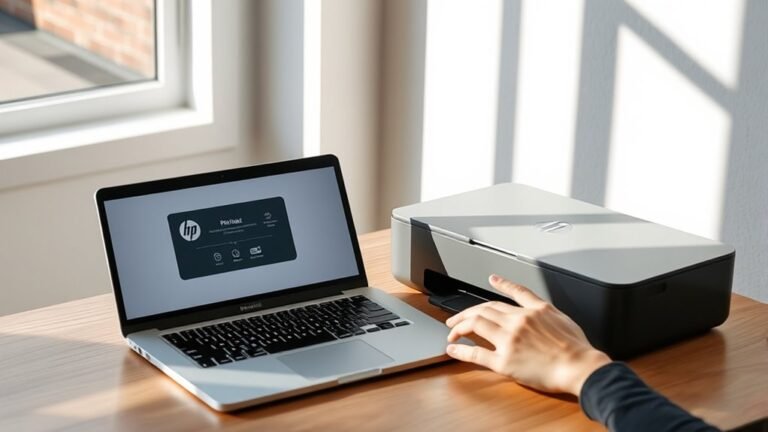
To fix your HP printer offline issue, start by restarting both your printer and computer. Simply power them off, wait a moment, and turn them back on. This often clears minor glitches that cause connectivity problems.
Next, check your printer’s network or USB connections. Make sure all cables are plugged in securely and that your printer is connected to the same network as your computer. A quick connection check can save you a lot of time.
After that, update or reinstall the latest drivers from HP’s website. Having the most current drivers ensures your printer communicates properly with your computer. It’s a simple step that many people overlook.
Then, adjust your printer settings by unchecking “Use Printer Offline” and setting the printer as the default device. This tells your computer to send print jobs directly to your printer.
Finally, run the HP Print and Scan Doctor tool. It’s designed to diagnose and fix deeper issues automatically. Keep reading for detailed steps that make fixing your HP printer offline problem easier than ever!
Key Takeaways
- Restart the printer and computer, unplugging the printer for 60 seconds before powering back on.
- Confirm the printer and computer are connected to the same Wi-Fi network or check USB cable connections.
- Update or reinstall the latest HP printer drivers from the official HP website.
- Ensure “Use Printer Offline” is unchecked and set the HP printer as the default device in Control Panel.
- Run the HP Print and Scan Doctor tool to automatically detect and fix printer connectivity and driver issues.
Restart Your HP Printer and Computer
Before diving into more complex solutions, restart your HP printer and computer to make sure there are no temporary glitches. Power off your printer by pressing the power button, then unplug it from the power source.
Wait for about 60 seconds to ensure all residual power drains. Meanwhile, restart your computer by closing all programs and selecting “Restart” from the Start menu.
Once your computer is rebooted, plug your printer back in and turn it on. This simple step often resolves communication issues between your devices and refreshes their network settings.
After both devices are fully powered up, try printing a test page. If the printer still shows offline, you’ll need to explore other troubleshooting methods, but this quick restart can fix many common problems without any hassle.
Check Your HP Printer’s Network and Connection Status
Since your HP printer relies on a stable network or connection to function properly, checking its current status is important when it shows as offline. Start by ensuring your printer is connected to the same Wi-Fi network as your computer.
Ensuring your HP printer shares the same Wi-Fi network as your computer is key when it appears offline.
On the printer’s control panel, navigate to the network settings to verify the connection status. If you’re using a USB cable, confirm it’s securely plugged into both the printer and your computer. Also, inspect the cable for any damage.
For wireless connections, try printing a network configuration page to see detailed status info. If your printer isn’t connected or the signal is weak, reconnect or move it closer to the router.
These steps help you identify and fix connection issues causing the offline status. Give them a try, and you should be back to printing in no time!
Update or Reinstall HP Printer Drivers
If your printer’s network and connection are in good shape but it still shows offline, outdated, or corrupted drivers might be the reason. Updating or reinstalling your HP printer drivers can solve this problem quickly.
Here’s how you can do it:
- Download the Latest Drivers: Visit the official HP website, enter your printer model, and download the most recent drivers compatible with your operating system.
- Uninstall Current Drivers: Go to your computer’s Device Manager, find your printer under “Printers” or “Print queues,” right-click, and select “Uninstall device” to remove existing drivers.
- Install New Drivers: Run the downloaded driver setup file and follow the installation prompts to reinstall the drivers properly.
This process ensures your printer communicates correctly with your computer. It really helps to bring it back online.
Adjust HP Printer Settings to Go Online
When your HP printer shows offline despite being connected, adjusting its settings can quickly bring it back online. First, open the Control Panel on your computer and navigate to “Devices and Printers.”
Find your HP printer, right-click it, and select “See what’s printing.” In the window that opens, click the “Printer” menu and make sure “Use Printer Offline” is unchecked. If it’s checked, just click it to clear the selection.
Next, right-click your printer again and choose “Set as Default Printer” to make sure your system directs print jobs correctly. Finally, restart your printer and computer to apply these changes.
Right-click your printer to set it as default, then restart both printer and computer to finalize changes.
This simple adjustment often resolves the offline status by syncing your printer’s configuration with your device. Give it a try—it usually does the trick!
Run HP Print and Scan Doctor for Advanced Fixes
Although adjusting settings often resolves offline issues, some problems need a deeper look.
That’s when you should run the HP Print and Scan Doctor. It’s a free tool designed to quickly identify and fix complex printer problems.
Here’s how to use it effectively:
- Download and install the HP Print and Scan Doctor from HP’s official website.
- Launch the tool and select your printer from the list, then click “Next” to start the diagnosis.
- Follow the on-screen prompts to let the tool detect and fix issues like connectivity errors, driver problems, or print spooler glitches.
Running this utility often restores your printer’s online status without any manual troubleshooting.
It really saves you time and hassle!
Frequently Asked Questions
How Do I Reset My HP Printer to Factory Settings?
You can reset your HP printer to factory settings by accessing the Setup or Settings menu. From there, select Restore Defaults or Factory Reset, then confirm your choice.
This process clears all custom settings and restores the original configurations. It’s a quick way to get your printer back to its default state if things aren’t working right.
Can Using Third-Party Ink Cartridges Cause Printer Offline Issues?
Yes, using third-party ink cartridges can cause your printer to go offline. They might not communicate properly with your HP printer, triggering errors or compatibility issues.
It’s usually best to stick to genuine cartridges to avoid these kinds of problems. That way, you can keep your printer running smoothly without unexpected interruptions.
How Do I Clear a Paper Jam in My HP Printer?
You’ll want to turn off your HP printer first. Then, gently open the paper tray to access the jammed area.
Carefully remove any stuck paper without tearing it. Take your time with this part so nothing rips inside.
Once the paper is out, close everything back up. Power the printer back on and give it a quick test to see if it’s working properly.
What Should I Do if My Printer Is Printing Blank Pages?
Check your ink or toner levels initially, and replace if needed. Clean the print heads using your printer’s maintenance menu.
Also, make sure you’re using the correct paper type and print settings to prevent blank pages. It’s a simple step that often gets overlooked!
How Do I Connect My HP Printer to a New Wi-Fi Network?
You’ll need to access your printer’s control panel and choose the Wireless Setup Wizard. Then, select your new Wi-Fi network and enter the password.
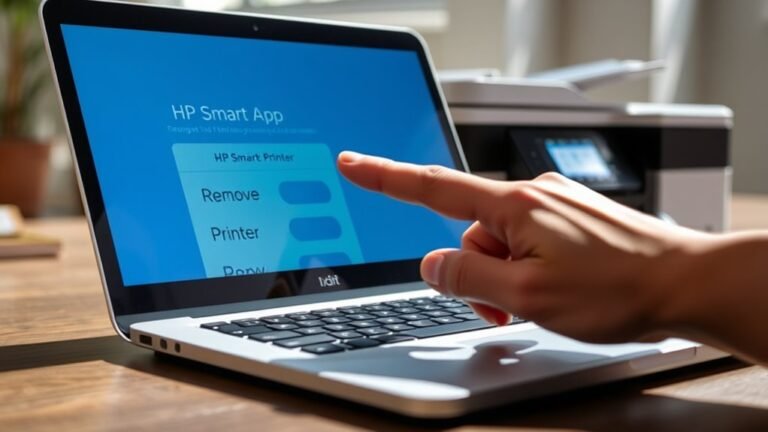
Or, you can use the HP Smart app to connect your printer to the new network quickly. It’s a handy way to get everything set up without much hassle.
Conclusion
By following these five simple steps, you can quickly bring your HP printer back online and avoid frustrating delays. Did you know that 70% of printer issues stem from connectivity problems? Restarting devices, updating drivers, and adjusting settings often solve the problem without needing tech support.
So, next time your HP printer goes offline, you’ll know exactly how to fix it. This will save you time and get you back to printing in no time! Troubleshooting your HP printer offline status doesn’t have to be complicated. With these easy fixes, you can resolve common issues like connection errors and driver problems quickly.
Remember, keeping your printer online ensures smooth printing and avoids unnecessary interruptions. By following these steps, you’re well-equipped to handle HP printer offline problems confidently and efficiently.