Blog

  • 7 Food-Safe 3D Printer Filaments You Should Know

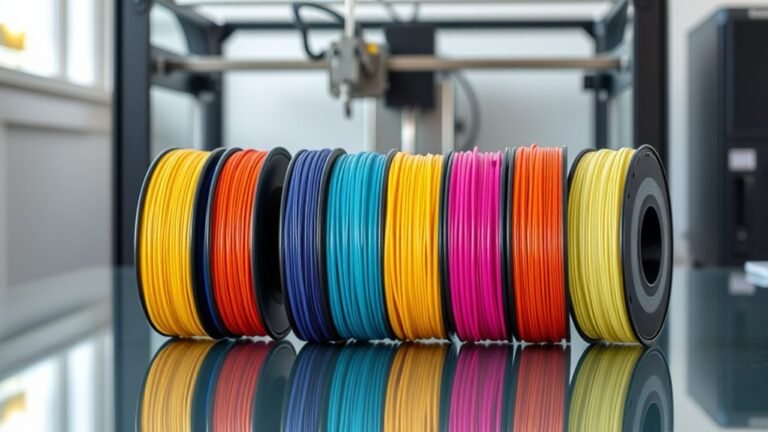
    You’ll want certified filaments like Nylon White FS, PETG, PLA, polycarbonate, and PEEK for truly food-safe 3D printing. Each offers different strengths—Nylon FS suits conveyor parts, PETG handles repeated use, PLA fits single-use or cooler items, while PC and PEEK work well in high-temperature settings.

    Remember, certifications aren’t enough—you must print carefully, finish surfaces smoothly, and validate part-level safety. Explore tips on choosing, printing, and maintaining these filaments to make certain your prints stay safe and durable.
  • How Does a Tank Printer Work?

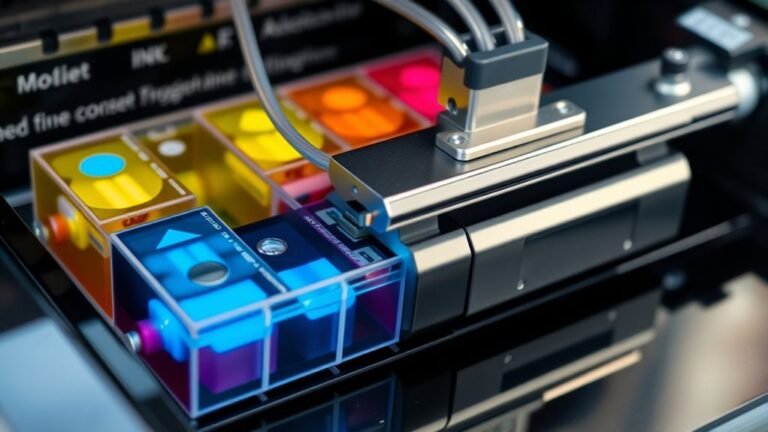
    A tank printer works by feeding ink from large, refillable reservoirs directly to the printhead through short, sealed tubes. You’ll see transparent tanks with color coding, so it’s easy to check ink levels and refill before they run dry, preventing clogs.

    The printhead sprays tiny ink droplets onto paper for sharp images, cutting your ink costs by up to 90% compared to cartridges. Pretty impressive, right?

    If you want to understand the full setup and care involved, there’s a lot more to uncover. Stick around, and you’ll get the hang of it in no time!

  • 3 Useful Items You Can Make With a 3D Printer at Home

    You can make replacement parts at home to fix broken items fast, skipping long store waits.

    Print desk accessories like minimalist LED lamps or unique stands to keep your workspace tidy and boost productivity.

    You can also create clever household helpers, such as cable guards for pet safety or custom storage solutions. These practical prints save time, space, and hassle.

    Keep exploring and you’ll find even more ways 3D printing can transform your everyday tasks.

  • 7 Easy Steps to Clean Your 3D Printer Build Plate

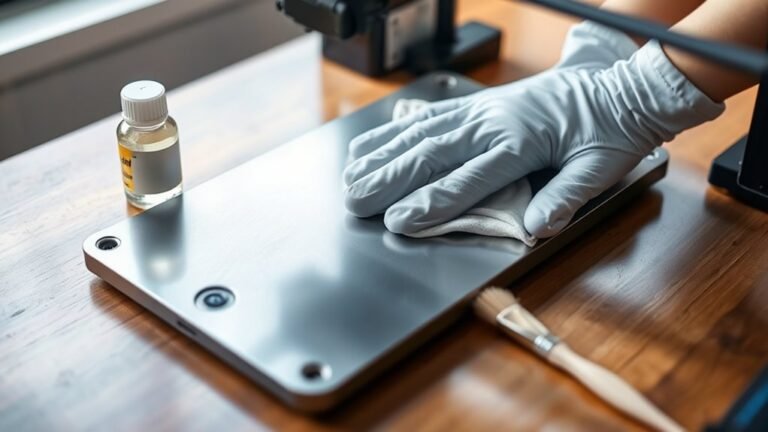
    To clean your 3D printer build plate, first identify the stubborn residue spots. In your slicer, add a cube primitive and adjust its size to cover the contaminated area, setting thickness around 0.4 mm.

    Position the patch exactly over the residue, then slice and start printing the patch. Pause once the area is covered, let it cool briefly, and peel off the patch to lift the residue gently.

    Follow these steps to restore your plate easily and protect its surface while tackling tough leftover filament. Keep going to uncover tips for flawless results.

  • How to Install Printer in 10 Easy Steps

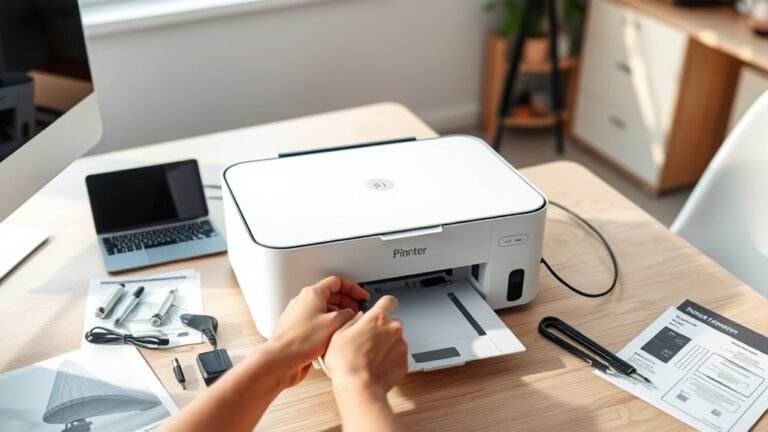
    First, unpack your printer and gather all the cables. Make sure to check the power voltage and network info if you’re using it wirelessly.

    Plug the printer into a grounded outlet and power it on before connecting any cables. Then, connect the printer to your computer using a USB cable or through your network.

    Next, open the Printers & Scanners settings on your computer to add the new printer. You’ll want to install or update the drivers next, either from the CD that came with the printer or by downloading them from the manufacturer’s website.

    Once that’s done, print a test page to make sure everything is working properly. If you run into any issues, try troubleshooting the connectivity.

    And if you want, you can share the printer on your network so other devices can access it easily. Keep going for some detailed setup tips and fixes!

  • What Does It Mean to Map a Printer?

    Mapping a printer means creating a direct connection on your device to a shared or network printer, letting you print quickly without reconnecting every time. This connection acts like a shortcut in your printer settings and typically uses the printer’s network path.

    However, printer mappings usually apply only to your user profile, so others on the same computer might not see the printer. If you want to discover smarter ways to manage printers across users and networks, there’s more to explore.

  • Connect Your Canon Printer to Computer in 3 Easy Steps

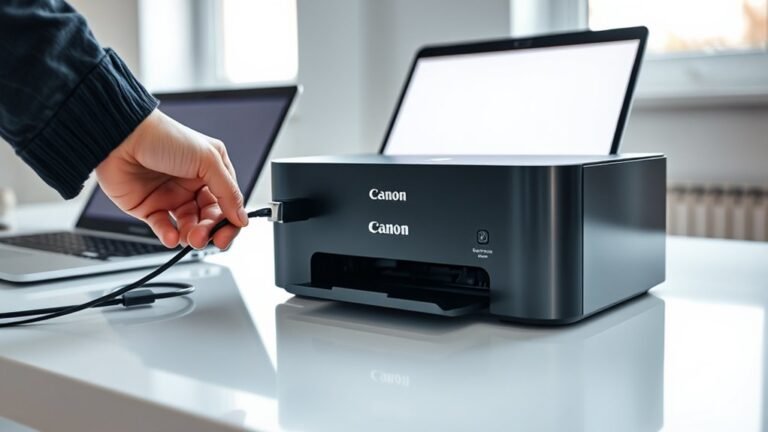
    To connect your Canon printer, first power it on and link it via USB or join your Wi-Fi network. Make sure to confirm the IP address so everything is set correctly.

    Next, download and install the exact Canon driver for your model and Windows version. Be sure to use an admin account to avoid any permission issues.

    Finally, add the printer on your computer by selecting the right port. Print a test page to check the connection and make sure it’s working properly.

    If you want a seamless setup, there’s actually a bit more you can do to guarantee flawless printing across all your devices.

  • What Is Printer Mapping and How Does It Work?

    Printer mapping lets you connect your workstation to network printers using IP addresses, hostnames, or shared server paths. This makes printers appear automatically in your print dialog for easy access.

    It installs the right drivers and can be managed centrally through Group Policy or print servers. This simplifies setup and reduces downtime.

    Whether you use direct IP or server-based mapping, it streamlines your printing experience. Keep going to explore how these methods work and how to troubleshoot common issues.

  • Does Dollar Tree Have Printer Paper?

    Yes, Dollar Tree does have basic white printer paper, but the availability and quality can vary by store. You’ll often find it in the office supplies aisle, with thinner, lightweight sheets best suited for simple printing tasks.

    If you’re into Cricut crafts, the paper’s thinness and finish may require tweaking your machine’s settings for better cuts. Keep in mind, testing small amounts first helps avoid wasted materials.

    Stick around to discover tips for choosing and using Dollar Tree paper effectively.

  • What Is an FDM Printer?

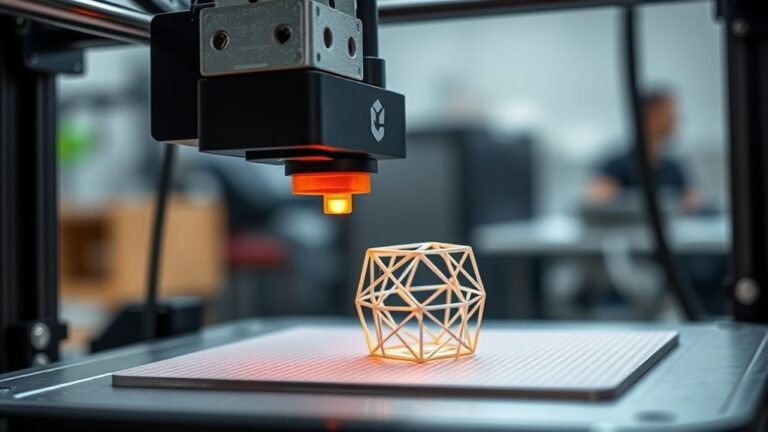
    An FDM printer lets you create 3D objects by melting thermoplastic filament like PLA or ABS and depositing it layer by layer through a heated nozzle. You control precise movements along three axes to build your model from a digital file.

    It’s an affordable, popular choice for beginners and pros due to its ease and material variety. If you want to understand how it works, its parts, and how to get the best results, keep exploring the details.