What Does It Mean to Map a Printer?
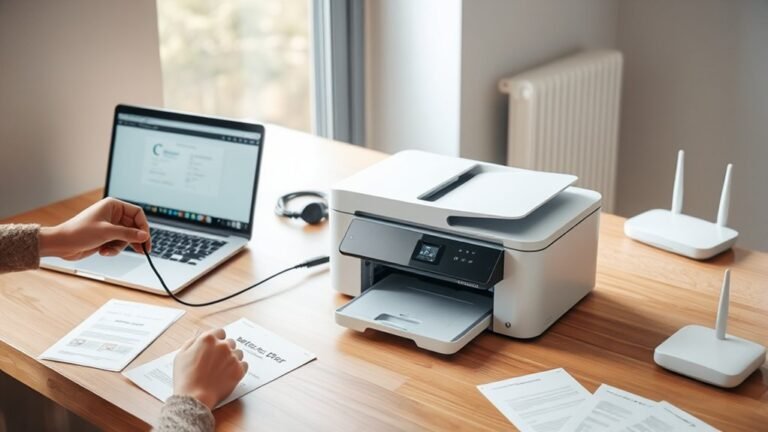
Mapping a printer means creating a direct connection on your device to a shared or network printer, letting you print quickly without reconnecting every time.
This connection acts like a shortcut in your printer settings and typically uses the printer’s network path.
It’s a handy way to save time and avoid the hassle of searching for the printer each time you need to print.
Just think of it as bookmarking your favorite printer so it’s always ready to go when you need it.
However, printer mappings usually apply only to your user profile, so others on the same computer might not see the printer.
If you want to discover smarter ways to manage printers across users and networks, there’s more to explore.
Key Takeaways
- Mapping a printer creates a direct connection on a device to a shared or network printer using a shortcut-like link. It makes it easier for your computer to find and use the printer without having to set it up every time.
- It allows applications to print by printer name without manually reconnecting each time. So, once it’s mapped, you just select the printer and go.
- Printer mappings are usually user-specific and stored within individual Windows user profiles. This means each user on a computer might have different printer setups.
- Mappings typically point to a network share via a UNC path, which requires the right permissions and drivers. Without these, the connection might not work properly.
- Mapping helps ensure you have consistent access to the printer. But keep in mind, adding or managing these mappings might need administrative rights or specific policies in place.
What Printer Mapping Actually Means
When you map a printer, you’re basically creating a direct connection on your device to a shared or network printer. This connection acts like a shortcut in your Printers & scanners settings. It lets your applications print by the printer’s name without you having to connect manually each time.
But not every user can add these printer mappings themselves. Often, the ability to add them is controlled by system policies or administrative settings.
The mapping usually points to a network share via a UNC path. Your device uses this path to send print jobs.
Since mappings are commonly set up per-user, you might find a printer available on your account but not on others using the same PC. This can happen even if the driver is installed.
The Per-User Model of Printer Mapping in Windows
Because Windows stores printer mappings within each user profile, the printers you connect to only appear for your specific account. When you map a printer—by using “Add Printer” or “Connect”—Windows creates a link between your user profile and that printer share.
Even if the printer driver is installed system-wide and the device is available on the network, each Windows user account must have its own mapping entry. This per-user model means that printer availability is tied to individual login sessions, not the computer itself.
Enterprises use tools like Group Policy or logon scripts to automate these mappings for each user. So, if you wonder why a mapped printer shows up for one user but not another, it usually comes down to this user-specific configuration rather than network or driver issues.
Common Challenges With Traditional Printer Mapping
Though Windows ties printer mappings to individual user profiles for flexibility, this approach often creates headaches in real-world environments. You’ll find that what works for one user on a shared PC might not show up for another, leading to confusion.
Group Policy deployments feel sluggish, with updates taking up to 90 minutes to apply, delaying printer availability. Relying on login scripts to add printers can slow sign-ins and break when server names or paths change, forcing you to troubleshoot constantly.
PrintNightmare restrictions have made traditional print-server assignments fragile and unreliable. In multi-site or mixed environments, you’ll face a growing flood of “can’t find my printer” tickets and repeated manual mappings because there’s no centralized automation linking user groups to printers instantly.
How Printer Drivers and Permissions Affect Access
Access to a mapped printer hinges on both the permissions set on the print server and the compatibility of printer drivers on your device. When you connect to a shared printer using its UNC path, you need proper print sharing permissions to access it.
If the printer requires additional drivers, Windows might prompt you to install them when you first connect. Even if the drivers are installed system-wide, your user profile must have the printer connection configured; otherwise, other users won’t see or use it.
Your personal printer settings, credentials, and security context also affect access. So, without the correct permissions and compatible drivers installed in your profile, you may face issues printing despite the printer being reachable on the network.
Why GPOs and Scripts Complicate Printer Setup
You’ll find that relying on GPOs ties printer setup to Active Directory and specific servers, which can break or delay changes.
Scripts might seem flexible, but they slow sign-in and need constant updates when paths or servers change.
Both approaches add operational overhead, making printer management more complex than it appears.
GPO Dependency Challenges
Because traditional printer mapping depends heavily on Group Policy Objects (GPOs) and login scripts, you often face long delays—sometimes up to 90 minutes—before changes take effect across users and devices.
This dependency means if your Active Directory or print server shifts, printer mappings can break, leaving users stranded.
Since Windows treats printer setups as per-user settings, you must configure each profile, making “one-time” GPO setups feel misleading.
Plus, in mixed OS environments, GPOs don’t extend beyond Windows, forcing you to maintain separate processes.
| Challenge | Impact |
|---|---|
| GPO Refresh Delays | Up to 90 minutes wait |
| Infrastructure Changes | Printer availability breaks |
| Multi-Platform Support | Extra maintenance overhead |
Script Fragility Issues
Although GPOs and login scripts aim to simplify printer setup, they often introduce fragility that complicates management. You rely on domain infrastructure and face delays due to the ~90-minute Group Policy refresh cycle, which slows printer rollouts.
After PrintNightmare restrictions, many legacy scripted and GPO deployments became unreliable or blocked, forcing extra troubleshooting. Using cmdlets like AddWindowsPrinterConnection in login scripts can extend sign-in times and break if print server names or UNC paths change.
Since printer mappings are per-user, you have to maintain separate logic for each profile, even when drivers and permissions are set. Plus, these Windows-focused methods don’t cover macOS, ChromeOS, iOS, or Android.
Operational Overhead Increase
Managing printers through GPOs and login scripts adds significant operational overhead that can slow down your IT workflows. These traditional methods rely heavily on Group Policy refresh cycles, which may take up to 90 minutes for printer settings to apply.
You also depend on Active Directory and print servers being reachable—any changes there often lead to repeated troubleshooting and user complaints. Login scripts increase login time and break easily if server names or paths change.
Plus, recent PrintNightmare restrictions have limited deployment options, making automation even harder.
Consider these challenges:
- Delays caused by GPO refresh cycles
- Dependency on AD structure and server availability
- Increased login times from scripts
- Restrictions due to security updates like PrintNightmare
All these add layers of complexity and slow down printer setup.
How Local Printer Setup Simplifies Printer Mapping
When you set up a local printer by creating a local port that points to the printer’s UNC path, you simplify network printing for everyone using that device. This method makes the printer accessible to all users on the computer without needing individual mappings.
Local Port Creation
If you want to simplify printer mapping on a shared PC, creating a local port that points directly to the printer’s UNC path is a powerful method. Instead of relying on per-user network mappings, you add the printer as a local device using a new local port in Printer Properties.
This port connects straight to the printer’s full UNC path (like `servershareprinter`). Windows then treats the printer as locally installed, making it accessible for all users on that PC without needing individual setups.
After creating the local port, you just select the existing driver to share the printer system-wide.
Key benefits include:
- Eliminates per-user network printer mapping
- Uses a full UNC path for direct connection
- Shares a single installation across users
- Simplifies printer management on shared PCs
Universal User Access
Establishing a local port that points directly to a printer’s UNC path not only streamlines setup but also makes universal user access much easier. When you install a printer this way, Windows treats it as a local device tied to the network share, allowing all users on that computer to access it without each one manually mapping the printer.
This method leverages machine-level installation, meaning printer settings and drivers are available across user profiles. You avoid common issues like restricting access to a mapped printer for only one user, since the connection isn’t stored solely in an individual’s session.
Ultimately, local port setup reduces repetitive configuration, ensures consistent printer availability, and supports multiple users printing seamlessly from the same machine without extra steps. It just makes life easier for everyone involved.
Simplified Network Printing
By setting up a printer as a local device that points directly to its network share, you simplify how users access it on a shared computer. Instead of each user manually mapping the printer, you create a local port tied to the printer’s UNC path.
Windows then treats this setup like a regular printer, allowing everyone on that machine to print effortlessly. This method cuts down on repetitive user setups and centralizes printer management at the machine level.
- Creates a single local printer entry linked to the network share
- Eliminates the need for per-user printer mapping
- Allows all users on the PC to print without extra configuration
- Reduces IT support by simplifying printer deployment and access
How Cloud Printer Mapping Improves Printing
When you rely on cloud printer mapping, you get instant, automatic access to the right printers based on your group or identity—no more waiting for slow GPO refreshes or dealing with complicated login scripts. Updates you make in the ezeep Admin Portal apply immediately, eliminating “can’t find my printer” tickets and repeated validations.
Because the mapping is identity-driven, you avoid creating separate printer profiles for each Windows account, as long as group memberships are accurate. And unlike traditional methods limited to Windows, cloud mapping works seamlessly across Windows, macOS, ChromeOS, iOS, and Android from a single policy source.
This centralized, cloud-based approach reduces your IT workload by cutting out print-server dependencies and simplifying printer management. In the end, you get faster, more reliable printing with less hassle.
How Group-Based Mapping Makes Printer Access Easy
Using group-based mapping makes printer access straightforward and efficient. Instead of assigning printers individually, you tie printers to identity groups, so everyone in that group gets automatic access.
This means no more manual browsing or waiting for slow policy updates. When you update printer assignments in the cloud or admin console, changes take effect immediately. Plus, you avoid the hassle of per-user remapping tickets since printer delivery is identity-driven.
Here’s why group-based mapping simplifies your printer setup:
- Automatically grants the right printers based on group membership
- Updates printer access instantly without waiting for GPO refresh
- Works seamlessly across Windows, macOS, ChromeOS, iOS, and Android
- Eliminates the need for print servers, login scripts, or platform-specific policies
Frequently Asked Questions
How Do I Set a Default Printer in Windows 11?
To set a default printer in Windows 11, go to Settings → Bluetooth & devices → Printers & scanners. Then, select your printer and click “Set as default.”
You can also right-click your printer in Control Panel’s Devices and Printers. It’s an easy alternative if you prefer using the Control Panel.
How to Print Maps in Google Maps?
Open Google Maps and find your location or the directions you want to print.
Next, click the Print option or open the menu to find it. Select your printer, then confirm your choice.
You’ll get a paper copy of the map or route details, ready to take with you anywhere. It’s pretty handy when you want a backup or prefer a physical copy!
Why Isn’t My Local Printer Showing up in Remote Desktop?
Your local printer isn’t showing up in Remote Desktop because printer redirection might be disabled, user profiles differ, or the remote session lacks the right drivers or network access.
Check these settings to make your printer appear. It’s usually a quick fix once you know where to look.
Why Is My Network Not Finding My Printer?
Imagine you can’t print because your computer can’t reach the print server due to a DNS issue.
Your network likely isn’t finding your printer because of connectivity problems or missing permissions blocking access to the shared printer.
It could be something simple, like the printer being offline or not properly connected to the network.
Or maybe there’s a setting somewhere that’s stopping your computer from seeing the printer.
Checking these things step-by-step usually helps fix the problem.
Conclusion
When you map a printer, you connect, configure, and control your printing access with ease. You avoid common pitfalls, overcome driver issues, and simplify permissions.
You skip complicated scripts, embrace local setups, and tap into cloud convenience. You rely on group-based mapping to secure and streamline your printing experience.
Mapping a printer means taking charge, saving time, and printing confidently wherever you are. It makes your workflow smoother, smarter, and more efficient every step of the way.
In short, mapping a printer is all about making printing hassle-free and reliable. By setting up and managing your printer connections properly, you reduce errors and boost productivity. Whether you’re working locally or through the cloud, mapped printers help you print faster and with fewer headaches. So, take control of your printing setup with printer mapping—it’s a simple step that makes a big difference in your daily workflow.