Blog

  • What Is Printer Spooling and How to Use It

    Printer spooling temporarily stores your print jobs in a queue, so your computer can send multiple files without waiting for each to finish. This lets your printer work smoothly and prevents delays or conflicts.

    You can enable spooling in printer settings on Windows or Mac and manage the queue to pause or reorder jobs. If you want to improve printing speed or troubleshoot issues, there are easy fixes and tips you can explore next.
  • How Is a Sublimation Printer Used in Everyday Printing?

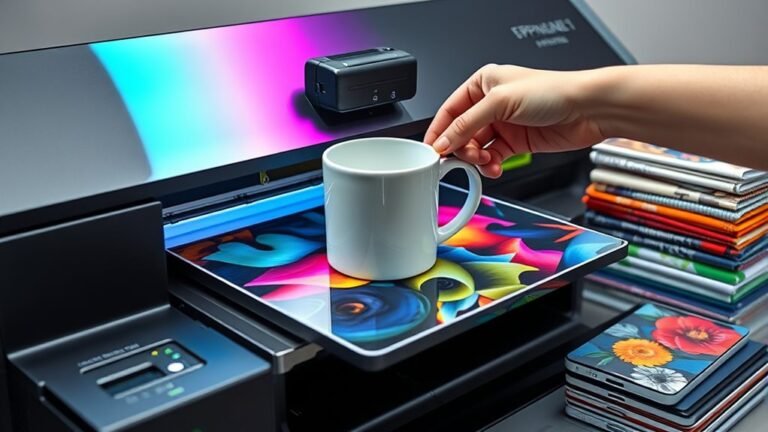
    You use a sublimation printer daily to create vibrant, durable designs on polyester fabrics and coated surfaces like mugs or phone cases. By printing your design on special transfer paper, then using a heat press at 350–375°F, you turn ink into gas that bonds with the material’s fibers, producing soft, lasting prints.

    With the right supplies and technique, you can customize everything from T-shirts to photo panels. It’s pretty cool how the ink actually becomes part of the fabric or surface, so your designs don’t crack or peel over time.

    Keep exploring to discover tips and creative project ideas. There’s a lot you can do once you get the hang of it!

  • How to Connect Mac to Printer in 3 Easy Steps

    Start by updating your Mac and printer software, and make certain your printer is powered on with paper and ink ready.

    Next, connect your printer via USB, Wi-Fi (on the same network), or Bluetooth by adding it through System Settings → Printers & Scanners.

    Finally, print a test page to confirm it’s working properly. If you want to troubleshoot or explore adding a printer by IP address, there are simple steps you can follow to get everything running smoothly.

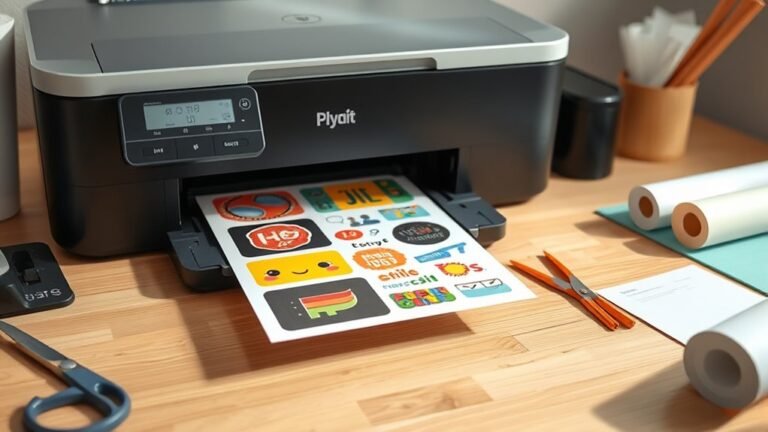
  • How to Make Stickers With a Printer in 7 Easy Steps

    To make stickers with a printer in 7 easy steps, pick the right printer and paper—inkjet for vivid colors or laser for sharp text.

    Design your file with bleed and cut lines, then set your printer to the highest quality.

    Print your sheets and let the ink fully dry.

    Add a protective laminate layer, then cut your stickers with a Cricut or by hand.

    Finally, apply your stickers and store leftovers properly.

    Keep following for detailed tips and expert tricks.

  • How to Connect Printer to Wireless Internet in 5 Easy Steps

    First, make sure your WiFi network is active and you know the exact SSID and password. Next, turn on your printer and use its wireless setup wizard or the manufacturer’s app to connect to your network by entering those details.

    You can also try pressing the WPS buttons on your router and printer for an instant connection. Then, install the latest drivers on your device and add the printer.

    Finally, print a test page to confirm it’s working smoothly. Keep exploring for detailed tips and troubleshooting advice.

  • What Does Printer Ink Come From?

    You get printer ink from a precise blend of colorants—either pigments or dyes—mixed with solvents and additives. Pigments offer long-lasting, water-resistant color, while dyes deliver bright, vivid hues.

    Solvents control how ink flows and dries, preventing clogs and smudges. Additives enhance performance by balancing moisture and protecting printheads.

    This carefully engineered mix is manufactured under strict quality control before being sealed in cartridges. Keep exploring to understand how different inks work and why ink costs so much.

  • How Much Does a 3D Printer Cost?

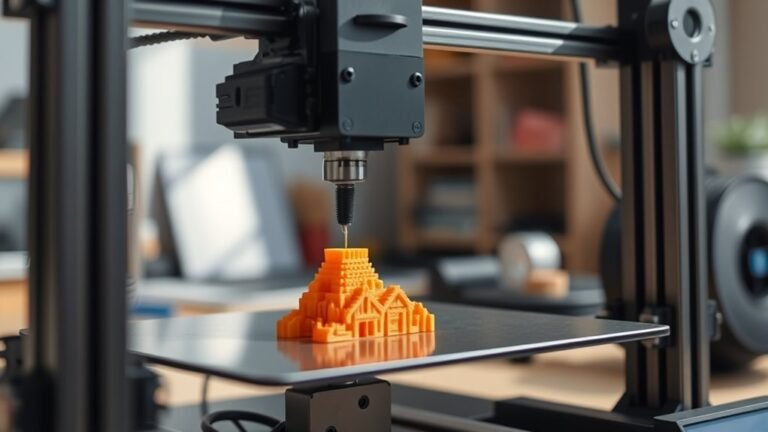
    You can expect to spend anywhere from $100 to over $300,000 on a 3D printer, depending on your needs. Budget models like the Ender 3 cost $100–$300, while hobbyist options range from $300 to $1,000.

    Professional and industrial machines add features and precision but come with higher price tags and ongoing costs for materials and maintenance. It’s worth thinking about what you really need before diving in.

    If you want to understand how type, features, and materials affect your total investment, keep exploring. There’s a lot to consider, but it’s all part of finding the right fit for you.

  • How to Use Walgreens Printing Services €” Does Walgreens Have a Printer?

    You can easily print photos and documents at Walgreens by uploading files via their app or website—no account needed—and selecting a nearby store for same-day pickup. Walgreens offers in-store printers and kiosks for on-site printing, supporting standard photo sizes, large posters, and document prints.

    Payments include major cards and Apple Pay, with promo codes accepted at checkout. If you want to understand available sizes, pickup times, and handling issues, keep exploring the details ahead.

  • How to Print to a Local Printer From Remote Desktop in 7 Easy Steps

    To print to your local printer from Remote Desktop, first completely disconnect the session. Then, right-click your Remote Desktop shortcut, choose Edit, and go to the Local Resources tab.

    Check the Printers box to allow printer redirection, save the changes, and reconnect. Once you’re back, confirm your redirected printer appears under Devices → Printers & scanners.

    Print a test page to make sure it works properly. If you want to avoid common issues and learn troubleshooting tips, keep exploring these steps.

  • How to Update Epson Printer Firmware in 5 Simple Steps

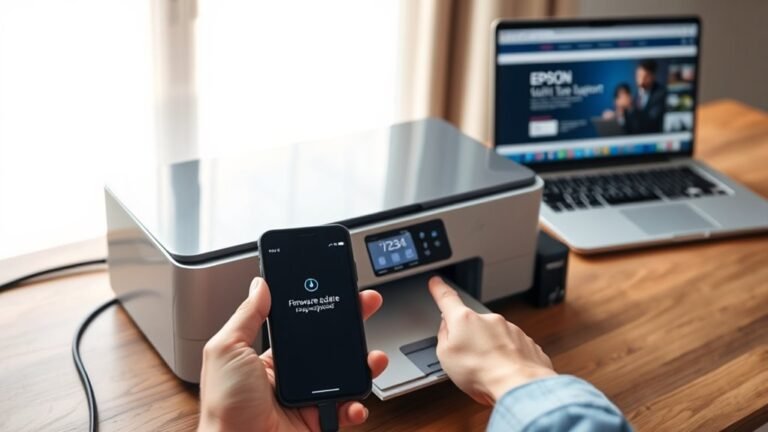
    To update your Epson printer firmware in five easy steps, first get your printer and computer ready by confirming the model. Make sure they’re connected to the same network or linked via USB. Also, check that you have stable power and internet.

    Next, download and open the Epson Software Updater. Then, find and select the right firmware update for your printer.

    Install the update while keeping your printer turned on. Once that’s done, verify the new firmware version to confirm everything updated successfully.

    Following these steps will help you maintain top printer performance with ease. It’s pretty straightforward once you get started!