Author: Admin

  • What Is an SLA Printer and How Does It Work?

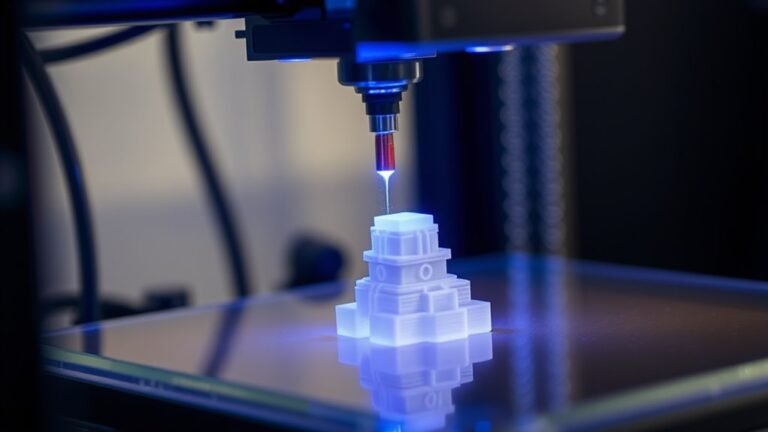
    An SLA printer uses a focused ultraviolet laser to cure liquid resin layer by layer, creating precise, high-detail 3D objects with smooth finishes. You’ll start with a CAD model sliced into thin layers, and the laser solidifies each layer on a build platform submerged in resin.

    It’s ideal for detailed prototypes, jewelry, and dental models, offering unmatched accuracy but slower speeds. Keep exploring to discover how the hardware, materials, and techniques all come together for stunning results.
  • Does 3D Printer Filament Go Bad?

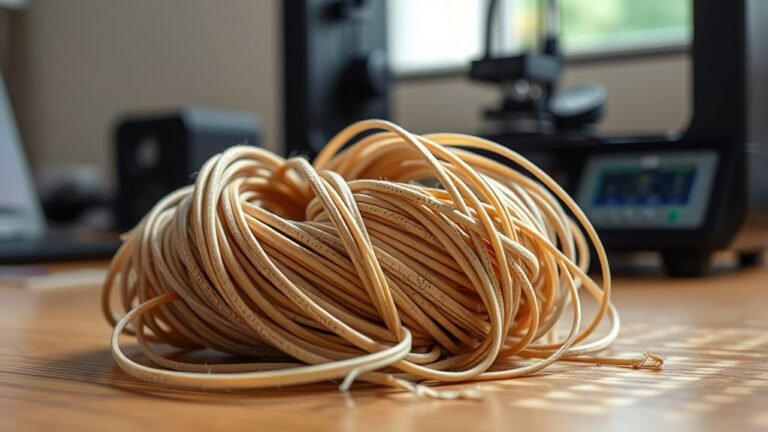
    Yes, 3D printer filament does go bad, but not like food—it gradually loses quality over time, especially if exposed to moisture, heat, or sunlight. Moisture causes popping, bubbles, and weak prints.

    Heat and UV can degrade some materials like ABS. Proper storage—airtight containers with desiccants, cool dark places—and occasional drying help extend its life.

    If you want to avoid print failures and learn how to spot and prevent filament issues, there’s more to take into account. It’s all about keeping your filament in the best shape possible!

  • How to Connect a 3D Printer to Your Computer in 10 Easy Steps

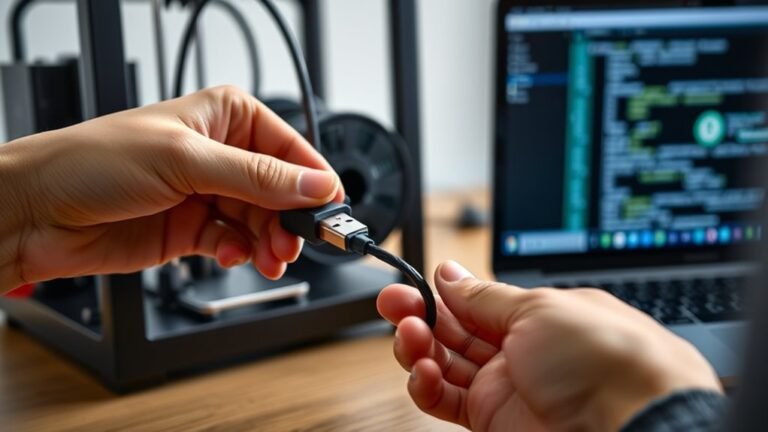
    To connect your 3D printer to your computer, start by unboxing and inspecting all components. Position the printer on a stable surface, then plug in power and USB cables securely.

    Next, install the correct drivers for your printer’s USB chipset. You’ll need these so your computer can talk to your printer properly.

    Connect via USB or Wi-Fi, whichever your printer supports, and configure your slicer software with the right COM port and baud rate. This part is key to getting everything synced up.

    Now, level the build platform and load the filament. These steps make sure your prints stick and come out great.

    Finally, run a test print to check that everything is working smoothly. Follow these steps, and you’ll be set up for hassle-free printing and easy troubleshooting.

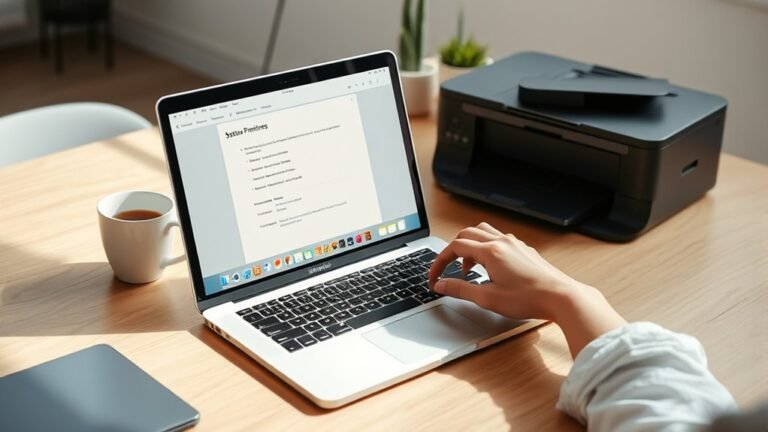
  • How to Connect MacBook to Printer in 7 Easy Steps

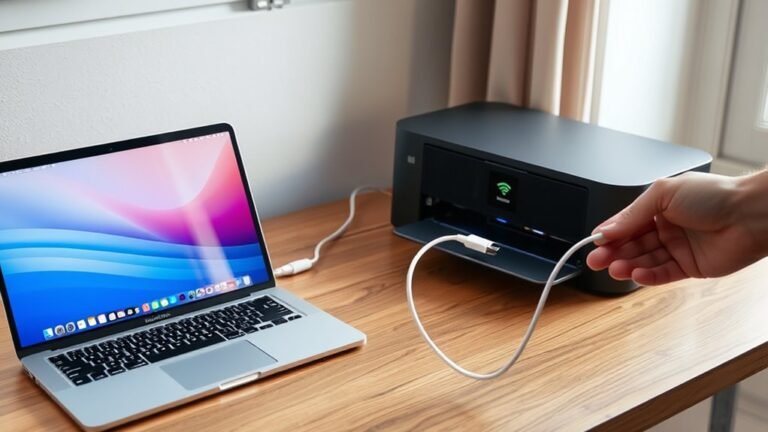
    Power on your MacBook and printer, making sure both are properly connected and ready to go. Connect your printer to the same Wi-Fi network as your MacBook or use a compatible USB cable.

    Next, add the printer through System Settings > Printers & Scanners. You can select it wirelessly or via USB.

    If your printer doesn’t show up, try adding it by IP address instead. Then, set your printer as the default and adjust any preferences you want.

    Finally, print a test page to make sure everything’s working. Keep following for more detailed steps and helpful tips!

  • What Can a 3D Printer Print in Metal?

    You can 3D print a wide range of metal parts, from functional components like brackets and gripper jaws to aerospace turbine blades and patient-specific implants. Whether you need durable consumer items, tooling inserts, or complex consolidated assemblies, metal printing handles it.

    Different methods fit different needs—high-strength powder-bed fusion for performance alloys or affordable Filamet™ for low-volume projects. If you want to explore how to design, choose alloys, and post-process, there’s much more to discover.

  • How to Build a 3D Printer in 5 Simple Steps

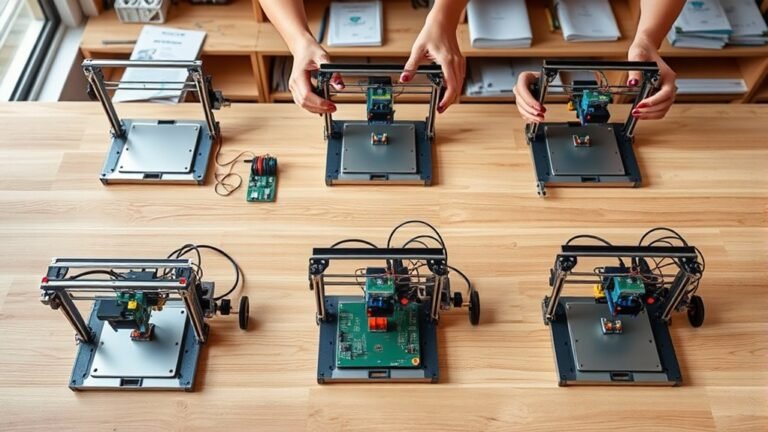
    Start by designing a rigid aluminum frame with a hybrid motion system: belt-driven X-axis, Y-axis moving bed, and Z-axis height adjustment.

    Next, pick quality parts like NEMA 17 steppers, belts, and heated nozzle components.

    Then, assemble the frame and install guides, motors, and belts carefully.

    After that, set up electronics with proper wiring and flash your firmware.

    Finally, calibrate motors, level the bed, and run test prints to make certain accuracy.

    Follow these basics, and you’ll soon master precise 3D printing.

  • How to Reset Toner on Brother Printer in 5 Easy Steps

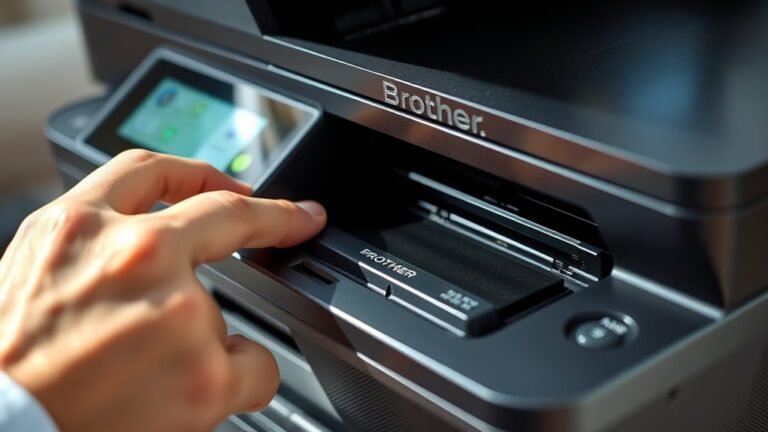
    To reset the toner on your Brother printer, open the front cover and hold OK (or Clear/Stop) until the reset menu appears. Use the arrows to select your cartridge type, then press OK.

    When prompted, remove the cartridge, shake it gently, and reinsert it firmly. Press OK again to complete the toner reset.

    If the “Toner Empty” message stays, try power-cycling your printer. Keep going to explore tips on preparation, troubleshooting, and prolonging your toner’s life.

  • What Is AMS Lite for 3D Printer and How to Use It

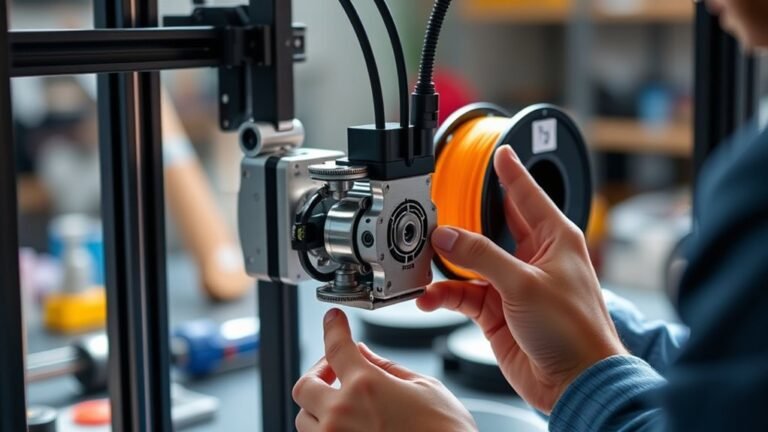
    AMS Lite is a compact automatic material system designed for your Bambu Lab A1 or A2 3D printer. It lets you manage up to four filament spools for multi-color or multi-material prints.

    You load spools into spring-loaded rotary holders and connect PTFE tubes carefully. Then, pre-load about 40 cm of filament for smooth feeding.

    Sensors track filament movement and handle run-outs by automatically switching to backup spools when configured.

    Keep going to explore setup tips, compatibility, and troubleshooting for a seamless printing experience.

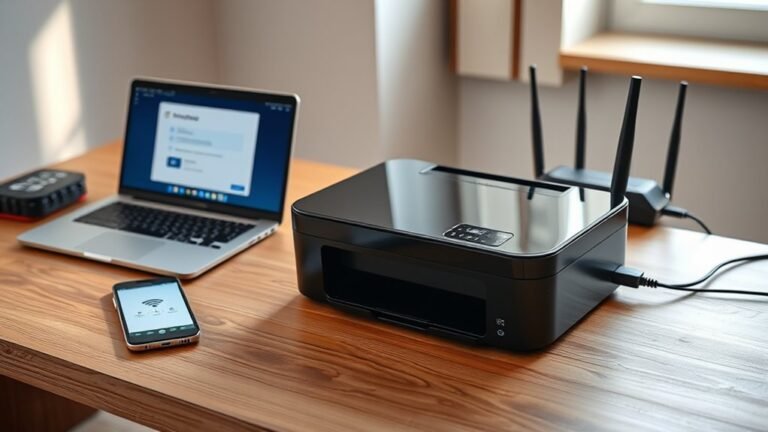
  • How to Connect a Wireless Printer in 10 Easy Steps

    Start by unboxing your printer and removing all the protective tape. Then, place it near your Wi-Fi router and power it on.

    Next, install the ink cartridges and load the paper correctly. It’s pretty straightforward, but take your time to do it right.

    Now, access the wireless setup menu on the printer. Select your Wi-Fi network and enter the password, or use WPS if your printer supports it.

    After that, connect your devices and install any necessary drivers or apps. This step ensures everything talks to each other smoothly.

    Finally, print a test page to confirm the connection. Once that’s done, position the printer where it gets a strong signal.

    Keep following along for detailed tips and troubleshooting tricks to make your setup even easier!

  • How to Set Up a Printer on Mac in 7 Easy Steps

    To set up your printer on a Mac, first prepare the printer by installing cartridges, loading paper, and powering it on. Connect it via USB or make certain it’s on the same Wi-Fi network as your Mac.

    Next, open System Preferences > Printers & Scanners, click Add (+), and select your printer. Let macOS install drivers automatically, or you can manually add software if needed.

    Finally, print a test page to confirm it works. You can explore detailed troubleshooting and wireless setup tips ahead.