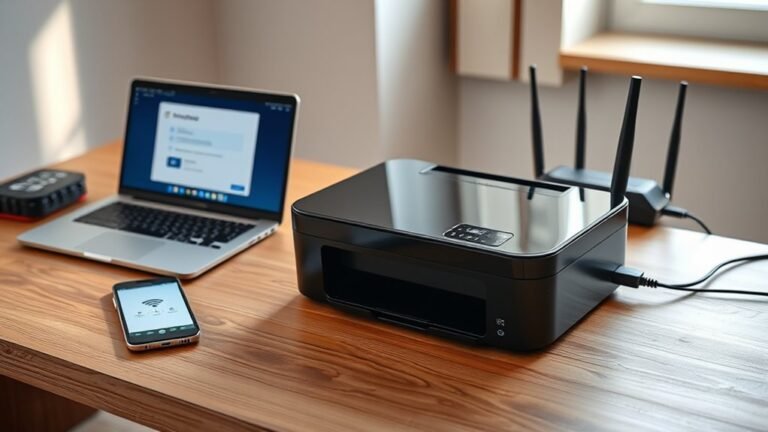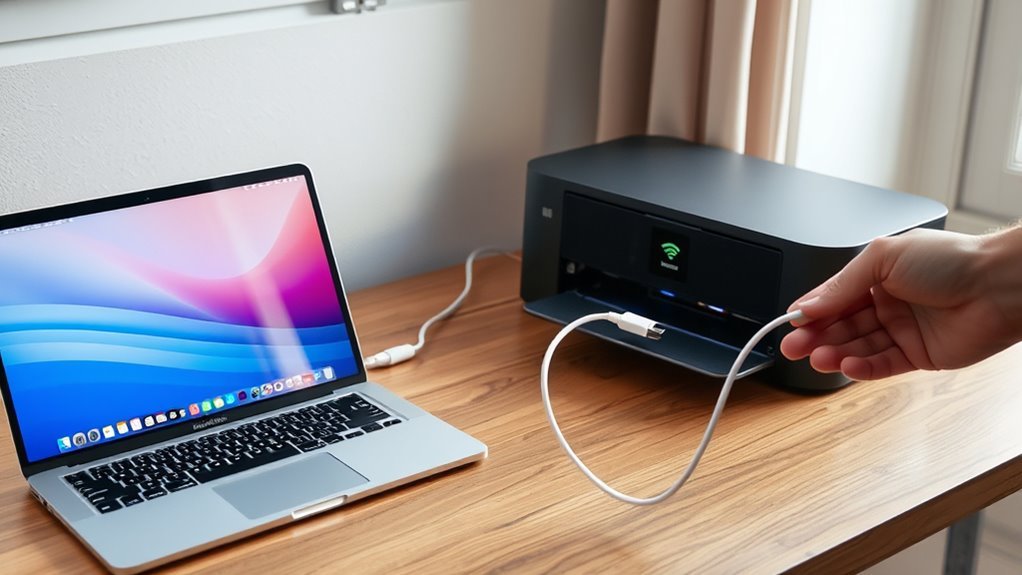
How to Connect MacBook to Printer in 7 Easy Steps
Power on your MacBook and printer, making sure both devices are properly connected and ready to go. Connect your printer to the same Wi-Fi network as your MacBook or use a compatible USB cable for a direct connection.
Next, add the printer through System Settings > Printers & Scanners. You can select the printer wirelessly or via USB. If it doesn’t show up right away, don’t worry—try adding it by its IP address instead.
Once your printer appears, set it as the default device and adjust any preferences to suit your needs. Finally, print a test page to confirm everything is working smoothly. Keep following for more detailed steps and handy tips!
Key Takeaways
- Power on both your MacBook and printer, making sure they’re properly connected and powered up.
- Next, connect the printer to the same Wi-Fi network as your MacBook through the printer’s network settings.
- On your MacBook, open System Settings, then go to Printers & Scanners and click Add Printer to find your device.
- Pick your printer from the list, or if it doesn’t show up, add it manually by IP using AirPrint or the IPP protocol.
- Finally, print a test page to make sure everything’s working. You can also tweak your printer preferences to suit your needs.
Power On Your MacBook and Printer
Start by powering on both your MacBook and printer. Make sure each device is properly plugged in and turned on.
After you power on the printer, wait 60 seconds to let it finish starting up and for network services to kick in. Check the printer status on its control panel to see if there are any error lights or messages—like paper jams or low ink—that might mess with the connection.
Your MacBook should also be fully turned on and ready. If you’re using a USB connection, double-check that the printer is connected with the right cable or adapter and powered on.
Connect Your Printer to the Same Wi-Fi Network as Your MacBook
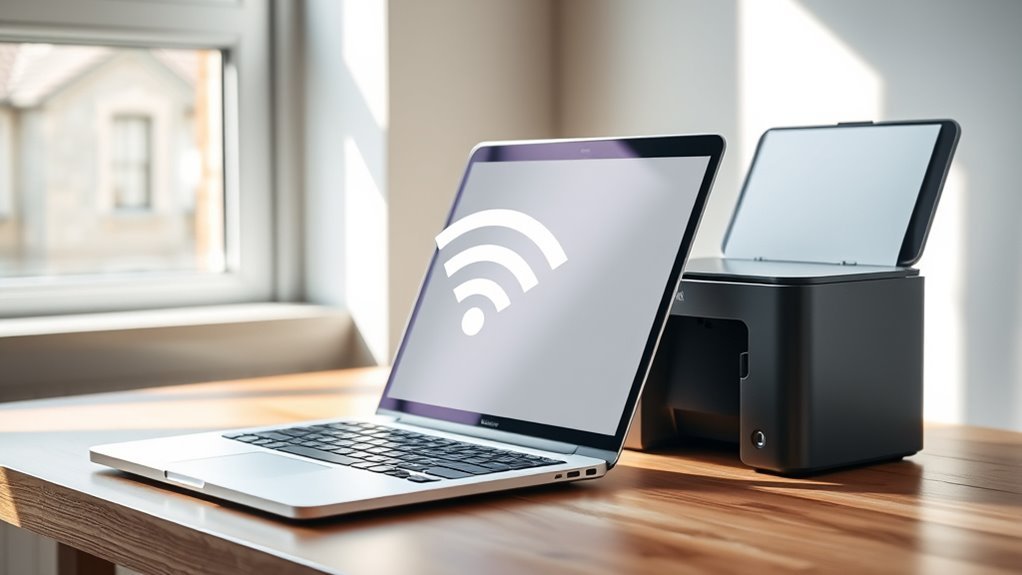
Once both your MacBook and printer are powered on and ready, the next step is to connect your printer to the same Wi-Fi network as your MacBook. On your printer’s control panel, open the Network or Wireless settings, select your Wi-Fi SSID, and enter the password exactly to join the same Wi-Fi network.
Power on your MacBook and printer, then connect your printer to the identical Wi-Fi network via its control panel.
Make sure your MacBook is connected to the identical Wi-Fi SSID from the menu bar. If you don’t know your printer’s IP address, print a network configuration page from the printer menu to check.
For an easier setup, try using WPS. Just press the router’s WPS button, then press the printer’s button within two minutes.
If your printer won’t join the network, don’t worry. Try restarting your router, updating the printer firmware, or improving signal strength by moving the printer closer to the router.
Add Your Printer Wirelessly to Your MacBook
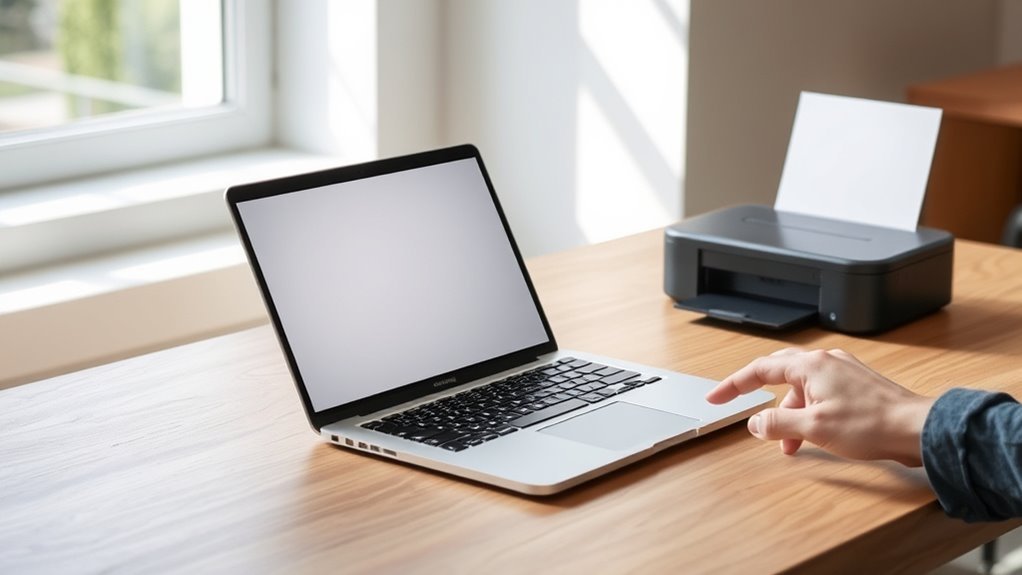
Make sure your MacBook and printer are connected to the same Wi-Fi network before you start.
If your printer supports AirPrint, adding it is simple and doesn’t require extra drivers. Just open System Settings, go to Printers & Scanners, and select your AirPrint-enabled printer to get started. Easy, right?
Ensure Same Wi-Fi Network
Although connecting your MacBook and printer to the same Wi-Fi network might seem straightforward, it’s essential for successful wireless printing. First, confirm both devices share the exact same Wi‑Fi network name (SSID). Mismatches between 2.4 GHz and 5 GHz bands or guest networks can block printer discovery.
Check your printer’s control panel or web interface for an assigned printer IP address—if none appears, reconnect using WPS or the printer’s setup options. On your MacBook, go to System Settings > Printers & Scanners and try adding the printer. If it doesn’t show up, manually add it via the IP and AirPrint or IPP protocol.
Also, disable any network isolation or restrictive router settings that might prevent discovery. Keeping firmware updated helps avoid common network troubleshooting issues. So, it’s worth checking for updates regularly to keep things running smoothly.
Use AirPrint For Setup
Getting your AirPrint-capable printer set up wirelessly on your MacBook is quick and hassle-free when both devices are connected to the same Wi-Fi network.
To add your printer via AirPrint, follow these steps:
- On your MacBook, go to Apple menu > System Settings > Printers & Scanners, then click Add Printer.
- Select your AirPrint printer from the list—no drivers required if your printer supports AirPrint.
- Open any document, choose File > Print, and pick your AirPrint printer to start printing with built-in options.
- If your printer doesn’t show up, try restarting the printer and your Mac. Wait a moment, then check again.
Make sure your printer is AirPrint compatible, or you might need to install the manufacturer’s software for advanced features.
This method saves time and avoids unnecessary driver installations.
Connect Your Printer via USB Cable
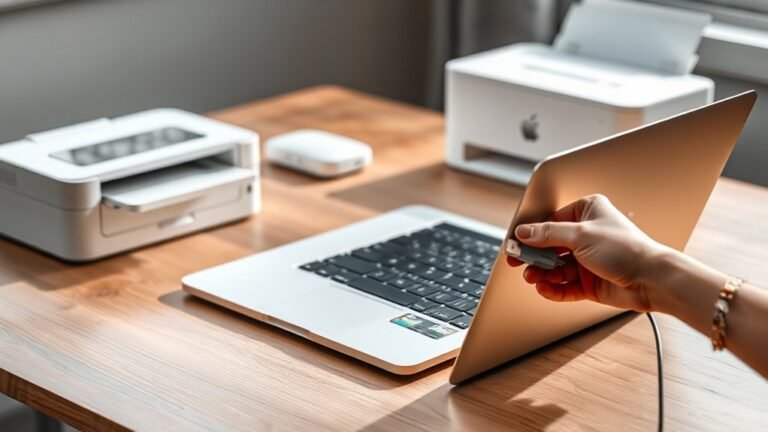
Start by powering on your printer and connecting it to your MacBook with a compatible USB cable. If your printer uses USB-A, you’ll need a USB-C to USB-A adapter or hub. Make sure the cable is firmly connected and the printer power is on.
Next, open the Apple menu and go to System Settings, then Printers & Scanners. Click the Add Printer button (+) and wait for your MacBook to detect the printer.
If prompted, allow macOS to download and install the necessary driver to guarantee full functionality. Select your printer from the list, pick the appropriate driver in the Use menu, and click Add.
Finally, print a test page to confirm the USB cable connection is working properly. If the printer isn’t detected, double-check the connections and try restarting your devices before giving it another go.
Can’t Find Your Printer? Add It by IP Address
If your MacBook doesn’t detect your printer automatically, you can add it by IP address to get things up and running. Here’s how to add by IP address in macOS:
- Open Apple menu → System Settings → Printers & Scanners, then click Add Printer and select the IP (globe) tab.
- Enter your printer’s IP address or hostname, choose the correct Protocol (AirPrint or IPP recommended), and leave Queue blank.
- Name your printer clearly for easy ID, then use the Use pop-up to let macOS select a driver or click Select Software to pick the right one manually.
- Click Add, then print a test page. If it fails, verify the printer IP, ensure both devices share the same network, and retry.
This IP Printing method guarantees reliable connection when your printer isn’t found automatically.
Set Your Printer as the Default and Adjust Printing Preferences
Once your printer is added—whether automatically or by IP address—you can set it as the default to streamline your printing tasks. Go to Apple menu > System Settings > Printers & Scanners, select your printer, and click “Set as Default Printer.”
You can also choose “Last Printer Used” or pick a specific device. To adjust print settings, select your printer, then open Options & Supplies or Printer Preferences.
Here, customize paper size, duplex printing, and trays. If you’re using an AirPrint or driver software printer, macOS may install drivers automatically—check Printer Preferences to confirm print quality and color.
For repeated tasks, set custom Presets in the Print dialog, save them, and select your preferred preset for faster printing. Naming your network printer clearly helps in managing defaults efficiently.
Print a Test Page to Confirm Your Printer Is Connected
Print a test page to make sure your printer is properly connected and ready to use. Open any printable file, select File > Print, choose your printer from the Printer pop-up menu, and click Print to send the print job.
Alternatively, use the printer self-test from its control panel, especially if Wi‑Fi network issues block Mac printing.
If nothing prints, check these:
- Confirm the printer shows as Ready (not Offline) in System Settings > Printers & Scanners.
- Make certain your Mac and printer share the same Wi‑Fi network or verify the USB connection.
- Review the printer test page for streaks, missing colors, or alignment issues.
- Print a macOS test page to verify printer drivers support needed features.
This process guarantees your connection and hardware work perfectly. So, give it a try and see that everything’s running smoothly!
Frequently Asked Questions
How Do I Get My Macbook to Connect to a Printer?
You connect your MacBook to a printer by ensuring both are on the same Wi-Fi or connected via USB.
Then, add the printer through System Settings > Printers & Scanners, select it, and print a test page.
It’s pretty straightforward once you have everything connected. Just follow those steps, and you should be good to go!
Why Is My Mac Not Recognizing My Printer?
Your Mac’s ignoring your printer like a locked door because they’re on different networks, outdated drivers, or a blocked connection.
Check cables, update software, and make certain both devices speak the same Wi-Fi language to open that door.
How to Connect a Printer Step by Step?
You’ll power on the printer, connect it via Wi-Fi or USB, then open System Settings > Printers & Scanners on your Mac.
Click Add Printer, select your printer, choose the driver, and finish to connect it successfully.
It’s pretty straightforward once you get the hang of it! Just take it step by step, and you’ll have your printer up and running in no time.
Do All Printers Connect to a Macbook?
No, not all printers connect to your MacBook—some act like rebellious teenagers refusing to talk.
But if yours supports AirPrint or has macOS drivers, you’re in luck and can avoid a tech tantrum.
Conclusion
Connecting your MacBook to a printer is easier than you might think. Did you know that over 80% of Mac users prefer wireless printing for convenience? By following these simple steps, you’ll save time and avoid frustration.
Once you’ve powered on your devices, connected to Wi-Fi, and added your printer, you’re all set to print effortlessly. Don’t forget to set your printer as default and test it—your productivity will thank you!
Getting your MacBook connected to a printer doesn’t have to be complicated. With just a few clicks, you can enjoy seamless wireless printing, which is why so many Mac users choose it. Setting your printer as the default ensures every document prints without a hitch, saving you time and hassle. So, follow these easy steps and start printing from your MacBook today—your workflow will be smoother, and printing will become a breeze!