How to Reset Toner on Brother Printer in 5 Easy Steps
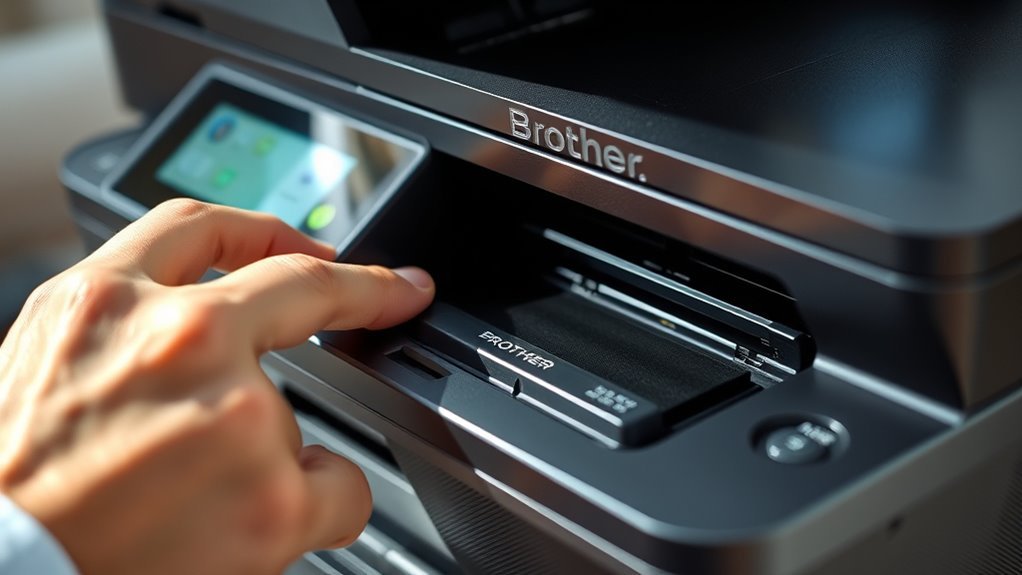
To reset the toner on your Brother printer, start by opening the front cover. Then, hold down the OK (or Clear/Stop) button until the reset menu pops up on the screen.
Next, use the arrow keys to choose your cartridge type and press OK to confirm. When the printer asks, take out the cartridge, give it a gentle shake, and put it back in firmly.
Finally, press OK again to finish the toner reset process. If you still see the “Toner Empty” message, try power-cycling your printer by turning it off and on again.
Keep going to discover helpful tips on how to prepare your printer, troubleshoot common issues, and extend the life of your toner cartridge for better performance.
Key Takeaways
- Open the front cover and hold the OK (or Clear/Stop) button until the reset menu appears.
- Use the up/down arrows to select the exact cartridge type (e.g., Black STD, Cyan), then press OK.
- Remove the selected cartridge, gently shake it side-to-side, and firmly reinsert it until it clicks.
- Press OK again to complete the toner reset process on the printer display.
- Close the front cover and power-cycle the printer if the “Toner Empty” message remains.
This usually does the trick!
How to Reset Your Brother Toner Cartridge in 5 Easy Steps
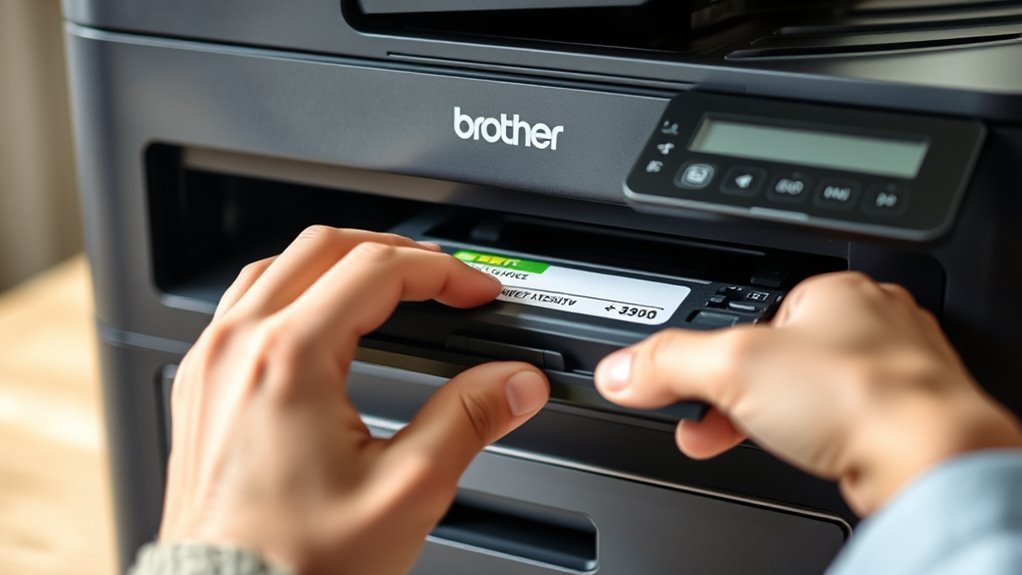
Start by opening the front cover of your Brother printer and holding down the OK (or Clear/Stop) button until the reset menu appears. Use the up/down arrows to choose the exact cartridge you want to toner reset, like “Black STD” or “Cyan,” then press OK to confirm.
When prompted, remove the selected cartridge, give it a gentle shake to redistribute the toner, and reinsert it securely. Press OK again to complete the toner reset.
If the “Toner Empty” message stays, power-cycle the printer and clean the chip contacts on both the cartridge and printer with a dry lint-free cloth. If problems persist, check for firmware restrictions or try a different chip or official cartridge to make certain proper recognition.
How to Prepare and Clean Your Toner Cartridge for Reset
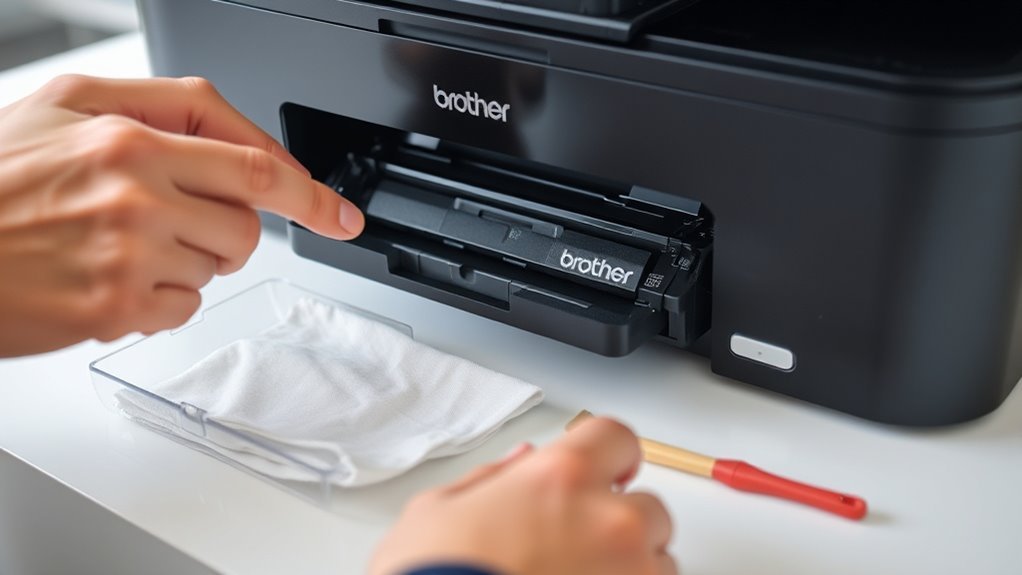
Before resetting your Brother toner cartridge, carefully remove it from the printer. Then, gently rock it side-to-side 6 to 8 times to evenly redistribute the toner inside.
Next, open the front cover to access the cartridge. Use a dry, lint-free cloth or cotton swab to clean the chip and printer contact pins—just avoid using alcohol.
If your cartridge has a green drum-cleaning tab, slide it back and forth 4–5 times. This helps remove any loose toner inside.
You can also lightly blow into vents and crevices or use low-pressure compressed air. Just make sure you do this over a protected surface to avoid making a mess.
When you’re done, reinsert the cartridge firmly. Make sure it clicks into place and that the chip aligns correctly before closing the front cover and proceeding with the reset.
| Step | Action | Purpose |
|---|---|---|
| Remove Cartridge | Open front cover | Access toner cartridge |
| Rock Cartridge | Side-to-side 6–8 times | Redistribute toner evenly |
| Clean Contacts | Dry cloth/cotton swab | Guarantee chip recognition |
| Clean Drum Tab | Slide 4–5 times | Remove loose toner |
| Reinsert Cartridge | Clicks in place | Proper alignment for reset |
Why the Brother Toner “Empty” Message Keeps Showing Up
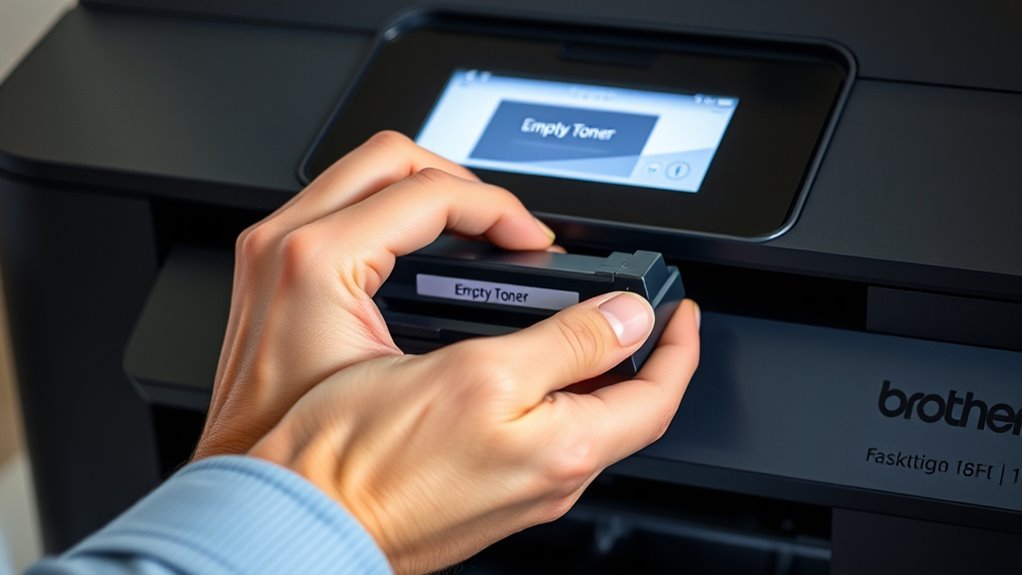
Although you’ve replaced or reset your Brother toner cartridge, the “Toner Empty” message can keep appearing if the printer’s internal counter wasn’t properly reset or if the chip isn’t recognized correctly.
Your laser printer relies on a cartridge chip to track toner levels. So, dirty contacts, misaligned chips, or incompatible chip batches often cause persistent empty alerts.
Choosing the wrong cartridge type during reset, like mixing STD with HC or XL, also prevents the counter from updating. Firmware updates on your laser printer may enforce stricter chip recognition, making previously accepted cartridges trigger the message.
Additionally, a stalled print queue or a needed soft restart can cause the empty warning to linger. Clearing print jobs and restarting the printer usually resolves these issues.
Tips to Monitor Brother Toner Levels and Avoid Repeat Resets
Persistent “Toner Empty” messages often stem from issues with chip recognition or reset procedures, but you can guarantee these frustrations by keeping a close eye on your toner levels and usage patterns. Even though you may reset the toner, monitoring print quality and page count helps you spot when replacement is truly needed.
Watch for faded prints or streaks as toner nears 90–95% yield. It’s a good sign that your cartridge is running low and might need attention soon.
Check the toner status after resets to guarantee chip/contact registers correctly. If toner levels don’t update after prints, try re-seating cartridges or cleaning contacts to fix the issue.
Keep track of reset dates, cartridge batch, and pages printed for better chip management. And remember, only reset the cartridge you replaced; resetting all can hide empty units.
These tips help you avoid repeat resets and keep printing smoothly. Staying on top of these details really makes a difference!
Troubleshooting Common Toner Reset Issues on Brother Printers
When you see the “Toner empty” message even after a reset, it usually means the printer didn’t register the cartridge correctly or the reset steps weren’t followed precisely. First, make sure you selected the correct cartridge type (STD, HC/XL, STR) in the reset menu. Choosing the wrong one prevents updating the counter.
Open the front cover and press Clear/Back together, then Clear again, selecting the cartridge color with the arrows to enter reset mode. If the message persists, remove and reseat the cartridge. Also, clean the chip/contact area and try sliding the green tab.
Don’t forget to cancel all print jobs and restart the printer before resetting. If issues continue, try a different compatible toner chip. Firmware updates might block mismatched or older chip versions, so that could be the culprit.
Frequently Asked Questions
How Do I Reset My Brother Toner Cartridge?
You reset your Brother toner by opening the front cover and pressing and holding the OK button. Then, use the arrows to select your cartridge type and confirm your choice.
After that, just reseat the cartridge as prompted. This clears the toner message and resets the counter for you. Easy, right?
How Do I Get My Brother Printer to Stop Saying Replace Toner?
To stop your Brother printer from saying “Replace Toner,” open the front cover and hold OK/Clear. Then, select your cartridge type and confirm the reset.
If that doesn’t work, you might want to clean the chip on the cartridge. Sometimes, trying a different cartridge can fix the issue too.
How to Reset Toner in Brother 2550DW?
You open the front cover, press and hold “OK” until “Toner Low” shows. Then, select your cartridge type with the arrows.
Press “OK” to confirm, close the cover, and your Brother 2550DW toner resets instantly. It’s pretty straightforward!
How Do I Reset the Toner Cartridge on My Brother Mfc-9340cdw Printer?
Like rewinding a VHS tape, you’ll open your MFC-9340CDW’s front cover, hold “OK” until the toner menu appears.
Then, select the cartridge color, confirm the type, and reset it to clear the “Toner Low” message.
Conclusion
Now that you know how to reset your Brother toner in just five simple steps, you might think the job’s done. But what if that “Empty” message sneaks back sooner than expected?
Staying ahead means not only resetting but also keeping your cartridge clean and monitoring toner levels closely. Ready to avoid those pesky repeat alerts?
The key lies in what you do next—don’t let your printer catch you off guard again. Regularly checking your Brother printer toner status and performing timely resets can save you frustration. Plus, maintaining your toner cartridge helps extend its life and ensures consistent print quality.
So, to keep your Brother printer running smoothly, remember: reset the toner properly, keep the cartridge clean, and watch those toner levels. That way, you’ll avoid unexpected empty toner messages and enjoy hassle-free printing every time.