Author: Admin

  • How a 3D Printer Works €“ Step by Step Guide

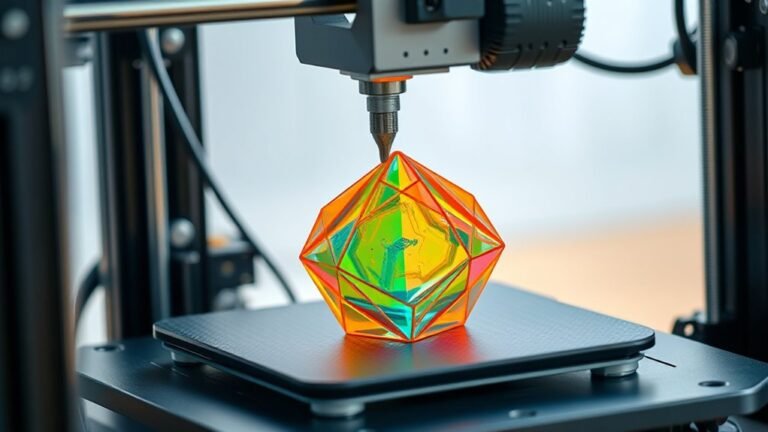
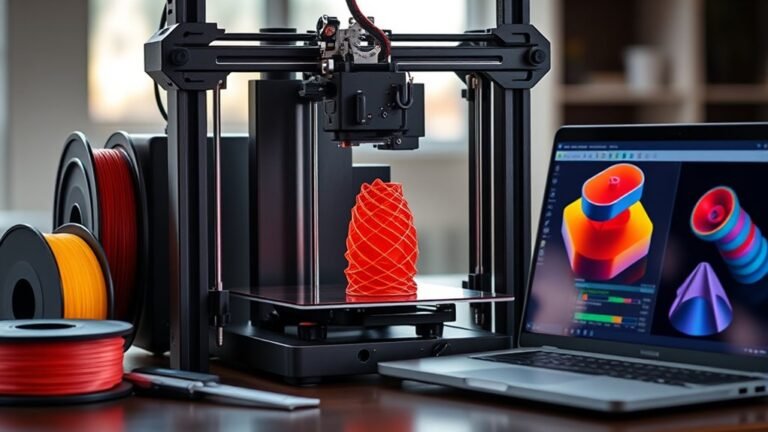
    A 3D printer builds objects by melting filament like PLA or ABS and laying it down layer by layer, guided by precise nozzle movements in X, Y, and Z directions.

    You start with a digital model, slice it into layers with software, then load the G-code to the printer. You’ll level the bed, preheat the nozzle and bed, and watch as your design transforms into a physical part.

    Keep exploring to uncover tips on finishing and perfecting your prints. It’s pretty amazing how a few simple steps can bring your ideas to life!
  • 10 Key Things to Know Before Buying a 3D Printer

    Before buying a 3D printer, know what you’ll print—fine details need resin, strong parts match FDM or SLS. Consider build volume carefully; bigger projects need larger beds plus margin.

    Resolution affects surface smoothness and speed, with resin offering finer layers. Dual extruders add complexity but enable multi-material prints.

    Factor in materials, ongoing costs, and post-processing needs. Ease of use, maintenance, and brand support can save headaches.

    Keep exploring to make a smart, confident choice.

  • How to Set Up Epson Printer in 10 Easy Steps

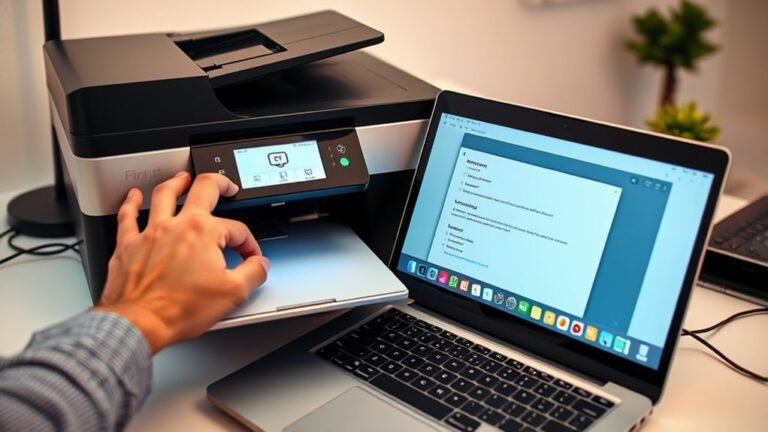
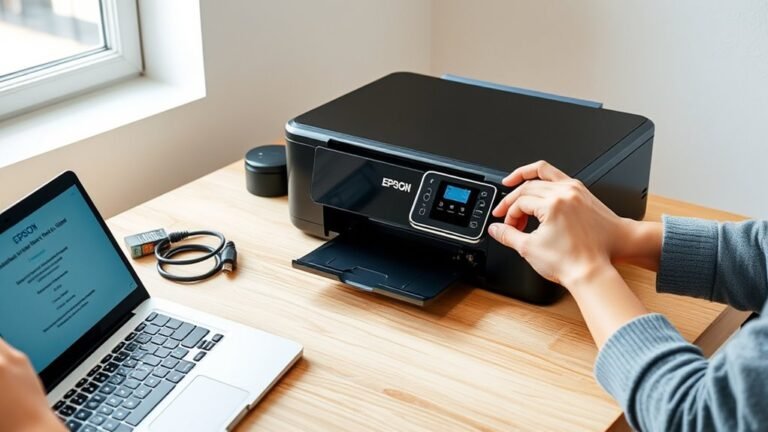
    First, prepare your Epson printer and Wi-Fi details, powering on your printer with wireless enabled. Connect the printer to your Wi-Fi via its control panel using the Wi-Fi Setup Wizard.

    Next, download and install the Epson software from the official site. Then, run the Epson Connect utility to enable optional cloud features.

    After that, register your printer, set it as the default device, and print test pages from your apps. Troubleshoot common connection issues if they come up and verify that printing and scanning work smoothly.

    Keep following for more detailed steps to guarantee a perfect setup.

  • How to Fix a Printer Offline With a Step-By-Step Guide

    To fix your printer offline, first check the blue Wi-Fi indicator is solid and ensure both your printer and device connect to the same network. Disconnect any USB or Ethernet cables, then restart your printer and computer.

    Next, use your printer’s Wi-Fi Setup Wizard or the HP Smart app to reconnect to Wi-Fi. You can also run the Diagnose & Fix tool if needed.

    If issues persist, resetting network settings and re-adding the printer often helps. Keep going to uncover more detailed troubleshooting steps.

  • How Large Is Printer Paper?

    Printer paper sizes vary, but the most common ones are Letter (8.5 × 11 inches) mostly used in the U.S. and Canada, and A4 (210 × 297 mm or 8.27 × 11.69 inches), the international standard. A4 is taller and slightly narrower than Letter.

    Larger formats like A3 or Tabloid (11 × 17 inches) handle posters and detailed graphics. Your printer type affects which sizes you can use smoothly.

    Keep exploring to find out which fits your printing needs best. It’s all about what works for you!

  • How to Print Large Scale Images on a Regular Printer in 5 Steps

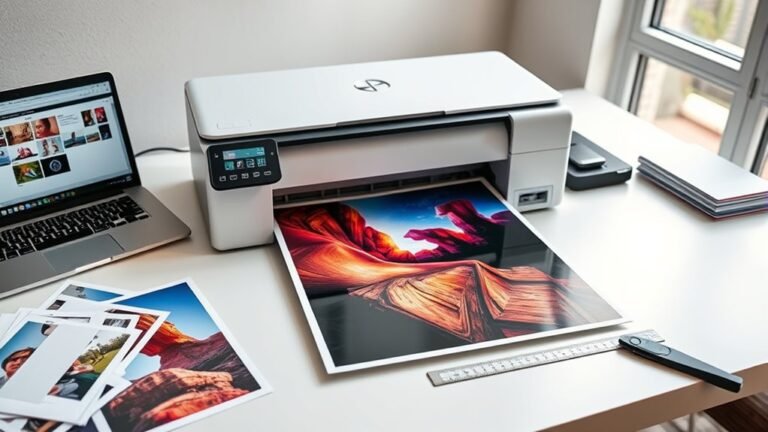
    To print large-scale images on a regular printer, first prepare your image at a high resolution, aiming for at least 150 DPI. Next, split it into printable tiles using software like Acrobat or Illustrator, adding overlap for easy alignment.

    Then, configure your printer for poster or tiled printing without scaling. Print each tile at actual size, trim margins carefully, and assemble them precisely using overlaps.

    Finally, tape and mount your poster for a seamless finish. Keep going, and you’ll discover tips for a flawless result.

  • How Does a Laser Printer Work Step by Step

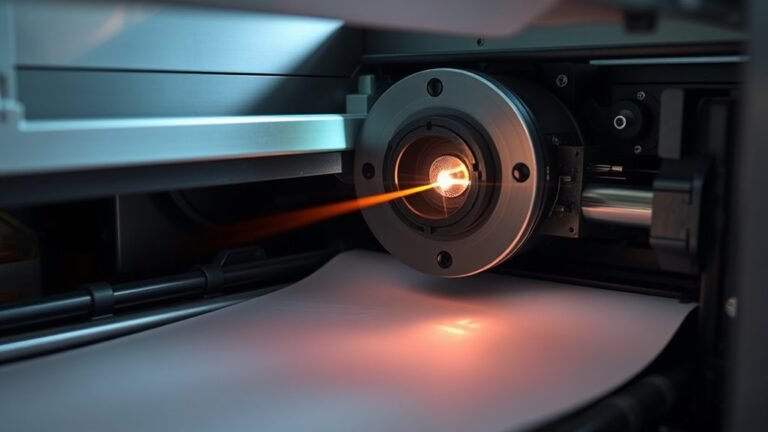
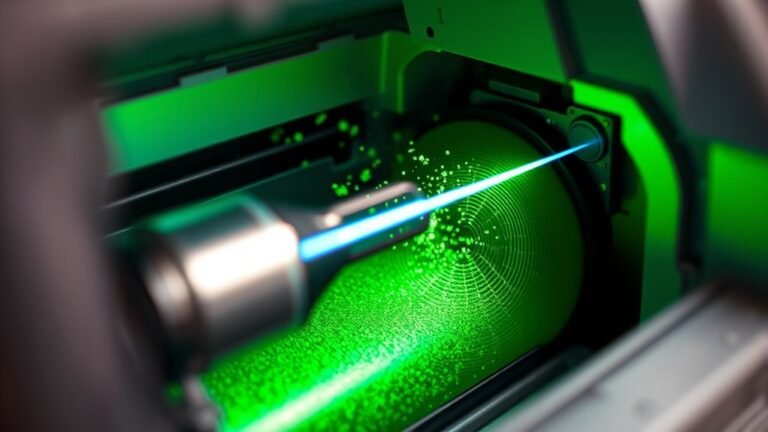
    You send a digital file to your laser printer, which first converts it into a high-resolution electrostatic blueprint on a charged photosensitive drum. A laser scans the drum, discharging areas to form the image.

    Toner particles then stick to these charged spots and transfer onto paper. Finally, heat and pressure from the fuser permanently bond the toner, producing crisp, smudge-resistant prints.

    Keep following to uncover how each precise step guarantees fast, sharp results. It’s pretty cool how it all works together so quickly!

  • What Does It Mean When a Printer Is Offline and How to Fix It

    When your printer shows offline, it means it can’t communicate with your computer due to connection, network, or software issues. To fix it, make sure your printer is powered on with cables securely connected and on the same network as your device.

    Also, check that it’s set as the default printer. Clear any stuck print jobs, and don’t forget to restart the Print Spooler.

    If problems persist, reinstalling drivers or using the Windows troubleshooter often helps. Keep exploring to uncover detailed steps and solutions.

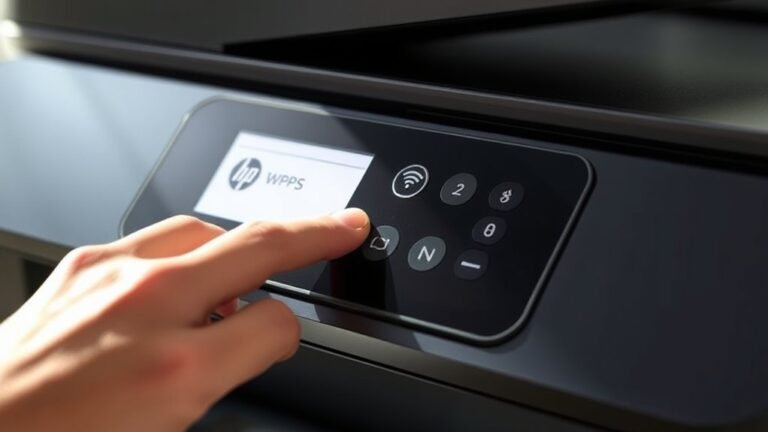
  • How to Find WPS PIN on HP Printer in 3 Easy Steps

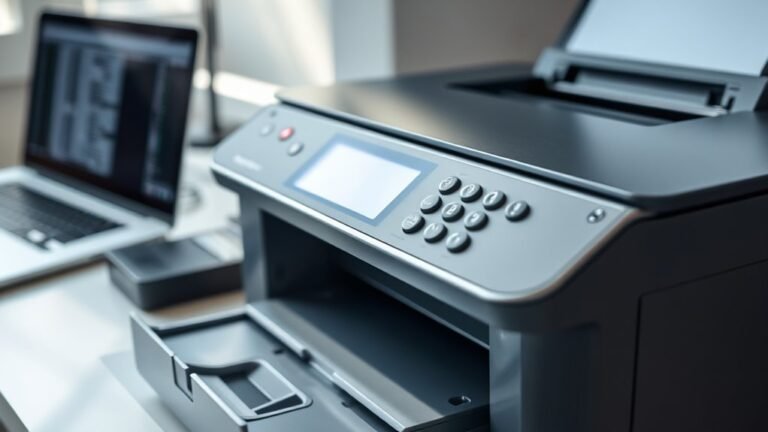
    To find the WPS PIN on your HP printer, first go to the Settings menu and select Wireless or Network. Next, choose Wi‑Fi Protected Setup, then pick the PIN option to display the 8-digit code on your printer’s screen—it appears only briefly, so use it quickly.

    If your printer lacks a display, use the push-button method instead.

    If you want to know how to handle connection issues or reset your network, keep exploring for helpful tips.

  • How Does a LaserJet Printer Work?

    A LaserJet printer starts by charging a photosensitive drum with a uniform electrical charge. Then, a laser beam discharges specific areas to create a precise electrostatic image.

    Toner, made of powdered plastic resin and pigments, sticks to those charged spots. Next, the toner transfers onto paper using opposite electrical charges.

    Finally, heated rollers fuse the toner, making your print permanent and smudge-proof. If you want to know how each step guarantees sharp, clear prints and how it compares to inkjets, there’s more to explore.