How to Set Up a Printer on Mac in 7 Easy Steps
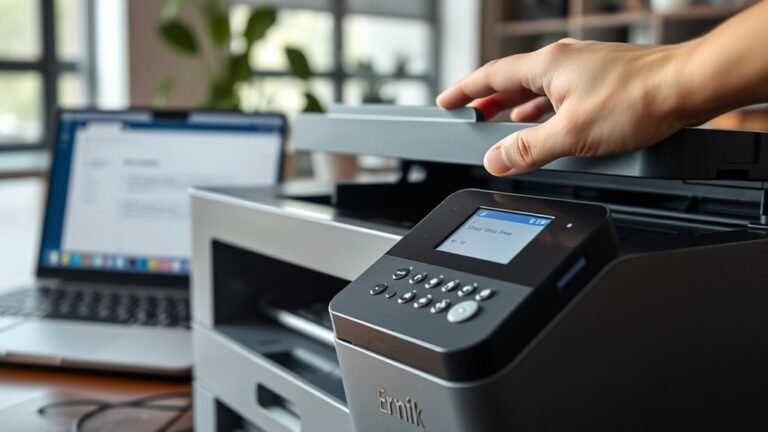
To set up your printer on a Mac, start by getting the printer ready. Install the cartridges, load some paper, and power it on. Make sure you connect it either via USB or check that it’s on the same Wi-Fi network as your Mac.
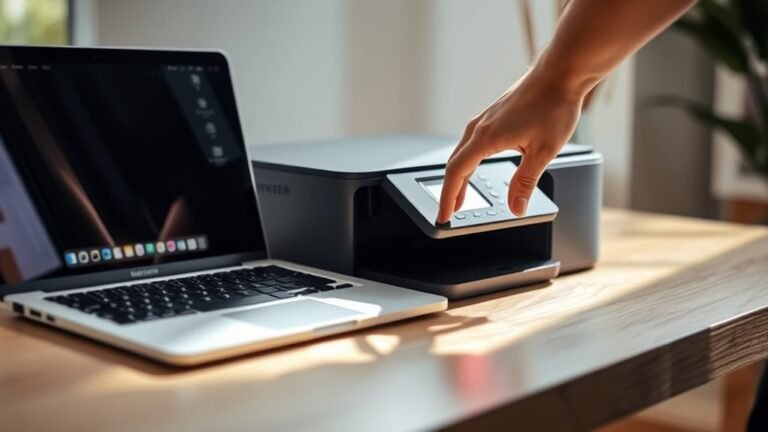
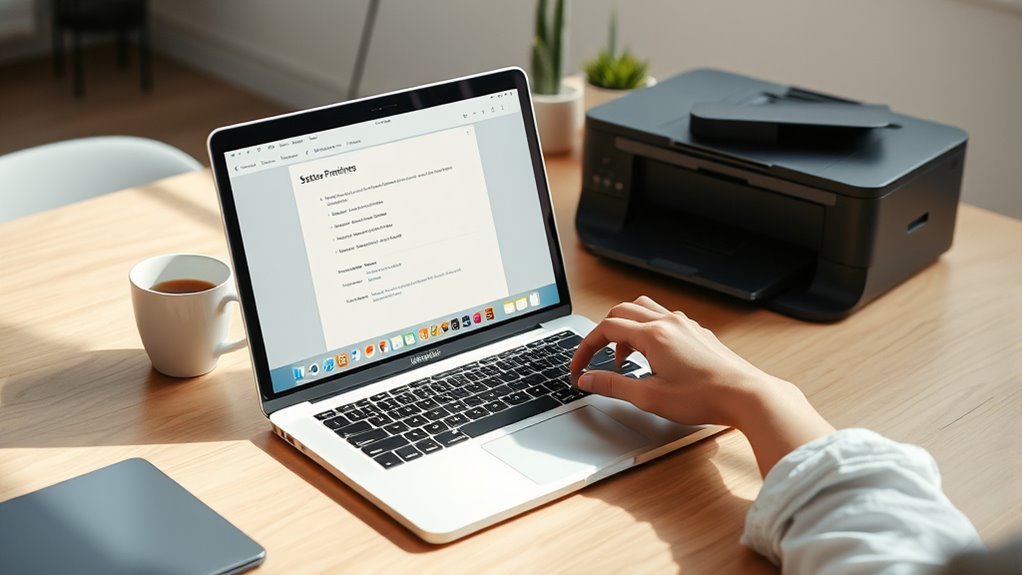
Next, open System Preferences and go to Printers & Scanners. Click the Add (+) button, then select your printer from the list. macOS usually installs the drivers automatically, but you can also add the software manually if needed.
Once that’s done, try printing a test page to see if everything’s working perfectly.
If you run into any trouble or want to set up wireless printing, there are detailed tips you can explore ahead. Setting up a printer on a Mac is pretty straightforward once you know the steps!
Key Takeaways
- Unpack the printer, install cartridges, load paper, and power it on. Keep an eye out for any startup errors while it gets ready.
- Next, connect the printer to your Mac using a USB cable, or just make sure both devices are on the same Wi-Fi network.
- Open System Preferences, then go to Printers & Scanners. Click the Add (+) button, and you should see your printer appear in the list.
- Let macOS handle the driver installation automatically. But if it doesn’t, you can always download the latest software directly from the printer manufacturer’s website.
- Finally, print a test page from your Mac or the printer’s control panel. This step confirms everything is set up correctly and ready to go.
Prepare Your Printer Hardware for Mac Setup
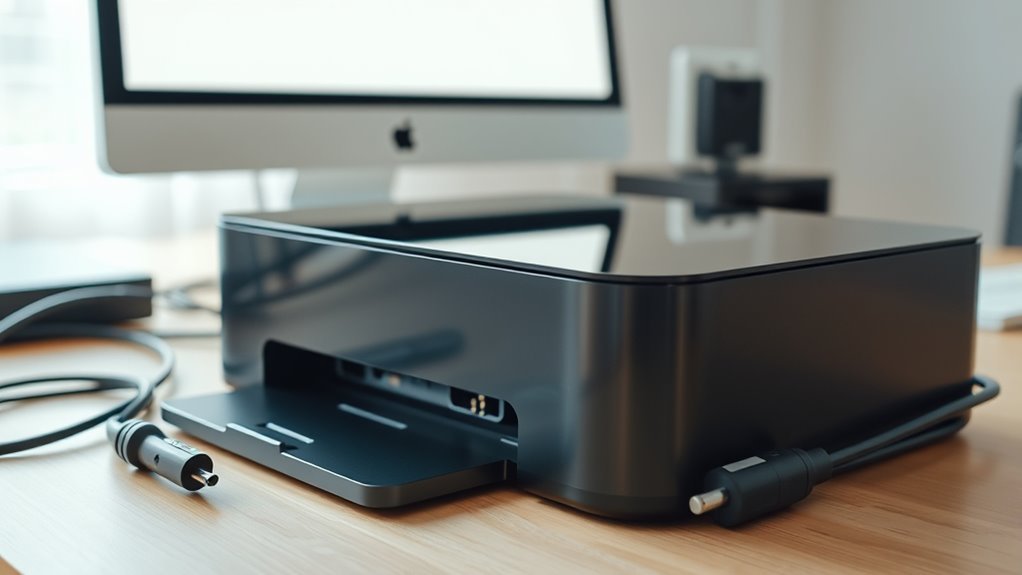
Start by unpacking your printer and installing the ink or toner cartridges. Load paper into the tray, plug in the power cord, and turn the printer on so macOS can detect it.
Begin by unpacking your printer, installing cartridges, loading paper, and powering it on for macOS detection.
Before moving on, check the printer’s control panel or status lights to make sure there are no startup errors like paper jams or low ink.
Connect your printer to your Mac using a USB cable or make sure both devices are on the same Wi-Fi network if you prefer wireless setup. If your printer supports Bluetooth, enable pairing mode and verify Bluetooth is active on your Mac.
Sometimes, a temporary USB cable connection is necessary to transfer wireless settings. Once everything’s ready, you can select your printer during the setup process in macOS.
Add a Printer to Your Mac via USB
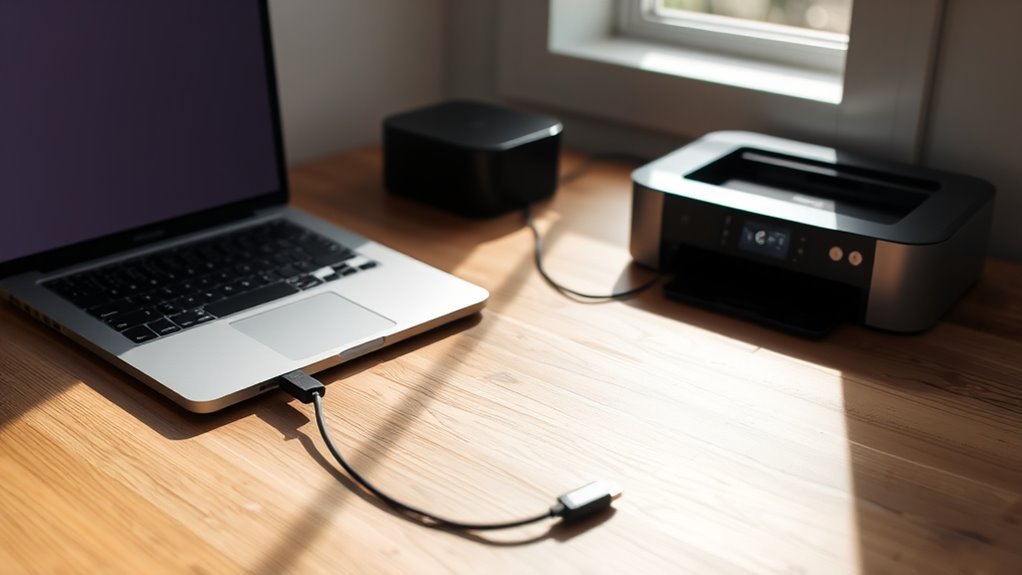
To add a printer to your Mac via USB, first connect the printer’s USB cable to your computer and power it on. Then, follow these steps to complete the setup:
- Open System Preferences, go to Printers & Scanners, and click the Add (+) button to add printer options.
- Wait a few seconds for macOS to detect your USB printer automatically; most are plug-and-play.
If prompted, allow macOS to download and install any updated software that comes with the printer for full functionality—make sure you have administrator privileges.
Select your printer from the list, click Add, close setup dialogs, and print a test page to confirm your USB printer is ready to use. Easy, right? You should be all set!
Add a Printer to Your Mac via Wi-Fi
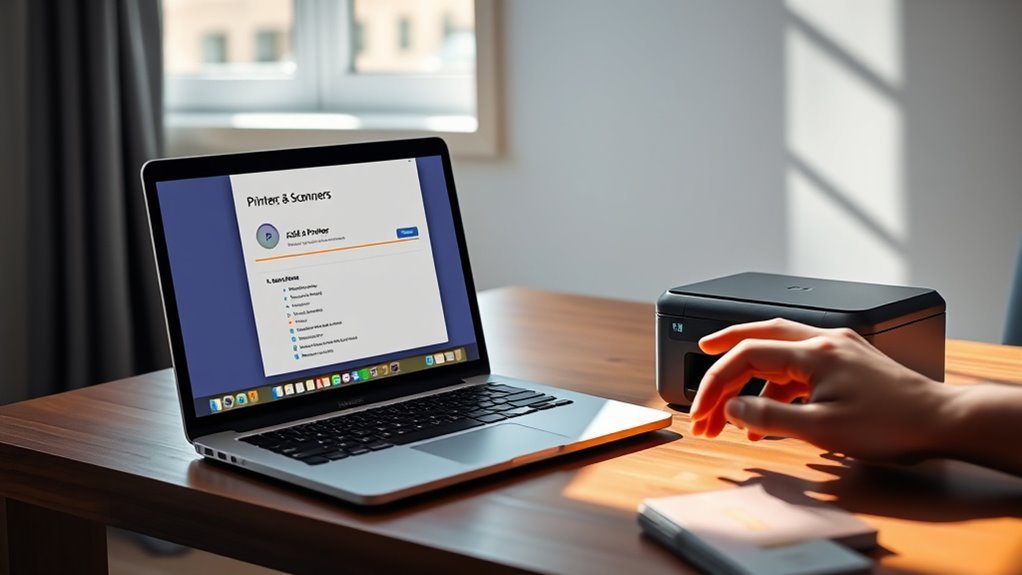
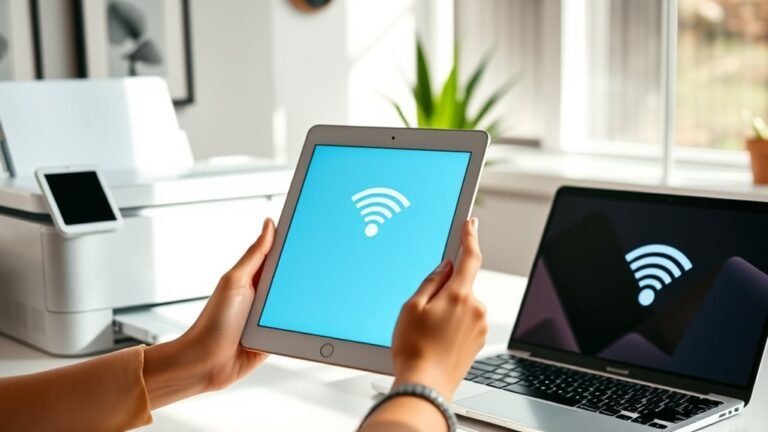
To add a printer via Wi-Fi, make sure your Mac and printer are connected to the same wireless network. This helps your Mac detect the printer easily.
Open Printers & Scanners in System Preferences and click the Add (+) button to find your printer on the network. If your printer doesn’t show up, check its Wi-Fi settings.
You can also try restarting your devices or following any setup prompts from the manufacturer. These steps usually do the trick!
Wi-Fi Printer Detection
Getting your Mac to spot a Wi-Fi printer usually means making sure both devices are connected to the same wireless network. Once they’re on the same Wi-Fi, follow these steps to detect your printer:
- Open System Preferences > Printers & Scanners, then click the Add (+) button to search for your Wi-Fi printer.
- Make sure the printer is powered on, has ink or toner, paper loaded, and Wi-Fi enabled or in pairing mode.
- If your printer doesn’t appear, connect it temporarily to your Mac via USB and run the setup assistant to transfer wireless settings.
- Accept any macOS prompts to download updated printer software—unless your printer supports AirPrint, which requires no extra drivers.
These steps help your Mac find and connect to your Wi-Fi printer smoothly. Easy, right? Just follow along, and you’ll be printing wirelessly in no time!
Wireless Setup Requirements
Ensuring your Mac and Wi‑Fi printer share the same wireless network is essential for a smooth setup. First, confirm the printer’s Wi‑Fi radio and pairing mode are on. Follow the manufacturer’s guide to get this right.
Open System Preferences > Printers & Scanners, then click Add (+). Select your printer once it appears. If it doesn’t show up, try connecting via USB temporarily or restart your devices.
| Step | Action | Tip |
|---|---|---|
| Network Check | Match SSID on Mac and printer | Enable printer’s pairing mode |
| Add Printer | Use Add (+) in Printers panel | Wait a few seconds for detection |
| Troubleshoot | Restart devices if needed | Check firmware and manufacturer guide |
Accept any software prompts to install drivers unless you’re using AirPrint, which doesn’t require any.
Open Printers & Scanners Settings to Start Adding
Open System Preferences (or System Settings on macOS Ventura and later) and click “Printers & Scanners” to access your printer management options.
Access printer settings by opening System Preferences or System Settings on macOS Ventura and later, then select Printers & Scanners.
Here’s how to start adding your printer:
- Click the “+” (Add) button below the printer list to open the Add dialog.
- If your printer is on the same Wi-Fi network, it may show under “Nearby Printers.” Select it and click “Add.”
- For USB or Bluetooth printers, connect the device or pair it first. Then wait for it to appear in the Add dialog before selecting it.
- If the printer doesn’t appear, try using the search box. You can also wait a moment for network discovery, or choose “Add Printer or Scanner” > IP to add it by address.
This gets you ready to install your printer quickly and easily.
Let macOS Automatically Install Printer Drivers
When you connect your printer to your Mac, macOS often detects it automatically and installs the necessary drivers from its built-in database or via AirPrint without any extra steps from you.
If your printer is on the same Wi-Fi network or connected via USB, it’ll usually appear quickly in the Printers & Scanners settings or the print dialog. For AirPrint-capable printers, macOS uses AirPrint automatically, so you won’t need separate drivers.
If additional software is required, macOS will prompt you to download and install updated drivers—just enter your administrator password to proceed. Some Wi-Fi printers might need a temporary USB connection or running their setup assistant first.
But once you’ve got it set up, macOS handles the rest, making printing simple and hassle-free.
Manually Install Printer Software When Auto-Setup Fails
Sometimes macOS might not automatically install your printer, especially with less common models or older devices. When that happens, you’ll need to install the software manually.
First, download the latest driver or full printer software from the manufacturer’s website by searching your printer’s exact model. It’s usually the best way to get the most up-to-date support.
Next, run the installer with administrator rights. If you have a CD, make sure its drivers support your macOS version before you use it.
For USB or some Wi-Fi printers, connect the printer to your Mac via USB during installation. This helps the setup assistant detect it and transfer settings more smoothly.
After you’ve installed everything, head to System Preferences > Printers & Scanners. Click the Add (+) button, select your printer, and click Add to finish the setup.
If you’re prompted to accept additional software downloads, go ahead and do that. Sometimes, restarting your Mac or printer helps to get everything working perfectly.
Test Your Printer on Mac to Confirm It Works
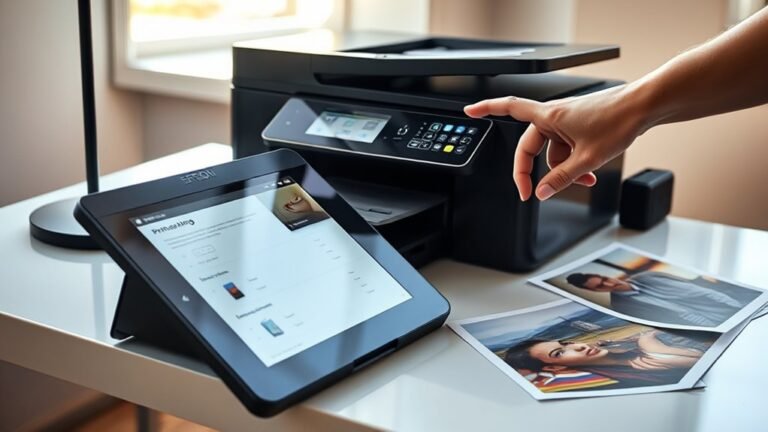
You’ll often want to start testing your printer right after adding it in System Preferences > Printers & Scanners. Open any document, go to File > Print, select your printer, and click Print. This sends a test job and confirms it appears in the print queue.
You can also print the printer’s built-in test page from its control panel to verify it prints independently of your Mac. Check the print queue by selecting the printer in Printers & Scanners and clicking “Open Print Queue” to monitor job status or clear any errors.
If printing fails, reboot both your Mac and printer. Make sure they’re on the same Wi-Fi network, or try connecting via USB instead. Also, double-check that your printer drivers are up-to-date for smooth operation.
Frequently Asked Questions
How Do I Add a Printer to My Windows Computer?
You connect your printer via USB or Wi-Fi, then go to Settings > Bluetooth & devices > Printers & scanners. Click “Add device,” and follow the prompts.
If needed, you can install drivers from Windows Update or the manufacturer’s website. It’s usually pretty straightforward!
How to Print From a Mac to a Canon Printer?
To print from your Mac to a Canon printer, open your document and select File > Print. Then, choose your Canon printer from the list.
You can adjust the settings if you need to, and when you’re ready, just click Print. Make sure your printer is connected and ready to go before you start.
Why Is My Mac Not Recognizing My Printer?
Your Mac’s not recognizing your printer because it might be off, disconnected, or on a different network. You might also need to install drivers or have admin rights to complete setup.
Check cables, power, and settings. Sometimes, it’s just a quick fix! If everything looks good but it’s still not working, try restarting both your Mac and the printer.
How to Set up a Default Printer on Mac?
Like choosing your favorite wand in a wizard’s shop, you just open System Preferences, pick Printers & Scanners, select your printer, then click “Set Default Printer.”
Easy magic for hassle-free printing every time you want.
Conclusion
Now that your printer’s ready, imagine the smooth hum as it brings your documents to life right from your Mac. Whether you connected it with a cable or over Wi-Fi, you’ve set it up like a pro.
Seeing that first crisp page slide out confirms your success. With just a few clicks, you’ve turned a stack of blank paper into printed perfection—effortless, fast, and ready whenever you need it.
Setting up a printer on Mac has never been easier. You’ve mastered the steps to connect your device, whether wired or wireless, ensuring seamless printing every time. Now, your Mac and printer work together smoothly, making document printing simple and convenient. So go ahead, print those important files or cherished photos with confidence—your Mac printer setup is complete and ready to deliver quality prints whenever you want.