How to Clean a Printer in 5 Easy Steps
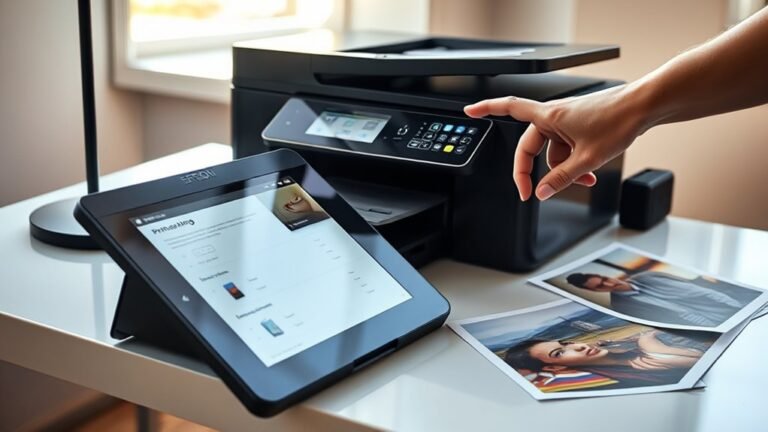
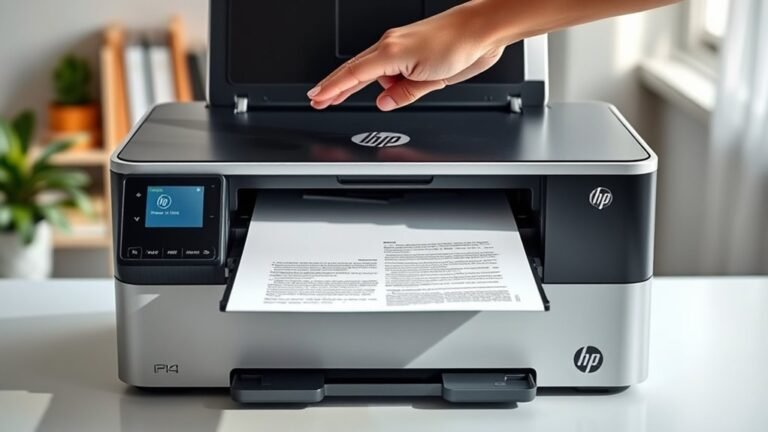
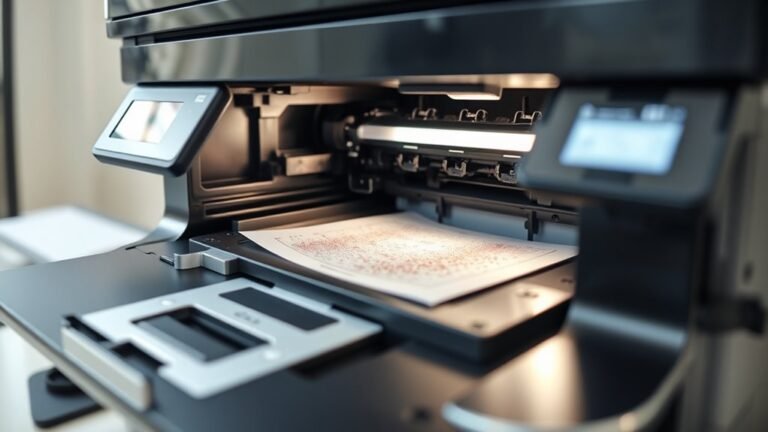
Turn off and unplug your printer, then open the top cover to access the printhead. This is the first step in cleaning a printer properly and ensuring it runs smoothly.
Run a nozzle check to spot any clogs. If you notice issues, run the automatic printhead cleaning up to three times. Sometimes that’s all it takes to clear out the problem.
If the prints still look bad after that, don’t worry. You can manually clean the printhead and rollers using a damp, lint-free cloth. Just be gentle to avoid damaging any parts.
Finally, print a test page to check your results. If your printer still isn’t working right, no stress—there are more detailed steps you can try to restore it fully.
Key Takeaways
– Turn off and unplug the printer, then open the top cover to access the printhead area for cleaning preparation.
This makes sure everything is safe and ready for you to start.
– Run a nozzle check to identify clogged colors and perform automatic printhead cleaning up to three times if needed.
If the colors look off, this step usually helps clear things up.
– Manually clean the printhead by moistening a lint-free towel with distilled water and soaking the printhead to dissolve dried ink.
Be gentle here to avoid any damage.
– Dab nozzles and contacts gently with a lint-free cloth, then reinstall the printhead and cartridges before powering the printer on.
Taking your time here can save you a lot of trouble later.
– Print a test page to evaluate print quality and repeat cleaning or wait 12 hours if no improvement occurs.
Sometimes, the printer just needs a little break before it works perfectly again.
Power Off and Open Your Printer for Cleaning
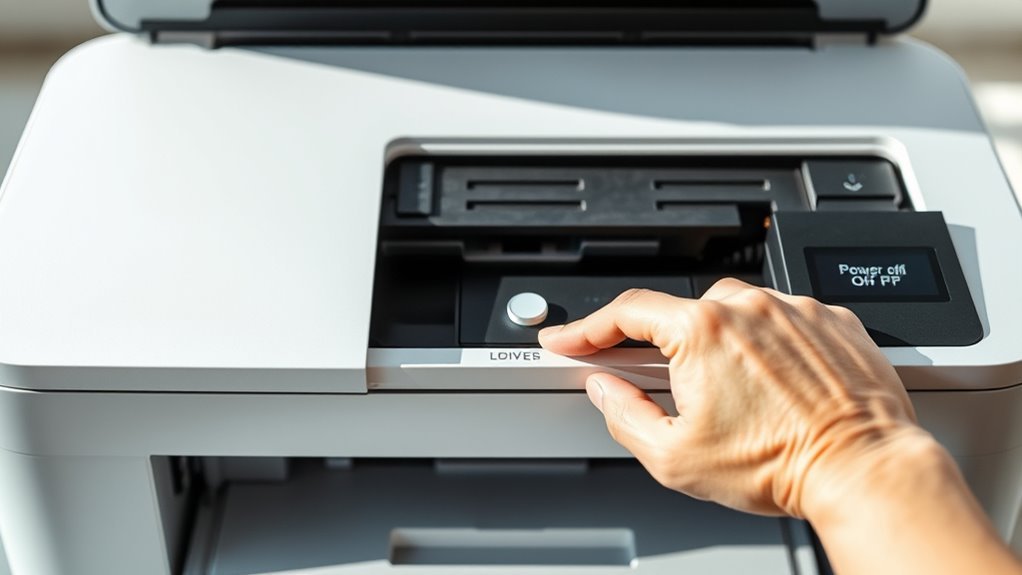
Start by turning off your printer and unplugging it to avoid any accidental movements or electrical shocks. Once it’s safe, open the printer’s top cover or scanner lid, following your model’s manual for the correct method.
Wait a few minutes to let the moving parts stop and the ink settle before you reach inside. To clean the print head effectively, remove the ink cartridges or move the printhead to its service position if your printer allows it.
This gives you clear access without damaging any components. Lay down a lint-free towel or kitchen roll under the printhead area to catch any drips and protect the printer’s platen while you clean.
Taking these steps guarantees you’re ready to clean the print head safely and thoroughly.
Run a Nozzle Check to Assess Print Head Clogs
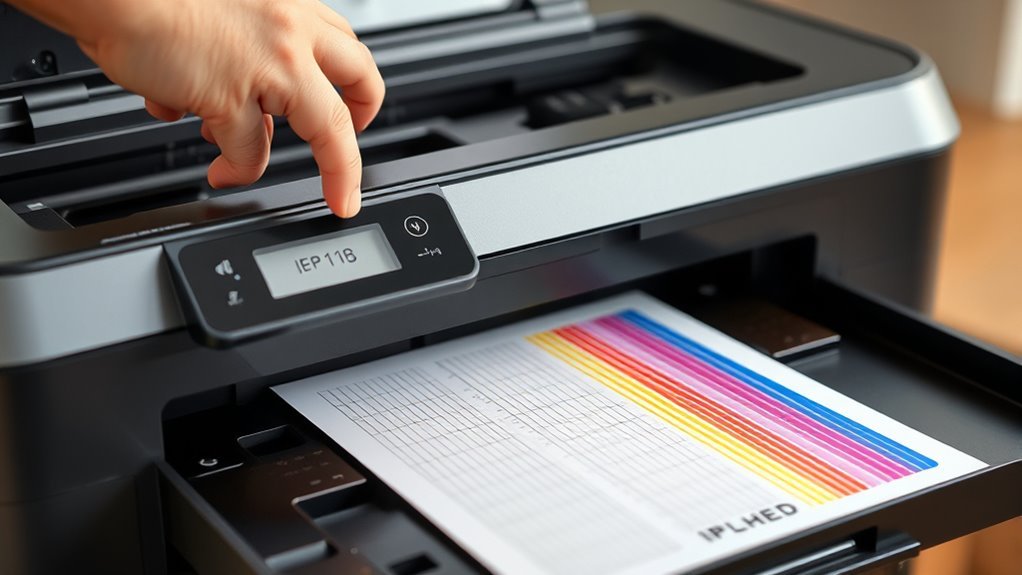
Regularly running a nozzle check helps you quickly identify any clogs in your printer’s printhead. To start, pull out the output tray and turn the printer off. Then, hold the Stop button while pressing Power, following your model’s instructions to begin the nozzle check procedure.
The printer will print a pattern of colored lines and blocks. Inspect this pattern closely for missing dots, faint colors, or horizontal gaps—these signs indicate clogged nozzles. Note which colors—cyan, magenta, yellow, or black—are affected.
If you spot missing segments, run the automatic printhead cleaning from the maintenance menu and print another nozzle check to compare. You can repeat this clean-and-check cycle up to three times. If there’s no improvement, wait at least 12 hours before rechecking the printhead condition.
Run the Printer’s Automatic Print Head Cleaning
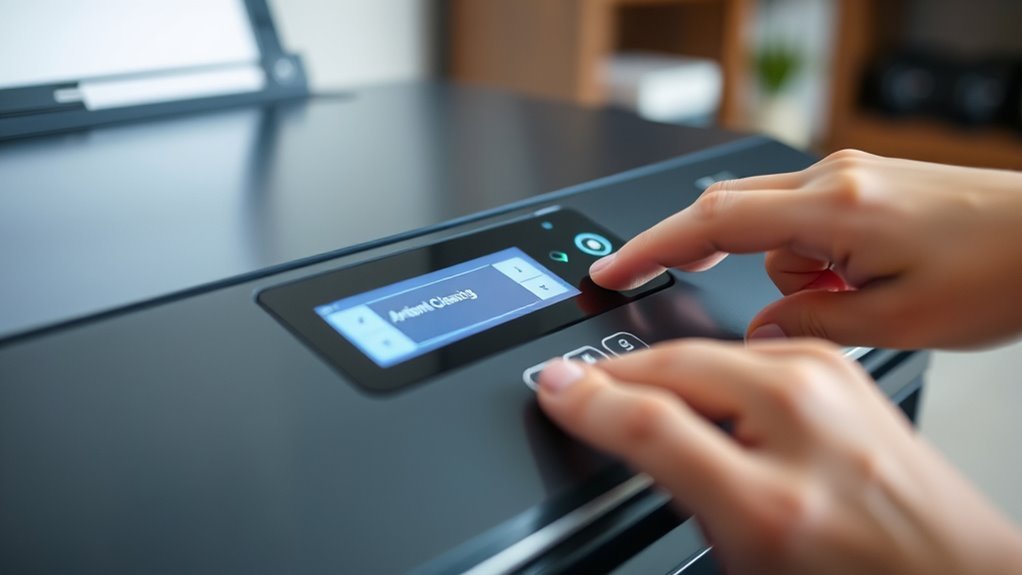
If your nozzle check reveals clogged nozzles, running the printer’s automatic print head cleaning can help clear them. Start by accessing your printer’s control panel or the printer driver on your PC.
Open the Maintenance or Tools menu and select “Clean Printhead” or “Head Cleaning” to begin the automatic routine. This process usually takes a few minutes, uses some ink, and may cause the power or status lamp to flash while running.
Once complete, print another nozzle check or test page to see if the print quality has improved. If issues persist, you can repeat the head cleaning up to three times.
After that, wait at least 12 hours before trying again or exploring other cleaning methods specific to your printer model.
Manually Clean the Print Head and Rollers
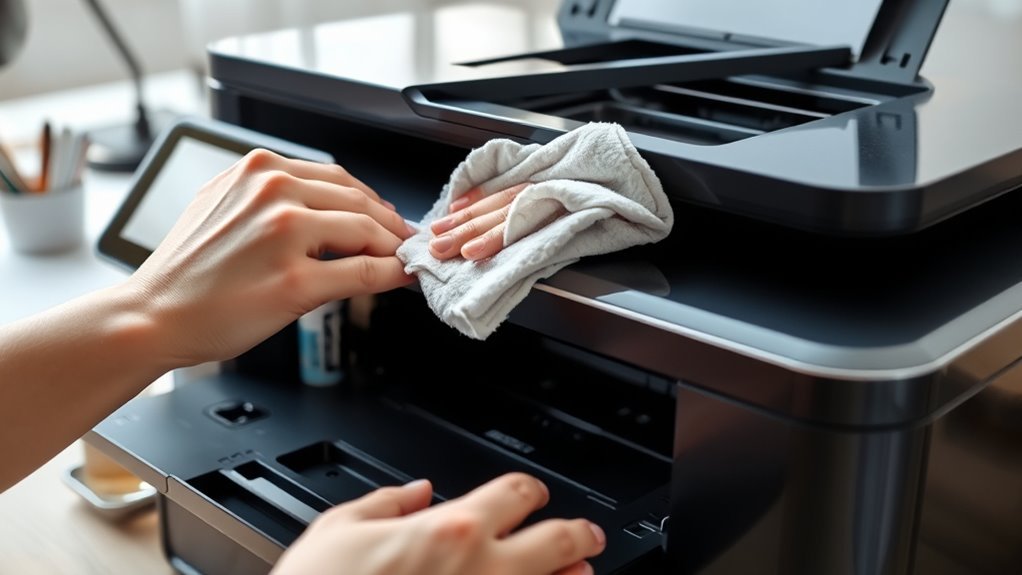
Before you begin manual cleaning, turn off the printer and open the top cover to access the removable printhead and rubber paper-transport roller. Tear a sheet of lint-free kitchen roll in half, moisten it with distilled water or a recommended printhead cleaner, and tape it securely to the roller.
Turn off your printer, open the top cover, and prepare a damp lint-free cloth for printhead cleaning.
Carefully slide the printhead over the damp towel, letting it sit for 10–15 minutes to dissolve dried ink. You’ll want to repeat this until you see individual colors coming from each ink port.
Next, gently dab the printhead nozzles and surrounding contacts with a lint-free cloth—never use your fingers or apply excessive force to avoid damage. Once clean, reinstall the printhead and cartridges.
Then, turn the printer back on to continue with the next steps.
Print a Test Page and Repeat Cleaning if Needed
Once you’ve completed the initial manual cleaning, print a test page from the printer’s maintenance menu to check for any missing dots, streaks, or gaps in the nozzle pattern. This nozzle check will help you evaluate the print quality.
If you notice any issues, run the automatic print head cleaning routine once more, then print another test page to see if the print quality improves. Repeat this clean-and-test cycle up to three times.
If there’s still no improvement, power off the printer and wait at least 12 hours before testing again. Remember, each cleaning uses ink, so try to avoid excessive repeats.
Should problems persist after waiting, consider advanced steps like Power Ink Flushing or check your printer’s manual to restore peak print quality.
Frequently Asked Questions
What Is a Print Head on a Printer?
A print head is the part of your printer that sprays tiny ink droplets onto paper, creating images and text. It has nozzles that can clog, so keeping it clean guarantees your prints stay sharp and clear.
You know, those nozzles are super important for good quality prints. If they get blocked, your pictures and words might come out looking fuzzy or patchy. So, a little cleaning goes a long way!
How to Clean a Printer Using a Laptop?
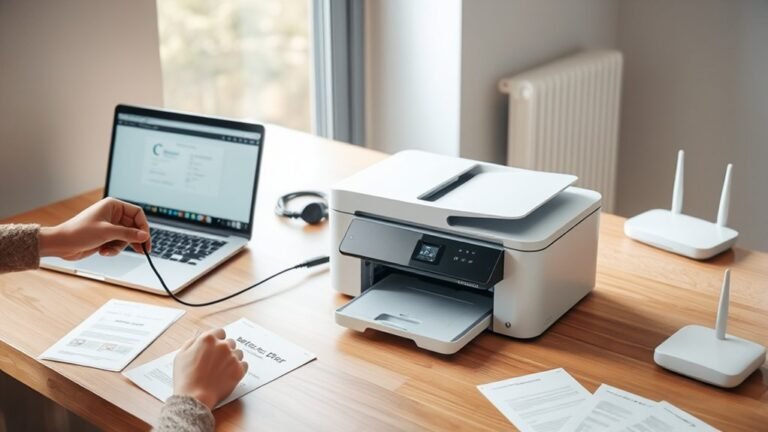
You connect your printer to your laptop and open its software or settings. Then, select your printer from the list.
Next, run the automatic printhead cleaning. After that, print a test page to check the results.
If needed, you can repeat the cleaning process until you’re satisfied with the print quality. It’s pretty straightforward!
How to Clean Sawgrass sg500 Printhead?
Just like tackling a stubborn coffee stain, you’ll power off your Sawgrass SG500. Gently clean the printhead with a damp cloth.
Then, soak it briefly on a moistened pad. After that, run the maintenance routine to clear clogs effectively. Easy, right?
Why Is My Printer Printing Blank Pages?
Your printer prints blank pages because the printhead nozzles are clogged, ink cartridges are empty or misaligned, or printer settings or drivers are incorrect.
Sometimes, mechanical issues like a stalled paper feed or a disabled printhead can cause this too.
It’s a bit annoying, right? But usually, a quick check can fix the problem!
Conclusion
Cleaning your printer might seem like a hassle, but it’s actually a simple task that saves you from blurry prints and costly repairs. Taking a bit of time to maintain your printer is way better than dealing with problems later.
While ignoring maintenance feels easier, spending just a few minutes following these five steps keeps your printer running smoothly. You’ll trade frustration for crisp pages and wasted ink for savings.
So, don’t wait until problems pile up—clean your printer now and enjoy hassle-free printing every time. Regular printer cleaning not only extends the life of your device but also improves print quality and reduces the chance of paper jams. With easy printer maintenance, you ensure consistent, sharp prints and fewer headaches down the line. Give your printer some love today, and you’ll thank yourself with every perfectly printed page.