How to Print From Samsung Phone to Wireless Printer in 5 Easy Steps
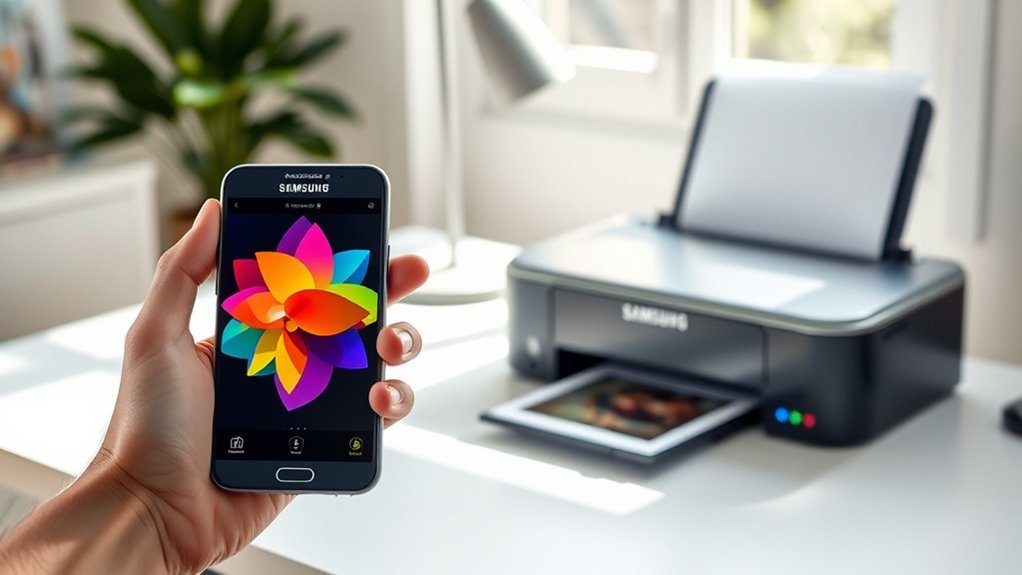
To print from your Samsung phone to a wireless printer in five easy steps, start by connecting your phone to the printer’s Wi-Fi network or use Wi-Fi Direct for a direct connection. This step is crucial for a smooth printing experience without any cables or hassle.
Next, head over to the Play Store and install the HP Print Service Plugin or your specific printer’s app. Once installed, make sure to enable it in your phone’s Settings to allow seamless communication between your phone and printer.
After that, double-check that your printer is properly connected to the network. Open the file you want to print, then select your wireless printer from the print preview screen. You can also customize settings like the number of copies or paper size here.
Finally, send the print job and watch your document come to life. If you run into any problems, don’t worry—there are simple troubleshooting tips to help you get your printer back on track in no time!
Key Takeaways
- Connect your Samsung phone to the printer’s Wi-Fi Direct network or the same Wi-Fi network as the printer.
- Install the printer’s service plugin or app from Google Play Store and enable it in printing settings.
- Make sure the printer is powered on and connected to the same Wi-Fi network as your phone.
- Open the file or photo you want to print, then tap the Share or menu icon.
- Select the Print option to open the print preview.
- Choose your printer, customize your print settings, and tap Print to send the job.
- If you run into any issues, just troubleshoot the connectivity to get things working again.
Connect Your Samsung Phone to the Printer’s Wi-Fi Network
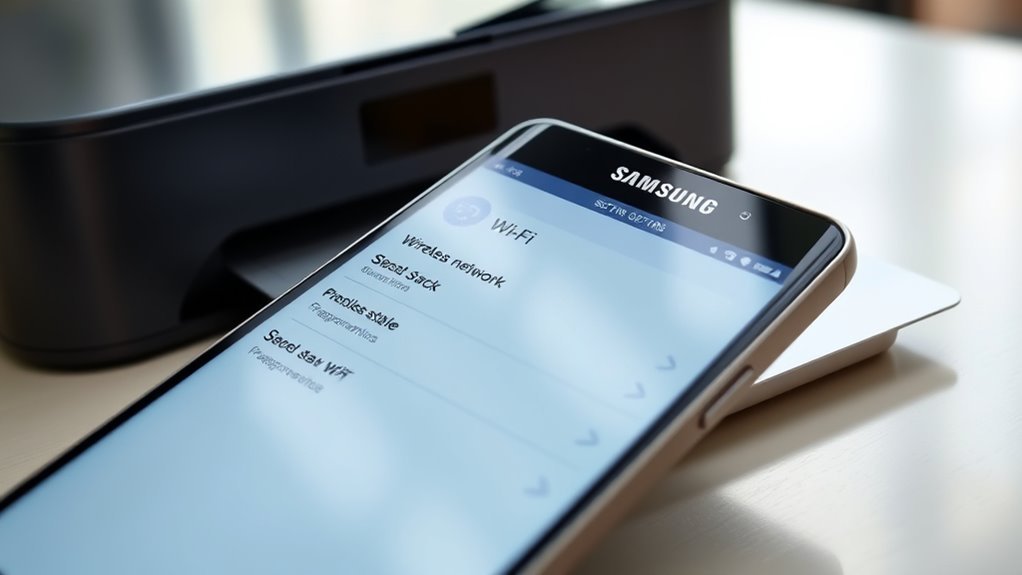
To connect your Samsung phone to the printer’s Wi-Fi network, start by turning on Wi-Fi in Settings under Connections. Then, select the printer’s SSID—usually labeled with “DIRECT-” or the printer model for Wi-Fi Direct connections—and tap Connect.
If you’re asked, enter the Wi-Fi Direct password displayed on the printer or printed network info page. For shared-network printing, make sure your phone and printer are on the same network. You can do this by checking the phone’s IP and the printer’s IP via its web interface.
If you can’t find the printer, take a look at your router’s settings for SSID or client isolation. Disable it so devices can talk to each other. After making any changes, reboot both your phone and router to connect smoothly to the Wi-Fi network.
Install the HP Print Service Plugin or Other Printer App
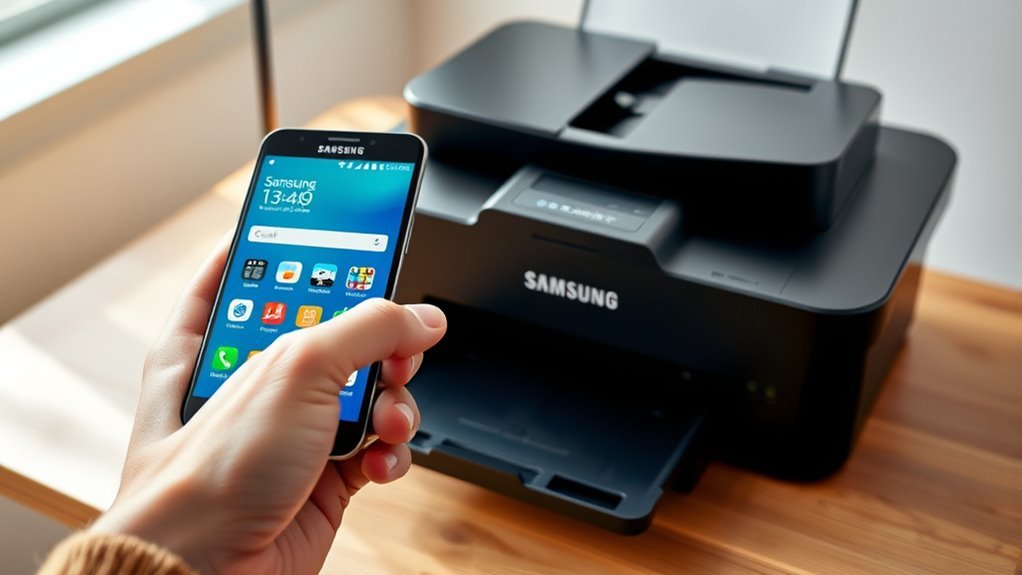
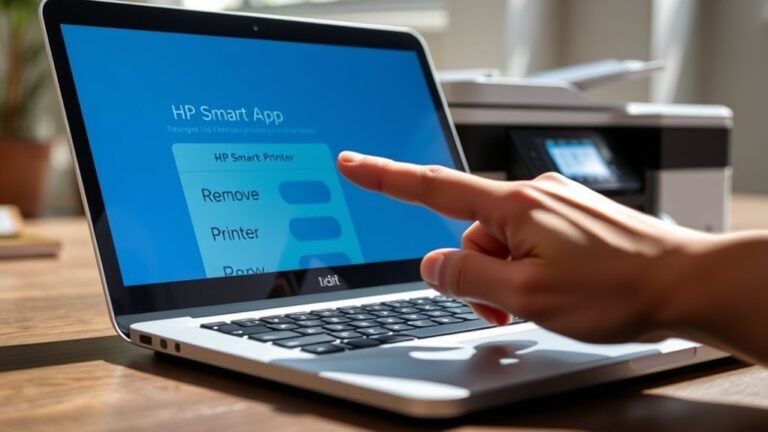
Head over to the Google Play Store on your Samsung phone and search for the “HP Print Service Plugin” or the app specific to your printer’s brand, like Canon Print Service or Brother iPrint&Scan. Install the plugin to enable printing from your device.
Find and install your printer’s service plugin from the Google Play Store to start printing from your Samsung phone.
Make sure your Samsung phone and wireless printer are connected to the same Wi‑Fi network, or get ready to use WiFi Direct instead.
Here’s what to do next:
- Go to Settings > Connections > Printing settings, tap the installed plugin, and toggle it on.
- When printing, select the plugin from the printer dropdown to detect your printer automatically.
- If detection fails, use the manual IP or WiFi Direct options within the plugin to add your printer.
This setup guarantees smooth printing from your Samsung phone. Easy, right?
Verify Printer Connection and Open Your Document or Photo
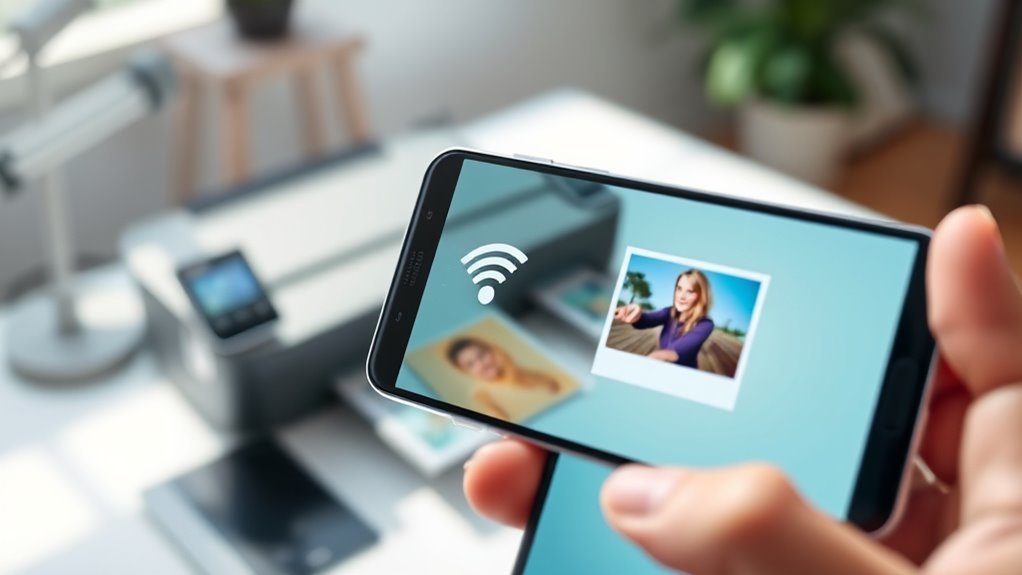
Before you start printing, make sure your wireless printer is powered on and connected to the same Wi‑Fi network as your Samsung phone. Check the printer’s control panel for a blue Wi‑Fi indicator or print a network configuration page to confirm.
Next, open the file or photo you want to print using a compatible app on your Samsung phone, like Gallery for images or Google Drive for documents. Tap the three‑dot menu or Share icon and select Print to access the Android print preview.
If the Print option doesn’t appear, go to Settings > Connections > More connection settings > Printing to download the needed plugin. In the print preview, use the printer selection drop‑down to find your wireless printer or add it manually via the printer’s web IP address.
Select Your Wireless Printer on Samsung Phone and Set Options
Open your document, photo, or webpage on your Samsung phone and tap the app’s menu or Share icon to bring up the Print option.
In the Print Preview, follow these steps to select your wireless printer and set options:
- Tap the printer name drop-down to choose your printer. Make sure your Android phone and printer are on the same Wi‑Fi network or connect via Wi‑Fi Direct for direct printing.
- If your HP printer or other device doesn’t appear, tap “All printers” or “Download plugin” to install the necessary print service plugin, then reselect the printer.
- Customize your print settings—number of copies, paper size, color mode, orientation, or duplex printing—in the Print Preview before hitting Print.
This guarantees smooth, precise printing from your Samsung phone every time.
Send Your Print Job and Fix Connection Problems
Once you’ve chosen your printer and set your preferences, go ahead and send your print job by tapping Print in the app menu or Share options. On your Samsung Android phone, select the installed Print service plugin like Samsung Print Service or HP Print Service.
If your printer doesn’t appear, make sure both devices are on the same Wi‑Fi network or connect via Wi‑Fi Direct. You can refresh plugins in Settings > Connections > More connection settings > Printing.
To add a printer by IP, open the plugin’s settings, choose Add printer, and enter the printer’s static IP address. If printing still fails, check that SNMP is enabled on the printer and disable router SSID isolation.
These steps help guarantee smooth connectivity and successful printing from your Samsung phone. It’s usually pretty straightforward once everything’s set up right!
Frequently Asked Questions
Can You Print From a Tablet?
Yes, you can print from a tablet if it’s connected to the same Wi-Fi as your printer. Just use the print option in your app, install any needed print service plugins, or use AirPrint on iPads.
It’s pretty straightforward once you’re set up. Just make sure your printer supports wireless printing, and you’re good to go!
How to Connect iPhone to a Printer?
Connecting your iPhone to a printer is a breeze—just like finding a needle in your Wi-Fi haystack. Make sure both devices share the same network.
Open your file, tap Share, select Print, and choose your AirPrint printer. It’s pretty straightforward once you get the hang of it!
Why Can’t I Print From My Samsung Phone to My Printer?
You can’t print because your phone and printer aren’t on the same Wi-Fi. Sometimes, the correct print plugin isn’t installed or enabled either.
Also, your router’s settings might be blocking communication between devices. It’s a good idea to check your connections and plugins.
If your router has client isolation enabled, try disabling it. That often fixes the printing issue.
How to Print From Phone to Printer Without Wi-Fi?
When Sarah’s Wi-Fi went down, she used Wi-Fi Direct to connect her Samsung phone straight to her printer.
You can do this too—enable Wi-Fi Direct on both devices, then print without needing a traditional network.
It’s super handy when your usual Wi-Fi is acting up! Just a quick setup and you’re good to go.
Conclusion
Printing from your Samsung phone to a wireless printer is as easy as pie when you follow these simple steps. By connecting to the printer’s Wi-Fi, installing the right app, and selecting your printer, you’ll have your documents or photos in hand in no time.
So, don’t let tech troubles tie you down—just hit print and watch your ideas come to life, right from the palm of your hand!
With just a few taps, you can easily print directly from your Samsung phone to a wireless printer. Whether it’s important documents or cherished photos, the process is quick and hassle-free. By using the right apps and ensuring a stable Wi-Fi connection, wireless printing becomes a seamless part of your mobile experience. So go ahead, print with confidence and enjoy the convenience of wireless printing from your Samsung phone anytime, anywhere!