Change Your Default Printer in Windows 11 With 10 Easy Steps
To change your default printer in Windows 11, open Settings and go to Printers & scanners. First, turn off “Let Windows manage my default printer” for manual control. This step gives you the power to choose which printer is your go-to device.
Next, select your preferred printer from the list, then click “Set as default.” You’ll know it worked when you see the “Default” label next to your printer.
If the printer won’t change, don’t worry. Try restarting the Print Spooler or updating your printer drivers. These simple fixes often solve the problem quickly.
Keep going to discover easy tips for managing multiple printers and avoiding common setup issues. Changing your default printer doesn’t have to be a hassle—let’s make it straightforward together!
Key Takeaways
- Open Settings with Windows key + Q, type “Printers & scanners,” and select it to access your printer list.
- Disable “Let Windows manage my default printer” to enable manual default printer selection.
- Select your preferred printer and click “Set as default” to assign it as the default printer.
- Confirm the default printer by checking for the “Default” label or green checkmark next to the printer.
- Verify changes by printing a test page or checking the default selection in any application’s Print dialog.
Open Default Printer Settings in Windows 11
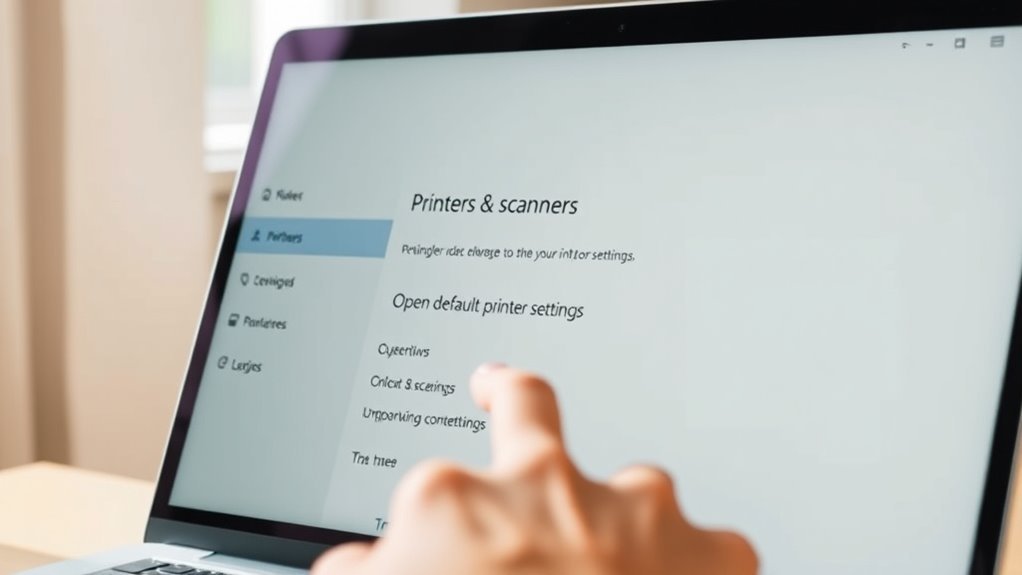
To open the Default Printer settings in Windows 11, press Windows key + Q, type “printers,” and select “Printers & scanners” from the results.
Press Windows key + Q, type printers, and select Printers & scanners to access Default Printer settings in Windows 11.
On the Printers & scanners page, you’ll see a list of all installed printers along with their statuses. At the top, you’ll find the toggle for Let Windows manage my default printer.
When this is on, Windows automatically sets your default printer based on the one you use most recently. If you turn this toggle off, a Set as default button appears in the details of each printer, letting you manually assign your default printer.
You can also reach these settings by going through Settings > Bluetooth & devices > Printers & scanners if you prefer a different route. It’s pretty straightforward either way!
Turn Off Automatic Default Printer Management
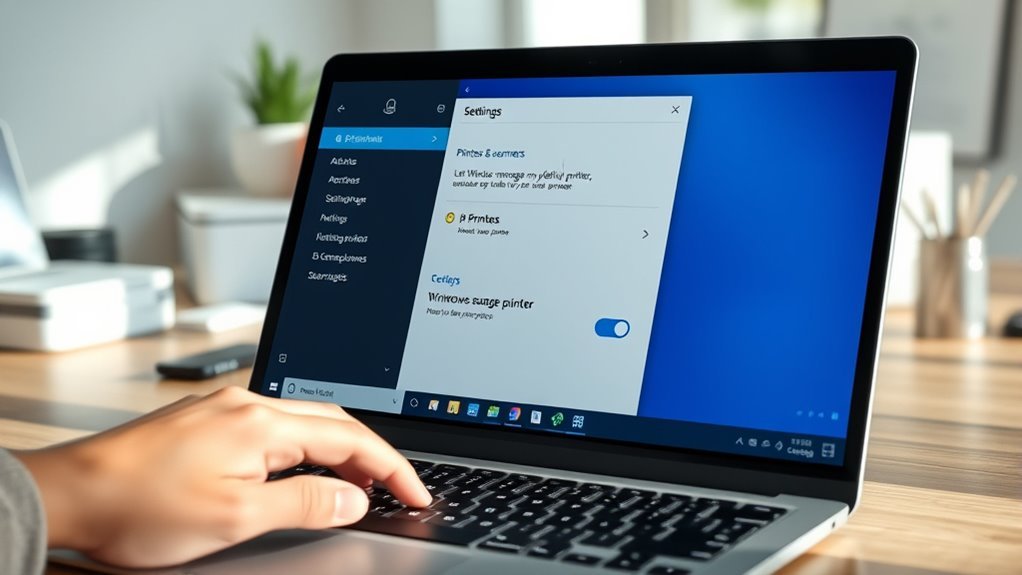
After opening the Default Printer settings and seeing the toggle for automatic management, you might want to turn it off if you prefer setting your default printer manually.
In Windows 11, go to Settings > Printers & scanners, then toggle off “Let Windows manage my default printer.” This stops Windows from automatically managing printers by setting your default to the last-used device.
Once you disable this, you can pick a printer from the list and click “Set as default” to assign your preferred one.
Turning off “Let Windows manage” gives you full control over your default printer, rather than relying on automatic changes.
This setting replaces the Windows 10 checkbox and guarantees you’re not switching defaults without your input.
Choose Your Preferred Printer From the List
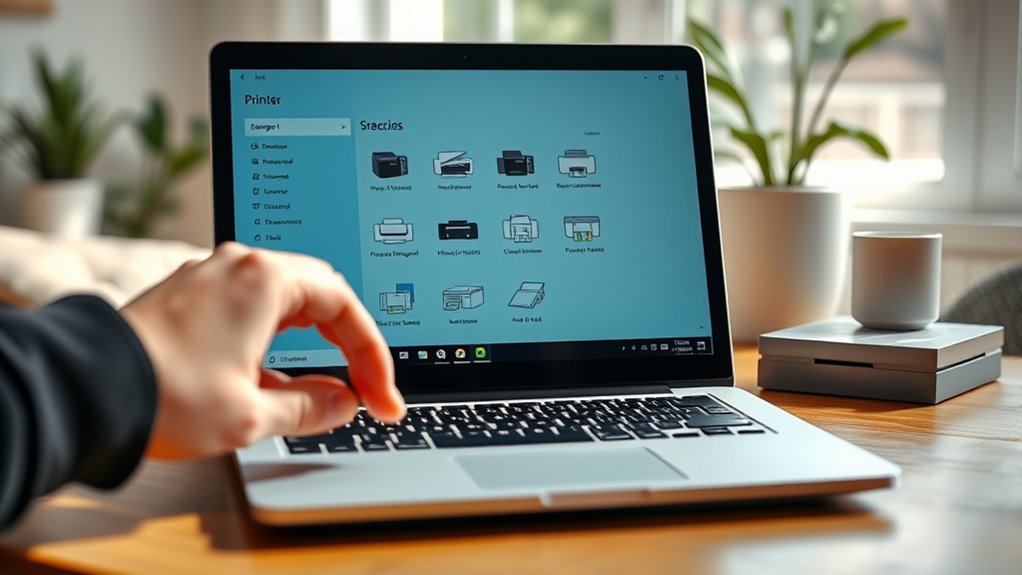
Here’s a quick look at a typical Printers & scanners list in Windows 11:
| Printer Name | Status | Location |
|---|---|---|
| Office LaserJet | Ready | Floor 1 |
| Home InkJet | Offline | Home Office |
| Color Copier | Ready | Floor 2 |
| Wireless Printer | Ready | Conference Rm |
Take a moment to choose the printer that fits your needs.
Then, you can set it as the default printer. Easy as that!
Set Your Selected Printer as the Default
Once you’ve picked your printer from the list, you’ll want to set it as the default manually. Make sure to turn off the “Let Windows manage my default printer” option if it’s enabled.
This way, your chosen printer won’t be overridden by Windows automatically. It keeps things simple and ensures your printer choice sticks.
Choosing Your Printer
How do you set a specific printer as your default in Windows 11? First, open Settings by pressing Windows key + Q, type “printers,” and select Printers & scanners. From the list, pick the printer you want to use as your default printer.
If the “Let Windows manage my default printer” option is turned on, Windows will automatically update your default to the last printer you used. This means your manual selection won’t stick. So, if you want to choose your default printer yourself, make sure this option is turned off.
Then, click your selected printer and hit “Set as default” in the upper-right corner of the Printers & scanners page. You’ll know it worked when a green checkmark or “Default” label appears next to your chosen printer’s name. Easy as that!
Setting Default Manually
Although Windows can manage your default printer automatically, you might want to set it manually to guarantee your preferred device is always ready. First, open Printers & scanners by pressing the Windows key + Q, typing “Printers & scanners,” and selecting it.
If the option Let Windows manage my default printer is enabled, turn it off to proceed. Next, find your desired printer in the list, click it to open its settings pane, and then click Set as default in the upper-right corner.
This guarantees your selected printer is always the default printer, regardless of recent use. On Windows 10, you can also set the default printer by right-clicking the printer in Control Panel’s Devices and Printers and choosing Set as default printer.
Fix Issues When Your Default Printer Won’t Change
If your default printer won’t change, start by disabling Windows’ automatic printer management in Settings. Then, try resetting your printer preferences by manually setting your chosen printer as default.
If that doesn’t work, troubleshoot by restarting the Print Spooler service or checking for driver conflicts. Sometimes, a simple restart or update can fix the issue quickly. Give these steps a shot before diving deeper!
Troubleshoot Printer Settings
When Windows won’t let you change your default printer, start by opening Settings and proceeding to Bluetooth & devices > Printers & scanners. Make sure the “Let Windows manage my default printer” toggle is off, so you can set your preferred printer manually.
Next, select your printer in Printers & scanners and click “Set as default” to enforce your choice. If this option is greyed out or resets, check for any third-party print management software that might block changes and uninstall it.
Also, update or reinstall your printer driver from the manufacturer’s website. That often fixes a lot of issues.
For ongoing problems, run the built-in Printer troubleshooter. You can find it via Settings > System > Troubleshoot > Other troubleshooters > Printer. It’ll automatically detect and fix problems preventing you from changing your default printer.
Reset Printer Preferences
To fix issues preventing your default printer from changing, start by resetting your printer preferences. First, open Settings, go to Printers & scanners, and turn off “Let Windows manage my default printer.” Then select your printer and click “Set as default printer.”
If this doesn’t work, try resetting the print spooler. Open Services, stop the Print Spooler, delete temporary files in C:WindowsSystem32spoolPRINTERS, and restart the service. This helps clear stuck print jobs that might be messing things up.
You can also try setting the default printer through Control Panel’s Devices and Printers. This step is especially useful if you’re dealing with older, legacy printer drivers.
Finally, update or reinstall your printer drivers from the manufacturer’s website or via Windows Update. This often fixes conflicts that block changing default settings. If you’re still having trouble, check group policies or reach out to your IT admin for help.
Set Default Printer Using Control Panel in Windows 10
You can easily set your default printer through the Control Panel in Windows 10 by opening Start, typing “Control Panel,” and pressing Enter. Next, click “Devices and Printers.”
If “Let Windows manage my default printer” is enabled, you’ll want to disable it first. Just head over to Settings > Devices > Printers & scanners to turn that off.
Once that’s done, go back to Devices and Printers. Right-click your preferred printer and select “Set as default printer.” You’ll see a green check mark pop up, confirming your choice.
Here’s a quick overview:
| Step | Location | Action |
|---|---|---|
| 1 | Start Menu | Type “Control Panel” |
| 2 | Control Panel | Click “Devices and Printers” |
| 3 | Devices and Printers | Right-click desired printer |
| 4 | Context Menu | Select “Set as default printer” |
| 5 | Printer Icon | Confirm green check mark |
You can always head back to Devices and Printers if you want to change your default printer anytime.
Turn On Automatic Default Printer Management
Windows 11 lets you turn on automatic default printer management, so it picks the printer you used most recently at your current location without any manual setup. To enable this, open Settings by pressing Windows key + Q, type “Printers & scanners,” and find the slider labeled “Let Windows manage my default printer.”
Toggle it on to activate automatic default printer selection. This feature restores Windows 11’s standard printer-selection logic, switching your default printer based on your recent usage.
If you disable this option, you’ll need to manually set your preferred default printer using the “Set as default” button in Printers & scanners. Enabling “Let Windows manage my default printer” makes managing multiple devices seamless by automatically adjusting your default printer without extra effort.
Tips for Handling Multiple Printers on Windows
When you manage multiple printers, setting clear priorities helps you switch default printers quickly without hassle. You’ll want to know how to troubleshoot conflicts that might arise from driver issues or network changes.
Let’s explore simple ways to keep your printing smooth and efficient. It’s easier than you might think! Just a few tips can save you time and frustration.
Managing Printer Priorities
Although managing multiple printers can be tricky, setting clear priorities helps you avoid printing mishaps and saves time.
In Windows 11, you can enable “Let Windows manage my default printer” in Settings > Bluetooth & devices > Printers & scanners. This lets the system automatically set your last-used printer as the default printer.
If you prefer manual control, just open Printers & scanners, select your preferred printer, and click “Set as default.” Giving each printer a descriptive name, like “Office-Laser-BW,” makes it easier to identify the right device quickly.
For network printers, make sure your chosen default is online to prevent Windows from switching defaults unexpectedly. Disabling “Let Windows manage my default printer” lets you keep consistent manual priority over your printers.
Switching Default Printers
Switching your default printer on Windows 11 is straightforward and puts you in control of where your print jobs go. Open Settings (Windows key + Q → type “Printers & scanners”), pick your printer, then click “Set as default.”
If you want Windows to handle it, just toggle on “Let Windows manage my default printer.” It will then set your last used printer as the default automatically.
For multiple printers, give each a clear name to avoid confusion. Always confirm by printing a test page.
| Printer Name | Location | Action |
|---|---|---|
| Office_Color_HP01 | Office | Set as default |
| Home_BW_Laser | Home | Toggle “Let Windows manage my default printer” |
| Network_LaserJet | Network | Rename for clarity |
Troubleshooting Printer Conflicts
Dealing with multiple printers can cause conflicts that disrupt your workflow, but you can minimize these issues by managing default printer settings carefully. If you want Windows to pick the last-used printer automatically, enable “Let Windows manage my default printer” in Settings.
For consistency, especially with shared printers, turn this off and manually set your preferred device as the default. When two printers appear identical—like the same model on USB and network—identify and remove the duplicate or rename it to avoid accidental printing.
If print jobs get stuck or route incorrectly, restart the Print Spooler service via Services.msc, then reassign the default printer. These steps help keep your printing smooth and avoid conflicts when handling multiple printers in Windows 11.
Avoid Common Printer Setup Problems
| Problem | Solution |
|---|---|
| Default printer not changing | Enable “Let Windows manage my default printer.” This usually fixes the issue quickly. |
If it still doesn’t work, try restarting your computer. |
| Wrong printer selected | Manually Set as default printer. |
|---|---|
| Offline network printer | Check printer status for “Ready.” |
Sometimes the printer is offline or paused—make sure it’s turned on and connected. |
| Frequent wrong selections | Disable auto-manage, set default printer explicitly.|
Doing this stops Windows from switching printers on you randomly. |
Verify Your Default Printer Selection
You’ll often find your current default printer clearly labeled as “Default” next to its name in the Printers & scanners list within Settings. To verify your default printer in Windows 11, go to Settings > Bluetooth & devices > Printers & scanners.
Your default printer is labeled “Default” in Settings under Bluetooth & devices > Printers & scanners.
If the “Let Windows manage my default printer” toggle is on, Windows automatically switches your default to the last-used printer. Make sure this is off if you want to keep your manual choice.
Next, select your preferred printer and check that the “Set as default” option is grayed out or that the “Default” tag appears in its details. You can also confirm by opening any app’s Print dialog to see which printer is preselected as the default printer.
This guarantees your printing goes exactly where you want it.
Frequently Asked Questions
How to Fix Printer Not Printing?
If your printer’s not printing, check it’s online and connected. Clear the print queue if there are any stuck jobs.
You might want to update or reinstall the drivers too. Sometimes that does the trick.
Also, try restarting the Print Spooler service. It helps clear out any glitches.
And don’t forget to make sure you’ve set the correct default printer. Otherwise, your jobs might be going somewhere else.
How Do I Set a Primary Printer as the Default in Windows 11?
Imagine your favorite printer glowing as the primary device.
Just open Printers & scanners, pick your printer, and click “Set as default.”
You’ll make certain every print job flows smoothly to your chosen machine.
What Happens if I Let Windows Manage My Default Printer?
If you let Windows manage your default printer, it automatically switches your default to the last printer you used. This means your default can change without your input, which might confuse apps expecting a fixed printer.
Why Is Windows 11 Not Finding My Printer?
Windows 11 might not find your printer if it’s offline, disconnected, or on a different network. Check drivers, run the troubleshooter, verify firewall settings, and make sure the printer’s IP is correct to fix connection issues quickly.
Sometimes, your printer might just need a quick restart or a reconnection to the network. It’s also a good idea to double-check if your printer is set as the default device. If all else fails, updating or reinstalling the printer drivers can often do the trick.
Conclusion
Imagine walking up to your printer, confident it’s ready and waiting. No surprises or last-minute changes.
By following these simple steps, you take control of your printing experience in Windows 11, turning confusion into clarity. Whether you’re managing one printer or several, setting your default printer makes for smooth sailing every time you hit print.
Keep these tips in mind, and watch your workflow flow effortlessly, like a well-oiled machine humming in harmony. Setting your default printer in Windows 11 ensures that every print job goes exactly where you want it, saving you time and hassle.
So, take a few moments to set your default printer—it’s a small change that makes a big difference in your daily tasks. With these easy steps, printing becomes faster, easier, and more reliable.