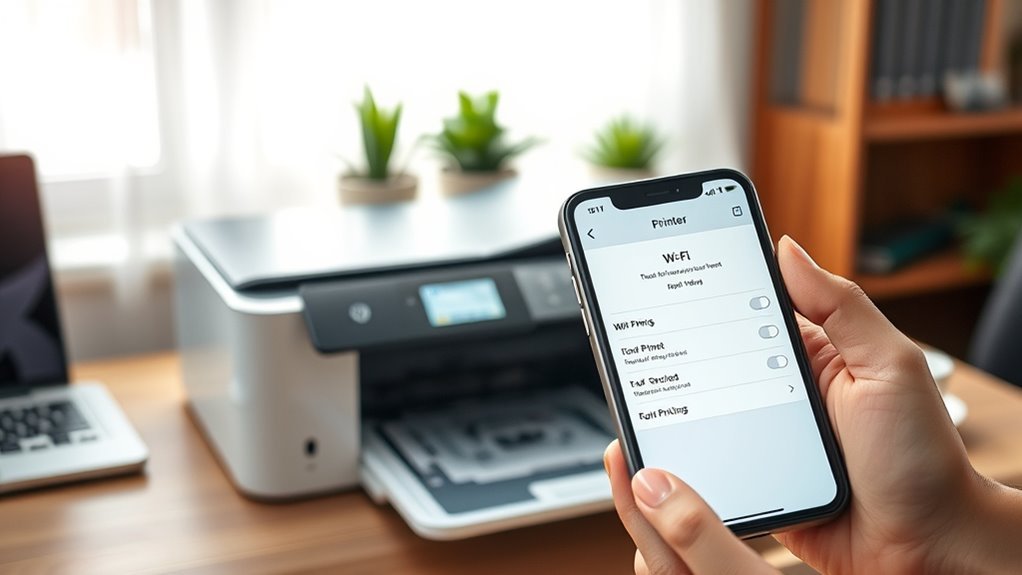
How to Connect HP Printer to Iphone in 7 Easy Steps
To connect your HP printer to your iPhone in 7 easy steps, first make sure both devices are powered on and connected to the same Wi-Fi network. This is crucial for seamless communication between your iPhone and printer.
Next, download and install the official HP Smart app from the App Store. It’s free and designed to make printing simple and efficient.
Once the app is installed, open it and add your printer by following the on-screen prompts. The app will guide you through the setup process step-by-step, making it easy even if you’re not tech-savvy.
After your printer is added, adjust your print settings on your iPhone to suit your needs, like selecting the number of copies or page range.
Finally, send a test print job from your iPhone to your HP printer. Check the printout to confirm everything is working perfectly.
If you want to explore more setup tips or troubleshoot common issues, keep reading for helpful advice and solutions.
Key Takeaways
- Ensure both your iPhone and HP printer are connected to the same Wi-Fi network. Make sure the network name (SSID) and password match on both devices.
- Next, download the official HP app from the App Store. Open it up to help detect and add your printer easily.
- Use the HP app’s “Add Printer” feature to scan your local Wi-Fi network. Or, if you prefer, you can enter the printer’s IP address manually.
- Check that your printer shows a “ready” status with no errors. Then, try a test print directly from the HP app to confirm everything is working.
- When you want to print something from your iPhone, open the file. Tap Share, then Print, select your HP printer from the list, and adjust any print options before hitting print.
Prepare Your HP Printer and Iphone
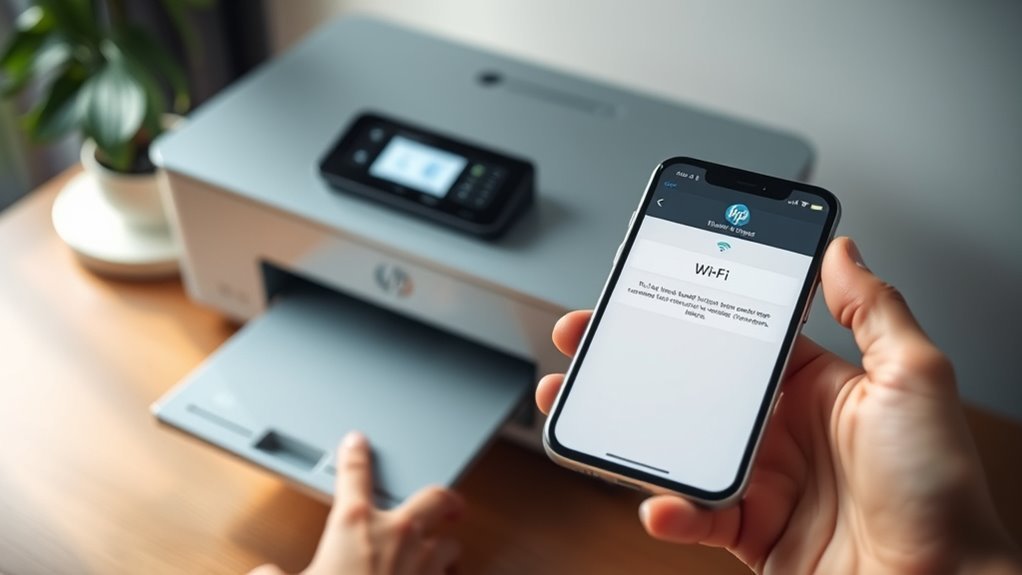
Before you start printing, make sure your HP printer is powered on and shows a ready status with no error lights. It should be within 30 feet of your Wi-Fi router to get a strong connection.
Next, get your iPhone ready by ensuring it’s connected to the same Wi‑Fi network as your HP printer. Both devices need to share the same SSID for AirPrint or the HP app to work properly.
If you’re using the HP app, go ahead and download it from the App Store. Then, follow the wireless setup prompts to add your printer and install drivers automatically.
If your printer doesn’t show up right away, try rebooting your devices — that means your router, printer, and iPhone. After that, check the printer status again.
Oh, and if you have VPNs or firewalls running on your iPhone, disabling them can help get a smooth connection going.
Connect Both Devices to the Same Wi-Fi Network
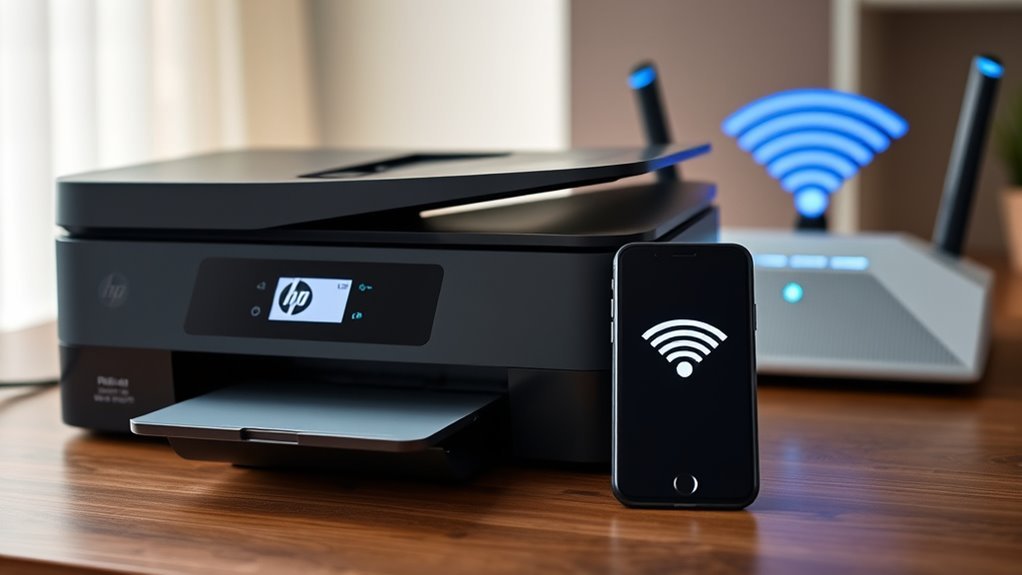
Before you connect your HP printer to your iPhone, double-check that both devices are on the exact same Wi-Fi network name (SSID).
Make sure you enter the correct Wi-Fi password to avoid connection issues. This simple step guarantees they can communicate smoothly for printing.
Verify Network Name
To connect your HP printer and iPhone seamlessly, make certain both devices are on the exact same Wi‑Fi network. Check your printer’s control panel for the SSID and confirm it matches the one in iPhone Settings > Wi‑Fi, including case and special characters.
If your printer uses Wi‑Fi Direct, turn it off to avoid conflicts—AirPrint needs both devices on the same router SSID. For dual-band routers, confirm both connect to either 2.4 GHz or 5 GHz, depending on your printer’s requirements.
If your network uses VLANs, make certain your iPhone and printer share the same VLAN or enable Bonjour/mDNS across VLANs for discovery.
- Verify SSID match precisely in iPhone Settings and printer panel
- Disable Wi‑Fi Direct for AirPrint compatibility
- Check connection band (2.4 GHz vs 5 GHz) and VLAN settings
Confirm Wi-Fi Password
How do you make sure your HP printer and iPhone stay connected without hiccups? First, confirm both devices use the exact same SSID and Wi‑Fi password. Find your network name (SSID) and password on the router label or in the router admin page.
Remember, printers often only support the 2.4 GHz band, so connect both devices to the same network band—either 2.4 GHz or 5 GHz—to avoid connection issues. If you’ve recently changed your Wi‑Fi password, update your printer network settings via its control panel or the HP Smart app.
Then reconnect your iPhone using the new password. Staying on the same network with matching credentials guarantees smooth communication and lets AirPrint work flawlessly between your HP printer and iPhone. Easy, right?
Download and Install the HP App on Your Iphone
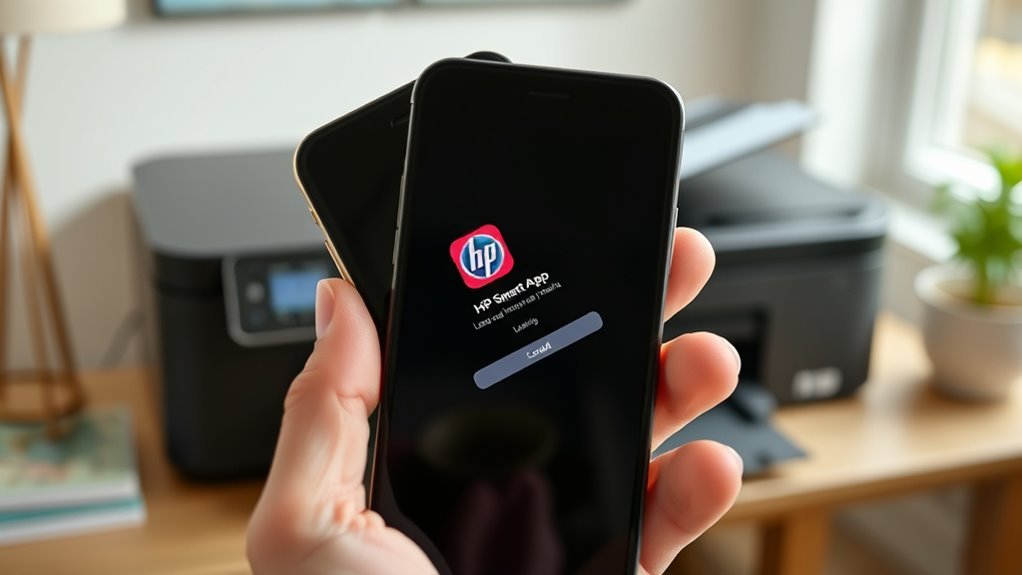
To get started, open the App Store on your iPhone and search for the “HP” app, which works with iOS 15 and later. Make sure your device is compatible before downloading and installing the app.
Once installed, you’ll be ready to connect your printer and manage settings directly from your phone. It’s pretty straightforward and super convenient!
HP App Installation
Getting started with the HP app on your iPhone is simple and quick. First, open the App Store and search for the official HP app (the updated version replacing HP Smart), or visit 123.hp.com for the correct link.
Make sure your iPhone’s Wi‑Fi is connected to the same network as your printer before launching the app. Then, sign in with your HP account or create one to keep your printer settings synced across devices.
The HP app will automatically handle printer discovery, driver installation, and connect your printer seamlessly. Just follow the in-app prompts to confirm your Wi‑Fi credentials.
Let the app install the necessary drivers in the background. You can then use the app or AirPrint to print a test page and check for firmware updates.
This way, you’re all set for smooth setup and reliable printing. Easy, right?
Device Compatibility Check
Before you start using the HP app on your iPhone, make sure your device and printer are compatible. Confirm your iPhone meets the iOS version requirement (iOS 14 or later recommended). Also, check if your HP printer model supports mobile setup via the HP App or AirPrint support by visiting 123.hp.com or Apple’s AirPrint list.
Next, download the official HP App and ensure it’s compatible with your device. Connect your iPhone to the same Wi‑Fi network SSID as your printer, and have the Wi‑Fi password handy. The app will guide you through installing device drivers and verifying printer firmware.
If the app can’t locate your printer, you might want to try Wi‑Fi Direct or manually adding the printer by IP address. Also, consider disabling any VPN or firewall, as these can sometimes block the connection due to network security settings.
Open the HP App and Add Your Printer
Open up the HP app on your iPhone and sign in with your HP account to enable printer discovery and sync your settings. Tap the plus (+) or “Add Printer” button, then select “Set up new printer” so the app can scan your iPhone Wi‑Fi network for compatible HP printers.
Make sure your iPhone and printer share the same Wi‑Fi network to streamline printer discovery. If the printer doesn’t appear, try the Wireless Setup Wizard, enter the printer IP address manually, or enable Wi‑Fi Direct on the printer for a direct connection.
Once connected, the app handles drivers installation automatically and prompts you to send a test print to confirm everything’s working.
- Scan local Wi‑Fi network for printers
- Use Wireless Setup Wizard or Wi‑Fi Direct if needed
- Complete drivers installation and send a test print
Adjust Print Settings on Your Iphone
Once you’ve selected Print from the Share sheet, tap Printer to pick your AirPrint-compatible HP printer. Make sure both your iPhone and printer are connected to the same Wi‑Fi network.
After selecting your printer, you can adjust the number of Copies and specify which pages to print using the Range/Pages field for multi-page documents.
Tap Options to choose between Color or Black & White printing. You can also select the Paper Size and enable Two-sided (Duplex) printing if your printer supports it.
Use the Print preview to set the Orientation—Portrait or Landscape. This helps ensure your document fits the paper without cropping.
These settings let you customize your print job directly from your iPhone. It’s a great way to make the most of AirPrint’s convenient features for efficient printing.
Send a Print Job From Your Iphone to the HP Printer
To send a print job from your iPhone to your HP printer, make sure both devices are connected to the same Wi‑Fi network. Open the file or photo you want to print, tap the Share icon, then select Print.
Choose your AirPrint‑compatible HP printer from the Printer list. You can adjust print options like copies and duplex settings, then just tap Print.
If your printer isn’t AirPrint‑compatible, no worries. Download the HP app from hp.com or the App Store.
Add your printer within the app while connected to the same Wi‑Fi network. Then, you can print directly through the app.
For Wi‑Fi Direct printing, start by enabling Wi‑Fi Direct on the printer. Join its network on your iPhone.
Print via the Share → Print workflow, then reconnect to your usual Wi‑Fi.
- Select Print from the Share icon
- Choose printer from Printer list
- Set copies and duplex in Print options
Verify the Printout and Troubleshoot if Needed
After sending your print job from the iPhone, take a moment to inspect the printout for quality. Check margins, color accuracy, and resolution.
Always review your printout from the iPhone to ensure margins, colors, and resolution are just right.
If text appears faint or colors are off, open the HP app to verify ink levels and replace cartridges if needed. For incomplete prints or missing lines, run a nozzle check and perform printhead cleaning until lines are continuous.
If you face a paper jam, follow on-screen instructions to clear it, then print a test page and perform printer alignment if prompted.
Should the output be blank or garbled, confirm you selected the correct printer in the print dialog. Try rebooting both devices and resend the job.
For intermittent issues, check Wi‑Fi signal strength near the printer, update printer firmware via the HP app, and clear any stuck jobs in the print queue. These steps usually do the trick!
Frequently Asked Questions
How Do I Connect My HP Printer to My Iphone Directly?
You connect your HP printer directly by enabling Wi-Fi Direct on it. Then, join that Wi-Fi network from your iPhone’s settings.
After that, you can print your document or photo right from your iPhone. When you’re done, just switch back to your regular Wi-Fi. Easy!
How Do I Get My Iphone to Recognize My Printer?
You’ll get your iPhone to recognize your printer by ensuring both are on the same Wi-Fi. Also, make sure your printer supports AirPrint.
If things aren’t working, try restarting your devices. Sometimes, just a quick reboot fixes the connection.
Don’t forget to disable any VPN you might have on. VPNs can sometimes block the printer connection.
Finally, when you’re ready to print, go into the app’s print menu and select your printer. Easy as that!
Why Won’t My HP Printer Connect to My Iphone to Print?
Your HP printer won’t connect because your iPhone and printer aren’t on the same Wi-Fi network, or AirPrint isn’t supported.
Also, check for VPNs, outdated firmware, or firewall settings blocking communication between devices.
These things can easily get in the way, so it’s worth a quick look!
How Do I Get My Iphone to Find My HP Printer?
Like finding a hidden treasure, you need your iPhone and HP printer on the same Wi-Fi network. Restart your devices to refresh connections and disable any VPNs that might block the printer.
Also, make sure your printer supports AirPrint. Once everything’s set, your iPhone will easily discover your printer. It’s pretty straightforward!
Conclusion
Now that you’ve connected your HP printer to your iPhone, printing on the go is as easy as flipping through a photo album. Just remember to keep both devices on the same Wi-Fi, use the HP app, and tweak your settings before sending a print job.
If something goes awry, don’t fret—troubleshooting is part of the process. Soon, you’ll be printing like it’s 1999, but with all the modern convenience right at your fingertips.
Connecting your HP printer to your iPhone opens up a world of convenience. Whether it’s documents, photos, or emails, you can print directly from your phone without any hassle. Just keep your devices linked via the same Wi-Fi network, use the HP Smart app, and adjust your print settings for the best results.
So go ahead, enjoy wireless printing from your iPhone anytime, anywhere! With these simple steps, HP printer to iPhone connection is straightforward and user-friendly.