How to Find a Printer IP Address in 10 Simple Steps
To find your printer’s IP address in 10 simple steps, start by making sure your printer is turned on and connected to your network. Knowing your printer’s IP address is key for troubleshooting and setting up printing from multiple devices.
First, check your printer’s control panel or print a network configuration page to see the IP address.
If you’re on a Windows PC, look under “Devices and Printers” or open Command Prompt and use the command `arp -a` to find it.
On a Mac, you can find the IP in the “Printers & Scanners” preferences.
Another way is to access your router’s connected devices list, which often shows all devices and their IP addresses.
You can also try opening the printer’s web interface by typing its IP into a browser.
Keep following these steps, and you’ll be printing smoothly in no time!
Key Takeaways
- Check the printer’s control panel or display under “Network Settings” or “Wireless” to view its current IP address.
- You can also print a network configuration or status page from the printer to find detailed IP and network information.
- On Windows, open “Devices and Printers.” Then right-click the printer, select “Printer Properties,” and check the “Ports” tab for the IP address.
- Another way is to access your router’s admin panel. Look under “Connected Devices” or “DHCP Client List” to find the printer’s IP by name or MAC address.
- Finally, enter the printer’s IP address into a web browser. This lets you access its embedded web server where you can confirm or manage network settings.
What Is a Printer IP Address and Why It Matters
Although it might seem technical, a printer IP address is simply a unique number that lets your devices find and communicate with your printer on the network. This number is essential for network printers because it distinguishes your printer from other devices connected to the same network.
Without the correct printer IP address, you won’t be able to access or set up your printer properly. Knowing the IP address is especially important when troubleshooting, as it helps you identify connection issues or configuration problems quickly.
Whether you’re adding a new printer or managing existing ones, understanding the printer IP address guarantees smooth communication between your devices and the printer. This knowledge saves time and frustration during setup and maintenance.
Check Your Printer’s Network Connection for Its IP
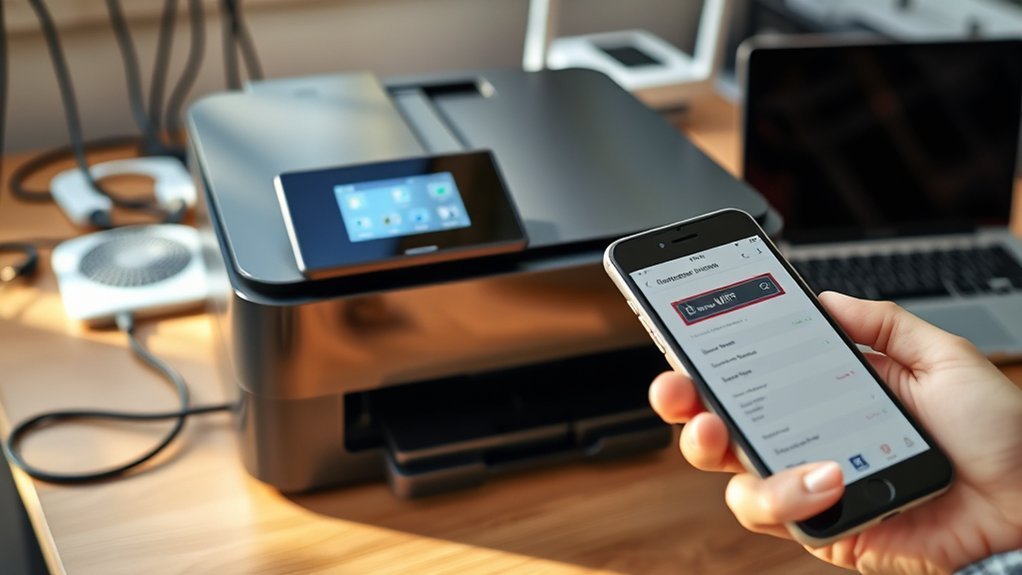
First, make sure your printer is connected to your network and turned on. Check whether it’s using a wired or wireless connection, as this affects how you find its IP address.
Also, confirm that your printer and computer are on the same network to avoid any connection issues. This will help you avoid any headaches when trying to connect.
Verify Printer Network Status
Before you can find your printer’s IP address, make sure it’s powered on and connected to the same Wi-Fi or Ethernet network as your computer. To verify the printer’s network status, check its display screen or control panel for network or wireless settings that show the IP address.
If the screen isn’t available, print a network configuration or status page directly from the printer. This page lists the current IP address and confirms the printer connection.
You can also access the printer’s embedded web server by entering its IP address into a web browser to review network status details. Lastly, ensure the printer connection is stable by checking for a strong Wi-Fi signal or a securely plugged Ethernet cable.
That way, you’ll know your printer is ready to communicate with your computer.
Identify Connection Type
Once you’ve confirmed your printer is connected to the network, the next step is to identify how it’s connected. Check your printer’s connection type by accessing its control panel or built-in display screen.
Look for menus labeled “Network Setup,” “Wireless,” or “Network Settings.” Whether your printer connects via Wi-Fi or Ethernet, these menus typically show the current IP address.
If your printer has a menu button, use it to navigate directly to network settings for the IP address details. For Ethernet connections, you might also find the IP address on a printed configuration or network setup page.
Understanding your printer’s connection type helps you locate the correct IP address quickly and guarantees you manage your network settings accurately.
Confirm Network Compatibility
Although locating your printer’s IP address is important, you’ll need to confirm that your printer is actually connected to the same network as your computer. First, check your printer’s display or control panel for a network connection status or wireless menu—it might show the IP address directly.
Print a network configuration or status page to verify the connection is active. Also, make sure the printer has a valid IP address assigned, either automatically via DHCP or set manually.
To be certain, log into your router’s admin panel or check its connected device list. See if your printer appears with an active IP address on the same network.
Doing this confirms your printer and computer can communicate smoothly for printing tasks. It’s a simple step that saves a lot of headaches later!
Print a Configuration Page to Find Your Printer’s IP
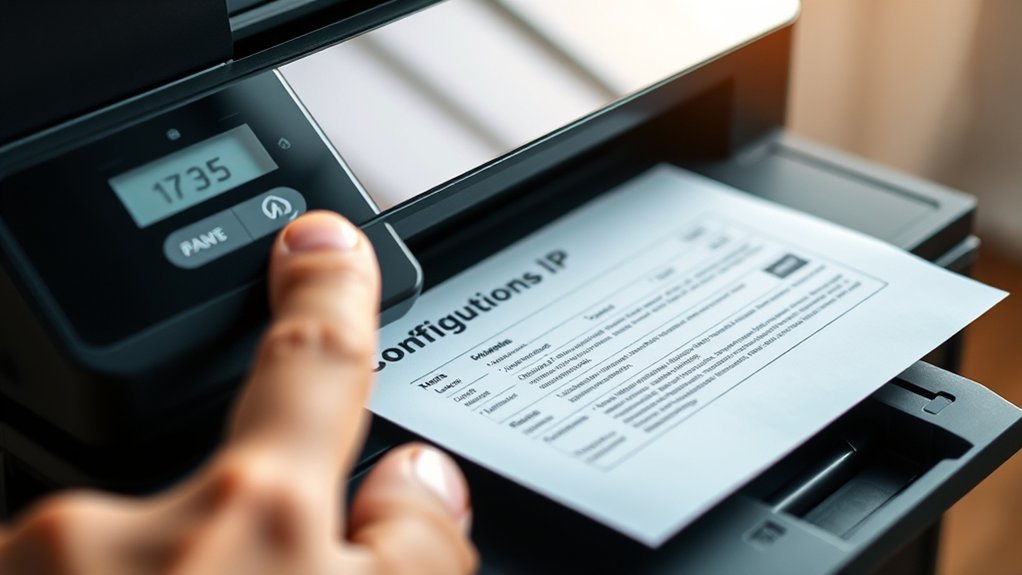
You can print a configuration page directly from your printer to find its IP address quickly. Just navigate the control panel or touchscreen to locate the network or settings menu and select the option to print this page.
The configuration page will show key network information, letting you verify the printer’s current IP address. It’s a simple step that saves time and helps you avoid digging through menus.
Print Configuration Page
When you print a configuration page from your printer, it reveals essential network details, including the IP address. This page shows your printer’s current network settings, helping you quickly identify the IP address without accessing a computer.
To print the configuration page, navigate through your printer’s menu—often under “Reports” or “Information.” Each model might differ, so check your manual if you’re unsure.
The configuration page includes crucial info like the subnet mask and gateway, which confirm your printer’s network connection.
| Network Settings | Description | Example |
|---|---|---|
| IP Address | Printer’s unique ID | 192.168.1.45 |
| Subnet Mask | Network segment info | 255.255.255.0 |
| Gateway | Router address | 192.168.1.1 |
Locate Network Information
Wondering how to quickly find your printer’s IP address without digging through computer settings? Printing a configuration page from your printer is a straightforward way to locate the network information you need.
This page shows essential details like the printer’s IP address, subnet mask, and MAC address. It helps you confirm your printer’s network connection.
Here’s how to locate network information by printing the configuration page:
- Access your printer’s menu or control panel.
- Look for options labeled “Network,” “Reports,” or “Settings.”
- Select “Print Configuration Page” or “Print Network Report.”
- Retrieve the printed page from the output tray.
- Locate the printer’s IP address within the network information section.
This method guarantees you get accurate, clear network information directly from the printer. It’s quick and simple!
Verify IP Address
Although finding a printer’s IP address might seem tricky, printing a configuration page makes it straightforward. Start by accessing your printer’s control panel or menu where you’ll find an option to print the configuration page or network setup page.
Once you select this, the printer will print a sheet displaying important network details, including the IP address. The configuration page typically lists the IP address, subnet mask, and MAC address, helping you verify your printer’s exact network location.
Make sure to check the printed page carefully to confirm the IP address. This method is reliable and quick, especially if your printer’s IP address isn’t showing up on your computer or router.
Using the control panel to print the configuration page is a simple way to verify the IP address. It’s a handy trick that saves you time and hassle.
Find Your Printer’s IP Address Using Windows Settings
If you need to find your printer’s IP address, Windows Settings provide a straightforward way to locate it. Here’s how you can quickly find the IP address linked to your printer:
Open the Windows Control Panel and go to “Devices and Printers.” Then, right-click your printer icon and choose “Printer Properties.”
Next, click the “Ports” tab to see the list of ports. Look for the checked port labeled “Standard TCP/IP Port,” which shows the printer’s IP address.
If available, you can also check the “Web Services” or “Web Configuration” tab for the IP address.
Using these steps in Windows Settings will help you identify your printer’s IP address without hassle. It’s pretty simple once you know where to look!
Locate Your Printer’s IP on a Mac Computer
When you need to find your printer’s IP address on a Mac, start by opening “System Preferences” from the Apple menu and selecting “Printers & Scanners.”
Next, choose your printer from the list on the left side. Then, click on “Options & Supplies” to access detailed information about your printer.
Select your printer, then click Options & Supplies to view detailed printer information.
Look for the IP address under the “Location” or “General” section. If you don’t see it there, check for a “Show Info” or “Print Info” button, which can also display your printer’s network details.
Using System Preferences makes it straightforward to locate your printer’s IP address. This helps you manage your network settings or troubleshoot printing issues efficiently on your Mac.
Find Your Printer’s IP With Windows Command Prompt
To find your printer’s IP using Windows Command Prompt, start by opening the Command Prompt from the Start menu. Then, type the command `arp -a` and press Enter to see a list of devices connected to your network.
Now, look for your printer’s device name or MAC address to identify its IP address. It’s usually pretty easy to spot once you know what you’re looking for!
Accessing Command Prompt
Wondering how to quickly find your printer’s IP address using Windows? The Command Prompt is your go-to tool. It lets you access essential network information fast.
Here’s how to open and use it: Click the Windows search bar and type “cmd”. Press Enter to launch the Command Prompt window.
Make sure your computer is connected to the same network as your printer. Once open, you can enter commands to view network details.
Use the IP address from the network list to manage your printer. Accessing the Command Prompt is the first step to uncover your printer’s IP address.
It provides a direct way to interact with your network and pinpoint the exact IP address your printer uses. Easy, right?
Using Arp Command
Although you’ve already opened Command Prompt, you can quickly find your printer’s IP address by typing the command `arp -a` and pressing Enter. This command displays a list of active devices connected to your network, showing their IP addresses alongside MAC addresses.
To identify your printer’s IP address, look for its MAC address or device name in the list. If you’re unsure, cross-reference the MAC address with the label on your printer’s hardware.
The arp command helps you map these addresses, making it easier to spot your printer among other devices. Using arp is a straightforward way to find your printer’s IP without digging through router settings or printer menus.
It’s a handy trick that gives you quick access to essential network details without much hassle.
Use Your Router to Identify the Printer’s IP Address
If you can access your router’s admin panel, you can quickly find your printer’s IP address by checking the list of connected devices. Here’s how to do it:
Open a web browser and enter your router’s IP address (commonly 192.168.1.1 or 192.168.0.1). Log into the admin panel using your credentials.
Access your router by entering its IP address in a browser and logging in with your credentials.
Next, navigate to the section labeled “Connected Devices,” “Device List,” or “DHCP Client List.” Look for your printer by its device name, model number, or MAC address.
You’ll find the printer’s IP address displayed next to its entry. If you struggle to locate the device list, don’t worry—just consult your router’s manual or support site for specific navigation tips.
This method helps you quickly identify your printer’s IP address using your router. It’s a handy trick when you need it!
Use Your Printer’s Web Interface to Find Its IP
Once you’ve identified your printer’s IP address through the router or printed a network configuration page, you can access its web interface directly. Just enter the IP address into your browser’s address bar while connected to the same network.
The printer’s web interface will load, showing detailed network settings, including its current IP address. This method provides a straightforward way to confirm or troubleshoot your printer’s network connection.
| Feeling Confident | Feeling Frustrated |
|---|---|
| Easy Access | Network Issues |
| Quick Setup | IP Confusion |
| Control at Hand | Connection Problems |
Using the printer’s web interface lets you take control of your device’s network details with ease. It’s a simple step that can save you a lot of hassle.
How to Set a Static IP Address on Your Printer
Setting a static IP address on your printer guarantees it keeps the same network location, making it easier for your devices to find it every time. To configure a static IP address, start by accessing your printer’s network settings.
Here’s how to do it: Navigate to the printer’s control panel and locate the network or TCP/IP settings. Then, use the current IP address to open the printer’s embedded web server in a browser.
Next, find the option to set or change the static IP address in the network settings menu. Manually input the new static IP address following your printer model’s instructions.
Finally, save the changes and restart the printer to apply the new configuration. This process ensures your printer maintains a consistent network identity for smoother connections.
Troubleshoot Common Printer IP Address Issues
When your printer’s IP address isn’t showing up or your connection feels unstable, you’ll want to check a few key areas to pinpoint the problem. First, verify your printer is connected to the same network as your computer.
If your printer’s IP isn’t visible or connection is shaky, ensure both devices share the same network.
If your printer has a display, navigate its menu to find the IP address under network settings. Without a display, print a configuration page to reveal the IP address.
You can also troubleshoot by accessing your router’s admin panel to view connected devices and locate the printer’s IP address. If issues persist, restart both your printer and network devices to resolve possible IP conflicts or connectivity glitches.
These steps help you quickly troubleshoot common printer IP address problems and restore a stable connection. Hopefully, this gets your printer back online without too much hassle!
Frequently Asked Questions
Is 192.168.1.1 an IP Address?
Yes, 192.168.1.1 is an IP address commonly used for routers. You might find it assigned to devices like printers, but it depends on your network setup.
It’s part of a private IP range for local networks. So, it’s not accessible from the internet directly. Makes managing your home or office network easier!
How Can I Find the IP Address of My Brother Printer?
As the saying goes, “A stitch in time saves nine.” You can find your Brother printer’s IP by printing its network config page, checking its display menu, or viewing it through your computer’s printer properties or router settings.
It’s pretty straightforward once you know where to look. Just take your pick from these methods and you’ll have that IP address in no time!
How to Find IP Address?
You can find the IP address by checking your device’s network settings. It’s usually easy to spot there.
Another way is by printing a network configuration page from your printer. That page often lists the IP address clearly.
Or, you can log into your router’s admin panel. Once you’re in, you can view connected devices and see their assigned IP addresses. It’s a handy method if you want to check multiple devices at once.
How Do I Get an IP Address From My Printer?
Like uncovering a hidden treasure, you can get your printer’s IP by printing its network status page or checking settings on your computer or router.
Just explore the menus, and you’ll find the address easily.
Conclusion
Finding your printer’s IP address might seem tricky, but it’s easier than you think. Even if you’re not tech-savvy, following these simple steps will get you there quickly.
Knowing your printer’s IP helps you troubleshoot issues and connect devices smoothly. So don’t worry if it feels overwhelming—just take it one step at a time.
You’ll have your printer running perfectly on your network in no time. Once you know how to find your printer IP address, managing your network and fixing any connection problems becomes way simpler. Trust me, it’s a handy skill that saves you time and hassle!