Day: October 30, 2026

  • How to Reset Toner on Brother Printer in 5 Easy Steps

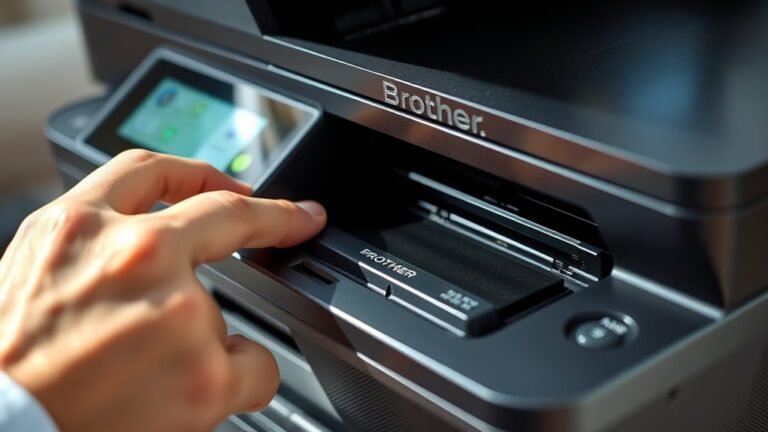
    To reset the toner on your Brother printer, open the front cover and hold OK (or Clear/Stop) until the reset menu appears. Use the arrows to select your cartridge type, then press OK.

    When prompted, remove the cartridge, shake it gently, and reinsert it firmly. Press OK again to complete the toner reset.

    If the “Toner Empty” message stays, try power-cycling your printer. Keep going to explore tips on preparation, troubleshooting, and prolonging your toner’s life.
  • What Is AMS Lite for 3D Printer and How to Use It

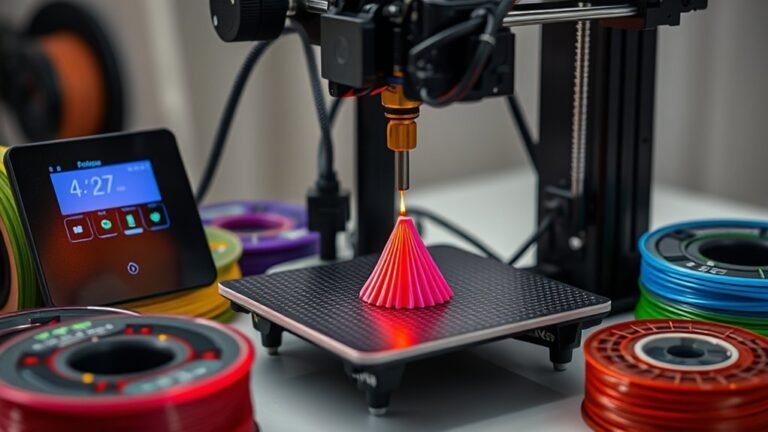
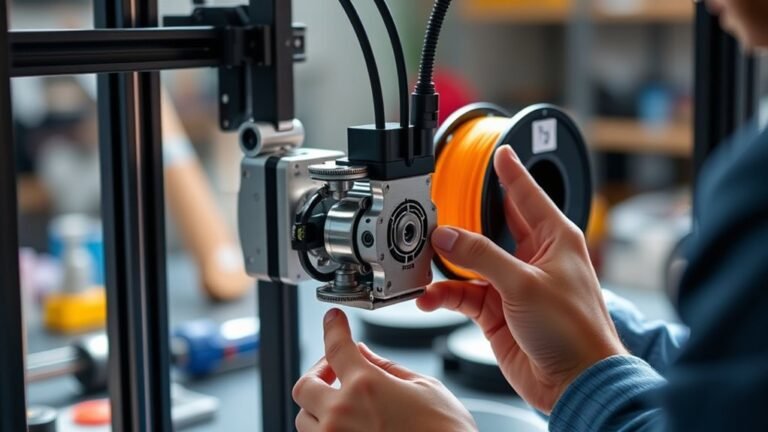
    AMS Lite is a compact automatic material system designed for your Bambu Lab A1 or A2 3D printer. It lets you manage up to four filament spools for multi-color or multi-material prints.

    You load spools into spring-loaded rotary holders and connect PTFE tubes carefully. Then, pre-load about 40 cm of filament for smooth feeding.

    Sensors track filament movement and handle run-outs by automatically switching to backup spools when configured.

    Keep going to explore setup tips, compatibility, and troubleshooting for a seamless printing experience.

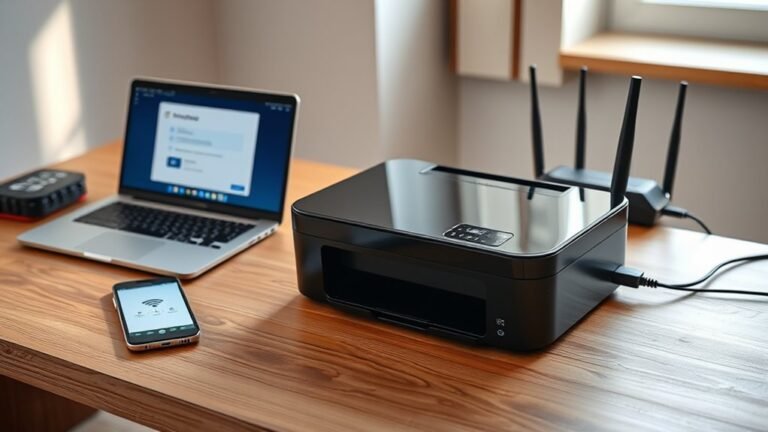
  • How to Connect a Wireless Printer in 10 Easy Steps

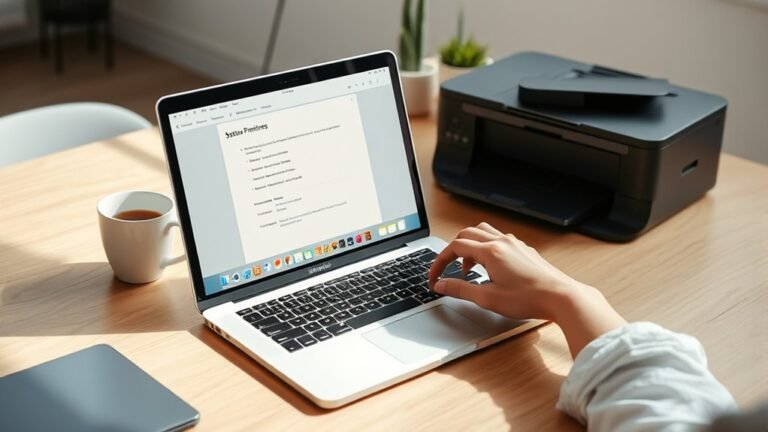
    Start by unboxing your printer and removing all the protective tape. Then, place it near your Wi-Fi router and power it on.

    Next, install the ink cartridges and load the paper correctly. It’s pretty straightforward, but take your time to do it right.

    Now, access the wireless setup menu on the printer. Select your Wi-Fi network and enter the password, or use WPS if your printer supports it.

    After that, connect your devices and install any necessary drivers or apps. This step ensures everything talks to each other smoothly.

    Finally, print a test page to confirm the connection. Once that’s done, position the printer where it gets a strong signal.

    Keep following along for detailed tips and troubleshooting tricks to make your setup even easier!

  • How to Set Up a Printer on Mac in 7 Easy Steps

    To set up your printer on a Mac, first prepare the printer by installing cartridges, loading paper, and powering it on. Connect it via USB or make certain it’s on the same Wi-Fi network as your Mac.

    Next, open System Preferences > Printers & Scanners, click Add (+), and select your printer. Let macOS install drivers automatically, or you can manually add software if needed.

    Finally, print a test page to confirm it works. You can explore detailed troubleshooting and wireless setup tips ahead.

  • How to Clean a Printer in 5 Easy Steps

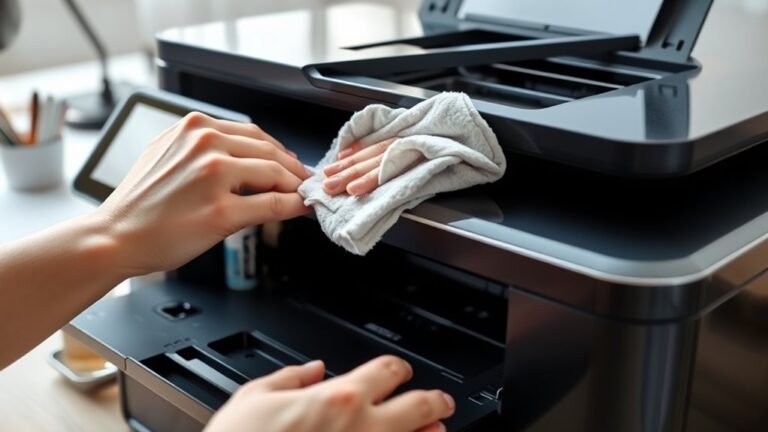
    Turn off and unplug your printer, then open the top cover to access the printhead. Run a nozzle check to spot clogs and run the automatic printhead cleaning up to three times if needed.

    If the prints still look bad, manually clean the printhead and rollers with a damp lint-free cloth. Finally, print a test page to check your results.

    If your printer still isn’t working right, there are more detailed steps you can try to restore it fully.

  • What Is a Cricket Printer and How Does It Work?

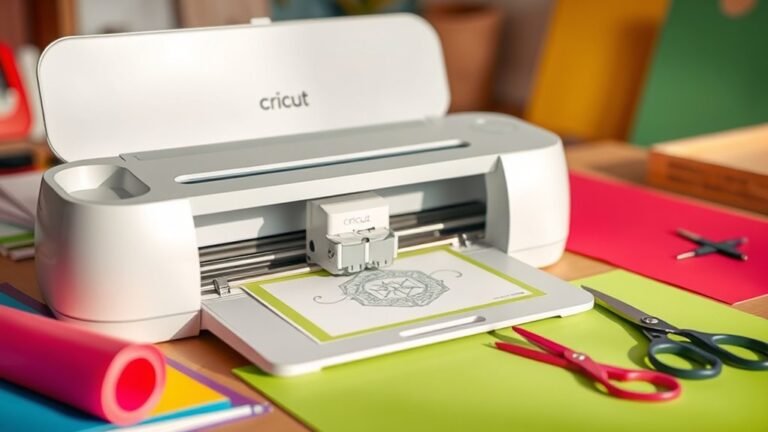
    A Cricut machine isn’t a printer but a precision cutting tool that crafts intricate designs on materials like paper, vinyl, and fabric. You create or select your design in Cricut Design Space, then send it to the machine.

    It uses specialized blades and tools to cut, draw, or emboss your project. It handles everything from thin cardstock to leather, adjusting settings automatically.

    If you want to explore popular models, tools, and project ideas, there’s plenty more to discover. It’s pretty fun once you get the hang of it!

  • 5 Factors That Affect How Much Filament a 3D Printer Does Use

    You control filament use by considering five key factors. Your model’s shape and volume impact how much filament builds the part’s strength and detail.

    Infill percentage and pattern drastically affect material consumption—efficient patterns save filament while maintaining durability. Wall thickness and top layers add strength but use more filament.

    Supports can increase usage, so minimizing or optimizing them helps. Finally, layer height and filament joining influence print time and waste.

    Knowing these lets you fine-tune costs and quality effectively. It’s all about finding the right balance for your specific print.

  • What Does Driver Is Unavailable Mean for Printers?

    When your printer shows “Driver is unavailable,” it means Windows can’t find or load the correct driver for your device. This stops the printer from working properly.

    This often happens if the driver is outdated, corrupted, or incompatible with your Windows version or system architecture. Sometimes, system settings might block it too.

    Fixing it usually involves checking driver versions and reinstalling the right one. Keep going, and you’ll discover how to solve this and avoid future printer issues.

  • How to Fix Can’t Ping Network Printer Issues

    If you can’t ping your network printer, first verify your PC and printer share the same subnet and that the printer uses a static IP. Recreate the printer’s TCP/IP port on your PC to match the correct IP and protocol (RAW 9100).

    Temporarily disable your PC and router firewalls to rule out blocking issues. Also, check your router, switch, and wireless settings to confirm proper connectivity.

    Keep going to uncover detailed steps and fixes for your printer connection. You’ll get it sorted out in no time!

  • How to Measure Legal Printer Paper Size

    To measure legal printer paper size, first place the sheet flat in portrait orientation, making sure the shorter edge is horizontal. Use a rigid ruler or digital caliper, aligning the zero mark exactly at the paper’s edge to avoid errors.

    Next, confirm the width is 8.5 inches and the length is 14 inches, or their metric equivalents. It’s a good idea to check multiple sheets for consistency.

    Also, avoid curled or folded edges to get an accurate measurement. Remember, getting the measurement right can really affect your printing and filing setups later on.