What Does Driver Is Unavailable Mean for Printers?
When your printer shows “Driver is unavailable,” it means Windows can’t find or load the correct driver for your device. This stops the printer from working properly, which can be really frustrating when you need to print something quickly.
This issue often happens if the driver is outdated, corrupted, or simply not compatible with your version of Windows or your system architecture.
Sometimes, system settings might block the driver from working correctly, adding another layer of trouble. Fixing this usually involves checking the driver versions and reinstalling the right one to get your printer back up and running.
Keep going, and you’ll discover how to solve this problem and avoid future printer issues with some easy steps.
Key Takeaways
- “Driver is unavailable” means Windows cannot find or load a compatible printer driver for your device.
- This error often happens because of incompatible, outdated, or corrupt driver files on your system.
- Sometimes, mismatched system architecture (like 32-bit vs 64-bit) or recent Windows updates can cause the driver to become unavailable.
- Other times, leftover drivers, spooler issues, or Group Policy restrictions might block the driver from loading properly.
- Without the right driver, your printer won’t work normally or be able to access its advanced features.
What It Means When Your Printer Says “Driver Is Unavailable”?
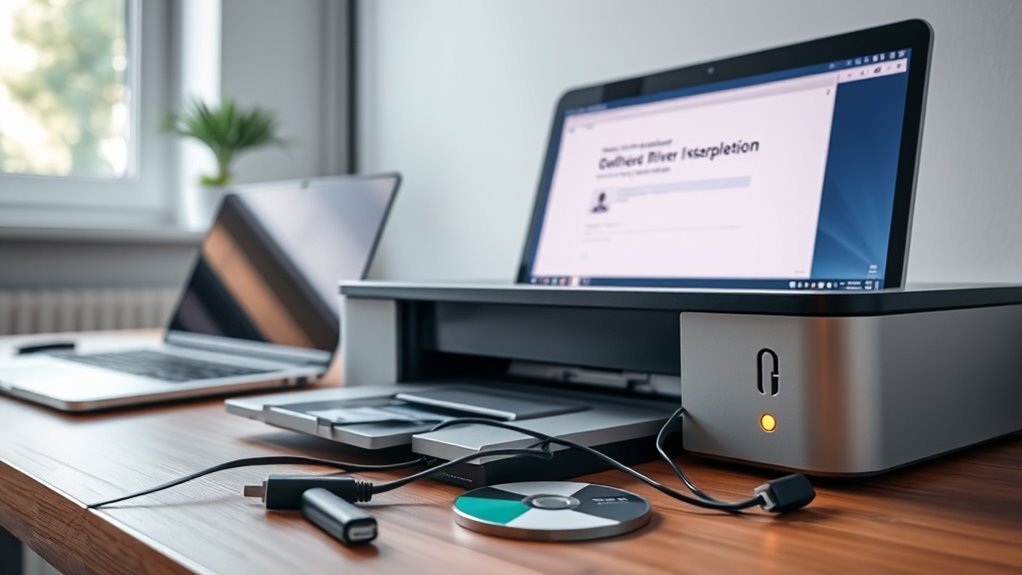
What does it mean when your printer suddenly displays “Driver is unavailable”? This message tells you that Windows can’t find a compatible or functioning printer driver.
When your printer shows “Driver is unavailable,” it means Windows can’t locate a compatible or working driver.
It often pops up after an OS update or when you move the printer to a different computer model because the installed driver—like version 46.4.2644 for HP—isn’t recognized. Corrupt or incomplete driver installations can also cause this issue, especially if leftover files remain in Program Files or the Print Spooler.
Sometimes, incorrect installation steps, such as connecting the USB cable too early or not running Setup.exe as administrator, lead to this error.
To fix it, you’ll need to uninstall old printer software, restart your PC, and then install the correct printer driver package. Make sure to connect the printer only when the setup prompts you.
Why Printer Drivers Matter For Your Device
You need the right printer driver to make sure your device understands and executes print commands properly. Drivers also enable features like duplex printing and ink-level monitoring that generic drivers often miss.
Using an incompatible or outdated driver can cause errors and hurt your printer’s performance. So, it’s really important to keep your drivers up to date for smooth printing.
Essential Driver Functions
Understanding printer drivers is key to guaranteeing your device communicates seamlessly with your computer. The driver translates your operating system’s print requests into specific commands your printer name, like the HP LaserJet Pro M15w, can understand and process.
Without the correct driver version, essential features such as duplex printing or ink level reporting might not work. Drivers often consist of both kernel-mode components handling print jobs and user-mode applications managing utilities and status updates.
If either part is missing or outdated, you might see errors like “Driver is unavailable.” Installing the full driver package manually—using the manufacturer’s setup or device manager—often fixes these issues and restores full functionality.
Compatibility With Devices
Because printer drivers act as translators between your operating system and your printer, using the wrong driver can stop your device from printing even when all connections appear fine. You need drivers that match your printer model and OS version—like HP LaserJet Pro M15w requiring a Windows 11-compatible driver—to avoid “Driver is unavailable” errors.
Also, make certain your driver’s architecture fits your system; a 32-bit driver won’t work on a 64-bit Windows. OEM drivers matter, too, because they enable features like scanning and ink monitoring that generic drivers don’t support.
If your printer driver is outdated, corrupt, or improperly installed, fully uninstall the old version, restart, and then install the latest manufacturer driver as an administrator to guarantee compatibility and smooth printing. It’s a bit of extra work, but it’s worth it!
Impact On Printer Performance
Selecting the right printer driver isn’t just about compatibility—it directly affects how well your printer performs. When the driver is unavailable or outdated, your device can’t translate your print jobs into its language, halting printing, scanning, and status updates.
You might see your printer offline or encounter errors like 0x000000709. Even if basic printing works, incompatible drivers can disable features like duplexing or color management.
To make sure your printer delivers its full potential, always install the correct, manufacturer-provided driver. Proper drivers include firmware updates and essential features that generic ones lack.
If issues arise, uninstall old drivers, restart your PC, and reinstall the right driver with administrative rights. Doing this restores full functionality and keeps your printer running smoothly.
How To Check For Outdated Or Corrupt Drivers
Start by checking your printer driver’s version and release date in Device Manager. Right click your printer, select Properties, then the Driver tab to find details like version 46.4.2644 or a release date.
Compare these with the latest on the manufacturer’s website. It’s a quick way to spot if your driver is outdated.
Next, look for driver corruption by trying to update the driver via Device Manager or running the manufacturer’s Setup.exe as administrator. If you see errors here, it often means the driver is corrupt.
You can also review Windows Update History and Print Spooler logs in Event Viewer under Microsoft → Windows → PrintService. Look out for error codes like 0x000000709, which can hint at driver issues.
Finally, verify driver file integrity by downloading the official package and checking the file size. If needed, extract the .inf files for manual installation. This step helps ensure you have the right files for your printer.
Installing The Correct Printer Driver
You’ll want to make sure the driver you install matches your printer model and system architecture to avoid compatibility issues. If the automatic installer doesn’t work, you can manually install the driver using the .inf file through Device Manager.
This approach helps guarantee Windows recognizes your printer correctly and functions smoothly. It’s a bit more hands-on, but totally worth it to keep things running without a hitch.
Driver Compatibility Issues
Although it might seem straightforward, installing the correct printer driver requires careful attention to compatibility with your operating system. If your driver doesn’t match your Windows version or architecture, it won’t start properly, causing the “driver is unavailable” error.
To make certain compatibility:
- Confirm your OS version (32-bit or 64-bit) before downloading the driver.
- Download the latest driver directly from the manufacturer’s website and run the installer as administrator.
- After Windows updates, check for digitally signed drivers and update accordingly.
- If problems persist, fully uninstall old drivers, delete leftover files, restart, and reinstall the compatible driver.
Following these steps helps you avoid driver compatibility issues and get your printer working without delays. It’s worth taking a little extra time here to save yourself from headaches later.
Manual Driver Installation
When driver compatibility checks don’t solve the “driver is unavailable” error, manually installing the correct printer driver can fix the issue.
Manual driver installation starts by downloading the official driver package from the manufacturer’s support site. Extract the files if needed, then run Setup.exe as administrator or install the device’s .inf file via Device Manager by selecting Update driver → Browse my computer for drivers.
For USB-only printers, it’s a good idea to uninstall old drivers first and then restart your PC. After that, connect the printer only when the installer prompts you to do so.
If Windows still reports the driver as unavailable after an update, try deleting existing printer entries and spooler drivers. Next, restart the Print Spooler service, reinstall the drivers manually, and add the printer again.
Finally, don’t forget to print a test page to confirm everything is working properly.
Using INF Files For Manual Driver Installation
If Windows flags your printer driver as unavailable, manually installing the driver using its INF file can resolve the issue. INF files contain the hardware IDs and installation instructions that Windows uses to register the driver directly.
You’d start by locating the driver package, usually a ZIP or EXE file from the manufacturer.
Follow these steps to install using an INF file:
- Extract the driver package with a tool like 7-Zip.
- Right-click the correct .inf file and select “Install,” or add the printer via Devices and Printers → Add a printer → “The printer that I want isn’t listed” → “Have Disk.”
- Run all actions with Administrator privileges.
- Confirm the driver matches your OS architecture and hardware ID to avoid errors.
This method bypasses typical installers and fixes “Driver is unavailable” errors pretty efficiently.
Troubleshooting “Driver Is Unavailable” Errors On Windows 11
Since Windows 11 can’t find or load a compatible printer driver, you’ll see the “Driver is unavailable” error. To start troubleshooting, you’d first uninstall the printer and its driver via Control Panel and Print Management.
Make sure to remove any leftover driver files from Program Files (x86) if they’re still there, then restart your PC.
If Windows can’t install the driver automatically after that, you’ll want to manually download the full driver package from the manufacturer’s website. Run Setup.exe as administrator, or install the .inf file by going to Devices and Printers → Add Printer → “The printer that I want isn’t listed.”
Sometimes Windows updates change driver policies, so if problems persist even after clean installs and checking policies, it’s a good idea to contact your printer’s support or Microsoft. They can guide you on vendor-signed drivers and other solutions.
Common Causes Of Printer Driver Problems
Printer driver problems often boil down to a handful of common causes that can trip you up. Knowing these helps you fix the “Driver is unavailable” error more efficiently.
- Incompatible driver: Using a driver not suited for your Windows version or system architecture (32-bit vs. 64-bit) causes conflicts. So, always double-check that the driver matches your system.
- Outdated drivers: Windows updates may change system APIs, making previously compatible drivers outdated and unusable. It’s a good idea to keep your drivers updated regularly.
- Corrupt driver files: Interrupted installs or damaged files prevent proper driver loading and registration. If something goes wrong during installation, you might need to reinstall the driver.
- Conflicts or restrictions: Leftover drivers, spooler issues, or Group Policy settings can block driver use, making valid drivers appear unavailable. Cleaning out old drivers and checking your system settings can help here.
Avoiding these common pitfalls keeps your printer running smoothly without driver headaches. Just a little attention can save you a lot of frustration!
When And How To Contact HP Or Manufacturer Support
When you’ve tried official drivers and still see the “Driver is unavailable” error, it’s time to contact HP or your printer’s manufacturer for support. Make sure you have your printer model, OS version (like Windows 11), exact error code (e.g., 0x000000709), and recent update details ready.
Always contact HP or manufacturer support through official channels—use the HP support website, verified phone numbers, or in-product chat to avoid scams. Follow their instructions carefully, like running Setup.exe as administrator, uninstalling old drivers, restarting your PC, and connecting USB only when asked.
If they suggest manual fixes like installing .inf files or checking Group Policy, ask for detailed guidance. Don’t hesitate to escalate to advanced support or request remote help if you want a faster resolution.
Frequently Asked Questions
Why Isn’t HP Smart Finding My Printer on Windows 11?
HP Smart can’t find your printer because your driver might be missing or outdated. Windows Firewall could be blocking network discovery, or your network profile isn’t set to Private.
Try updating your drivers, adjusting your settings, and then restarting your PC. That usually does the trick!
How Do I Get Printer Drivers Available?
You’ll need to download the latest full driver from your printer’s official support site. Make sure to match it with your OS.
Before installing, uninstall any old drivers you have. Then, install the new driver as an administrator.
If you run into issues, you can manually update the driver via Device Manager. That usually helps get the drivers available.
How Do I Reset My Printer Driver?
You reset your printer driver by uninstalling it via Control Panel or Settings, deleting related files, then restarting your PC.
Next, reinstall the latest driver from the manufacturer’s site and restart both your computer and printer.
It’s pretty straightforward once you get the hang of it! Just take it step by step, and you’ll have it sorted in no time.
Why Is the Brother Printer Driver Unavailable on Windows 11?
Your Brother printer driver is unavailable on Windows 11 because the installed driver might be incompatible, corrupted, or blocked by updates or policies.
You’ll need to install the latest Windows 11-compatible driver manually to fix this.
It’s a quick process, and once done, your printer should work just fine.
Conclusion
When your printer says “Driver Is Unavailable,” it’s like trying to start a car without the right key—you’re stuck. You might think updating drivers is a quick fix, but sometimes the real issue hides beneath, like a corrupted file or mismatched version.
Don’t just guess; check carefully. Installing the correct driver or using INF files can liberate smooth printing. And if you’re still stalled, reaching out to HP or the manufacturer can get you back on track fast.
Understanding what “Driver Is Unavailable” means for printers is key to solving the problem quickly. It usually points to issues like outdated, corrupted, or incompatible drivers. So, always make sure to download the right driver version directly from the manufacturer’s website. Proper installation helps avoid printing interruptions and keeps your device running smoothly. If problems persist, contacting support can provide expert help to get your printer working again without hassle.