Where to Find IP Address on HP Printer in 5 Simple Steps
You can find your HP printer’s IP address easily in five simple steps. Knowing the IP address is super helpful for troubleshooting, setting up your network, or just managing your devices.
First, print a Network Configuration Page from the printer’s control panel or touchscreen. This page usually has all the network info you need.
Next, check the control panel itself by browsing to Network or Wireless settings to view the IP. It’s quick and right there on the printer.
If you prefer using your computer or phone, try the HP Smart app. It shows Printer Details, including the IP address, in just a few taps.
Another way is to find it in Windows Devices and Printers under printer properties. This is handy if you’re working from a Windows PC.
Finally, if all else fails, check your router’s connected devices list for the address. Keep going to uncover more handy methods.
Key Takeaways
– Print the Network Configuration Page from the printer’s Setup or Network Settings menu to find the IP address.
It’s a quick way to get all the network details right from the printer itself.
– Check the printer’s control panel under Network Settings or View Wireless Details to see the current IP address.
This is handy if you want to see the info directly on the printer without extra tools.
– Use the HP Smart app, select your printer, and access Printer Information or Network settings to view the IP address.
The app makes it easy to manage your printer and find what you need in just a few taps.
– On Windows, find the printer in Devices and Printers, then check the Ports tab in Printer Properties for the IP.
This is useful when you’re working from your computer and want to confirm the printer’s network info.
– Log into your router’s admin page, view Connected Devices, and identify your printer’s IP by hostname or MAC address.
This method is great if you want to see all devices on your network and spot your printer quickly.
Print a Network Configuration Page to Find Your Printer’s IP Address
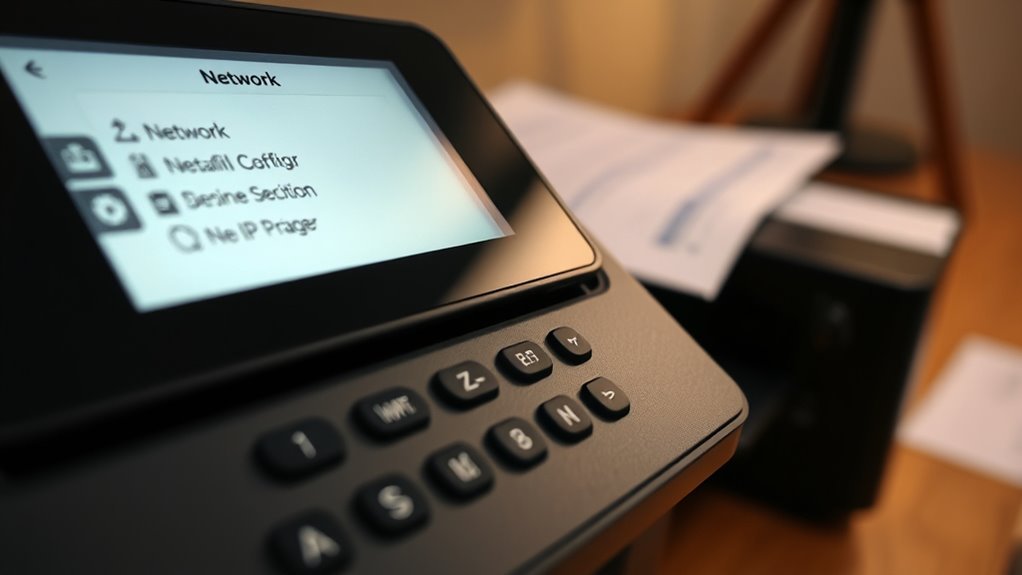
To find your printer’s IP address, start by printing a Network Configuration page directly from the printer. Use the printer’s control panel to navigate to Setup or Network Settings, then select Print Network Configuration or Print Configuration Page.
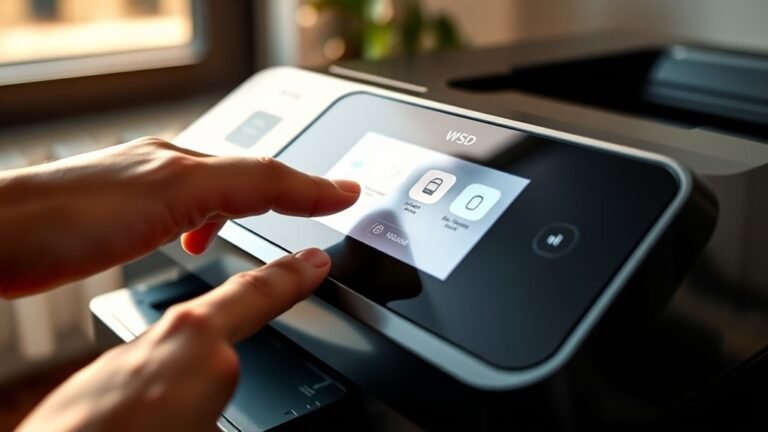
On printers with a touchscreen, follow the path Settings → Reports to access the network configuration page. For many HP models, you can also press and hold the Wireless and Cancel button simultaneously for 5–10 seconds to print this page.
The network configuration page displays key details like the IPv4 address, DHCP status, subnet mask, and connection type. Once you have the IP address, enter it into a web browser to open the printer’s Embedded Web Server for further settings and management.
Find Your Printer’s IP Address on the Printer’s Control Panel
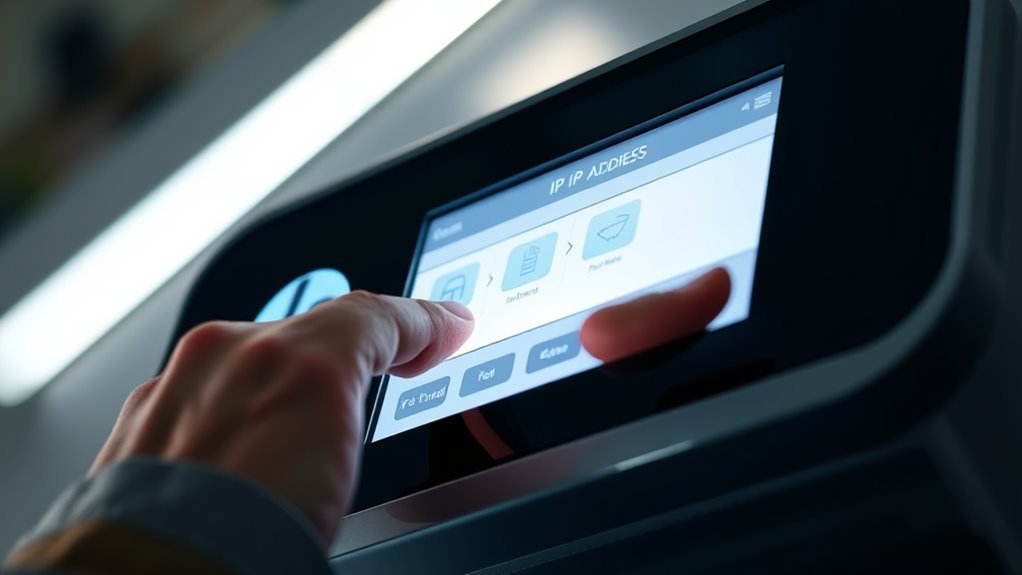
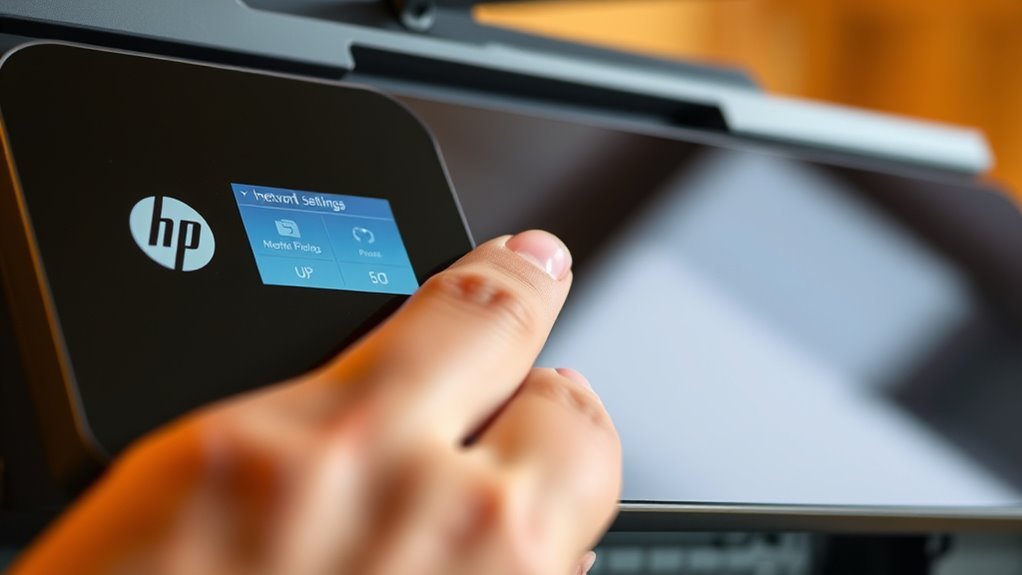
You can quickly check your printer’s IP address right on its control panel by making your way through the Setup or Network menus. On most HP printers, select Network Settings or Network Summary to find the current IP address.
For touchscreen models, go to Settings → Network Setup → View Wireless Details to see the IPv4 address. If your control panel shows a Wireless icon, tap it to view connection details, including the printer IP address.
Many models also let you print a Configuration Page or Network Configuration report directly from the control panel.
| Action | Location on Control Panel |
|---|---|
| Network Settings / Summary | Setup or Network menu |
| View Wireless Details | Touchscreen → Network Setup |
| Print Network Configuration | Reports or Information section |
Find Your Printer’s IP Address Using the HP Smart App
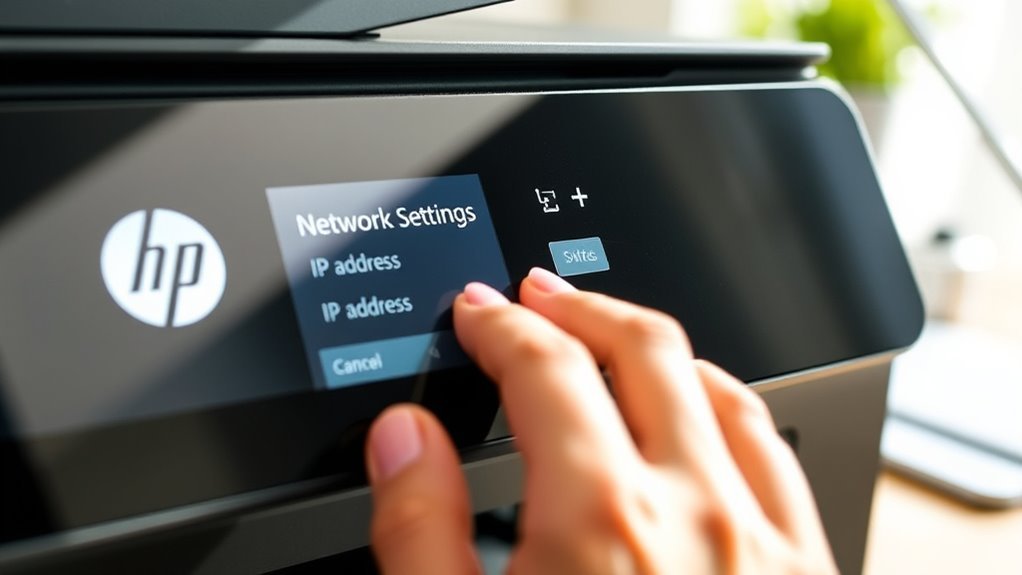
Getting your printer’s IP address using the HP Smart app is quick and straightforward. Start by opening the HP Smart app on your phone or computer and select your printer from the home screen. You’ll see the printer IP address under Printer Details.
Find your printer’s IP address easily by opening the HP Smart app and selecting your printer from the home screen.
If your printer isn’t listed, just tap Add Printer or the + button to discover and add it. Once connected, you can:
- Tap the printer image, then the gear icon to access Printer Information or Network settings for the IPv4 address.
- Use Wireless Setup or Troubleshoot if the app shows Printer Offline to reconnect.
- On Windows, open the Embedded Web Server from Printer Details to view network configuration.
- Repeat as needed to confirm your printer IP address.
Find Your Printer’s IP Address in Windows Devices and Printers
Locate your HP printer’s IP address quickly through Windows Devices and Printers. On Windows 10, open Control Panel, go to Devices and Printers, right-click your HP printer, and select Printer properties.
Then, check the Ports tab to find the active TCP/IP port showing the HP printer IP address.
For Windows 11, head to Settings > Bluetooth & devices > Printers & scanners, select your printer, click Printer properties or More settings, and look under Ports or Web Services. Sometimes, the Ports tab shows a hostname instead of an IP.
In that case, use hostname ping in Command Prompt to reveal the printer’s IP. You can also open the embedded web server (EWS) by clicking any embedded web page link, which displays the printer IP in the address bar. Easy, right?
Find Your Printer’s IP Address in Your Router’s Connected Devices
By accessing your router’s web admin page, you can quickly find your HP printer’s IP address among the connected devices. Here’s how to locate it in the router connected devices list:
Access your router’s web admin page to easily find your HP printer’s IP address in the connected devices list.
- Log into the router admin page (usually at 192.168.0.1 or 192.168.1.1) with your username and password.
- Navigate to “Connected Devices,” “DHCP Clients,” or “Attached Devices” to view all devices with their hostname, MAC address, and assigned IP.
- Look for your printer’s hostname, like “HP-Print-xx” or your printer model, to identify its printer IP address.
- If hostnames aren’t clear, match the MAC address on the printer’s label to confirm the correct assigned IP.
For stability, consider setting a static DHCP reservation for consistent IP assignment.
This way, your printer keeps the same IP address, making your network more reliable.
Frequently Asked Questions
Where to Find IP Address on HP Printer?
You can find your HP printer’s IP address by printing the configuration page or checking the network settings on the printer’s display.
Another easy way is to use the HP Smart app. It shows your printer details, including the IP address.
You can also view the IP address through your computer’s printer properties and the ports tab. It’s pretty straightforward once you know where to look!
How to Get 192.168 IP Address?
To get a 192.168 IP address, check your router’s DHCP list, print the network configuration page, or access your printer’s web server.
You can also assign a static IP for stability and simplicity. It’s pretty straightforward once you know where to look!
How Can I Find the IP Address of My HP 580 Printer?
You can find your HP 580 printer’s IP address by printing a network configuration page. This page will show all the network details you need.
Another way is to check the printer’s control panel under Network settings. It’s pretty straightforward and quick.
Or, if you’re on a Windows PC, you can view the Ports tab in Printer Properties. That’s where the IP address is usually listed.
How to Change Printer IP Address in Windows 11?
Did you know 75% of network issues stem from IP conflicts?
To change your printer’s IP in Windows 11, open its Embedded Web Server. Then, switch from DHCP to Manual, enter a new IP, and save the settings.
It’s pretty straightforward and can help avoid those pesky network problems. Give it a try!
Conclusion
Now that you know exactly where to look, the mystery of your HP printer’s IP address is almost solved. But here’s the twist—each method offers a unique path, so which one will you try first?
Whether it’s printing a configuration page or diving into your router’s settings, your printer’s IP address is just a few steps away.
Ready to reveal it? Your tech journey is about to get a whole lot easier! Finding the IP address on your HP printer is simpler than you think. With these easy steps, you can quickly access your printer’s network info and troubleshoot or set up connections hassle-free.
So go ahead, explore these methods, and get connected in no time!