How to Connect a Printer in 5 Easy Steps
First, figure out whether your printer connects through USB or Wi-Fi/Ethernet. Make sure your computer and printer are on the same network if you’re using Wi-Fi or Ethernet. This step is key to getting everything talking smoothly.
Next, open your computer’s printer settings. Look for your printer in the list, or choose to add it manually by entering its IP address if you don’t see it right away. This helps your device find the printer easily.
Then, follow the installation prompts to install any necessary drivers. These drivers are important because they help your computer and printer work together without a hitch.
Finally, print a test page to confirm everything is set up correctly. If the test page prints well, you’re all done!
Keep going to find detailed tips and troubleshooting tricks to make your printer setup even smoother.
Key Takeaways
- Identify if your printer connects via USB, Ethernet, or Wi-Fi and ensure it matches your computer’s connection type.
- For network printers, confirm both devices are on the same Wi-Fi network or LAN. Also, check the printer’s IP address if needed.
- Open your computer’s printer settings and select “Add a printer” or the + button to begin device discovery.
- If the printer isn’t found automatically, use the manual add option and enter the printer’s IP address to connect.
- Follow the installation prompts, install the driver, set the printer as default, and print a test page to confirm the connection. Easy, right?
Check Your Printer Type and Network Connection
Before you connect your printer, you need to identify whether it’s a local USB model or a network-capable device using Ethernet or Wi‑Fi. Check your printer’s model specifications or user manual to confirm.
If it’s a network printer, make certain your computer and printer are on the same network. For Wi‑Fi printers, verify the SSID on the printer’s control panel matches your router’s network name.
If you use an Ethernet connection, make sure the cable is securely plugged into both the printer and a router or switch port within the same LAN. If your printer supports wireless setup, have your Wi‑Fi SSID and password ready before starting the setup wizard.
Open Your Computer’s Printer Settings
To access your printer settings, start by opening the appropriate menu on your computer. On Windows, head to Settings → Devices → Printers & scanners or use Control Panel → Devices and Printers.
On macOS, open the Apple menu → System Preferences → Printers & Scanners. Here, you can view each printer’s status, default setup, and queued jobs.
To add a new printer, click “Add a printer” to start device discovery. If your printer doesn’t appear, choose to add manually.
| Action | Location (Windows) | Location (macOS) |
|---|---|---|
| View Printers | Printers & scanners | Printers & Scanners |
| Add Printer | Add a printer button | + button |
| Troubleshoot Status | Printer Status (Ready/Offline) | Printer Status (Ready/Offline) |
| Access Properties | Control Panel → Devices and Printers | System Preferences → Printers |
| Add Manually | “The printer that I want isn’t listed” | Add manually option |
Choose Your Printer or Add It Manually
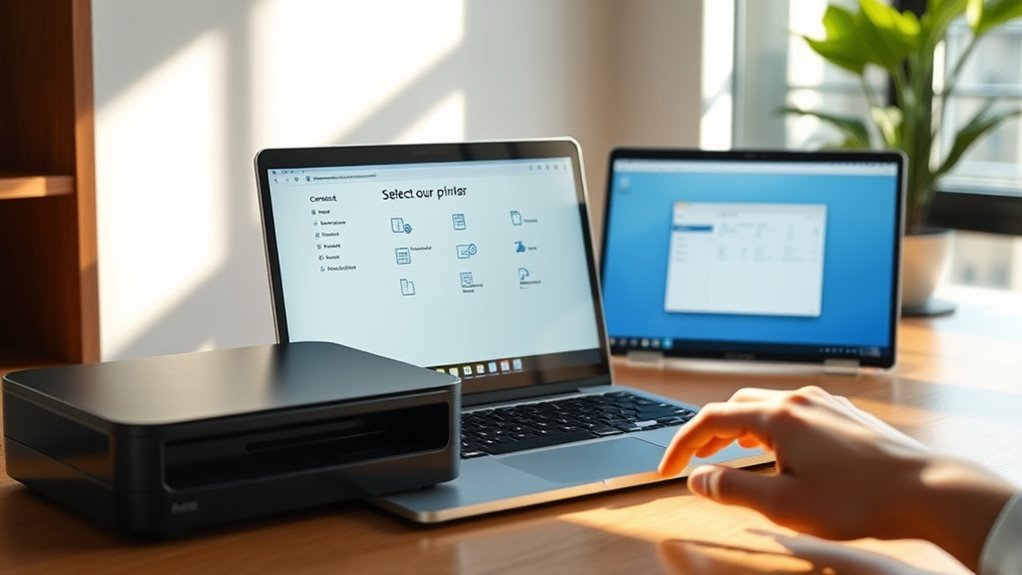
After opening your computer’s printer settings, you’ll see a list of available printers. You can search for available printers under the Printer or Scanner section and simply select your device to add a new one automatically.
If your printer doesn’t appear, don’t worry. Just choose the option that says “The printer that I want isn’t listed” on Windows or click the + button on macOS to add it manually.
You’ll need the printer’s IP address, which you can find on the printer’s network settings or a configuration page. When adding manually on Windows, enter the IP address, select Standard TCP/IP Port, and install the driver.
On macOS, enter the IP with the right protocol and pick the correct driver or a generic one to complete setup later. It’s pretty straightforward once you have the info!
Complete the Installation Wizard
Once the installation wizard appears, follow the on-screen prompts carefully. Click Next or Continue to move through driver selection, port setup, and naming your printer. Here’s what to do:
When the installation wizard appears, follow prompts carefully and click Next or Continue to proceed through setup steps.
If Windows detects your printer after you Add a Printer, it will automatically download and install the correct driver. If not, select Have Disk or Browse to manually locate the driver file.
If the wizard can’t find your printer, click The printer that I want isn’t listed. Then, enter the network path or IP address to add it manually.
Complete the wizard by clicking Finish. You’ll be prompted to set the printer as default and to print a test page—accept these to confirm the installation was successful.
Print a Test Page to Confirm Connection and Functionality
You’ll want to print a test page to make sure your printer is properly connected and working as expected. On Windows, open Control Panel → Devices and Printers, right-click your printer, select Printer properties, then click Print Test Page.
In Windows 10/11, go to Bluetooth & devices → Printers & scanners, select the printer, open the queue, and choose Print Test Page to verify driver and connection.
On macOS, open System Preferences → Printers & Scanners, select your printer, then click Options & Supplies or Utility to print a test page. For a network printer, confirm it’s on the same network.
If issues arise, reboot devices and run cleaning and alignment utilities before retesting. A clear, aligned test page confirms proper setup.
Frequently Asked Questions
How Do I Remove a Printer From My Windows 11 Computer?
You open Settings, go to Bluetooth & devices, then Printers & scanners. Select the printer you want to remove, click Remove, and confirm.
If issues arise, restart the Print Spooler service and try again. It usually does the trick!
How Do I Connect to a Printer?
You connect to a printer by opening your device’s printer settings and selecting “Add a printer.” Then, just choose your printer from the list.
If you don’t see it right away, no worries! You can add it manually by entering its IP address or hostname.
How Do I Install Printer Drivers?
Installing printer drivers is like fitting the right key into a lock—you download the specific driver from the manufacturer’s site, run the installer, and follow prompts.
This guarantees your printer and computer communicate smoothly every time. It’s pretty straightforward once you get the hang of it!
How Do I Go to Devices and Printers?
You can open Devices and Printers by pressing Windows key + R, typing “control printers,” and hitting Enter.
On Windows 10, just go to Control Panel → Hardware and Sound → Devices and Printers. It’s pretty straightforward.
If you’re on a Mac, head over to System Preferences → Printers & Scanners. Easy to find there!
Conclusion
Now that you’ve connected your printer in just five easy steps, you’re ready to print anything from documents to photos without a hitch. Like a scribe using a quill in the digital age, you’re blending old-school efficiency with modern technology.
Remember, if you run into any issues, revisiting the installation wizard usually does the trick. So go ahead, print that test page, and enjoy seamless printing every time!
With your printer set up, you can confidently handle all your printing needs. Whether it’s important documents or cherished photos, your printer is ready to deliver crisp, clear results. Don’t forget, troubleshooting is simple—just revisit the setup steps if something feels off.
Enjoy the convenience of quick and easy printing, and make your workspace more productive. Connecting a printer has never been easier!