How to Update HP Printer Firmware in 5 Easy Steps
To update your HP printer firmware in five easy steps, start by making sure your printer is on the Ready screen and not processing any jobs. This is important because the update won’t install properly if the printer is busy or offline. Firmware updates help improve your printer’s performance and fix bugs, so keeping it up to date is a good idea.
Next, visit HP’s support site and enter your printer model to find the latest firmware file. Download the firmware file to your computer—it usually comes as a .bdl file.
Once downloaded, you can upload the .bdl file through the Embedded Web Server or copy it to a USB drive for installation directly from the printer’s Device Maintenance menu.
After the update starts, your printer will reboot automatically. When it returns to the Ready screen, the firmware update is complete.
Keep reading for detailed instructions to help you through each step smoothly.
Key Takeaways
- Ensure the printer shows a Ready screen and is not processing jobs before starting the firmware update.
- Download the correct firmware file from HP support by entering your exact printer model on hp.com.
- Locate and unzip the downloaded firmware file, typically ending with a .bdl extension, for installation.
- Access the printer’s Embedded Web Server (EWS) via its IP address and upload the .bdl firmware file.
- Alternatively, copy the .bdl file to a USB drive, insert it into the printer, and follow on-screen prompts to update.
Get Your HP Printer Ready for Firmware Update
Before you begin updating your HP printer’s firmware, make sure the printer displays a Ready screen and isn’t sleeping or processing any jobs. This ensures the device is fully prepared for the update process.
Next, print the printer configuration page—this is crucial and often required before proceeding with any firmware update. Be aware that during the update, the printer will wait until all input/output channels are idle before cycling power, so don’t interrupt it.
Also, plan for the update to take 10 minutes or more, depending on your printer and circumstance. Taking these steps beforehand will help you avoid interruptions and ensure a smooth firmware update experience.
Stay patient and don’t rush through these preparations. It’ll be worth it!
Download Firmware From HP Support
Downloading the correct firmware from HP’s official support site is an essential step in updating your printer. Start by visiting http://www.hp.com, then select Support and Drivers. Enter your exact printer model, such as C LJ M551, and pick the matching result.
On the support page, choose Cross operating system (BIOS, Firmware, Diagnostics, etc.) instead of selecting a specific OS. Next, find the Windows firmware upgrade, download it to your Desktop, and unzip the package.
Inside the extracted folder, locate the firmware file, typically ending with a .bdl extension (e.g., xxxxxxx.bdl). Be sure to note the exact folder path where you unzipped this file, because you’ll need it to select the firmware during installation. This makes certain you have the right update ready for your printer.
Upload Firmware Using the Embedded Web Server
| Step | Action | Tip |
|---|---|---|
| 1. Ready Screen | Confirm printer is ready | Avoid interruptions |
| 2. Access EWS | Enter printer IP in browser | Use correct IP address |
| 3. Upload Firmware | Select and install .bdl file | Wait for reboot to complete |
Upgrade Firmware Using a USB Thumb Drive
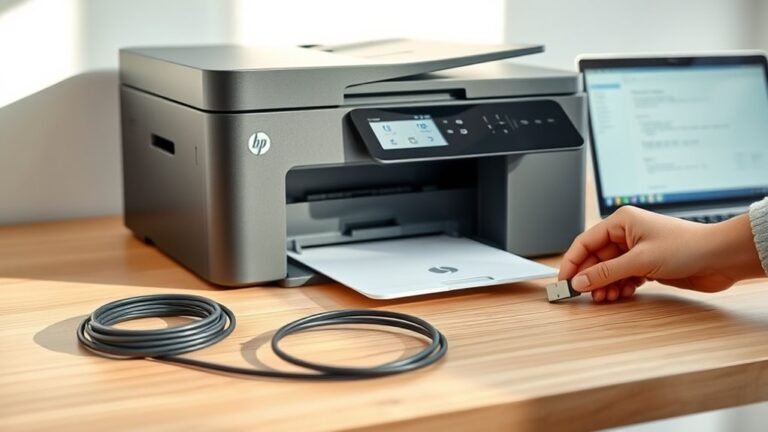
Although updating firmware via the Embedded Web Server is convenient, you can also upgrade your HP printer’s firmware using a USB thumb drive. First, download the exact firmware file for your printer model from HP Support, unzip it, and copy the .bdl file to your USB thumb drive.
Next, turn on the printer, press Home, then use the Down arrow to select Device Maintenance and press the select button. Choose USB Firmware Upgrade, insert the thumb drive, select the .bdl file shown, and follow the on-screen prompts.
Start the upgrade, but don’t power off the printer during installation and reboot. Once the process finishes, the printer will return to a Ready screen, indicating it’s prepared for normal use. Easy, right?
Complete Firmware Update and Restart Printer
How do you make sure your HP printer completes its firmware update smoothly? First, keep the printer on the Ready screen and print the Configuration page before starting.
Then, update the firmware either through the Embedded Web Server or the USB thumb drive method. Avoid powering off the printer during the update, as it may take 10 minutes or more and requires all I/O channels to be idle.
Follow these key steps to complete the update and restart:
- Wait patiently for the update process to finish without interruption.
- Confirm the printer fully restarts and returns to the Ready state.
- Resume printing only after the device is stable and operational.
These steps ensure your printer functions correctly with the latest firmware.
Frequently Asked Questions
How Do You Update the Firmware on a Printer?
You update your printer firmware by downloading the correct file, then using either the Embedded Web Server or a USB drive to install it.
Just follow the on-screen prompts and wait for the process to complete before rebooting.
It’s pretty straightforward once you get started!
How Do I Update the Firmware on My HP Laserjet Enterprise M607 Printer?
Imagine your printer’s firmware as a ship’s compass—keep it sharp. Download the M607 firmware from HP, then update via the Embedded Web Server or USB.
Don’t interrupt the process; let your printer reboot fully. It’s worth the wait to make sure everything runs smoothly.
Does the HP Printer Update Automatically?
No, your HP printer doesn’t update firmware automatically. You’ll need to start the process manually via the Embedded Web Server or USB.
It waits until idle and can take several minutes to complete the update. So, just be patient while it does its thing.
How Do I Force My HP Laptop to Update?
You can’t force your HP laptop to update printer firmware directly. Instead, download the firmware file first.
Then, update the printer via its Embedded Web Server or a USB drive. The laptop just helps you manage the process. Easy, right?
Conclusion
Updating your HP printer’s firmware is as easy as pie when you follow these five simple steps. By getting your printer ready and downloading the right firmware, you’re already halfway there.
Next, use either the Embedded Web Server or a USB thumb drive to apply the update. These options make the process flexible and convenient for everyone.
Just remember to finish the update and restart your printer. This final step is the icing on the cake that ensures everything works perfectly.
Keeping your HP printer firmware up to date is key to maintaining smooth and efficient performance. Regular firmware updates fix bugs, add new features, and improve compatibility. So, by following these simple steps to update your HP printer firmware, you help extend your printer’s lifespan and enjoy hassle-free printing every time.