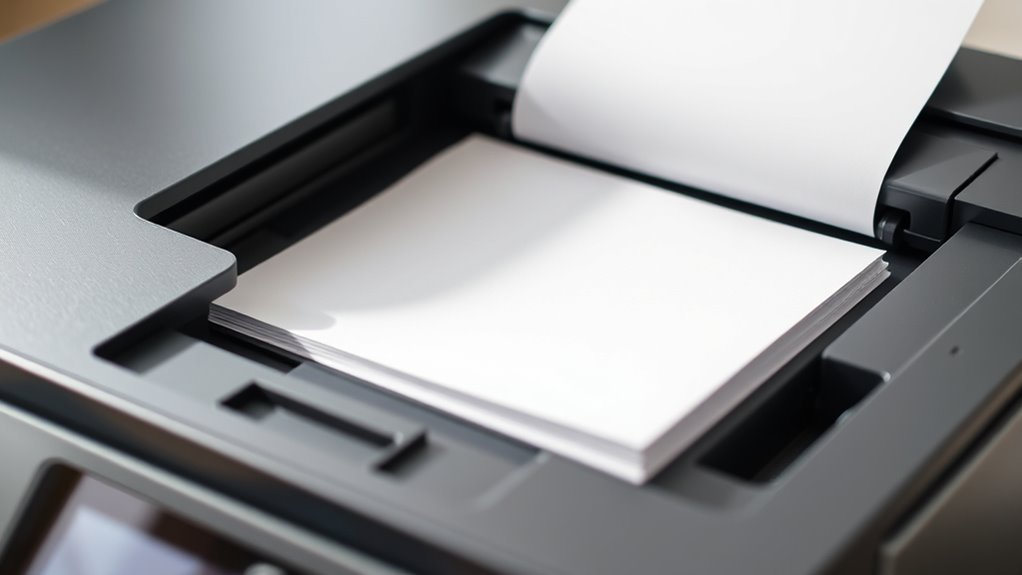
What Is ADF on a Printer and How to Use It
An ADF (Automatic Document Feeder) on your printer is a handy feature that lets you scan multiple pages quickly and easily.
Instead of placing each page on the scanner bed manually, the ADF feeds them one at a time automatically. This saves you a lot of time, especially when dealing with large documents.
To use the ADF, start by loading a stack of pages within the size limits specified by your printer.
Make sure to align the pages properly so they feed smoothly without jams. Then, select ADF as the document source in your scanning software.
If you have double-sided documents, using a Duplex ADF is a game-changer. It scans both sides in one pass, cutting your work in half.
Understanding these basics will help you get the most out of your printer’s scanning capabilities and make your tasks more efficient.
Key Takeaways
- ADF (Automatic Document Feeder) feeds multiple pages one by one into the scanner for efficient batch scanning. It saves you from having to scan each page manually, which is super handy when you have lots of documents.
- DADF (Duplex Automatic Document Feeder) scans both sides of pages in one pass using dual sensors or mirrors. This means you get double-sided scans quickly without flipping the pages yourself.
- Load documents neatly within size limits (5×5 to 8.5×14 inches) and align guides snugly to prevent jams. Keeping everything tidy helps your scanner work smoothly and avoids paper jams.
- Select ADF or Duplex source in scan software and create presets for quick, consistent multi-page scanning. Presets are a great way to save time if you scan similar documents often.
- Use ADF for multi-page stacks; choose flatbed for single, fragile, or oversized documents requiring high-quality scans. Flatbeds give you more control when scanning delicate or large items.
What Is an ADF and How Does It Work?
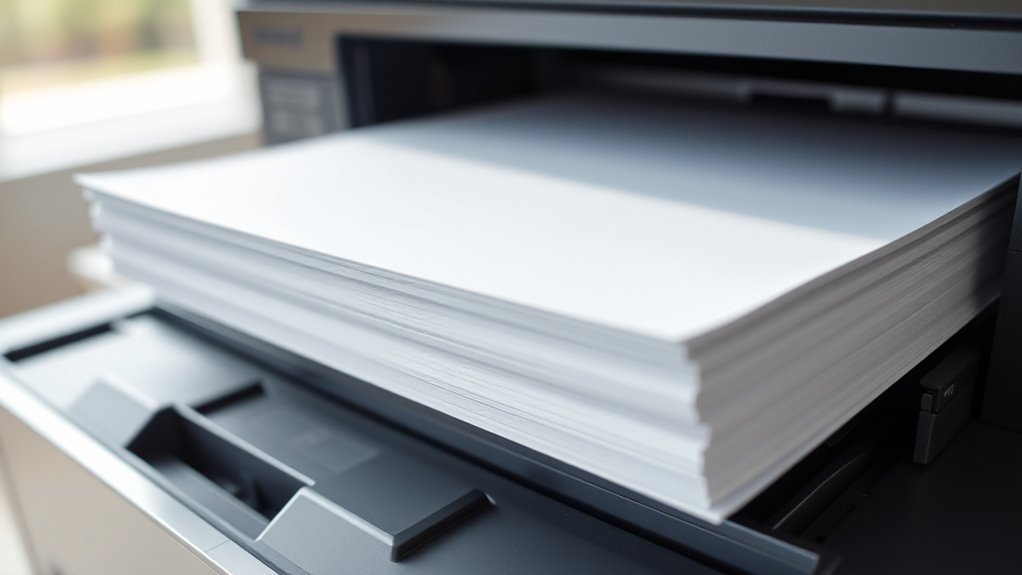
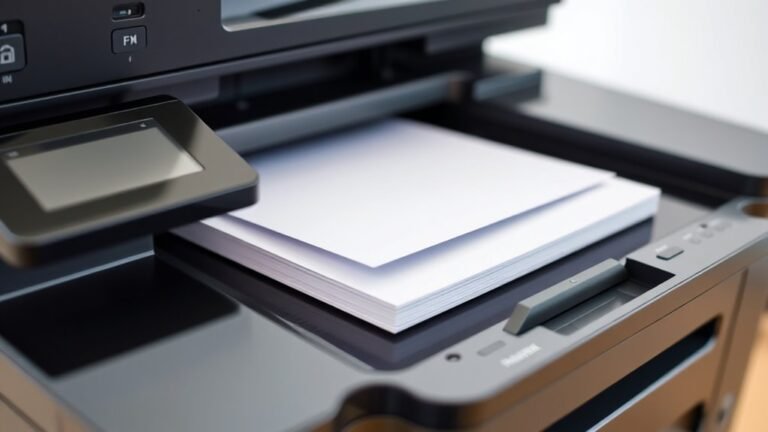
When you need to scan multiple pages quickly, an Automatic Document Feeder (ADF) lets you load a stack of documents that the printer feeds one by one into the scanner. This means you don’t have to place each sheet on the flatbed manually.
The ADF has a scan capacity, typically holding between 20 and 50 sheets, depending on the model. Most support documents up to 8.5 x 14 inches.
Automatic Document Feeders typically hold 20 to 50 sheets and handle documents up to 8.5 x 14 inches.
A duplex ADF takes this further by scanning both sides of a page in a single pass, speeding up two-sided scanning considerably.
To use it effectively, load your pages neatly within the guides and select the ADF as your document source in the scan software. This setup helps you work efficiently without constant intervention.
Types of Document Feeders: ADF, Reversing, and Duplex
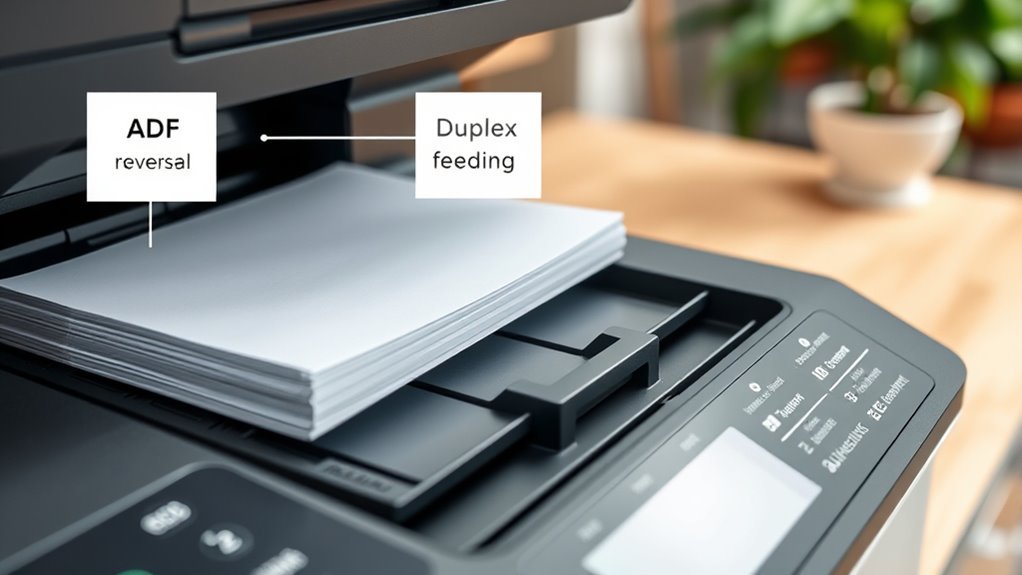
You’ll find different types of document feeders designed to handle your scanning needs efficiently. The standard ADF feeds single-sided pages one at a time, making it simple and straightforward.
Reversing feeders flip pages to scan both sides in two passes. It’s a handy option if you don’t need to scan double-sided documents all the time.
Duplex feeders take it a step further by scanning both sides simultaneously. This speeds up double-sided jobs considerably, saving you a lot of time.
Automatic Document Feeder Types
Automatic document feeders come in several types, each designed to handle multi-page scanning differently. You’ll find the basic Automatic Document Feeder (ADF) perfect for single-sided pages, feeding sheets one-by-one without manual intervention.
The reversing feeder flips pages mechanically to scan both sides, though it takes more time. For faster duplex jobs, the Duplex Automatic Document Feeder (DADF) scans both sides in a single pass.
Each type varies in capacity and speed, so choosing the right one depends on your scanning needs.
| Feeder Type | Scanning Method | Typical Capacity (Sheets) |
|---|---|---|
| Automatic Document Feeder | Single-sided | 20–50 |
| Reversing Feeder | Double-sided, flips page | 20–50 |
| Duplex Automatic Document Feeder | Double-sided, single pass | 20–50 |
Duplex And Reversing Feeders
Among the various document feeders, duplex and reversing feeders stand out for handling double-sided scanning differently.
A reversing feeder scans one side of a page, then mechanically flips it to scan the other side, completing duplex scanning in two passes. While effective, this process is slower and causes extra wear on your documents due to the additional handling.
On the other hand, a Duplex Automatic Document Feeder (DADF) scans both sides in a single pass using dual sensors or mirrors. This makes it much faster and gentler on your pages.
If you frequently scan double-sided documents, choosing a DADF over a reversing feeder will save you time and reduce mechanical stress.
Both types typically handle stacks of 20 to 50 sheets and support page sizes up to 8.5 x 14 inches. So, it really depends on how often you scan and what kind of documents you’re dealing with.
When to Use the ADF Versus the Flatbed Scanner
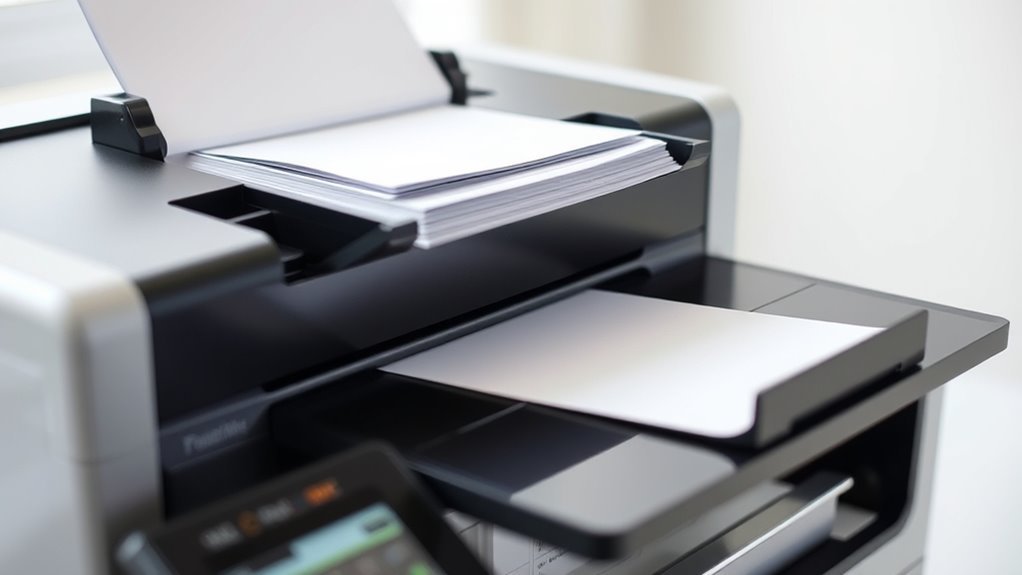
When deciding between the ADF and flatbed scanner, think about the type and volume of your documents. The ADF, known for handling multi-page stacks, is perfect if you need to scan 20–50 sheets quickly without placing each sheet on the scanner every time.
Take a look at your task: use the ADF for duplex jobs or fast sequential scanning. It really saves time when you have lots of pages lined up.
On the other hand, the flatbed scanner is great for single pages, books, fragile items, or materials larger than what the ADF can handle. It’s your best bet for mixed-size, stapled, or delicate originals that might jam in the ADF.
If you want high-quality scans of photos or need precise alignments, the flatbed is definitely the way to go. Choosing the right method not only boosts your efficiency but also helps protect your documents.
Setting Up Your Printer and Scanning Software for ADF Use
Before you start scanning with the ADF, make sure you’ve installed the printer’s Full Feature or Full Driver software. This gives you access to HP Scan or HP Universal Scan with convenient ADF shortcuts and presets.
After installing, restart your computer and open the scan software to create a custom Scan Shortcut or Preset that sets Document Source to ADF or Auto Detect. This step is especially helpful if you’re working with a brand new printer.
If you rely on the HP Smart mobile app, be aware it might lack source options. So, use HP Smart on Windows or the full desktop software to select ADF beforehand.
Setting up your scanning software correctly guarantees smooth operation when you start using the ADF for your documents.
Loading Documents Correctly Into the ADF
To load documents correctly into the ADF, make sure you align the paper stack neatly and adjust the guides so pages sit flat without bending. Avoid mixing different paper sizes or types, as this can cause jams or misfeeds.
Keeping your documents consistent helps your printer feed smoothly and scan accurately. It’s a simple step that saves you time and frustration!
Document Alignment Tips
Although it might seem simple, loading documents correctly into the ADF is essential for smooth scanning. First, fan and straighten your stack to align pages and remove folds or staples.
Place the pages face-up or face-down, depending on your printer, with the top edge entering first. Then, align them against the document guide and adjust the paper guides so they touch the edges without bending the paper.
Make sure the stack size fits within the ADF’s limits and doesn’t exceed its capacity. Finally, close the ADF lid before scanning.
| Step | Tip |
|---|---|
| Fan and straighten | Prevent jams by aligning pages |
| Page orientation | Top edge first, face-up/down varies |
| Use paper guides | Adjust snugly without bending pages |
| Size limits | 5 × 5 in minimum, 8.5 × 14 in maximum |
| Close lid & capacity | Keep under 20–50 sheets, close lid |
Avoiding Mixed Sizes
Properly aligning and stacking your documents helps prevent jams, but paying attention to the sizes of the sheets you load into the ADF is just as important. Avoid mixing different-sized sheets when you only need part of each page scanned, as this can cause misfeeds and incorrect cropping.
Make sure all pages meet the ADF’s minimum size (around 5 x 5 inches) and don’t exceed the maximum (about 8.5 x 14 inches). Stack your pages with edges even and keep within the feeder’s capacity, usually 20–50 sheets, guided by the paper-width markers.
Place the first page on top, especially if your scanner does a preview prescan, so the order stays correct. Use Office Mode and the ADF source in your scan software, and don’t open the ADF while scanning to avoid errors.
Scanning Double-Sided Documents With an ADF
When you need to scan double-sided documents, an Automatic Document Feeder (ADF) can make the process much easier—especially if your printer features a duplex ADF (DADF). A DADF scans both sides of each page in one pass, while a reversing ADF flips pages to scan the second side in a separate pass.
Load your stack face-up, align edges carefully, and avoid mixing paper sizes or exceeding the ADF’s capacity, usually 20–50 sheets, to prevent jams. It’s a good idea to keep things neat so your scan goes smoothly.
In your scan software, select the ADF or Duplex/Two-Sided source, choosing a mode or preset designed for duplex scanning. Don’t open the ADF mid-scan, and if you preview, follow the software’s instructions to prescan and reload pages before completing the full duplex scan. This way, you’ll get great results without any hiccups.
Adjusting Scan Settings for Best Results With the ADF
After loading your documents into the ADF and selecting the correct duplex scan mode, fine-tuning your scan settings helps guarantee clear, accurate results. First, set the resolution based on your needs—300 dpi is ideal for OCR and print-quality documents, while 200–300 dpi works well for faxes.
For email or web viewing, 96–150 dpi is sufficient. Next, confirm your Document Source is set to ADF or Auto Detect, and verify your document sizes match the ADF’s limits (5 × 5 in minimum, 8.5 × 14 in maximum) to avoid feeding issues.
Choose Office or Professional Mode to access duplex scanning and mixed-size handling. Then, adjust Image Type, brightness, contrast, and text enhancement to improve legibility.
If you have frequent tasks, creating custom scan presets can really save you time and help keep things consistent. It’s a simple step that makes a big difference in your workflow.
Troubleshooting Common ADF Scanning Problems
Though ADF scanners simplify batch scanning, you might encounter issues like paper jams, misfeeds, or software glitches. First, make certain the ADF is properly installed and loaded up to its capacity (usually 20–50 sheets).
ADF scanners ease batch scanning but watch for jams, misfeeds, and ensure proper installation and loading capacity.
Make sure the paper guides are snug and you’re not mixing different page sizes. If your scanner software doesn’t auto-select ADF, don’t worry—just use HP Scan or HP Universal Scan to create a preset that specifies Document Source = ADF or Office Mode.
It’s also helpful to know your model’s feeder type. One-sided ADF scans each side separately, while duplex/DADF scans both sides in one pass. This way, you can set the correct source and duplex options.
When you’re previewing, place the first page back on top and avoid opening the ADF mid-scan—that can cause errors. Finally, make sure you choose the right resolution and Document Source for the best results.
Frequently Asked Questions
What Does ADF Stand for on a Printer?
ADF stands for Automatic Document Feeder on a printer. You’ll use it to automatically feed multiple pages into the scanner or copier.
This saves you time by avoiding manual single-sheet placement during scanning or copying tasks. It’s super handy when you have lots of pages to scan or copy.
What Is the Best Printer With an ADF for Home Use?
You want speed, versatility, and ease. The HP OfficeJet Pro 8028e fits perfectly, offering a reliable ADF, duplex scanning, and great software support.
It handles everyday home tasks smoothly without overwhelming you or your budget. Seriously, it’s a solid choice that just works.
Why Is My Printer Not Scanning From the Feeder?
Your printer isn’t scanning from the feeder because the ADF might be empty, misaligned, or overloaded. Check the paper size, and make sure the guides are snug.
Also, select the ADF source in your scanning software. It’s a simple step that’s easy to miss.
If that doesn’t work, try restarting your printer with the full drivers installed. Sometimes a fresh start helps everything run smoothly.
What Is ADF Capacity?
Your ADF capacity tells you how many sheets the feeder can hold, often between 20 and 50 pages.
Knowing this helps you avoid jams and saves time by scanning or copying more pages in one go.
It’s pretty handy to know so you don’t have to keep stopping to reload paper. Makes the whole process smoother!
Conclusion
Using the ADF on your printer is like having a reliable assistant who handles batches of documents swiftly, freeing you from tedious manual scanning. Once you know how to load papers properly and adjust settings, it simplifies your workflow and boosts productivity.
Remember, treating the ADF with care and troubleshooting issues promptly keeps this helper running smoothly.
Embrace the ADF, and scanning becomes less of a chore and more of a seamless part of your day. With the Automatic Document Feeder, you can scan multiple pages quickly and efficiently without constant supervision. This feature is a real game-changer for anyone dealing with large amounts of paperwork, making your printing and scanning tasks much easier and faster. So, get comfortable using the ADF, and enjoy a smoother, more productive printing experience every time.