Is FlashForge a Good 3D Printer?
If you’re looking for a reliable and beginner-friendly 3D printer, FlashForge is definitely worth considering. It offers solid hardware that won’t let you down, plus automatic leveling which makes setup a breeze. Best of all, it won’t break the bank, making it perfect for those new to 3D printing or on a budget.
Their printers deliver good print quality with models designed for convenience and speed. The enclosed designs help reduce warping, which is a common issue with other printers. Support is generally responsive, though keep in mind the warranty coverage is somewhat limited.
Some users mention quirks with the slicer software, but many appreciate how easy these machines are to use. The overall value and user-friendliness make FlashForge hard to beat. Keep exploring to see how it compares to other brands and what real user experiences have to say.
Key Takeaways
- FlashForge printers offer solid hardware, reliable print quality, and sturdy frames at mid-range prices. This makes them suitable for both beginners and pros.
- Many models come fully assembled with automatic leveling and heated beds. So, you can get quick, user-friendly first prints and a really easy setup.
- The higher-end models use CoreXY designs, which deliver fast, accurate prints with good dimensional fidelity. You’ll also get detailed parts that look great.
- Some common issues you might face include occasional nozzle clogs, slicer quirks, and noisy fans. But if you keep up with regular maintenance, you can minimize downtime.
- The warranty covers 3 months of parts and labor, plus lifetime technical support. Just keep in mind that response times and coverage can vary depending on your region.
Is FlashForge a Good 3D Printer? A Quick Verdict
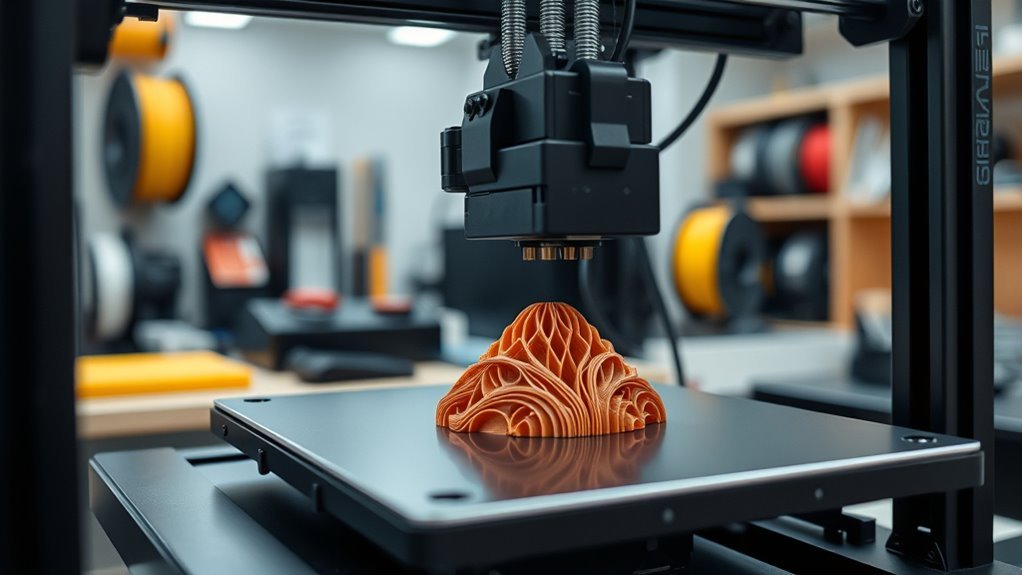
While FlashForge isn’t perfect, it offers solid 3D printers that deliver good value for most users. If you’re looking for a reliable printer with sturdy frames, fast printing, and features like automatic leveling and heated build plates, FlashForge models like the Creator series or Adventurer fit the bill.
You’ll appreciate the printer’s solid build quality and easy-to-use interface, especially considering their price range from around $399 to $1000. However, you should be aware that the slicer software can be inconsistent, and routine maintenance is necessary to keep the printer running smoothly.
Company support can also be hit or miss, so checking community reviews and firmware updates before buying helps guarantee you pick the right FlashForge printer for your needs. It’s definitely worth doing a bit of homework to make sure you get the best fit.
FlashForge 3D Printer’s Standout Features for Beginners
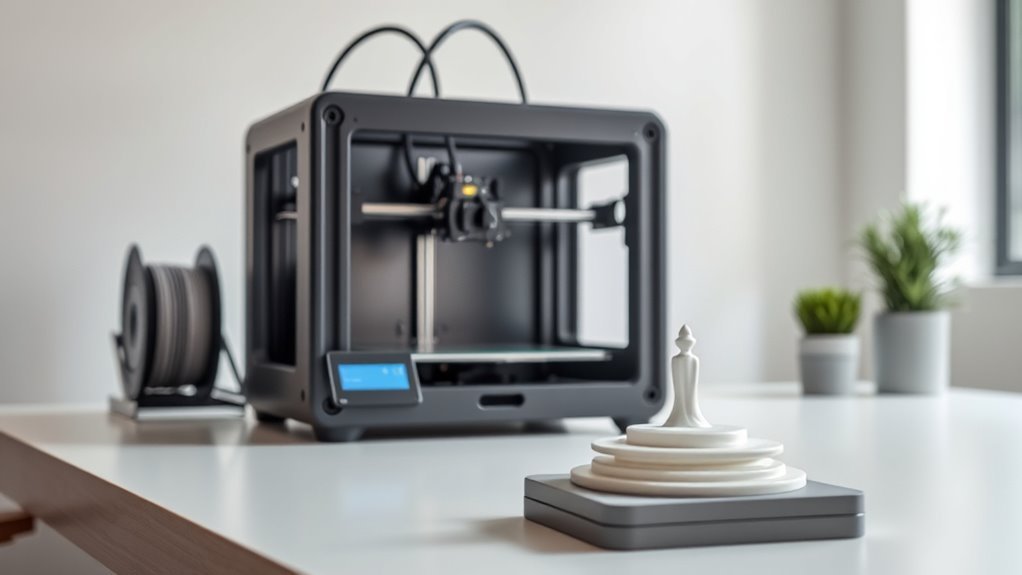
If you’re new to 3D printing, FlashForge offers several features that make getting started much easier. Their printers often come fully assembled and plug-and-play, letting you start printing within an hour.
Features like heated beds, LCD touchscreens, and filament compatibility with PLA and ABS support smooth adhesion and material flexibility. Dual extruders expand your creative options without complex upgrades.
Automatic bed leveling and filament runout sensors minimize setup hassle, making FlashForge an excellent choice for your first printer. Plus, their midrange price and strong customer support add great value.
| Feature | Benefit |
|---|---|
| Plug-and-play | Start quickly |
| Heated bed | Better print adhesion |
| LCD touchscreen | Easy control |
| Dual extruders | Multi-material printing |
| Auto bed leveling | Hassle-free setup |
Key Specs of Popular FlashForge 3D Printer Models
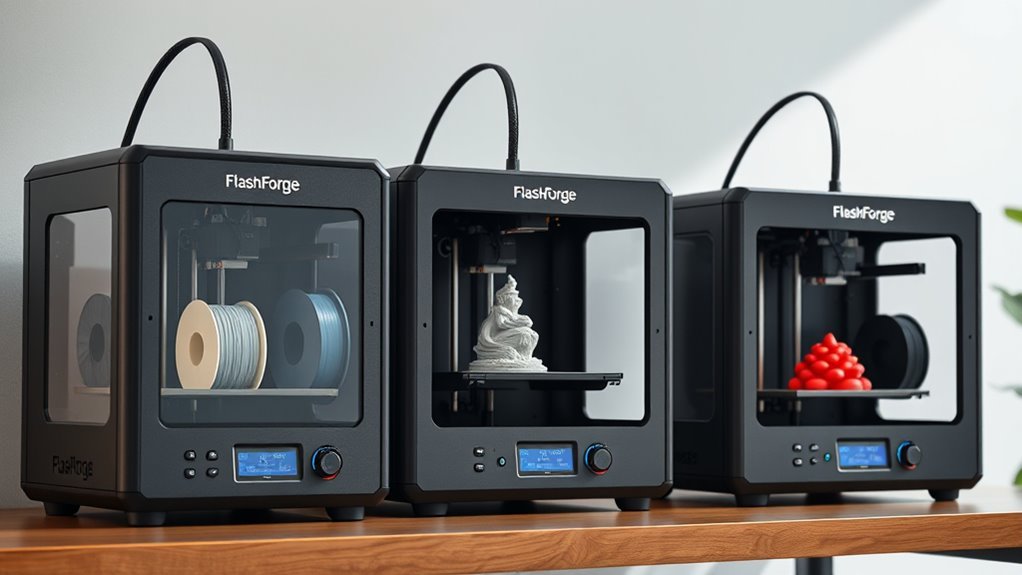
When you explore FlashForge’s lineup, you’ll find models ranging from compact Creator series printers with build volumes around 225 x 145 x 150 mm to larger Creator X and AD5X variants offering up to 220 x 220 x 220 mm. Most models feature a heated build plate, reaching temps near 110°C, which helps with adhesion and printing materials like ABS and PETG.
FlashForge printers typically use 0.4 mm nozzles and support layer resolutions from 100 to 500 microns, balancing detail and speed. Print speeds vary, with CoreXY designs on higher-end models reaching faster rates.
You’ll also notice LCD touchscreens and filament sensors on advanced units, while entry-level printers remain straightforward. The build plate’s quality and heating capabilities play a vital role in consistent print results across their range.
How Easy Is It to Set up and Start Printing With Flashforge?
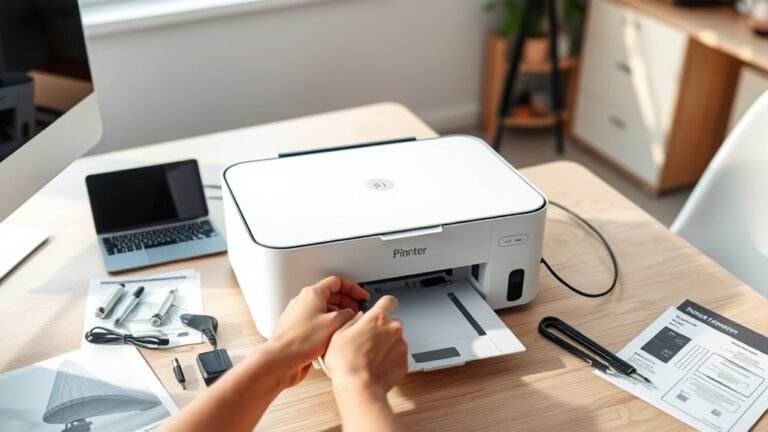
You’ll find many Flashforge printers come fully assembled, so you can unbox and start printing within about an hour after basic setup. Loading filament, leveling the bed, and running a quick calibration print are usually straightforward tasks.
This smooth first print experience helps you get going without hassle. It’s pretty user-friendly, even if you’re new to 3D printing. You’ll be up and running in no time!
Unboxing And Assembly
Getting a FlashForge 3D printer up and running rarely takes more than an hour from unboxing. Most models come fully assembled, so the printer is still mostly plug-and-play.
You’ll typically just check the filament path, level the heated bed, and load filament. Some units need minor assembly, like attaching spool holders, but these are straightforward tasks.
| Feature | Included Components | Setup Steps |
|---|---|---|
| Heated Bed | Yes | Bed leveling |
| Nozzle Size | 0.4 mm | Filament loading |
| Software Compatibility | Orca-Flashforge/Orca Slicer | Verify slicer settings |
While setup is simple, expect to do initial maintenance like nozzle checks. The printer is still a machine requiring attention for optimal-quality prints.
First Print Experience
Although setting up a 3D printer can sometimes feel intimidating, FlashForge models make it straightforward to start printing quickly. Their plug-and-play design means you’ll often go from unboxing to first print in about an hour.
This ease is ideal for printing for beginners keen to see quick results without complex setup.
Here’s what helps you get started smoothly:
- Built-in features like heated beds and auto or assisted leveling simplify calibration.
- Preloaded filament presets and included sample filament reduce the need for tuning.
- Touchscreen controls guide you through loading and printing step-by-step.
While occasional nozzle clogs or slicer quirks may pop up, FlashForge’s user-friendly hardware and solid first-print success make it a reliable choice for newcomers ready to plunge into 3D printing.
What Print Quality and Reliability Can You Expect From Flashforge?
You can expect FlashForge printers to deliver solid print accuracy and precision, producing detailed parts with layer resolutions between 100 and 500 microns.
Their reliability is generally strong, but consistent results depend on proper maintenance and careful slicer setup. It’s all about keeping things in check.
As you troubleshoot, routine tasks like nozzle cleaning and firmware updates will keep your prints running smoothly. A little care goes a long way!
Print Accuracy And Precision
FlashForge printers deliver impressive print accuracy and reliable dimensional fidelity, making them a solid choice for hobbyists and prosumers alike.
In numerous printer reviews, users highlight the Creator series and Adventurer 5M/AD5X for consistently producing high-quality parts with layer resolutions between 100 and 500 microns. You’ll appreciate the Core XY-style AD5X’s rigid metal frame and precise mechanics, which enable sharp, detailed prints within a 220×220×220 mm build volume.
Here’s what you can expect regarding print accuracy and precision:
- A typical 0.4 mm nozzle handles PLA, PETG, ABS, and TPU well, providing smooth surface finishes.
- Mechanical stability minimizes layer shifting and dimensional errors.
- Occasional minor issues like nozzle clogs or slicer bugs may arise but don’t markedly impact overall quality.
Consistency And Reliability
Achieving excellent print accuracy is just one part of the equation; consistent performance and dependable operation really define your day-to-day experience with a 3D printer. With FlashForge, you can expect good print quality and repeatable results, especially on well-tuned models like the AD5X and Creator series.
Their Core XY hardware and dual extruders provide stable motion, helping you print reliably across materials like PLA, PETG, TPU, and ABS. However, you do need to watch out for occasional issues such as nozzle clogs, noisy fans, or slicer quirks that might interrupt your prints.
While FlashForge hardware offers great value, software and firmware hiccups can sometimes affect reliability until updates arrive. Staying on top of maintenance and following recommended settings will definitely boost your printer’s consistency over time.
Maintenance And Troubleshooting
Although routine maintenance is inevitable with any 3D printer, keeping up with tasks like nozzle replacements, fan cleaning, and cable checks will keep your FlashForge running smoothly. FlashForge generally delivers reliable prints with good precision, but occasional issues like nozzle clogs or adhesion problems can happen.
It makes sense to stay proactive and prepared.
Here’s what you can do to troubleshoot effectively:
- Keep spare nozzles and perform regular cold pulls to avoid clogs
- Use a heated bed, PEI or spring steel plate, and enclosure to reduce warping
- Update firmware and slicer software regularly to prevent crashes and workflow quirks
Manufacturer support is responsive, but warranty periods may be short. So, documenting issues and having replacement parts handy makes sense for minimizing downtime.
How Does FlashForge Customer Support and Warranty Compare?
When you need help with your 3D printer, timely and effective support can make all the difference. FlashForge offers a 3-month parts-and-labor warranty, plus lifetime technical support with typical response times of 24–48 hours.
Setting up a new account for support is straightforward. But keep in mind, support teams in China and the US sometimes cause delays or confusion.
| Issue Type | Warranty Coverage | Support Notes |
|---|---|---|
| Replacement parts | 3 months | Common for wear items like nozzles |
| Software/Firmware | Limited | Updates may need direct support |
| Major hardware failures | Not typically covered | Usually require third-party repair |
| Technical assistance | Lifetime support | Response times vary by region |
It’s a good idea to consider local service options and community resources for long-term help. They can be a real lifesaver when you need quick fixes or advice.
Common Pros and Cons From Flashforge User Reviews
Customer support and warranty are important, but you’ll also want to weigh the everyday experiences shared by FlashForge users. Many praise the printers for their solid hardware and impressive print quality. That makes them a nice touch for both beginners and pros.
However, some frustrations arise from software glitches and noise during operation.
Here are some common pros and cons from user reviews:
- Pros: Easy to use, great value for the price, and reliable Core XY designs delivering fast, accurate prints.
- Cons: OrcaSlicer software can crash or mishandle filament purging. Also, some models have open chassis causing warping, and there’s occasional noise.
- Maintenance: Routine upkeep and part replacements are expected. The warranty is relatively short, but support tends to be responsive.
These insights should help you decide if FlashForge fits your 3D printing needs.
How Does FlashForge Compare to Anycubic and Other Brands?
If you’re comparing FlashForge to Anycubic and other brands, you’ll find that FlashForge stands out for its solid hardware, reliable print quality, and professional, often enclosed designs at a mid-range price point.
FlashForge models like the Creator series and Adventurer 5 offer durable metal frames, heated beds, and dual extrusion, matching higher-end Anycubic printers’ specs.
While Anycubic often undercuts prices and bundles extras like cameras and dryers, FlashForge emphasizes better customer support and a polished feel.
However, FlashForge’s proprietary slicer can have stability issues, whereas Anycubic benefits from faster slicer updates and broader software compatibility.
Ultimately, your choice depends on priorities: FlashForge for reliability and enclosure options, Anycubic for aggressive pricing and bundled features—always check specific model reviews before deciding.
Frequently Asked Questions
Is Flashforge PLA Any Good?
Yes, FlashForge PLA works well for you, offering reliable adhesion, minimal warping, and good surface finish. Just keep it dry, print with cooling, and use typical nozzle and bed temps for smooth, consistent results every time.
It’s pretty straightforward to work with, so you shouldn’t have any trouble getting nice prints. Just stick to those basic tips and you’ll be good to go!
Are 3D Printers Popular?
Yes, 3D printers are popular, especially among hobbyists, educators, and small businesses.
You’ll find strong online communities and affordable options, making it easy to get started.
It’s simple to learn and create with growing support and resources all around.
Is It Legal to 3D Print a House?
You absolutely can 3D print a house—it’s like building your dream castle with a giant, futuristic printer!
Just make sure you follow local laws, get permits, and pass inspections. That way, your creation stands tall and legal.
Is Ender 3 Still Good in 2026?
Yes, the Ender 3 is still good in 2026 if you want an affordable, moddable printer with strong community support.
You’ll want to upgrade parts for quieter, smoother prints, but it’s a reliable budget choice.
It’s a solid pick if you’re okay with putting in a bit of work to get the best results.
Conclusion
If you’re looking for a reliable 3D printer that feels like a trusty sidekick on your creative journey, FlashForge fits the bill. It’s beginner-friendly, offers solid print quality, and won’t leave you lost in the setup maze.
Sure, it’s not perfect, but like any great adventure, the occasional bump only makes the victory sweeter. So, if you want a dependable partner for your 3D printing quests, FlashForge is worth considering.
When it comes to 3D printing, having a machine that balances ease of use with consistent results is key. FlashForge delivers just that, making it a great choice for both beginners and hobbyists. Its reliable performance and user-friendly design mean you can focus more on creating and less on troubleshooting.
In short, FlashForge is a good 3D printer that offers dependable quality and ease of use, making it a solid option for anyone stepping into the world of 3D printing. If you want a trustworthy and beginner-friendly 3D printer, FlashForge is definitely worth checking out.