How to Put a Printer Online Step by Step
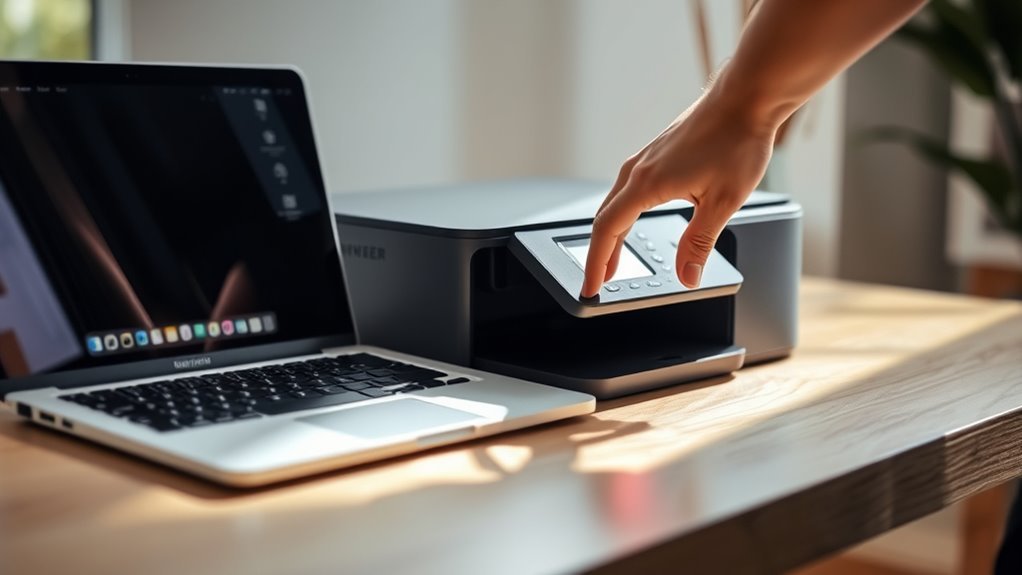
To put your printer online, first make sure it’s powered on and properly connected to your PC or network. Check that the printer displays a ready status, indicating it’s available to print. Sometimes, simply restarting your printer and router can fix minor connection issues.
Next, verify that your printer appears in Windows settings and isn’t set to “Use Printer Offline.” This setting can often cause your printer to seem offline even when it’s connected. Setting your printer as the default device helps your computer send print jobs to the right place.
Also, clear any stuck print jobs from the queue, as these can block new documents from printing. If you’re still having trouble, try restarting the Print Spooler service. Running the Windows troubleshooter can also provide additional help. Feel free to explore more detailed steps to fully resolve any issues you encounter.
Key Takeaways
- Ensure the printer is powered on and connected to the same Wi-Fi network or via a securely plugged USB/Ethernet cable.
- Open Windows Settings > Printers & scanners and confirm the printer is visible and not marked “Offline.”
- In the printer queue, uncheck “Use Printer Offline” to bring the printer back online.
- If the printer remains offline after unchecking offline mode, restart the Print Spooler service via services.msc.
- Power-cycle the printer and PC. Then, try printing a test page to confirm the printer is online and ready to go.
Make Sure Your Printer Is Powered On and Connected
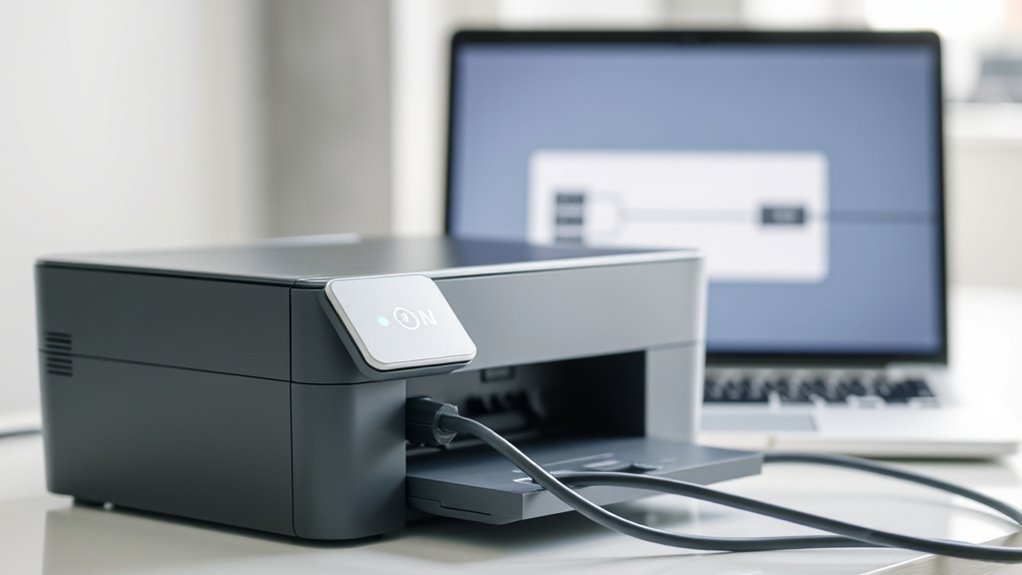
Start by confirming your printer is powered on and properly connected. Look for steady power lights or a ready/home screen. If the display is dark, press the power button and wait about 30 seconds for the printer to boot up.
Next, make sure your printer is connected to the same Wi-Fi network as your computer by checking the Network or Wi-Fi Settings menu on the printer. For wired setups, verify the USB or Ethernet cables are firmly plugged in at both ends. Also, confirm the Ethernet link light is on.
If your printer shows as powered but offline, try power-cycling it by turning it off, unplugging the power cord for 30 seconds, then reconnecting and powering it back on. Finally, print the Network Configuration page to confirm connection details.
Restart Your Printer and Network Devices
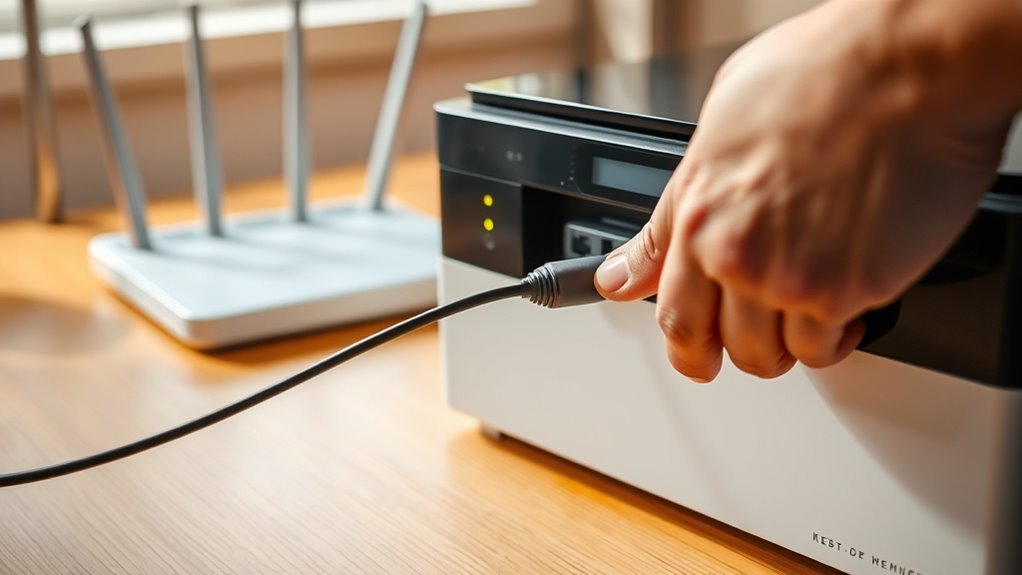
If your printer still shows offline after checking connections, try restarting both the printer and your network devices to clear temporary glitches and refresh their communication.
First, turn off the printer and unplug its power cord. Wait about 30 seconds before plugging the power cord back in and turning the printer on.
Next, power-cycle your modem and router by unplugging them for 30 to 60 seconds. Plug the modem back in first, wait for it to regain online status, then power the router back on.
After all devices restart, print a network configuration page from the printer’s menu to confirm it has a valid IP address and is connected to the correct network.
This process often resolves communication issues causing the printer to appear offline. Give it a try!
Check Your Printer’s Status and Visibility in Windows
Your printer’s status in Windows can reveal why it’s showing offline. First, open Settings > Bluetooth & devices > Printers & scanners (Windows 11) or Settings > Devices > Printers & scanners (Windows 10).
Look for your printer icon and make sure the printer status isn’t marked as “Offline.” Then, open the print queue by selecting your printer and clicking “Open print queue.”
Check under the Printer menu that “Use Printer Offline” isn’t checked.
| Action | What to Check |
|---|---|
| Printer in Settings | Printer icon visible, not offline |
| Print Queue | “Use Printer Offline” unchecked |
| Control Panel Print Queue | Cancel stuck print jobs |
| Network Status on Printer | Connected to correct Wi-Fi or LAN IP |
Following these steps will help make sure your printer is visible and ready to print. Just a few quick checks and you should be good to go!
Set Your Printer as the Default Device
To make sure your printer stays the default device, first disable Windows’ automatic management of default printers. Then, manually select your printer as the default in the Settings or Control Panel.
Double-check that it shows the Default label. This way, your print jobs go to the right device every time. Easy, right?
Disable Windows Default Management
Although Windows can manage your default printer automatically, you’ll want to disable this feature to guarantee your chosen device stays set as the default.
In Windows 11, head to Settings > Bluetooth & devices > Printers & scanners and turn off Let Windows manage my default printer before you manually set your preferred default printer. This stops Windows from switching it based on the last-used device.
On Windows 10, when setting a default printer, accept the prompt to disable Windows’ automatic management. After doing this, select your printer and click Set as default to lock it in.
Disabling this feature guarantees your default printer won’t change unexpectedly, helping you maintain consistent printing without interruptions or confusion.
Verify Default Printer Selection
Make sure your preferred printer is set as the default device to avoid any printing mix-ups. On Windows 11, go to Settings > Bluetooth & devices > Printers & scanners. Select your printer, and then click “Set as default.”
If you want to enforce a specific default printer, disable the option “Let Windows manage my default printer.” This way, Windows won’t change your default printer automatically.
For Windows 10, open Settings > Devices > Printers & scanners. Select your printer, open the queue, then choose Printer > “Set As Default Printer.” Confirm any prompt that appears to stop Windows from managing the default.
You can verify your default printer by checking for the green check mark in Settings or Control Panel > Devices and Printers. After setting the default, restart the Print Spooler service or reboot your PC to make sure apps recognize the change.
Clear Stuck Print Jobs From Your Printer Queue
If your printer isn’t responding, it’s time to cancel any stuck print jobs to clear the queue. You can quickly refresh the print queue and remove all pending documents to get things moving again.
This simple step often fixes common printing delays and errors. It’s a quick and easy way to get back on track without much hassle. Give it a try next time your printer acts up!
Cancel Pending Print Jobs
When print jobs get stuck, you can quickly clear your printer queue to get things moving again. To cancel pending print jobs, follow these steps:
- On Windows 11, open Settings > Bluetooth & devices > Printers & scanners. Select your printer, open the printer queue, and use the Cancel All option to remove stuck jobs.
- On Windows 10, go to Settings > Devices > Printers & scanners. Select your printer, open the queue, then cancel each document individually.
- If the queue won’t clear, restart the Print Spooler service by running services.msc. Right-click Print Spooler, and select Restart.
- Power-cycle your printer and PC by turning them off. Unplug the printer for 30 seconds, restart the PC, and then turn the printer back on before clearing the queue again.
Refresh Print Queue
To clear stuck print jobs, start by opening your printer queue and selecting the option to cancel all pending documents at once. On Windows 11, go to Settings > Bluetooth & devices > Printers & scanners, select your printer, then open the print queue.
Click Printer or the ellipsis and choose “Cancel All.” For individual jobs, just select the document and cancel it.
If jobs don’t clear, try restarting the Print Spooler service. You can do this by typing services.msc in Run, finding Print Spooler, right-clicking, and selecting Restart.
Another trick is to power-cycle both your printer and PC. This often forces the queue to refresh.
After you’ve cleared everything, print a test page to make sure it’s working. Also, double-check that your printer is online and set as the default.
If you see “Use Printer Offline” checked, uncheck it. This helps keep the print queue active and ready to go.
Turn Off “Use Printer Offline” Mode in Windows
Getting your printer back online often starts with turning off the “Use Printer Offline” mode in Windows. This option forces your printer to stay offline even if it’s connected.
To fix this, follow these steps in your Printer Settings:
- Open Settings > Bluetooth & devices > Printers & scanners, select your printer, and click Open print queue. In the Printer menu, uncheck “Use Printer Offline.”
- For older Windows versions, open Devices and Printers, right-click your printer, select See what’s printing, then uncheck “Use Printer Offline” under Printer.
- If the option is greyed out or the printer stays offline, restart the Print Spooler service via Services and try again.
- Confirm your printer is powered and connected properly before toggling this setting.
Afterward, refresh the queue and cancel stuck jobs to complete the process. It usually does the trick!
Run the Windows Printer Troubleshooter to Fix Offline Printer Issues
If your printer keeps showing offline despite checking connections and settings, try running the built-in Windows Printer Troubleshooter. It automatically scans for issues like print spooler errors, network problems, and outdated printer drivers, then attempts fixes.
In Windows 10/11, go to Settings > System > Troubleshoot > Other troubleshooters > Printer to start it.
Here’s what the troubleshooter checks:
| Issue Checked | Action Taken/Recommended |
|---|---|
| Print Spooler Status | Restart service if needed |
| Network Connectivity | Fix or advise network steps |
| Printer Drivers | Detect outdated or corrupt ones |
| Print Queue Errors | Clear stuck jobs |
| Error Messages | Suggest next steps (e.g., reinstall drivers) |
If the issue isn’t resolved, make sure to note the error message. That way, you can look for more targeted fixes.
Restart the Print Spooler Service and Your PC
Restart the Print Spooler service to quickly clear stuck print jobs and reset the spooler’s operation. This often fixes offline printer issues by rejuvenating the print queue.
Here’s how to do it effectively:
- Press Windows key + R, type services.msc, and press Enter.
- Find “Print Spooler,” right-click it, and select Restart. If Restart is unavailable, stop the service, delete all files in C:WindowsSystem32spoolPRINTERS (admin rights needed), then start the service again.
- Make certain the Print Spooler’s startup type is set to Automatic or Automatic (Delayed Start) to keep it running after reboot.
Finally, reboot your PC to revitalize drivers and network services, resolving persistent offline or communication errors.
Restarting the Print Spooler and your PC is an essential step to put your printer online. It really helps clear out any glitches and gets things running smoothly again.
Frequently Asked Questions
How Do I Get My Printer to Go Back Online?
You can get your printer back online by restarting it and your router. Make sure it’s connected to the correct Wi-Fi network.
Also, check your printer settings and uncheck “Use Printer Offline” if it’s selected.
If that doesn’t work, try restarting the Print Spooler service. This can help clear any stuck print jobs. Give it a shot!
How to Change From Offline to Online?
Don’t worry if your printer seems stuck offline; you can quickly change it to online by unchecking “Use Printer Offline” in the print queue.
This simple step often restores your printer’s connection immediately. It’s an easy fix that usually gets things working again fast.
How Do I Get My Printer to Connect Online?
You’ll want to power-cycle your printer and router. Then, confirm they’re on the same Wi-Fi network.
Next, check your computer’s printer settings to disable offline mode. If issues persist, try assigning a static IP or reinstalling the printer driver.
That usually does the trick! If not, there might be a deeper connection issue to explore.
How Do I Turn My HP Printer From Offline to Online?
You can turn your HP printer online by opening the print queue on your PC and unchecking “Use Printer Offline.”
If that doesn’t work, try restarting the printer. Sometimes a quick reboot can fix the issue.
Also, check your Wi-Fi connections to make sure the printer is properly connected.
If you’re still having trouble, consider reinstalling the printer driver. That often clears up any glitches.
Conclusion
By now, you’ve likely powered on your printer, checked connections, and maybe even restarted a few times—coincidentally, these simple steps often fix the offline issue.
Setting your printer as default and clearing stuck jobs usually brings it back online faster than you’d expect. If not, turning off “Use Printer Offline” mode or running the troubleshooter usually does the trick.
With a little patience, your printer will be ready to print right when you need it most. Following these step-by-step instructions on how to put a printer online ensures you spend less time troubleshooting and more time printing. Whether it’s a quick fix or a simple setting change, getting your printer back online is easier than it seems!