How to Make a Printer Default in 5 Easy Steps
To make a printer your default in five easy steps, start by opening Settings and going to Printers & scanners. This is where you manage all your printer options and settings, making it simple to choose your preferred device.
Next, turn off “Let Windows manage my default printer.” This stops Windows from automatically changing your default printer, giving you full control over which printer you want to use every time.
Find your desired printer in the list, select it, and click Manage. Then, hit “Set as default.” You’ll want to confirm that the green checkmark appears next to the printer you’ve chosen—that means it’s set correctly.
Finally, print a test page to make sure everything’s working perfectly. Keep reading to discover some helpful tips for managing multiple printers smoothly and avoid common hassles when switching between devices.
Key Takeaways
– Open Settings, then head to Bluetooth & devices → Printers & scanners if you’re on Windows 11.
If you’re using Windows 10, go to Devices → Printers & scanners instead.
– Next, turn off “Let Windows manage my default printer.”
This stops Windows from changing your default printer automatically.
– Find the printer you want in the Printers & scanners list.
Make sure it says Ready or Online so it’s good to go.
– Click on the printer, then hit Manage.
After that, choose Set as default to make it your main printer.
– Look for the green checkmark next to your printer to confirm it’s set.
Try printing a test page just to be sure everything’s working perfectly.
Access Printer Settings in Windows
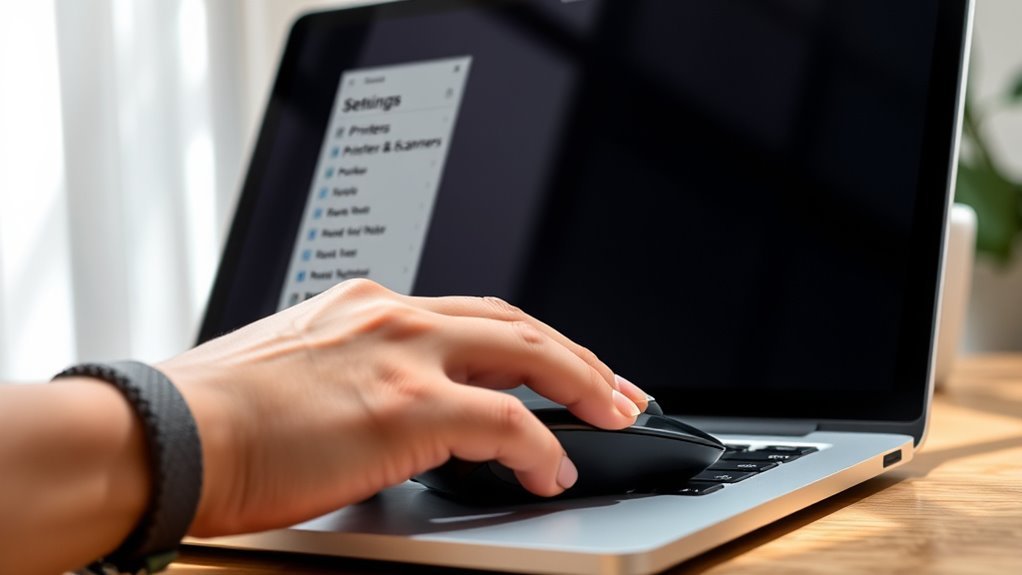
To access your printer settings in Windows, open the Settings app by pressing Windows key + I. Then head to Bluetooth & devices → Printers & scanners on Windows 11 or Devices → Printers & scanners on Windows 10.
Open Settings with Windows + I, then navigate to Printers & scanners under Bluetooth & devices or Devices.
You’ll see your printers list here. If you want to set a specific printer as default, first check if “Let Windows manage my default printer” is enabled. Turn it off to allow manual control.
Select your preferred printer from the list, click Manage, then hit Set as default. If your printer isn’t listed, use Add a printer to install it.
Alternatively, you can visit the Control Panel to manage printers & scanners. This guarantees you have full control over which printer Windows uses by default.
Disable Automatic Default Printer Management
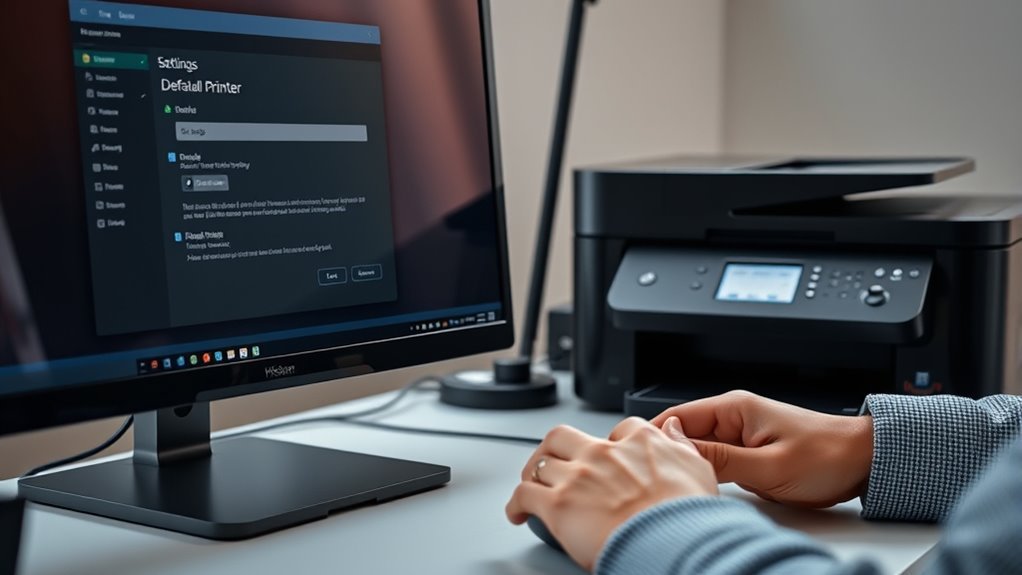
Although Windows tries to simplify printer selection, it can switch your default printer automatically based on your last use or location. To prevent this, you need to disable automatic default printer management.
In Windows 11, go to Settings → Bluetooth & devices → Printers & scanners and turn off “Let Windows manage my default printer.” In Windows 10, open Settings → Devices → Printers & scanners and uncheck the same option.
Once disabled, you must manually select your preferred printer and click “Set as default” to keep it as your default printer. This stops Windows from changing defaults based on last printer used or location.
| Windows Version | Path to Setting | Action |
|---|---|---|
| Windows 11 | Settings → Bluetooth & devices → Printers & scanners | Turn off “Let Windows manage my default printer” |
| Windows 10 | Settings → Devices → Printers & scanners | Uncheck “Let Windows manage my default printer” |
| Both | After disabling | Select preferred printer and “Set as default” |
Locate Your Desired Printer
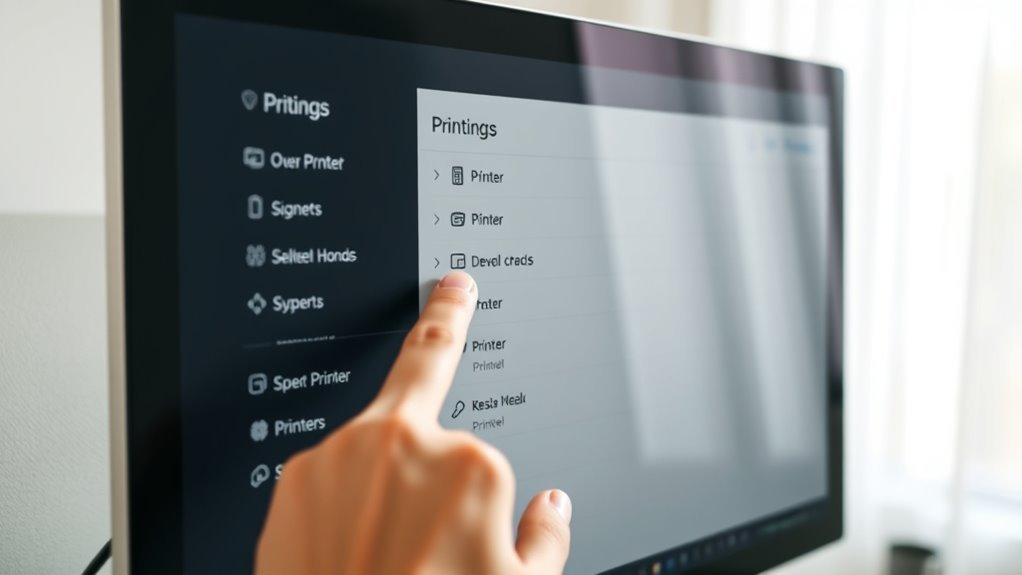
After disabling Windows’ automatic default printer management, you’ll need to find the printer you want to set as default.
Open Windows Settings by pressing Windows key + I, then navigate to Bluetooth & devices → Printers & scanners (Windows 11) or Devices → Printers & scanners (Windows 10). Here, you’ll see a list of installed printers.
Look for your desired printer; the current default printer has a green circle with a white checkmark. If your printer isn’t listed, click Add a printer and follow the prompts to install it.
For network printers, make sure you’re connected to the correct network or print server so your desired printer appears. Select the printer and click Manage to confirm it’s Ready or Online—only then can it be set as your default printer.
Set the Printer as Default
Once you’ve located your desired printer, you can easily set it as the default to streamline your printing tasks. In Windows 11, go to Settings → Bluetooth & devices → Printers & scanners. Then, turn off “Let Windows manage my default printer,” select your printer, and click “Set as default.”
For Windows 10, open Settings → Devices → Printers & scanners. Uncheck the same option, choose your printer, click Manage, then “Set as default.” Alternatively, use the Control Panel: open Devices and Printers, right-click your printer, and select “Set as default printer.”
On macOS, you can adjust this in System Preferences under printer preferences by choosing your printer in the “Default printer” menu. After setting your default printer, make sure to confirm the default printer set indicator to assure your choice sticks.
Verify and Test Your Default Printer Selection
Setting your default printer is only the first step; you’ll want to verify it’s properly selected and functioning. First, guarantee the “Let Windows manage my default printer” option is off—otherwise, Windows changes your default to the last printer you used.
Next, check the Default Printer in Windows under Printers & scanners. Look for the green circle with a white checkmark next to your chosen device; this confirms you pressed the Set as default button correctly.
Then, print a one-page test document from an app like Notepad to confirm the printer receives the job. After printing, open the print queue to make sure the job completed without errors.
For network printers, double-check the IP address matches the configured device to avoid connectivity issues. This guarantees your default printer is ready whenever you need it.
Frequently Asked Questions
How Do I Make My Printer Default?
You just open your printer settings, turn off any automatic default management, select your preferred printer, and click “Set as default.”
This sets your printer as default for all your print jobs instantly.
Easy, right? Just a few clicks and you’re all set!
How Do I Set a Default Printer in Windows 11?
Open Settings, then select Bluetooth & devices. Click on Printers & scanners, and you’ll see the option “Let Windows manage my default printer.”
Make sure to disable that option. This way, you can take control of which printer is set as default.
Next, pick your printer from the list. Click Manage, then hit Set as default.
You’ll know it worked when you see a green checkmark next to your printer’s name. Easy, right?
What Does “Set as Default” Mean on My Printer?
“Set as default” means you’re choosing that printer to automatically handle all your print jobs unless you pick another one.
It saves you time by avoiding printer selection every single time you print. Pretty handy, right?
How to Set Default Settings for HP Printer?
You know what they say: “Measure twice, cut once.” To set default settings on your HP printer, open its properties and adjust preferences like paper size or quality.
Then, save these as defaults for consistent printing every time. It’s a simple way to avoid having to tweak settings every time you print.
Just set it once, and you’re good to go!
Conclusion
Now that you’ve set your default printer, you’ll save time and avoid printing headaches. Remember, “a stitch in time saves nine”—taking a few minutes to adjust your settings prevents bigger issues later.
Whenever you need to print, your preferred printer will be ready to go without extra steps. Keep this guide handy, and you’ll breeze through printing tasks like a pro every time.
Making a printer default is a simple step that makes your printing process smoother and more efficient. By setting your default printer, you eliminate the hassle of choosing a device each time you print. So go ahead, follow these five easy steps, and enjoy hassle-free printing from now on. You’ve got this!