How to Add a Printer to Mac in 3 Simple Steps
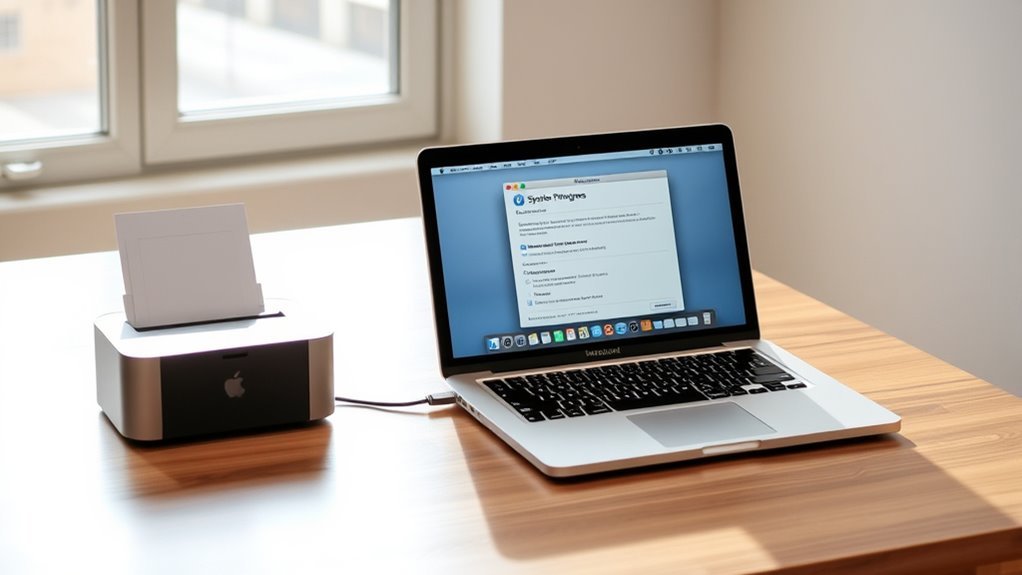
To add a printer to your Mac, start by opening System Settings and selecting Printers & Scanners from the sidebar. This is where you manage all your printing devices.
Click the plus (+) button and choose the IP tab to enter your printer’s network IP address or hostname.
Next, select the appropriate protocol and driver. Your Mac might auto-select these, or you can choose the driver from the manufacturer’s software for better compatibility.
Finally, confirm your settings and print a test page to make sure everything works smoothly.
If you want, you can keep going to explore more ways to fine-tune your printer setup. It’s also helpful to learn how to troubleshoot common issues, so your printing experience stays hassle-free.
Key Takeaways
- Open Apple menu, go to System Settings, then select Printers & Scanners from the sidebar.
- Click the plus (+) button to start adding a new printer.
- Choose the connection type: Nearby, IP, or Default for your printer.
- For network printers, select the IP tab and enter the printer’s IP address or hostname.
- Confirm or select the correct printer driver, then add the printer and print a test page.
Open Printers & Scanners on Your Mac
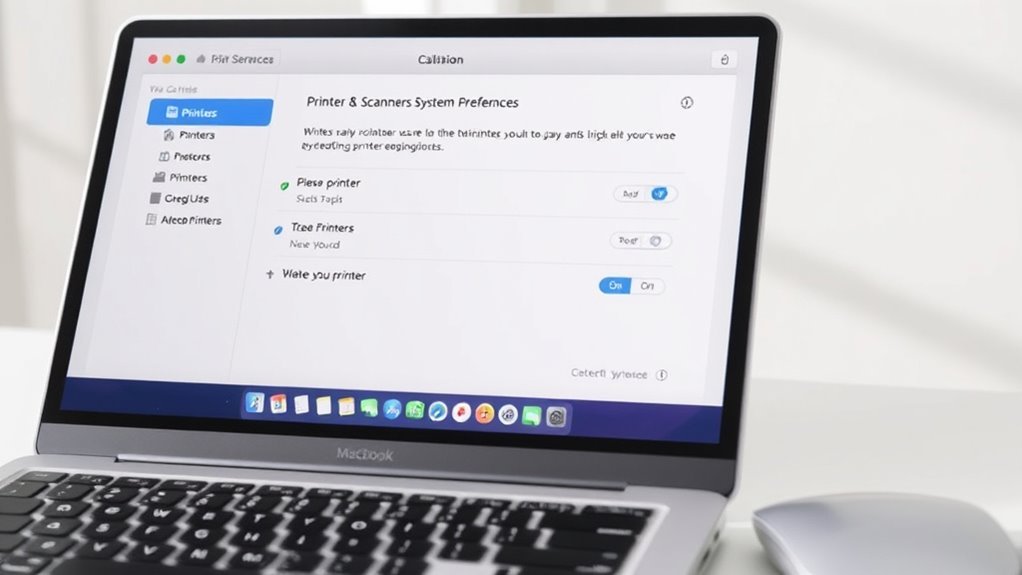
To get started, open the Apple menu in the top-left corner of your screen and choose System Settings. From there, select Printers & Scanners in the sidebar. If you can’t find it immediately, just scroll down the list.
In macOS Sonoma and later, this pane displays all installed printers and a plus (+) button to add new ones. Click that button to begin adding a new device.
In macOS Sonoma and later, easily view installed printers and add new ones with the plus (+) button.
You’ll see options like Nearby, IP, or Default for connecting your printer. When adding a network printer manually, you’ll use the Address: field to enter its hostname or IP. This lets your Mac locate the printer even if it doesn’t show up automatically in the Nearby search.
This step sets you up perfectly for the next part of the process. Easy, right?
Enter Network Printer’s IP Address and Choose Driver
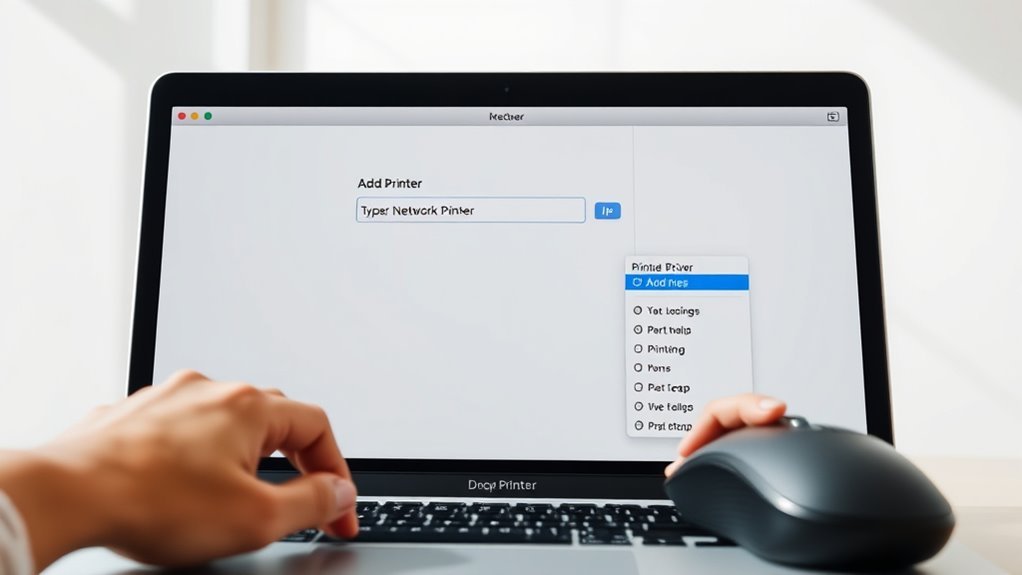
Start by opening the Apple menu, selecting System Settings, and finding your way to Printers & Scanners. Click Add Printers, Scanners, or Fax (or the +), then choose the IP tab, marked by a blue globe icon.
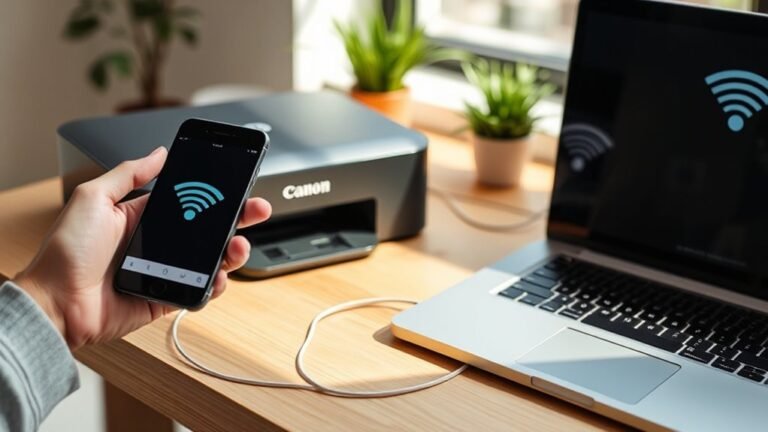
In the Address field, enter your wireless printer’s IP address or full hostname. macOS will try to fetch the device details automatically. Keep the Protocol set to the default IPP unless your printer needs LPD or HP Jetdirect.
In the Use dropdown, macOS usually auto-selects the right driver, but you might need to scroll and pick Select Software… for the manufacturer’s driver, especially for advanced features like duplex printing. If the driver isn’t listed, just download it from the printer maker’s website and add the printer again to see the new option.
Complete Network Printer Setup and Verify Functionality
Once you’ve selected the correct driver and added your network printer, you’ll want to confirm all settings are properly configured.
Open Apple menu > System Settings > Printers & Scanners, then select your printer in the upper left-hand corner. Check Options & Supplies to verify installed features like duplex or extra trays.
Print a test page to confirm the printer is connected to the network and functioning correctly.
| Step | What to Do |
|---|---|
| Verify Features | Check duplex, trays, hole punch in options |
| Print Test Page | Confirm network connection and driver work |
| Troubleshoot if Needed | Retry protocol, verify IP, contact IT help |
If issues arise, try different protocols or get IT support with your printer’s IP and name.
Frequently Asked Questions
How Do I Add a Printer to My Mac?
You open System Settings, go to Printers & Scanners, then click the plus sign to add a printer.
Choose your printer type—network, AirPrint, or USB—and follow the prompts to connect. If needed, you’ll also install drivers along the way. Easy, right?
What Are the Commands to Print on a Mac?
You don’t need magic spells, just type lpr -P printer_name filename.pdf in Terminal to print. Use lpq to check the queue, and cancel job_id or lprm -P printer job_id to manage print jobs easily.
It’s pretty straightforward once you get the hang of it. Just remember to replace printer_name and job_id with your actual printer’s name and the job number. Easy, right?
How Do I Add a Printer to My Laptop?
You simply connect your printer via USB or network, then open System Settings > Printers & Scanners. Click the plus sign, select your printer, and follow the prompts.
Your Mac will usually auto-detect drivers for you. It’s pretty straightforward and quick!
How to Print Multiple Files on a Mac?
You can select multiple files in Finder, right-click, and choose Quick Actions > Print or press Command-P.
Alternatively, open them in Preview, select all, then print together. Use print presets to save time with consistent settings.
It’s pretty straightforward once you get the hang of it! Just a couple of clicks and you’re good to go.
Conclusion
So, you’ve bravely ventured into the wild world of Mac printer setup and lived to tell the tale. Just open Printers & Scanners, punch in that elusive IP address, pick the right driver (because Macs don’t guess), and voilà—printer magic!
Now you can print without summoning ancient tech gods or sacrificing your sanity. Who knew adding a printer could be this thrilling?
Go ahead, impress your friends with your newfound tech wizardry! With these simple steps, adding a printer to your Mac is easier than ever. Whether you’re setting up for work or home use, this straightforward process ensures your Mac and printer work seamlessly together. So don’t hesitate—follow these tips to add a printer to your Mac and enjoy hassle-free printing in no time!