How to Uninstall Printer Driver in 3 Easy Steps
To uninstall a printer driver in 3 easy steps, first sign in to an administrator account. Then, right-click the installer file (UPDSetup.exe or UPDSetup64.exe) and choose “Run as administrator.” This ensures you have the right permissions to make changes.
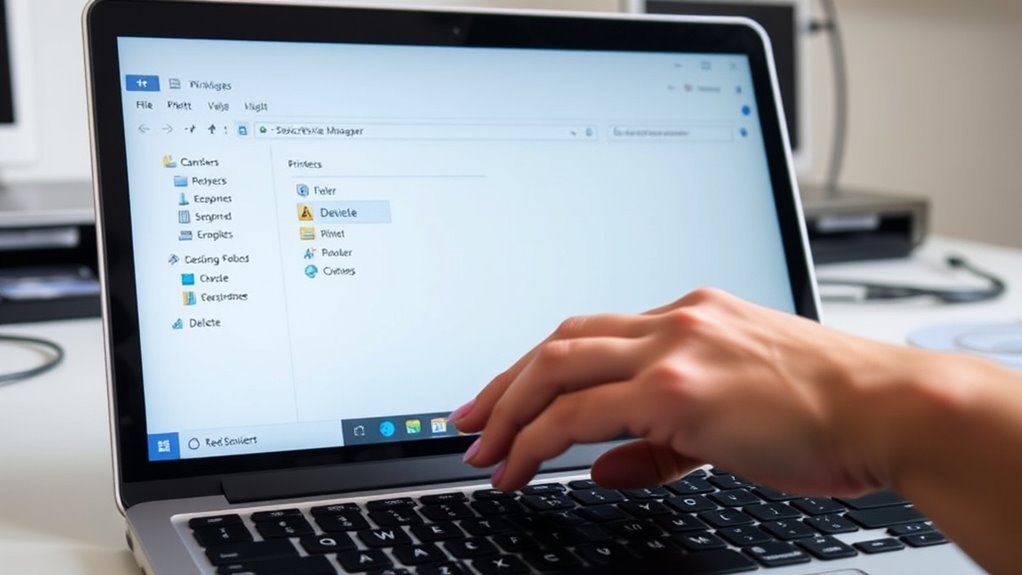
Next, pick the printers and drivers you want to remove from the list and click “Uninstall.” You’ll see a prompt to confirm the removal—just go ahead and confirm. The process will take a few moments to complete.
If you want to make sure everything’s fully cleared, there are extra steps to clean up leftover files and settings. These additional actions can help keep your system tidy and avoid any future driver conflicts.
Key Takeaways
- Sign in with an administrator account to ensure the uninstall process has necessary privileges.
- Run the printer driver installer as administrator and select the Uninstall or Delete option.
- Choose the specific printer drivers to remove from the installer’s list and proceed with uninstallation.
- Open Devices and Printers, then access Print Server Properties to manually remove leftover drivers.
- Confirm removal by checking the Drivers tab or using the printui /s /t2 command for complete cleanup.
This way, you can make sure everything is completely removed.
Open the Installer With Admin Rights
Before you uninstall a printer driver, make sure you’re signed into an administrator account. You need administrator privileges to successfully run the uninstaller.
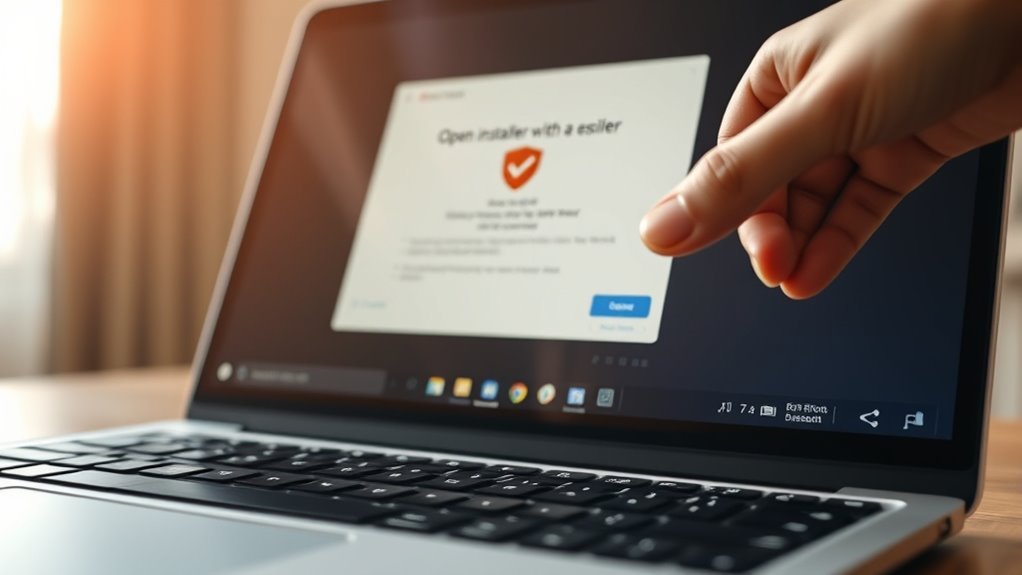
First, find the installer on the driver DVD or in the extracted installer folder. Right-click UPDSetup.exe for 32-bit systems or UPDSetup64.exe for 64-bit, then select Run as administrator.
If a User Account Control (UAC) prompt appears, click Yes to grant the installer elevated rights. After launching, accept the license agreement, then use the installer’s Delete option to remove the driver.
If the installer won’t start or claims insufficient privileges, double-check you’re in an administrator account. You can also open an elevated Command Prompt and run the installer executable from there to make certain proper permissions for the uninstall process.
Pick the Drivers and Printers to Remove
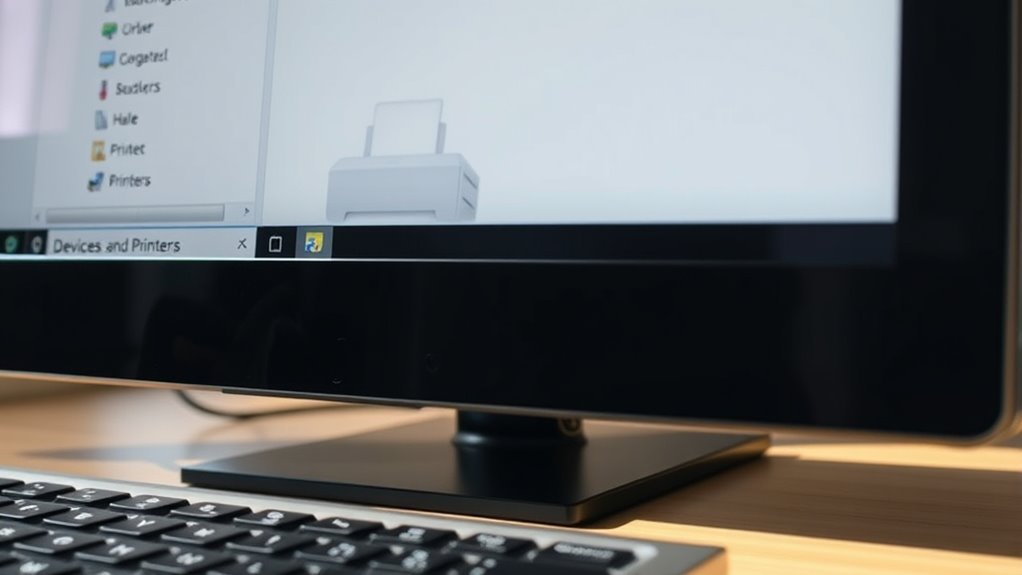
Select the specific printers and drivers you want to remove within the installer or Windows’ Print server properties. In Devices and Printers, open Print server properties and go to the Drivers tab.
Choose the printer drivers to remove via installer or Windows Print server properties under the Drivers tab.
There, select the exact printer driver entry and click Remove, choosing Remove driver and driver package to delete it completely. If you’re using the Canon UPD installer, select printers and their drivers from the list, then click Next followed by Uninstall.
Keep in mind, removing a driver deletes all printers using it. Make sure you have administrator privileges before attempting to remove or delete any drivers, or the process will fail.
For multiple leftover drivers, just repeat the removal steps in Print server properties or the installer until all unwanted driver packages are gone.
Confirm and Finalize Printer Driver Uninstall
Once you’ve chosen the printer drivers to remove and started the uninstall process, you’ll need to confirm and finalize the removal. Click Uninstall on the installer or via Devices & Printers and wait for the process to finish.
When the uninstall confirmation appears, click OK to close the installer. To verify, open Devices & Printers or Print Server Properties, then check the Drivers tab to assure the printer driver and any associated printers are gone.
Since this action requires administrator privileges, make sure you have them. If remnants remain, run printui /s /t2 or open Print Server Properties and select Remove driver and driver package to fully complete the uninstall.
This guarantees the entire driver package is cleanly removed from your system.
Frequently Asked Questions
How Do I Uninstall the Epson Printer Driver?
You uninstall the Epson printer driver by opening Devices and Printers, removing the printer, then deleting the driver in Print server properties.
If needed, you can run the Epson uninstaller or reboot in safe mode for a clean removal. It’s pretty straightforward once you know the steps.
My Canon Printer Says “One or More Printer Drivers Are Currently in Use. Restart the Computer.” How Can I Fix This?
You’ll need to close all apps and sign out other users. Then, restart your PC.
After that, remove the Canon printer and driver via Print Server Properties. If the driver is still in use, don’t worry.
Just stop the Print Spooler service, delete the driver files, restart the spooler, and reboot your computer. That should do the trick!
How Do I Uninstall a Driver Permanently?
You’ll need to open Print Server Properties and select the Drivers tab. Then, pick the driver you want to uninstall.
Next, click Remove and choose “Remove driver and driver package.” Make sure to run everything as admin.
After that, restart your computer to be certain the driver is completely gone. It’s a pretty straightforward process!
How Do I Uninstall Brother Software?
Picture clearing clutter from your desk—open Control Panel, uninstall all Brother apps, then run the Brother uninstaller to delete drivers.
Finally, remove leftover files and reboot to fully wipe the software from your PC.
It’s pretty straightforward and will leave your system nice and clean!
Conclusion
Uninstalling your printer driver is easier than finding a needle in a haystack when you follow these three simple steps. By opening the installer with admin rights, selecting the drivers you want to remove, and confirming the uninstall, you’ll have your system running smoother in no time.
Don’t let outdated drivers slow you down—take control now. Once you uninstall the printer driver, your computer will be free from clutter and potential conflicts. It’s a quick process that anyone can do, even if you’re not tech-savvy. So why wait? Simplify your device management and keep your system optimized by removing those old printer drivers today!