How to Fix Can’t Ping Network Printer Issues
If you can’t ping your network printer, the first thing to do is check that your PC and printer are on the same subnet. It’s also important to make sure the printer is using a static IP address so it doesn’t change unexpectedly.
Next, try recreating the printer’s TCP/IP port on your PC. Make sure the IP address and protocol (usually RAW 9100) are set correctly. This often fixes communication glitches between your PC and the printer.
Don’t forget to temporarily disable your PC and router firewalls. Sometimes, firewalls block the ping request or printer communication without you realizing it. While you’re at it, double-check your router, switch, and wireless settings to ensure everything is connected properly.
Keep reading for detailed steps and additional fixes to get your printer back online smoothly.
Key Takeaways
- Verify the printer and PC share the same subnet. Then, check connectivity by pinging the printer IP from the PC.
- Recreate or configure the printer’s TCP/IP port on the PC to match the printer’s static IP. Make sure the protocol is set to RAW port 9100.
- Check your router, switch, and VLAN settings to confirm the printer’s network path is active. Also, ensure the printer is correctly VLAN-tagged.
- Try temporarily disabling local and router firewalls to test ICMP echo requests. Don’t forget to open the necessary printer ports like TCP 9100, 139, 445, and 515.
- Access the printer’s web interface to verify its IP settings. Confirm it’s online and take a look at the network logs for any errors or conflicts.
How To Check If Your PC Can Connect To The Network Printer
To check if your PC can connect to the network printer, start by pinging the printer’s IP address from your command prompt. Type something like ping 192.168.0.75 and see if you get ICMP replies instead of timeouts.
Next, run ipconfig /all to confirm your PC is on the same subnet as the printer—both should share an IP range like 192.168.0.x with matching subnet masks.
If pings fail, temporarily disable your software firewall or create rules allowing ICMP and printer ports, then try again. The firewall might be blocking your connection.
Making sure your PC and printer share the same subnet and that your firewall isn’t interfering is super important for basic network communication. Once that’s set, you can move on to more complex troubleshooting steps.
How To Check Router And Switch Connectivity To Your Printer
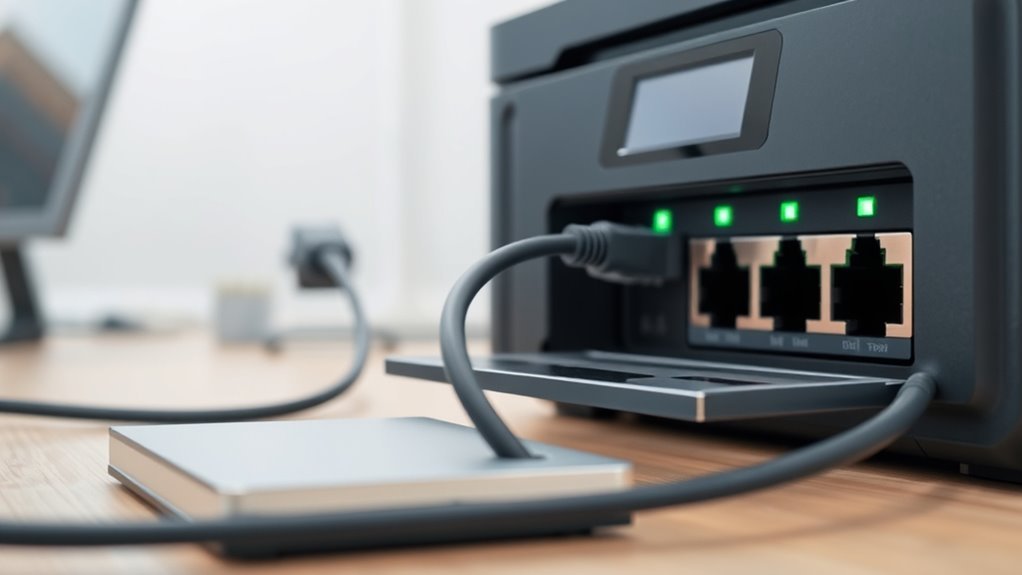
After confirming your PC can communicate with the network printer, the next step is to verify that your router and switch are properly connected to the printer. Start by pinging the printer’s IP from the router to check layer‑3 reachability, noting any packet loss or timeouts.
On the switch, inspect port LEDs and run “show interface status” to confirm the printer’s port is up, with correct speed and duplex, and not err-disabled. If you use a managed switch, validate the printer’s VLAN membership matches the client VLAN to prevent isolation.
Use ARP commands on the router to verify it has the printer’s MAC address correctly associated with the IP, confirming no conflicts. Finally, test connectivity by connecting a laptop to the same switch port to isolate the issue.
How To Recreate The Network Printer’s TCP/IP Port
Start by opening Devices and Printers on your PC. Then, right-click the problematic printer and select Printer properties.
Begin by opening Devices and Printers, then right-click your printer and choose Printer properties to start troubleshooting.
Navigate to the Ports tab, note the existing TCP/IP port and printer IP. Next, click Configure Port to verify the protocol—usually Standard TCP/IP Port using RAW on port 9100.
To recreate the port, click Add Port and select Standard TCP/IP Port. Then, choose New Port.
Enter the printer’s static IP and select the correct protocol, typically RAW 9100, before finishing. Assign this new port to your printer from the Ports list.
Print a test page or visit the printer’s web interface (http://
Then, recreate only the correct port. That usually does the trick!
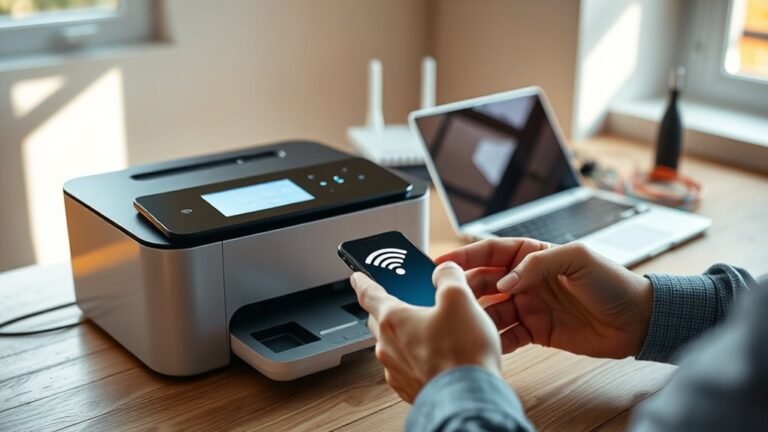
Troubleshooting Wireless Devices That Can’t Reach The Printer
If your wireless device can’t reach the printer, start by checking for wireless network isolation or guest network settings that block communication.
Next, disable any software firewalls temporarily to see if they’re preventing pings or printer access.
Finally, verify your router and switch configurations to make sure VLANs or ACLs aren’t stopping traffic from your wireless client.
Sometimes these settings can be a bit tricky, but taking it step-by-step usually helps clear things up.
Wireless Network Isolation
Wireless network isolation can block your wireless devices from reaching printers on the wired LAN, even when they’re on the same network. This happens because features like wireless isolation or AP isolation prevent communication between wireless clients and wired devices.
You should check your router or access point settings and disable “Wireless Isolation,” “AP Isolation,” or “Guest LAN” to restore printer access. Also, verify that your wireless device isn’t connected to a guest SSID on a different subnet, as this can separate devices and block printing.
Here’s what to do:
- Confirm the wireless client and printer are on the same subnet (e.g., 192.168.0.x).
- Disable wireless or AP isolation settings on your router or access point.
- Avoid using guest SSIDs that isolate clients from the main LAN.
Firewall Configuration Issues
After confirming that your router’s isolation settings aren’t blocking communication between your wireless device and printer, the next area to check is your firewall configuration. Software firewalls on your PC can block ICMP and printer ports (TCP 9100, 139, 445, 515), preventing pings and printing.
Try temporarily disabling the firewall and ping the printer’s IP to test connectivity. If it works, add precise allow rules for ICMP and those ports instead of leaving the firewall off.
Also, make certain client isolation is disabled on your router to avoid additional blocking. Verify your PC and printer are on the same subnet and set your PC’s firewall profile to “Private/Home” to permit local discovery.
If toggling the firewall fixed the issue, reset or recreate your firewall rules to avoid corrupted settings. That way, you keep your network safe and everything running smoothly.
Router And Switch Settings
While troubleshooting connectivity issues between your wireless device and printer, you should examine your router and switch settings closely. Start by checking if wireless isolation (AP/client isolation) is enabled on your router. This setting blocks Wi-Fi clients from accessing LAN devices like printers, so disabling it can help.
Also, confirm your wireless device isn’t connected to a guest network. Guest SSIDs usually prevent access to devices on the main LAN, so make sure you’re on the correct network.
Finally, inspect VLAN configurations and SSID-to-VLAN mappings on your router and switch. Mismatched VLANs can isolate your wireless client from the printer, causing connectivity problems.
Don’t forget to review your router firewall rules too. You want to ensure traffic from the wireless subnet to the printer’s IP is allowed.
- Disable wireless isolation to enable LAN access
- Avoid guest network connections for printer access
- Verify VLAN and trunk settings on router and switch
How To Turn Off Firewalls To Test Printer Access
To test if firewalls are blocking your printer access, start by temporarily disabling your local firewall on the PC and any third-party security software.
Don’t forget to check your router’s firewall settings, as they can also block necessary printer ports.
After testing, make sure to re-enable the firewalls and set up targeted exceptions for printer services.
It’s important to keep your system protected, so only turn off firewalls briefly while you’re troubleshooting.
Disable Local Firewalls
You’ll often need to disable local firewalls temporarily to see if they’re blocking communication with your network printer. Start by turning off the Windows Defender Firewall. Just go to Windows Security > Firewall & network protection, select your active network, and toggle off the firewall.
If you have a third-party firewall like Norton or McAfee, disable it from the system tray or vendor UI. Make sure ICMP echo and SMB traffic can pass through while it’s off.
For a quick test, you can run `netsh advfirewall set allprofiles state off` in an elevated Command Prompt. Don’t forget to re-enable it after you’re done testing.
Also, enable the “File and Printer Sharing (Echo Request – ICMPv4-In)” rule to allow ping. Temporarily disable third-party firewall network shielding if needed.
Always remember to turn your firewalls back on after testing. If necessary, set specific allow rules so you don’t have to keep them off.
Router Firewall Settings
After checking your local firewall settings, the next step is to examine your router’s firewall configuration. Start by temporarily disabling the router firewall or setting it to “low” under Security or Firewall settings. Then, test pinging your printer IP.
Also, turn off AP isolation (wireless isolation) found under Wireless > Advanced. This lets Wi-Fi clients access wired LAN printers more easily.
If your router uses VLANs or guest networks, make sure your printer and device share the same VLAN subnet. Or, temporarily disable VLAN segregation to test connectivity.
If you can’t fully disable the firewall, create a temporary rule to allow ICMP and printer service ports (TCP 9100, 139/445, 631). After testing, restore your firewall and add targeted allow rules. This way, you keep your network secure while allowing access.
How To Check Printer Configuration And Network Settings
When troubleshooting network printer issues, start by verifying the printer’s IP configuration and network settings. Make sure the printer uses a static IP to prevent address changes after reboot.
You can access the printer web interface via http://
From your PC, run ping
Also, double-check that the TCP/IP port on your computer or server matches the printer’s IP. If it doesn’t, remove and recreate it. Don’t forget to make sure the correct driver is installed too.
- Confirm the printer has a static IP and correct subnet mask
- Check printer status and settings in the printer web interface
- Use ping
and verify TCP/IP port configuration on your PC
Which Printer Ports And Protocols To Open For Network Access
Open the necessary printer ports and protocols to guarantee smooth network access and reliable communication between your computer and the printer. Make sure to allow SNMP on UDP/TCP port 161 for printer discovery and status polling.
Open TCP port 9100 for direct printing, especially with HP JetDirect-compatible devices. If your setup uses IPP, enable TCP port 631. Also, permit LPR/LPD printing traffic on TCP port 515.
| Port/Protocol | Purpose |
|---|---|
| UDP/TCP 161 | SNMP for printer status |
| TCP 9100 | Direct RAW printing |
| TCP 631 | IPP for Internet Printing |
Opening these ports helps ensure your printer stays accessible and responsive on the network. It’s a simple step that keeps everything running smoothly.
How To Use The Printer’s Web Interface To Troubleshoot
Ensuring the right ports are open is just one step toward resolving ping issues with your network printer. Next, use the printer web interface by entering the printer IP address in your browser. This allows you to perform network diagnostics and pinpoint problems related to ICMP ping failures.
Focus on these key actions:
- Verify network settings like IP address, subnet mask, and gateway on the Status or Network page.
- Check Logs or Reports for errors, DHCP conflicts, or offline messages explaining ping issues.
- Run built-in network tests such as ping or connectivity checks to isolate packet loss locations.
Adjust settings as needed—switch between DHCP and static IP, disable unused IPv6, and confirm ICMP and firewall configurations. Save changes and restart the printer to apply fixes.
It’s a straightforward process that helps you quickly identify and resolve network hiccups with your printer. Just take it step-by-step, and you’ll have it sorted in no time!
Frequently Asked Questions
Why Can’t I Get My HP Printer to Connect to Wi-Fi?
You can’t get your HP printer to connect to Wi-Fi because the radio might be off, it’s on the wrong network, or your PC’s firewall blocks it.
Check settings, disable firewalls temporarily, and make certain matching network details.
Sometimes, it’s just a simple mix-up with the network name or password. It happens to the best of us! So, double-check those details before trying again.
Why Can’t I Ping a Device on My Network?
Think of your network as a guarded castle—if you can’t ping a device, it means the drawbridge (firewall or settings) blocks your signal.
Check your routes, permissions, and connections to open the path for communication.
It’s like making sure the gates are open and the guards know you’re coming.
How to Ping a Printer to Get IP Address?
You can’t ping a printer to get its IP address directly. Instead, print the printer’s network configuration page or check your router’s connected devices to find its IP.
Once you have the IP, you can use it to ping the printer. This way, you know you’re pinging the right device on your network.
How to Solve Printer Error Problem?
Like fixing a typewriter’s jam, you’ll want to restart the printer, check cables, update drivers, and clear print queues.
Don’t forget to reboot your PC and make sure the printer’s network settings match your system. It’s usually the little things that cause the biggest headaches!
Conclusion
Fixing your network printer connection is like tuning an instrument—you need every part working in harmony. Start by checking your PC’s connection and making sure your router and switch are all set up right.
Next, try recreating the printer’s TCP/IP port. This can often clear up hidden issues. Also, don’t forget to adjust your firewall settings so they aren’t blocking your printer.
It’s a good idea to explore the printer’s web interface too. Opening the right ports there can make a big difference.
By following these steps, you’ll create a smooth pathway for your printer. Troubleshooting network printer issues doesn’t have to be frustrating. With a little patience and these tips, you’ll get your printer humming like a well-played melody in no time. Fixing can’t ping network printer problems is easier when you tackle connectivity, ports, and firewall settings one by one.