How to Use WSD on a Printer Simply
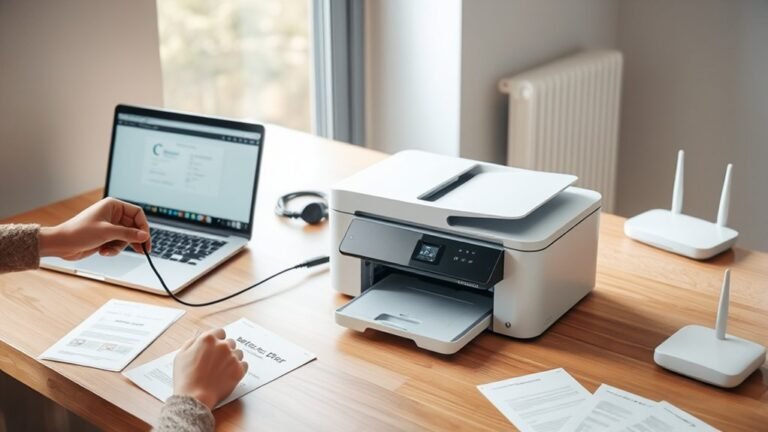
To use WSD on your printer, first make sure your device supports WSD and is connected to the same network as your Windows PC. WSD, or Web Services for Devices, makes it easy to connect printers without complicated setups.
Next, enable network discovery on your PC. Then, go to “Add a printer” in Devices and Printers. Select the WSD port or enter your printer’s IP address to add it.
After that, install the appropriate driver for your printer. You can then create and manage scan profiles to customize scanning preferences. This helps you scan or print exactly how you want.
Once everything is set up, you can scan or print directly from Windows or your printer’s control panel. Keep reading to master detailed setup tips and explore all the features WSD offers. It’s simpler than you might think!
Key Takeaways
- Ensure your printer supports WSD and is connected to the same local network subnet as your PC.
- Also, make sure network discovery is enabled on your Windows PC. This lets your system automatically detect WSD-enabled printers without any hassle.
- Before you start installing, download and extract the right PCL or PS driver package for your printer.
- Then, go to Devices and Printers, click “Add a network, wireless, or Bluetooth printer,” and pick your WSD device from the list.
- When it comes to scanning, you can use the printer’s scan profiles. Start scans directly from Windows or right on the MFP’s scan interface for a smooth WSD scanning experience.
Understanding WSD Compatibility and Requirements
Before you start using WSD (Web Services on Devices) with your printer, you need to make sure your device supports the necessary DPWS profiles. Not all models are compatible, so it’s important to check first.
WSD works best on Windows 7, though newer versions can also handle it if you have the right driver installed. To set up WSD, download and extract the PCL or PS driver package on your PC beforehand. This way, Windows can find the driver during installation.
Your printer or MFP must be active on the local network, sharing the same subnet with a known hostname or IP address. You can print the Network Settings page to verify this.
Identifying Supported Printer Models for WSD
To figure out if your printer supports WSD, start by checking if it implements the DPWS device profiles. Many Lexmark models released after 2011, such as the X548 and X950 series, are WSD-compliant printers.
Check if your printer supports WSD by verifying DPWS device profiles—many Lexmark models post-2011 are compliant.
If you have an MFP from Lexmark’s MX, CX, XM, or XC series, you can usually scan via WSD and print. Meanwhile, MS and CS series typically support printing only.
Devices with a scanner released after 2011 generally support WSD, so verifying the release year helps. To confirm, review your printer’s network or specifications page, or contact the vendor or Microsoft.
Ensuring that your device supports DPWS and WSD lets you take full advantage of Windows Scan and other WSD features for easy scanning and printing. It really makes managing your printer a lot simpler!
Preparing Your Windows PC for WSD Installation
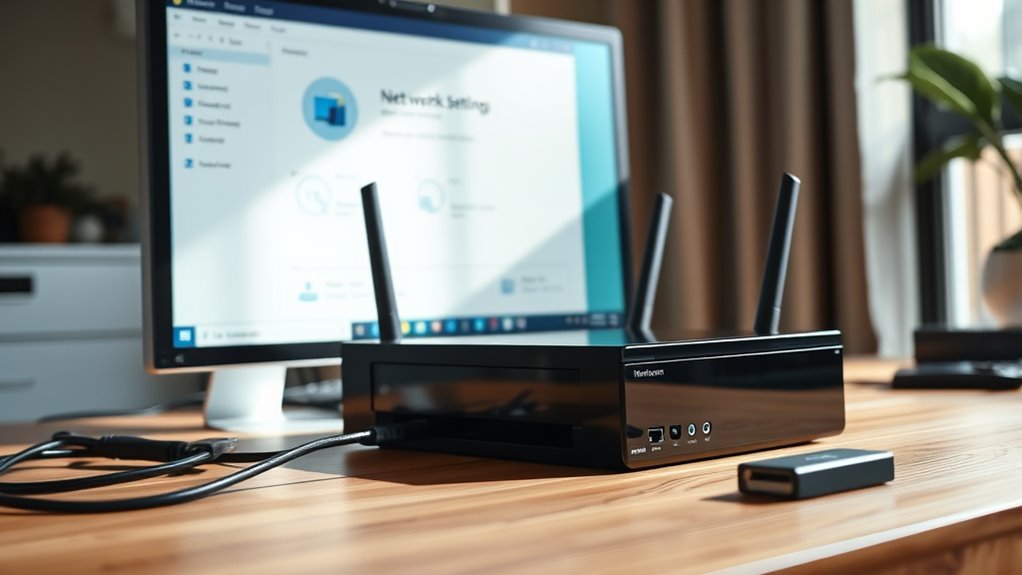
When you prepare your Windows PC for WSD installation, make certain it runs a supported operating system—Windows 7 offers the best compatibility, though newer versions might work if you verify their support.
Before adding a WSD printer, download the PCL or PS driver package to a local folder. Also, make certain your printer is on the same network and that network discovery is enabled in Windows to detect the WSD print queue and port properly.
Follow these steps:
- Confirm your PC’s OS supports WSD and disable VPNs or firewalls blocking network discovery.
- Obtain the printer’s hostname or IP from its Network Settings.
- Use administrator rights (UAC may prompt) to install the driver and create the WSD port during setup.
Step-by-Step Guide to Installing a WSD Printer
Although installing a WSD printer might seem complex at first, following the right steps will make the process straightforward. Start by opening Devices and Printers on your Windows PC, then click Add a printer.
Select Add a network, wireless, or Bluetooth printer to let Windows search for WSD devices on your local subnet. If your scan-capable printer doesn’t appear, don’t worry. Just choose “The printer that I want isn’t listed,” then “Add a printer using a TCP/IP address or Hostname.”
Set Device type to Web Services Device and enter the printer’s Hostname or TCP/IP address. But before you add it, make sure to download the correct PCL printer driver. This way, Windows can find it during setup.
After the printer is detected, just follow the wizard to create the port, set your preferences, and finish installing your DPWS-capable WSD printer. It’s easier than it sounds!
Creating and Managing WSD Scan Profiles
You can add or edit scan profiles by right-clicking your WSD printer queue and selecting “Scan Profiles…”. Customize each profile with settings like scanner source, paper size, color format, file type, and resolution to fit your needs.
Don’t forget to save your changes and set a default profile for quick access when scanning. It makes the whole process way smoother!
Adding and Editing Profiles
Manage your WSD scan profiles efficiently by right-clicking the WSD print queue in Devices and Printers and selecting “Scan Profiles…”. This opens a window where you can Add Profile or Edit Profile to customize your scanning setup.
When adding or editing, enter a unique profile name and select the appropriate Scanner Device if multiple WSD devices exist. Then set your Scan Source (Flatbed, Feeder 1-sided, or Feeder 2-sided) and specify the exact Paper Size, as feeders may not auto-detect.
Adjust the Resolution (dpi) and other settings as needed. Finally, save your profile and use Set as Default to make it the automatic choice.
Follow these steps:
- Click Add Profile or Edit Profile and name it.
- Choose Scanner Device, Scan Source, and Paper Size.
- Adjust Resolution (dpi) and save; set as default if desired.
Scan Settings and Options
When you open the WSD print queue in Devices and Printers and select “Scan Profiles…”, you gain access to a range of settings that let you tailor each scan profile precisely. Choose the Scanner (WSD) device and create or edit a Scan Profile with a clear name to organize different document types.
Set the Scan Source—Flatbed, Feeder 1-sided, or Feeder 2-sided—and specify the exact Paper Size, since feeder auto-detection can be unreliable. Adjust image settings like Resolution (dpi), Color format, and File type (BMP, JPG, PNG, or TIF).
Enable Preview to review scans before saving and configure brightness or contrast if needed. Remember to save your changes to register the profile, and note the Default profile marks the one used automatically for quick scanning.
Configuring Scan Properties and Actions
Although configuring scan properties may seem complex at first, accessing and customizing them through the WSD printer object is straightforward. In Devices and Printers, right-click the WSD printer and select “Scan Properties…”—you might need to confirm a UAC prompt.
Inside, the Events tab lets you assign actions like Scan, Scan for OCR, Print, or Fax. You can choose to “Start this program,” “Prompt for program,” or take no action for each event.
To set up your scanning preferences:
- Use the Events tab to configure event-triggered actions.
- Open Scan Profiles (right-click WSD queue → “Scan Profiles…”) to create or modify profiles.
- After changes, click “Save Profile” to apply them.
This setup guarantees your scans run smoothly and tailored to your needs.
Initiating Scans Using WSD From Windows and MFP
You can kick off a scan using WSD right from your Windows PC or the multifunction printer (MFP) itself. On Windows, open Start > Devices and Printers, right-click your WSD printer, and select “Start Scan” to launch the WSD scan workflow.
From the MFP, press the WS-Scan or “Scan to Computer” icon, pick a WSD scan profile, and press Start Scan. Make sure the WSD printer and your PC are on the same local subnet and that Scan Profiles are configured correctly, including Source (Flatbed/Feeder), color, and resolution.
| Action Location | Steps to Start Scan |
|---|---|
| Windows PC | Start > Devices and Printers > Right-click WSD printer > Start Scan |
| MFP | Press WS-Scan icon > Select Scan Profile > Start Scan |
| Requirements | Same local subnet, WSD installed, correct Scan Profiles |
| Configurations | Set Source, Paper Size, Color, File Type, Resolution |
| Result | Scan sends directly to your PC |
Frequently Asked Questions
How Do I Disable WSD on My Printer?
To disable WSD on your printer, access its settings via the control panel, Embedded Web Server, or Windows Devices and Printers.
Turn off Web Services or WS-Discovery, switch to a Standard TCP/IP port, then save your changes and reboot the printer.
It’s pretty straightforward once you know where to look! Just take it step by step and you’ll have it done in no time.
How Do I Scan on My Samsung Printer?
Scanning on your Samsung printer is as easy as snapping your fingers!
Just right-click the WSD printer in Devices and Printers, select “Start Scan,” or use the MFP’s WS-Scan button with your saved profile.
See? It’s quick and straightforward! Give it a try next time you need to scan something.
How Do I Connect My Printer With WPS?
Press the WPS button on your router, then quickly press the WPS or Wi-Fi button on your printer.
Wait for them to connect automatically. Make sure both devices are close and WPS is enabled on your router for success.
It’s pretty simple once you get the hang of it! Just keep your devices near each other to avoid any connection issues.
How to Print Directly From Computer to Printer?
You print directly by adding the printer to your computer using its IP or hostname, installing the right driver, and selecting it as default.
Then, just open your document and hit print to send it straight to the printer. Easy, right? Just make sure your printer is connected and turned on before you start.
Conclusion
Just like unbolting a hidden door to a seamless printing experience, using WSD on your printer opens up effortless connectivity and control. By ensuring compatibility and preparing your PC, you’re setting the stage for smooth operation.
Following the simple installation steps helps you navigate scanning and printing with ease—like a well-rehearsed dance. It’s all about making the process straightforward and hassle-free.
Embrace these tools, and watch your workflow transform into a smooth, efficient rhythm. With WSD, your tasks keep flowing without a hitch, making printing and scanning faster and more reliable.
In short, using WSD on your printer simplifies wireless communication between your PC and the device. It enhances convenience, reduces setup time, and improves connectivity. Whether you’re at home or in the office, WSD ensures your printer is always ready to perform, keeping your work seamless and stress-free.