Day: November 6, 2026

  • What Is the Standard Printer Paper Size?

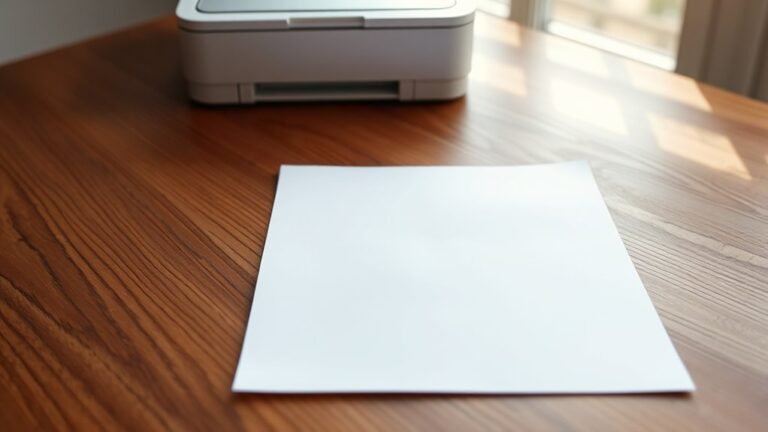
    You’ll find A4 paper (210 × 297 mm) is the standard printer paper size used worldwide for letters, reports, and everyday printing. Its unique √2 aspect ratio lets you easily scale or halve it to smaller sizes like A5.

    While North America mainly uses Letter (8.5 × 11 inches), A4 dominates internationally. Depending on your project, larger or smaller sizes might suit better.

    Keep exploring to see how paper size and printer compatibility can affect your printing needs.
  • 7 Budget Tips for Understanding What a 3D Printer Does Cost

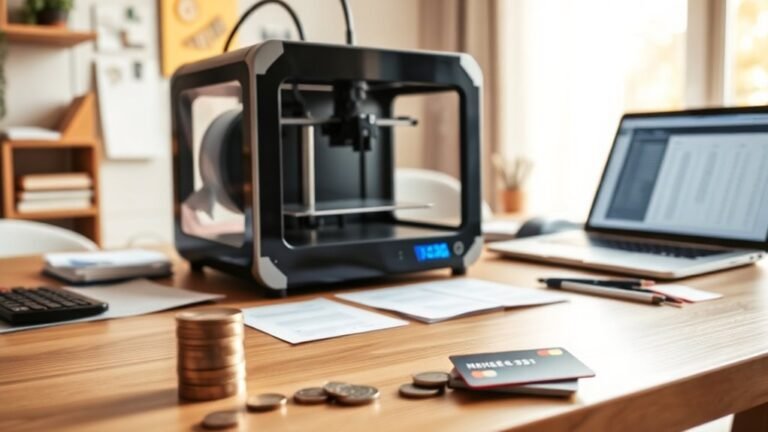
    You’ll want to budget for more than just the printer’s price—think maintenance like nozzle and belt replacements, calibration, and electricity use.

    Plan projects carefully to estimate filament needs, accounting for waste and supports. Choosing filaments wisely (like PLA for affordability) can save you money.

    Don’t forget software options, upgrades, and accessories, which add costs too. Always set aside a contingency fund for surprises to keep your budget steady.

    Keep going to uncover smart ways to manage all these expenses.

  • How to Clean Epson Printer Head in 5 Easy Steps

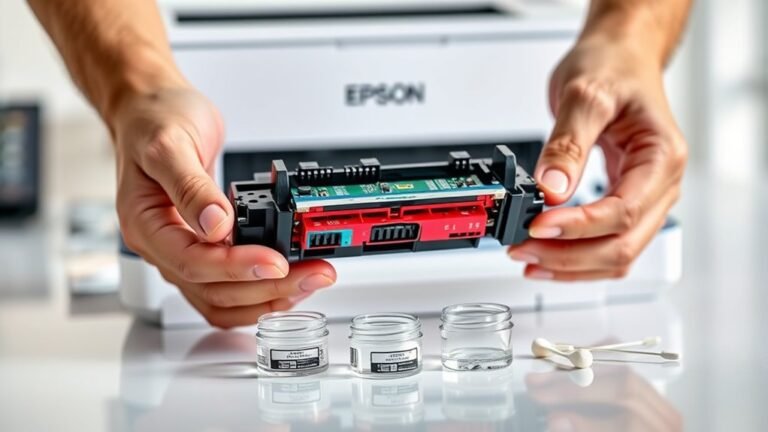
    To clean your Epson printer head in five easy steps, first load plain paper and make sure cartridges aren’t empty. Open the top cover to access the printhead, lifting out cartridges if needed.

    Gently clean the nozzles using a lint-free cloth with distilled water or cleaning fluid. Next, run the automatic head cleaning from the control panel and print a nozzle check to assess quality.

    If needed, repeat cleaning or try manual methods for stubborn clogs—there’s more to explore to keep your prints perfect. It’s pretty straightforward once you get the hang of it!

  • How to Rename a Printer in 10 Easy Steps

    To rename a printer in 10 easy steps, start by opening Windows Print Management via Win + R and typing printmanagement.msc. Locate your printer under Print Servers, right-click it, and select Properties.

    Change the name on the General tab and save. Alternatively, you can use your printer’s IP web interface or the manufacturer’s utility like HP Printer Assistant to rename it.

    On macOS, go to System Settings > Printers & Scanners. After renaming, restart your devices to apply the changes.

    To avoid issues and fine-tune settings, you’ll want to explore further. It’s worth taking a little extra time to make sure everything’s running smoothly.

  • How to Clean Printer Head in 5 Easy Steps

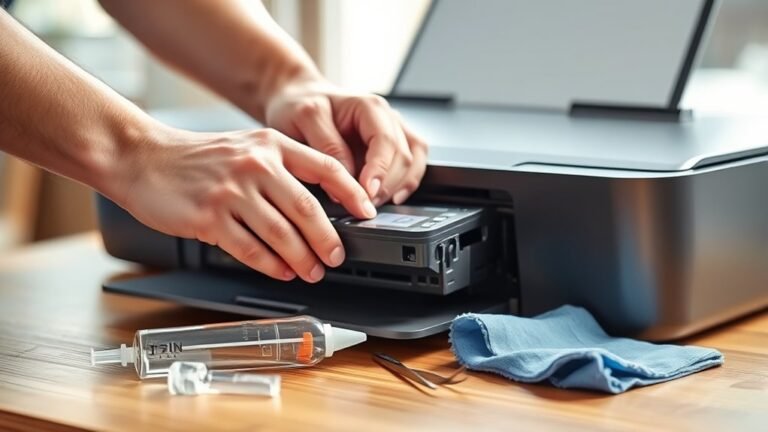
    To clean your printer head in 5 easy steps, first open the printer’s top cover and locate the printhead, usually centered on startup.

    Next, power off, unplug, and remove the ink cartridges, placing them safely aside.

    Then, gently clean the printhead with a lint-free cloth lightly moistened with distilled water or isopropyl alcohol. Let it air dry fully before reinstalling cartridges.

    Finally, run the printer’s cleaning cycle and print a test page to check results. Keep going to learn helpful tips for best results.

  • Top 3 Best Printers for Home Use in 2027

    You’ll want a printer that balances sharp photo quality, fast document output, and wireless convenience without draining your wallet on ink.

    For light, occasional use, the compact Epson EcoTank offers affordable, efficient printing. It’s perfect if you don’t want to fuss with frequent cartridge replacements.

    If you prioritize vibrant, true-to-life photos, the Canon PIXMA Pro-200 is a standout choice. It really brings your pictures to life with rich colors and fine details.

    For reliable office tasks, the Brother HL-L2395DW delivers dependable speed and user-friendly setup. It’s a solid pick when you need a no-nonsense printer that just works.

    Discover how these options give you the best mix of value, versatility, and ease. You’ll find one that fits your home printing needs perfectly!

  • How to Use Epson Printer in 7 Easy Steps

    To use your Epson printer in 7 easy steps, first unpack and set it up by installing ink and loading paper. Connect it to your Wi-Fi or Ethernet through the control panel or WPS.

    Next, download and install the correct drivers on your devices. This helps your printer communicate properly with your computer or phone.

    Register your printer with Epson Connect for remote access. This way, you can print even when you’re away from your printer.

    Set up Email Print for printing from anywhere, and install Epson iPrint on your phone or tablet for mobile printing. It’s super convenient!

    If you want, you can explore tips for troubleshooting common issues too. That way, you’ll be ready if anything comes up.

  • Where Printer Drivers Are Stored in Windows 11 and How to Access Them

    In Windows 11, printer drivers aren’t stored in just one place; their files are spread across protected folders like `C:WindowsSystem32drivers` for core files and the DriverStore at `C:WindowsSystem32DriverStoreFileRepository` for full driver packages.

    You manage and access installed drivers primarily through tools like Devices and Printers or Print Management. These tools handle proper driver registration and configuration.

    Keep exploring to understand how these components work together. Also, it’ll help you troubleshoot driver issues effectively.

  • How Do You Print Labels on a Printer in 7 Steps?

    To print labels, first pick a template that matches your printer type and label layout. Next, create or upload your design, keeping important content inside safe zones with bleed margins.

    Preview and save a high-quality, print-ready file. Apply your design across all labels using template tools.

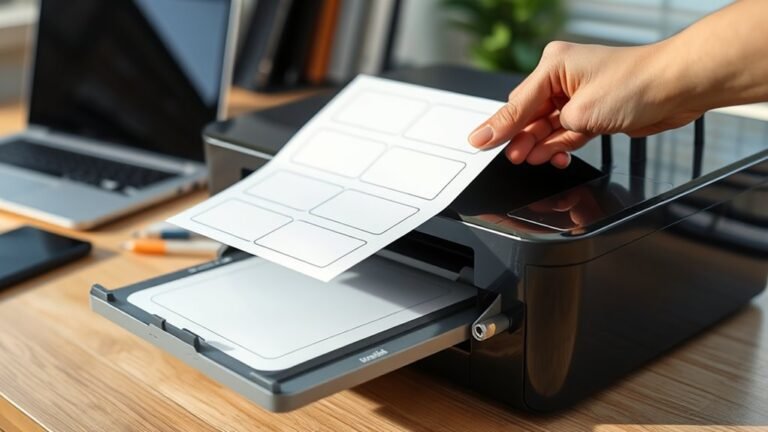
    Load the label sheets into your printer with proper orientation, adjusting paper guides as needed. Print a test sheet to check alignment and quality.

    Follow these steps, and you’ll soon master label printing with confidence.

  • How to Unpause Printer in 5 Easy Steps

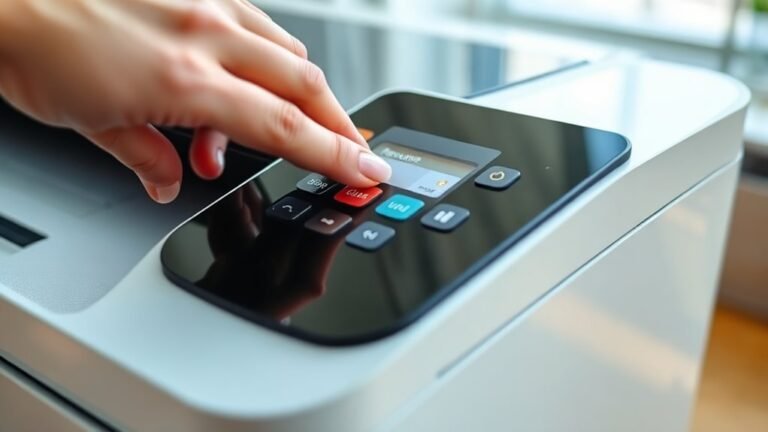
    To unpause your printer in 5 easy steps, first check its display and status lights for any pause alerts. Next, open your computer’s print queue, find paused jobs, and select “Resume” to restart them.

    Then, clear any paper jams and refill the tray. After that, restart both your printer and computer to refresh the connection.

    Finally, update or reinstall printer drivers if issues persist. Keep following for more detailed tips to get your printer running smoothly again.