How to Unpause Printer in 5 Easy Steps
To unpause your printer in 5 easy steps, start by checking its display and status lights for any pause alerts. These indicators often give you the first clue about what’s stopping your printer.
Next, open your computer’s print queue, find any paused jobs, and hit “Resume” to get them going again.
Now, take a moment to clear any paper jams and refill the tray if needed. Paper jams are a common reason printers pause, so this step can save you a lot of trouble.
After that, restart both your printer and computer to refresh their connection. Sometimes, a simple reboot solves the issue quickly.
Finally, if your printer is still paused or acting up, update or reinstall your printer drivers. Keeping your drivers up to date ensures everything runs smoothly.
Keep following for more detailed tips to get your printer running smoothly again.
Key Takeaways
– Check the printer display and status lights for any pause or offline alerts indicating stopped print jobs.
This will help you understand if the printer itself has paused or if the problem is somewhere else.
– Open the computer’s print queue, find paused jobs, right-click, and select “Resume” or “Restart” to unpause.
It’s often just a matter of telling the printer to keep going.
– Inspect and clear any paper jams inside the printer, ensuring the paper tray is properly refilled and aligned.
Sometimes a simple jam is all that’s stopping things.
– Restart both the printer and computer to reestablish connection and resolve communication issues.
A quick reboot can fix a lot of little glitches.
– Update or reinstall the printer drivers from the manufacturer’s website to fix persistent pausing problems.
Keeping drivers fresh usually keeps the printer happy and working smoothly.
Check Printer Display and Status Lights for Pause Alerts
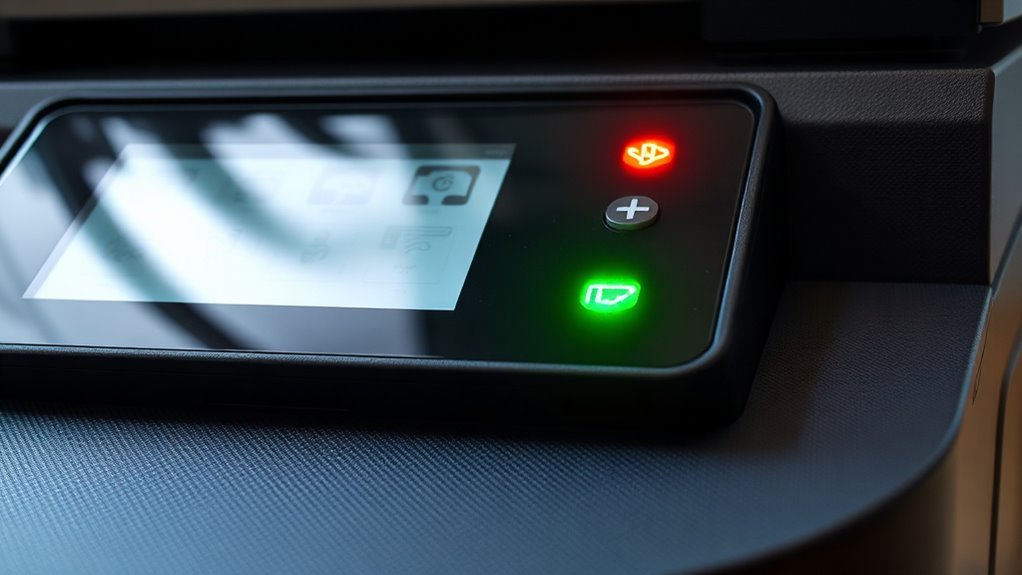
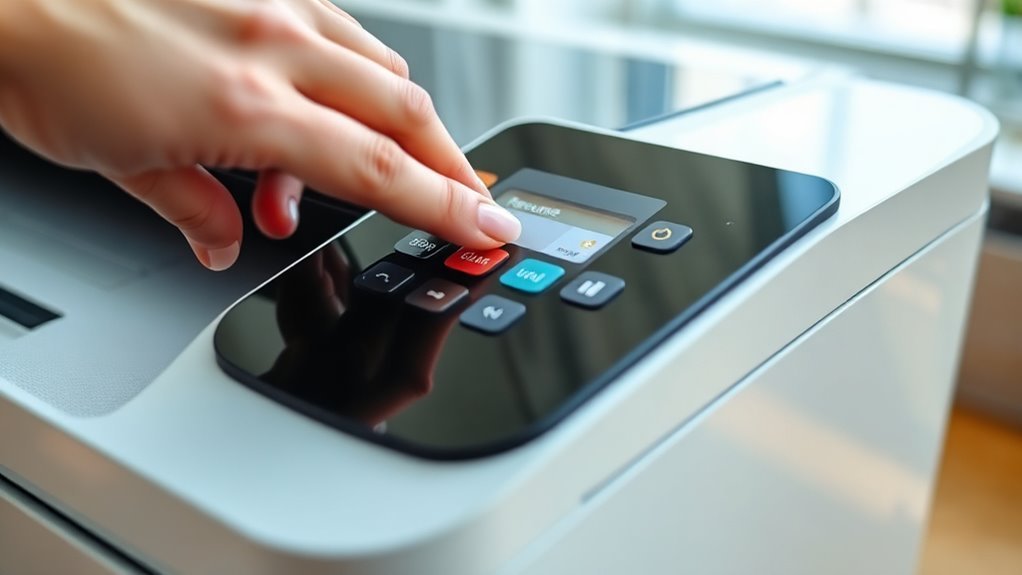
Begin by examining your printer’s display panel and status lights closely. These indicators often show if your printer is paused or experiencing an error.
Look for messages like “Paused,” “Printer Offline,” or blinking lights that signal a problem. If the screen shows a pause alert, it means the printer has stopped processing your print jobs temporarily.
Watch for messages like Paused or Printer Offline indicating your printer has temporarily stopped processing jobs.
Sometimes, a simple icon or message will tell you exactly what’s wrong. Don’t ignore these signs—they guide you to the issue quickly.
If you spot a pause alert, you’re already halfway to resolving the problem. Understanding these displays helps you avoid unnecessary troubleshooting steps and prepares you to unpause your printer efficiently.
Keep this in mind before moving on to unpausing it from your computer.
Unpause Printer From Your Computer’s Print Queue
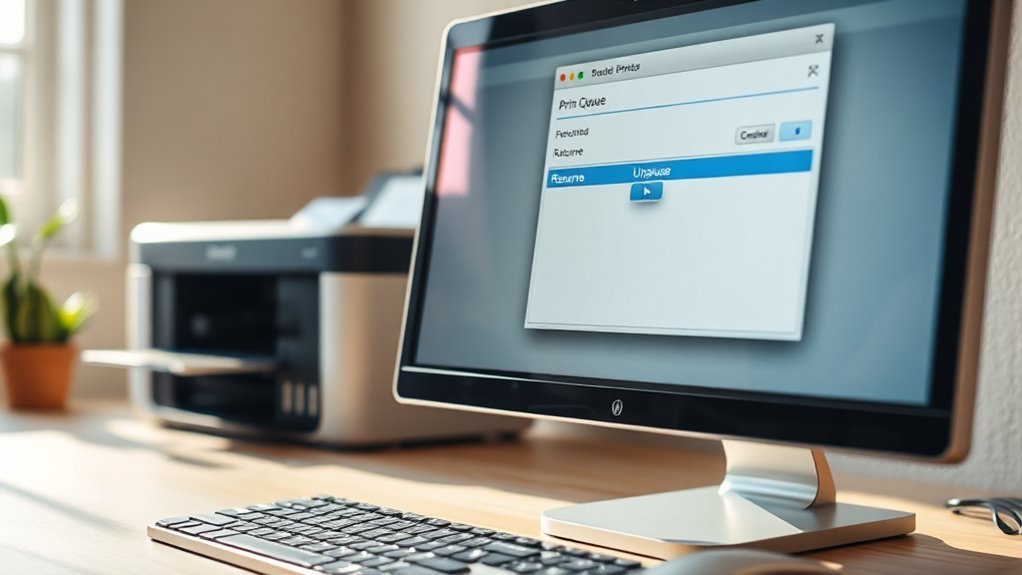
Once you’ve identified the pause alert on your printer, you can easily unpause it through your computer’s print queue. Start by opening the print queue on your computer—type “Printers & scanners” in your search bar, select your printer, then click “Open queue.”
In the print queue window, look for any paused jobs; these usually have a status that says “Paused” or “On hold.” Right-click the paused job and select “Resume” or “Restart” to unpause it.
If multiple jobs are paused, you can select them all and resume them simultaneously. This action signals your printer to continue processing the queued documents.
If the pause persists, double-check for any error messages in the queue that might require your attention before printing resumes.
Clear Paper Jams and Refill the Paper Tray
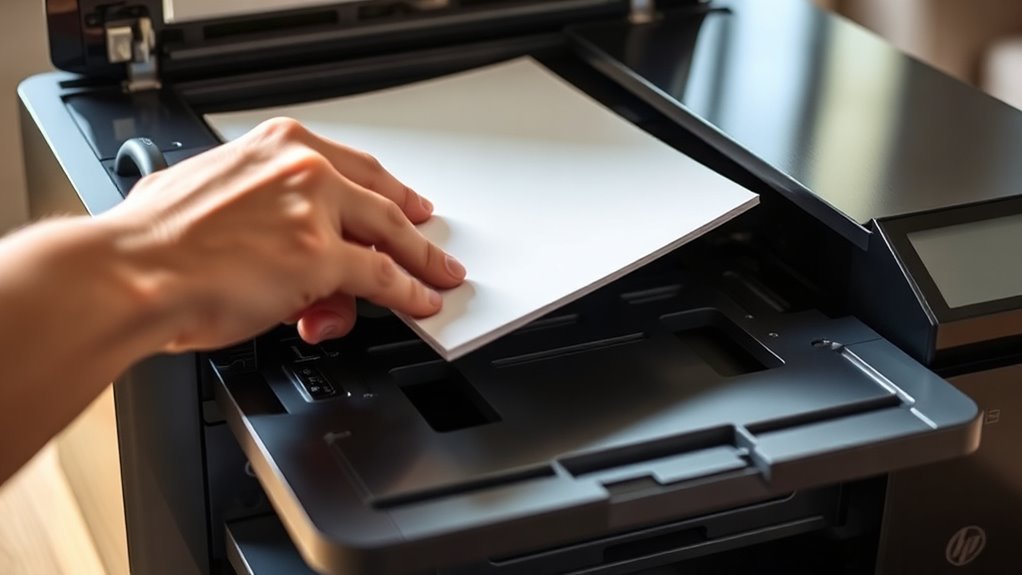
If your printer remains paused after checking the print queue, a paper jam or empty paper tray might be the cause. First, open the printer’s access panel and carefully look inside for any jammed paper.
Gently pull out any stuck sheets, making sure not to tear them. Check rollers and pathways for small scraps that might block paper movement.
Once cleared, inspect the paper tray. If it’s empty, refill it with fresh, properly aligned paper. Avoid overfilling the tray, as that can cause jams too.
After clearing jams and refilling the tray, close all panels securely. This should help your printer resume printing smoothly without pausing.
If the problem persists, move on to the next troubleshooting step.
Restart Printer and Computer to Fix Connection
Although clearing jams and refilling the tray often resolves printing issues, restarting both your printer and computer can refresh their connection and fix lingering communication errors. Start by turning off your printer and unplugging it from the power source.
Restarting your printer and computer can refresh connections and resolve persistent printing errors.
Then, shut down your computer completely. Wait about 30 seconds to a minute before plugging your printer back in and turning it on.
Once your printer is ready, power your computer back up. This process resets the hardware and clears temporary glitches that might cause the printer to pause.
After both devices are fully restarted, try printing again. This simple step often restores communication between your computer and printer, helping your print jobs move forward without error messages or delays.
Update or Reinstall Printer Drivers to Fix Persistent Issues
Because outdated or corrupted drivers often cause printers to pause unexpectedly, updating or reinstalling them can resolve these persistent problems. Start by visiting your printer manufacturer’s website to download the latest driver compatible with your operating system.
Once downloaded, run the installer and follow the prompts to update your driver. If updating doesn’t help, uninstall the current driver first through your computer’s Device Manager or Control Panel.
After uninstalling, restart your computer, then install the fresh driver version you downloaded. This process clears any corrupted files that might be causing the pause.
Keeping your drivers up to date ensures smooth communication between your printer and computer, preventing future interruptions. Regularly checking for updates can save you time and frustration.
Frequently Asked Questions
Can Using Third-Party Ink Cartridges Cause My Printer to Pause?
Yes, using third-party ink cartridges can cause your printer to pause. Your printer might not recognize them or detect incompatible ink, so it stops printing to prevent potential damage or poor print quality.
It’s kind of like your printer’s way of protecting itself. Sometimes it’s just being cautious, even if the cartridge works fine. So, if your printer pauses, it might be reacting to those third-party cartridges.
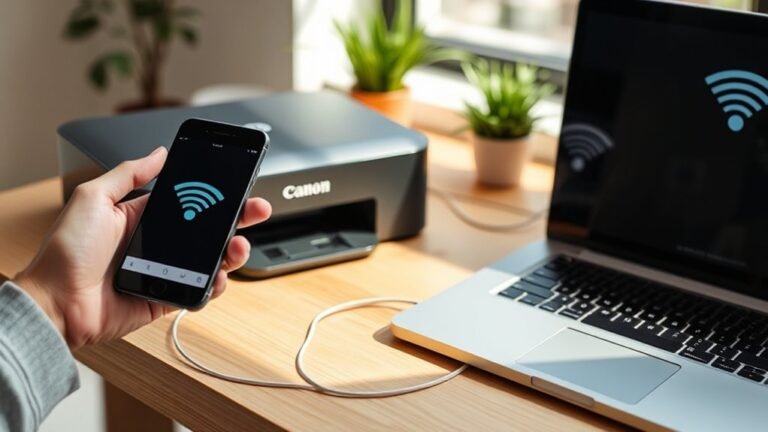
How Do I Unpause a Wireless Printer From a Mobile Device?
Simply select your paused printer in the mobile app, then tap “Resume” or “Unpause.”
If it’s stuck, try restarting the app or your device.
You’ll swiftly see your wireless printer spring back to life again!
Does Printer Firmware Affect Pausing and Unpausing Functionality?
Yes, printer firmware can affect pausing and unpausing functionality. If your firmware’s outdated or buggy, you might run into problems.
You should refresh it regularly to ensure smooth operation and steer clear of unexpected pauses or errors. It really helps keep things running without a hitch.
Can Low Ink Levels Cause a Printer to Pause?
Yes, low ink levels can cause your printer to pause. It often stops printing to prevent damage or poor-quality output.
You’ll need to replace or refill the ink cartridges to resume printing smoothly. That way, everything works just like it should.
How to Prevent My Printer From Pausing During Large Print Jobs?
Like a knight preparing for battle, you should update your printer’s drivers and keep ink and paper stocked. This way, your printer won’t run into basic issues mid-job.
Also, try to avoid multitasking during large print jobs. It helps prevent the printer from pausing unexpectedly.
Another tip is to adjust your spooler settings. This can keep your printer running smoothly without those annoying pauses.
Conclusion
Unpausing your printer is like waking a sleeping giant—just a few simple steps can bring it back to life. By checking status lights, clearing jams, and reinvigorating connections, you’re lifting the pause curtain and setting creativity free.
Don’t forget to update drivers, the silent magic behind smooth printing. These easy actions help turn printer frustration into a seamless flow.
With these simple printer unpause steps, you’ll be back to producing flawless pages in no time. Keeping your printer running smoothly means less downtime and more productivity. So, follow these quick tips to keep your printing experience hassle-free and efficient every time!