How to Update Printer Drivers in 3 Easy Steps
To update your printer drivers in three easy steps, start by identifying your exact printer model. You can do this by checking the label on your printer or looking it up in your system settings. Knowing the precise model is key to finding the right driver.
Next, head over to the manufacturer’s official website to download the latest driver. This helps you avoid outdated or unsafe files that could cause issues. Always trust the official source for the best results.
Finally, install the driver by running the setup file. Once installed, connect your printer and print a test page to make sure everything is working properly.
Keep going, and you’ll uncover tips to make this process even smoother and more reliable.
Key Takeaways
- Identify your exact printer model by checking the printer label or system settings. This step is important to ensure you get the correct driver update.
- Next, visit the official manufacturer’s website. Head over to the support or downloads section to find the latest driver available.
- Download the driver that matches your operating system and printer functionalities. This helps avoid any compatibility issues.
- Once downloaded, run the installer and follow the on-screen instructions. This will update your printer driver properly.
- Finally, restart your computer. Print a test page to confirm the update was successful and your printer is working correctly.
Find Your Printer Model and Printer Driver Needs
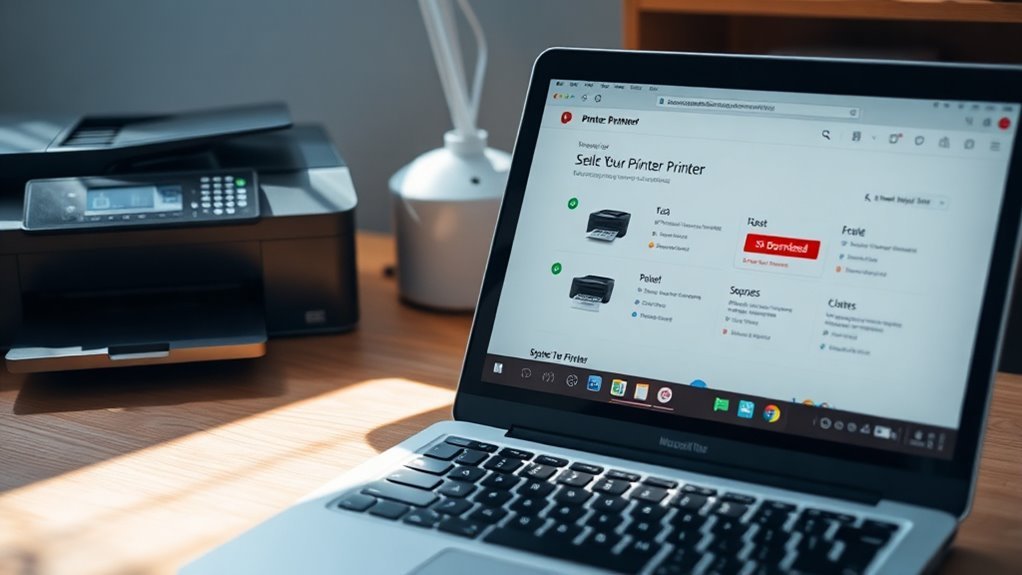
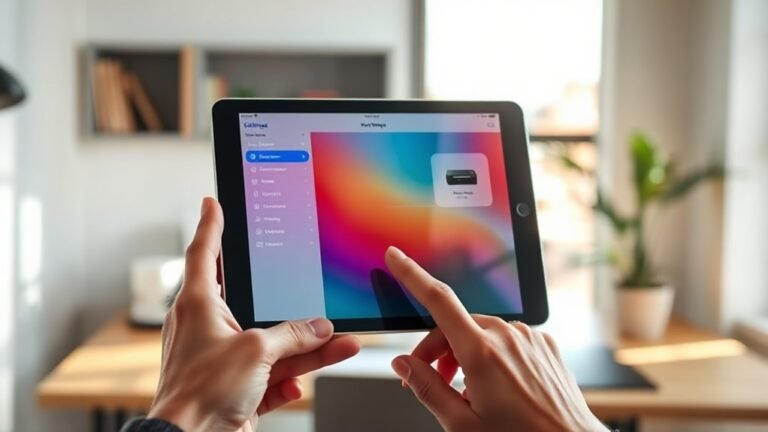
Where do you begin when updating your printer drivers? First, identify your printer model clearly. Check the printer itself for a label or look in the printer settings on your computer.
Knowing the exact model number is essential because drivers vary between models. Next, determine your printer driver needs by considering your operating system version and whether you need basic functionality or advanced features like scanning and wireless printing.
If you’re unsure, review the printer manual or system info on your device. Avoid guessing—using the wrong driver can cause errors or poor performance.
Taking these steps helps you target the correct driver update, making the process smoother and saving you time later. Now that you know your printer model and needs, you’re ready to move forward.
Download Official Printer Drivers From Trusted Sources
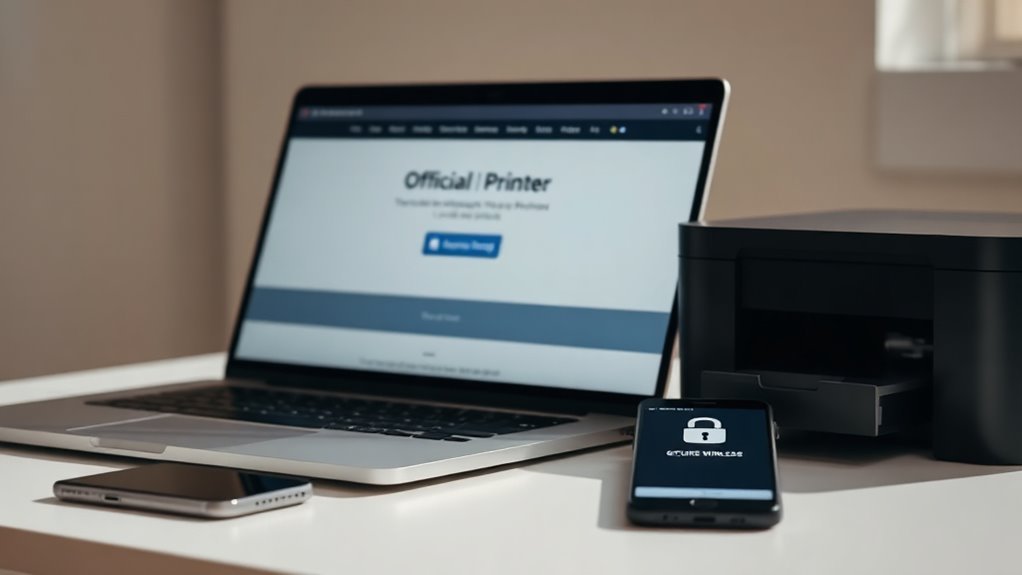
Before downloading printer drivers, make sure you get them from official and trustworthy sources to avoid malware or compatibility issues. Start by visiting your printer manufacturer’s official website.
Look for the support or downloads section, and enter your printer model to find the exact driver you need. Avoid third-party websites offering drivers since they may host outdated or unsafe files.
If your printer came with a CD, it might include the correct driver, but checking online ensures you get the latest version. Some manufacturers also provide driver update utilities that automatically detect your model and download the appropriate driver for you.
Install and Verify Your Printer Drivers
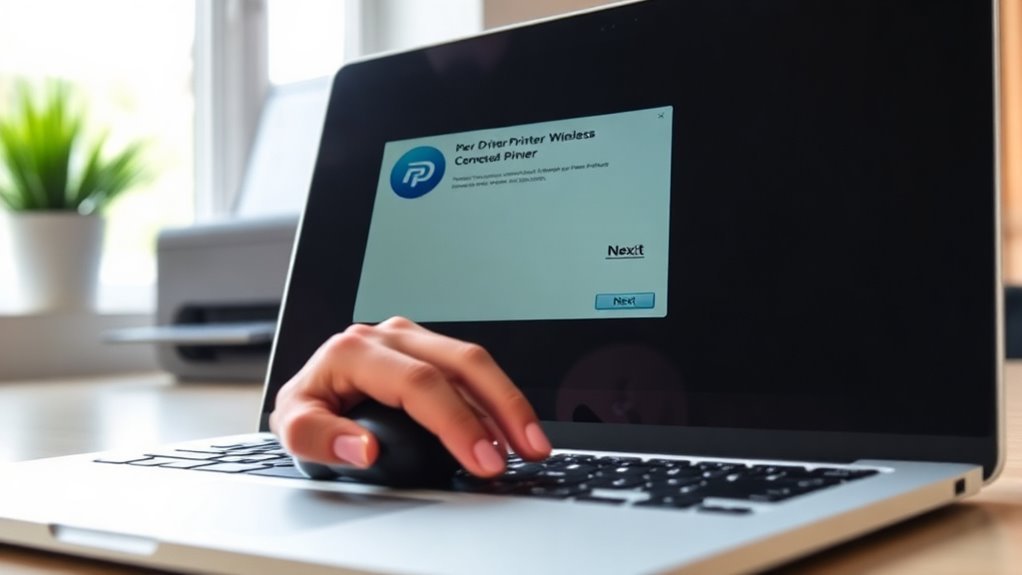
Once you’ve downloaded the correct driver, you’ll need to install it on your computer to get your printer up and running. Follow these simple steps to install and verify your printer drivers:
- Run the setup: Double-click the downloaded file and follow the on-screen instructions. It’s pretty straightforward—just keep an eye on the prompts.
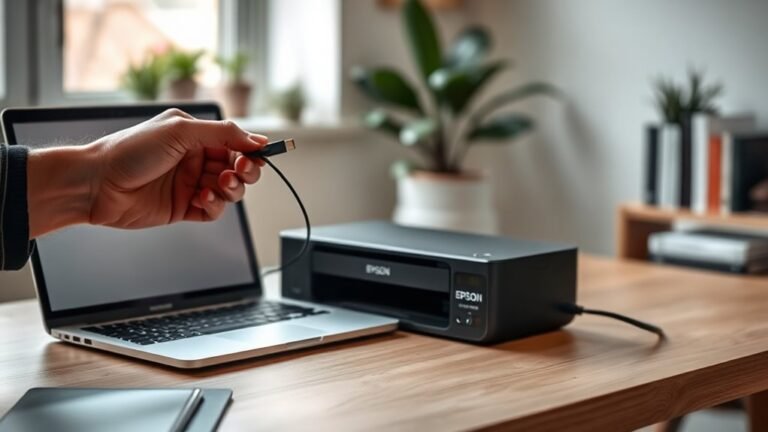
- Connect your printer: Attach your printer via USB or make sure it’s connected to the same Wi-Fi network as your computer. This part’s important for the printer to communicate properly.
- Restart your computer: Giving your system a quick reboot helps finalize the installation process. It’s a simple step but it makes a big difference.
- Test the printer: Print a test page from your printer settings to confirm the driver works correctly. If the page prints without issues, you’re all set!
Frequently Asked Questions
How Do I Uninstall Old Printer Drivers Safely?
You remove old printer drivers securely by going to your device manager or control panel, selecting the printer, clicking uninstall, and restarting your computer.
This ensures all driver files are removed without causing system issues. It’s pretty straightforward once you know where to look.
Just take your time with each step, and you’ll avoid any problems down the line.
Can I Update Drivers Without Internet Access?
Yes, you can update drivers without internet access by downloading the latest driver on another device and transferring it via USB or external storage.
Then, just manually install the driver on your printer’s computer. It’s pretty straightforward once you have the files ready.
What if My Printer Stops Working After Driver Update?
When the wheels come off after a driver update, don’t panic. Roll back to the previous version or reinstall the driver.
You can also check the manufacturer’s site for fixes to get your printer back on track. It’s usually an easy fix, so hang in there!
Are Automatic Driver Update Tools Reliable?
Automatic driver update tools can be reliable, but you should choose reputable ones. They save time and reduce errors.
That said, always double-check updates to avoid compatibility issues or unwanted software installations. Stay cautious and keep backups.
How Often Should I Update Printer Drivers?
Updating your printer drivers is like tuning a car—do it every few months or when you notice issues.
You’ll keep performance smooth, avoid bugs, and enjoy new features without hassle or unexpected print errors.
Conclusion
Updating your printer drivers is easier than you think. By finding your printer model, downloading drivers from trusted sources, and installing them carefully, you’ll keep your printer running smoothly.
Don’t let outdated drivers slow you down—remember, a stitch in time saves nine. Taking these simple steps now prevents bigger headaches later.
Ensuring your printer drivers are always up to date is key to hassle-free and efficient printing. By regularly updating, you avoid common issues like paper jams, connectivity problems, and poor print quality. So, keep your printer drivers current to enjoy seamless printing every time you hit print. It’s a small task that makes a big difference!