How to Setup a Wireless Printer in 10 Easy Steps
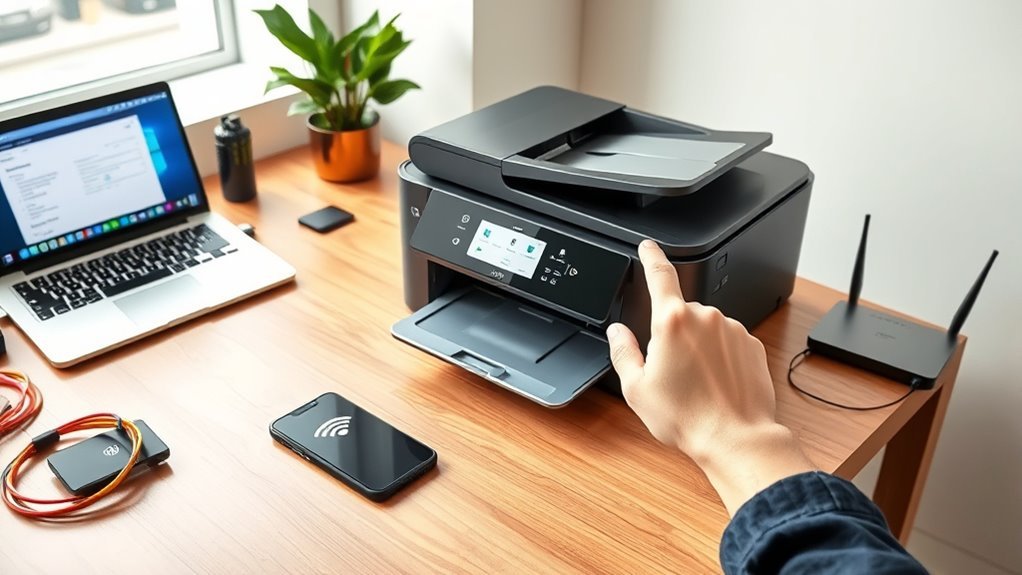
Start by placing your wireless printer within 10–30 feet of your router and powering it on. Being close helps ensure a strong Wi-Fi connection, which is key for smooth printing.
Next, use your printer’s Wireless Setup Wizard to find your Wi-Fi network and enter the correct password. If that doesn’t work, you can try using WPS or the printer’s web interface for setup.
After the printer is connected, download and install the latest drivers on your computer or device. This step is important because updated drivers help your system communicate properly with the printer.
Once the drivers are installed, add the printer via your system settings. This will make sure your device recognizes the printer for easy access.
Finally, print a test page to confirm everything is working perfectly. If you run into any issues, don’t worry—there are simple troubleshooting steps you can follow.
Keep reading to discover helpful tips for managing and maintaining smooth wireless printing, so you can enjoy hassle-free printing every time.
Key Takeaways
- Place the printer within 10 to 30 feet of the Wi-Fi router and avoid thick walls or devices causing interference. This helps ensure a strong and stable connection.
- Use the Wireless Setup Wizard on the printer to select your Wi-Fi network and enter the exact case-sensitive password. Make sure to type it carefully!
- Confirm connection by checking for a solid Wi-Fi icon or “Connected” message. Then, print a network configuration or test page to double-check everything is working.
- Download and install the latest printer driver from the manufacturer’s website. After that, add the printer to your device’s Wi-Fi network to get started.
- If setup fails, don’t worry. You can use WPS, USB, or Ethernet temporary connection to help out. Just verify your settings, reboot your devices, or perform a factory reset if needed.
Prepare Your Printer and Network for Wireless Setup
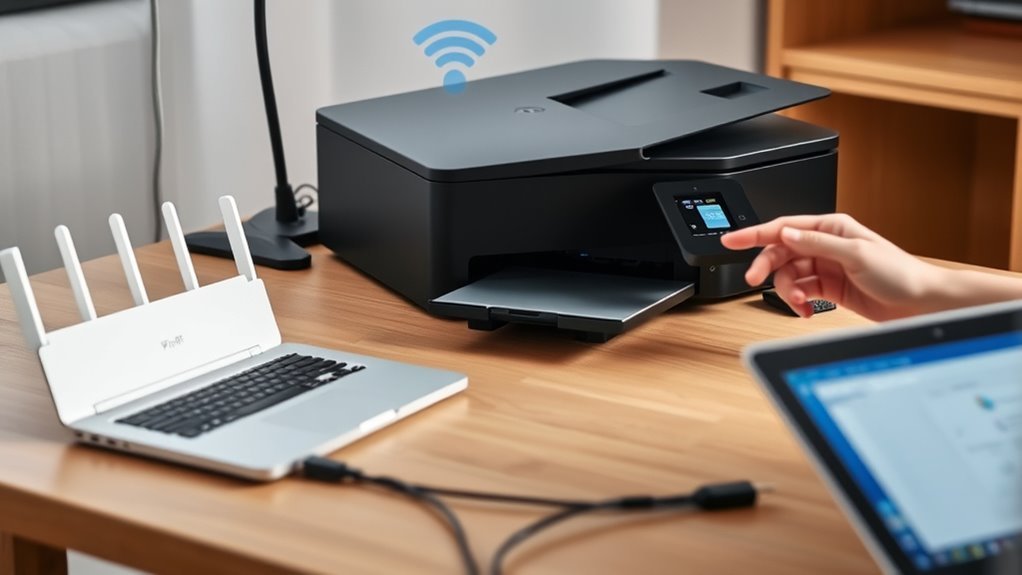
To get your wireless printer ready, first plug it in and power it on. Place it within 10 to 30 feet of your Wi-Fi router—try to avoid thick walls and devices like cordless phones that can cause interference.
Next, verify your Wi-Fi network name (SSID) and password. You’ll need the exact case-sensitive passphrase when using the printer’s Wireless Setup Wizard.
If your printer has a touchscreen, just navigate to Settings or Network > Wireless Setup. Then select your SSID and enter the password.
No screen? No problem! Get ready to use WPS or the manufacturer’s setup software instead.
If the wireless setup fails, try temporarily connecting the printer to your computer with a USB or Ethernet cable. Run the network setup utility, enter your Wi-Fi details, then unplug the cable.
Finally, print a test page to make sure everything’s connected and working properly.
Use the Printer’s Wireless Setup Wizard to Connect to Wi‑Fi
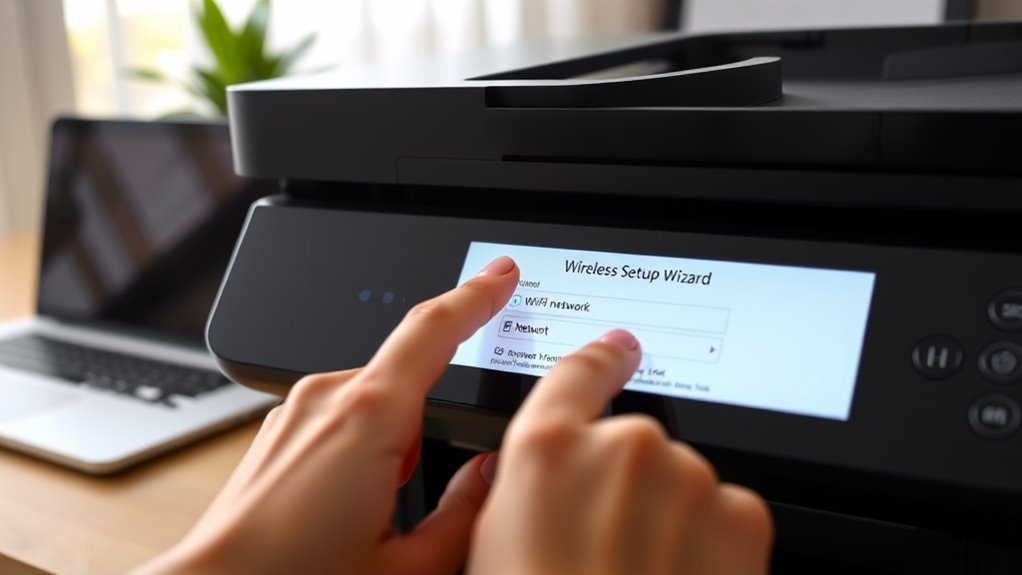
First, access your printer’s wireless menu and open the Wireless Setup Wizard. Then, select your Wi‑Fi network from the list and enter the password carefully.
Once you’ve done that, confirm the connection by checking for a solid Wi‑Fi icon or printing a test page. It’s pretty straightforward and shouldn’t take long.
Access Printer Wireless Menu
Start by powering on your printer and finding your way to the Settings menu on its touchscreen or control panel. From there, navigate to the Network or Wireless Setup Wizard option.
This printer menu lets you initiate the Wireless Setup Wizard to connect your device to Wi‑Fi. Make certain your printer is within range of your router to avoid connection issues.
| Step | Description |
|---|---|
| Power On | Turn on the printer |
| Access Settings | Use touchscreen/control panel |
| Open Wireless Setup Wizard | Navigate to Network or Wireless Setup |
| Prepare for Connection | Make certain printer is near Wi‑Fi router |
Following these steps helps you access the wireless menu to start setting up your printer’s network connection. It’s pretty straightforward once you get going!
Select Network And Password
Navigate your printer’s Wireless Setup Wizard by opening Settings, then Wireless or Network, and selecting the option to scan for nearby Wi‑Fi networks. Choose your home Wi‑Fi network name (SSID) from the list of available options.
When prompted, enter the exact Wi‑Fi password using the printer’s keypad or on-screen keyboard—remember, the password is case-sensitive and must match your router’s security type, such as WEP, WPA, or WPA2.
If your router supports WPS, you can skip typing the password by pressing the printer’s WPS button and then the router’s WPS button within two minutes to connect automatically.
For printers without a touchscreen, use the manufacturer’s setup utility on your PC or connect temporarily via USB or Ethernet to transfer your Wi‑Fi network credentials. This step is essential for enabling wireless printing throughout your home or office.
Confirm Connection Success
How can you be sure your printer has connected to your Wi‑Fi network? After using the Wireless Setup Wizard to enter your network’s SSID and password, look for a solid Wi‑Fi icon or a “Connected” message on the printer’s display.
Next, confirm the connection by checking the printer’s IP address in the network settings. If you want a tangible confirmation, print a network configuration page directly from the printer’s menu. This page shows details like the assigned IP address and connection status.
If the connection fails, the wizard will prompt you to troubleshoot—re-entering the password, moving closer to the router, or running a factory reset. Following these steps guarantees your wireless setup is successful and ready for printing.
Alternative Wireless Setup Methods: WPS and Web Interface
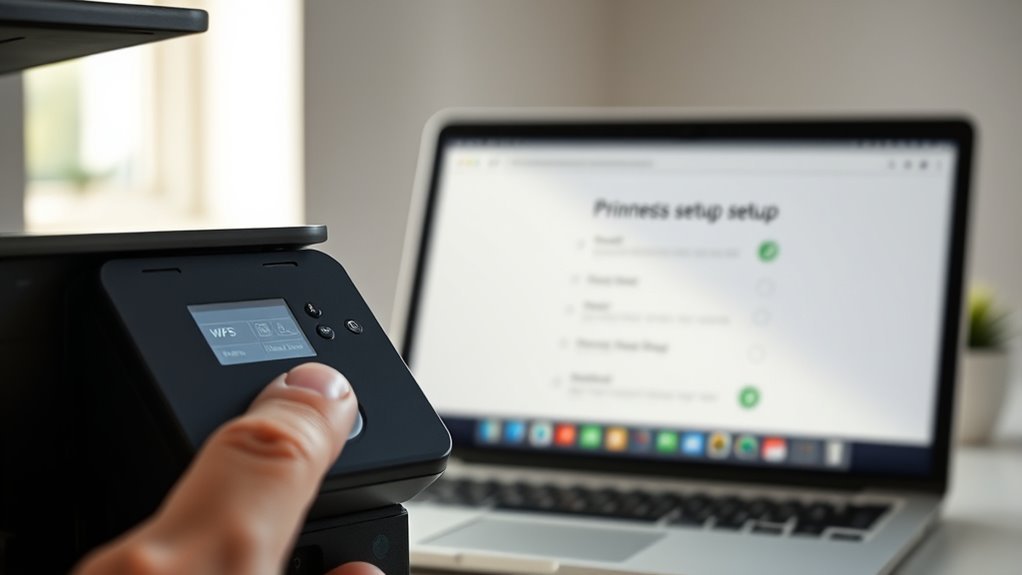
If your printer or router supports WPS, you can quickly connect by pressing the WPS button on both devices within two minutes. It’s a fast and easy way to get things set up.
When WPS isn’t an option, don’t worry. You can use the printer’s web interface instead. Just connect the printer temporarily to your PC, then enter your network details through a browser.
These alternative methods are great because they help you get your printer online even if the usual setup wizard isn’t available. It’s all about making things as simple as possible!
WPS Setup Process
Setting up your printer using WPS can be a quick way to get it connected without entering passwords manually. To start, press and hold the printer’s WPS button or select the WPS Push Button option from its wireless setup menu until the Wi-Fi light flashes.
Then, within two minutes, press the router’s WPS button to initiate pairing. The printer’s Wi-Fi light will turn solid once the connection is successful.
Keep in mind, some routers limit the WPS connection window to about two minutes, and certain networks may disable WPS for security. If you encounter issues, check your router settings or consider alternative setup methods.
After connecting, print a test or network configuration page to confirm your printer is discoverable on your Wi-Fi network.
Web Interface Configuration
Although WPS offers a quick setup, you can also configure your printer’s wireless connection through its web interface. First, connect your printer temporarily to the router via USB or Ethernet.
Then, print the network configuration page to find the printer’s IP address. Open this IP in a browser on a computer connected to the same network.
In the web interface setup, navigate to Wireless/Network > Wireless Setup Wizard. Select your SSID, enter your network password, and choose the correct security type.
Save changes and make certain the printer obtains an IP address via DHCP or assign a static IP if needed. Once done, unplug the temporary cable.
Finally, verify connectivity by printing a test page or checking the printer’s display for a connected status. Easy enough, right?
Install Printer Drivers and Software on Your Computer
Start by downloading the latest driver and setup utility for your exact printer model from the manufacturer’s support site. Avoid using the CD to guarantee compatibility with your current operating system and security updates.
Download the latest driver from the manufacturer’s site for best compatibility and security—avoid using the CD.
On Windows, run the installer and select “Wireless” or “Network” setup. You might need to temporarily connect the printer via USB to transfer Wi-Fi settings.
On macOS, after running the setup utility, go to System Settings > Printers & Scanners, click the + button, and select AirPrint or your printer. This lets macOS download the necessary drivers automatically.
For mobile devices, install the printer brand’s app to detect and configure the printer on your Wi-Fi. If auto-detection fails, just add the printer manually using its IP address and the downloaded driver.
Connect Your Windows, Mac, and Mobile Devices to the Wireless Printer
Now that your drivers are installed, you can connect your Windows PC by adding the printer through Settings. Just make sure it’s on the same Wi‑Fi network as your computer.
For mobile devices, use AirPrint on iPhones or the printer’s app on Android to print directly without any hassle. It’s pretty straightforward once you have the app set up.
Just double-check that all your devices share the same network. That way, you’ll avoid any annoying connection issues.
Windows Printer Setup
Setting up your Windows device to connect to a wireless printer is straightforward once the printer is powered on and connected to the same Wi-Fi network.
Start by opening Settings, then go to Devices > Printers & scanners. Click “Add a printer or scanner” and let Windows search for your wireless printer.
If it appears, select it and follow the prompts to install drivers. If Windows doesn’t find your printer, get its IP address from the printer’s display or network status page.
Then, click “Add a printer,” choose “The printer that I want isn’t listed,” and select “Add a printer using a TCP/IP address or hostname.” Enter the IP address, complete the setup, and you’re ready to print wirelessly.
Mobile Device Printing
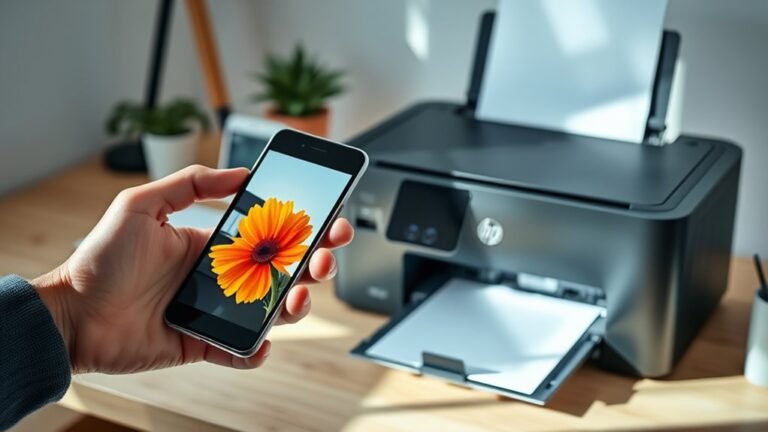
Getting your mobile devices connected to a wireless printer is easier than you might think. For iPhone and iPad users, simply use AirPrint by opening the app you want to print from, tapping Share or Print, and selecting your AirPrint-enabled printer on the same Wi-Fi network.
Android users should install the printer maker’s app like HP Smart or enable Default Print Service. Then, just choose the wireless printer from the app’s print menu.
On macOS, go to System Settings > Printers & Scanners, click +, and pick your Wi-Fi printer or add it by IP address.
If your Windows PC can’t find the printer, make sure both devices share the same network. Then add it via Settings > Devices > Printers & scanners. Restart devices if needed.
Print From Smartphones and Tablets Using Brand Apps or AirPrint
You can usually print directly from your smartphone or tablet without extra software if your printer supports AirPrint or has a dedicated brand app.
For iPhones and iPads with AirPrint-enabled printers, just open your document or photo, tap Share or the three-dot menu, select Print, and choose your AirPrint printer on the same Wi-Fi network.
Android and other devices require the manufacturer’s app—like HP Smart or Epson Smart Panel—which you can download from the app store.
After installing, open the app, connect to your Wi-Fi printer, and print. These apps also let you scan and check ink levels.
If your printer and device aren’t on the same network, try Wi-Fi Direct or the printer’s hotspot feature to connect and print smoothly using AirPrint or the manufacturer’s app.
Test and Troubleshoot Wireless Printer Connections
Once your smartphone, tablet, or computer connects to the printer over Wi-Fi, it’s important to verify the connection works properly. Start by printing a network-config page from the printer menu to confirm it has an IP address and joined the network successfully.
After connecting your device to the printer via Wi-Fi, print a network-config page to confirm successful network connection.
If your device can’t find the printer, check that both are on the same SSID. Also, make certain the printer’s status shows “Connected.” Here’s how to test and troubleshoot wireless printers:
- Use WPS on both router and printer for quick pairing; look for a steady Wi-Fi light.
- Print a test page from a connected PC, adding the printer manually via its IP if needed.
If the signal seems weak, try moving the printer closer to the router. Sometimes, that simple step makes a big difference.
Reboot your router and printer to fix intermittent issues. It’s a quick trick that often does the job.
Don’t forget to update firmware and drivers. Or, if things still aren’t working, try a factory reset before giving setup another go.
Manage Your Wireless Printer Settings and Preferences
Access your printer’s control panel or its web interface by entering the IP address in a browser to manage wireless settings and preferences. Use the setup wizard to confirm your SSID, security type (WPA2/WPA3), and saved Wi-Fi password.
To avoid connection issues, set a static IP or reserve the printer’s DHCP address via your router’s settings. This helps keep your printer connected without interruptions.
Customize default paper size, print quality, and duplex or color options through the printer’s onboard menu or app. This way, every job matches your preferences and helps conserve resources.
You can also enable features like AirPrint, Wi-Fi Direct, or remote/cloud printing for flexible wireless use. These options make printing easier from different devices.
Don’t forget to activate automatic firmware updates to keep your printer running smoothly. Also, secure Wi-Fi Direct with a PIN or built-in firewall to protect your printer from unauthorized access.
Explore Ink Subscription and Maintenance Options
Managing your printer’s wireless settings is just one part of keeping your printing experience smooth and cost-effective. Exploring ink subscription and maintenance add‑ons can save you time and money.
Ink subscription plans like HP Instant Ink or Epson ReadyPrint automatically send cartridges and can cut costs by up to 70%. When choosing a plan, match your monthly page volume to avoid extra fees.
Ink subscription plans like HP Instant Ink save up to 70% by matching your monthly page volume.
Maintenance add‑ons offer extended hardware coverage beyond warranties, but check terms carefully.
Consider these options:
- Ink subscription plans with monthly page allowances
- Discounts, free shipping, and recycling programs
Keep in mind, cloud-connected printers are required for monitoring usage. Maintenance add‑ons cover repairs and faults, giving you peace of mind. Plus, refillable tank printers paired with refill subscriptions can lead to major savings.
These choices really help you manage ink and printer care efficiently.
Tips for Maintaining Reliable Wireless Printing at Home
Regularly maintaining your wireless printer guarantees it stays reliable and avoids frustrating connectivity issues. Keep your printer within 10 to 30 feet of your Wi-Fi router. Avoid thick walls or metal objects that can disrupt the signal.
Assign a static IP or reserve your printer’s MAC address in your router’s DHCP settings. This helps make certain devices can consistently connect without trouble.
Make sure your printer uses the 2.4 GHz band for broader range, or 5 GHz if both devices support it and interference is a concern. Update your printer’s firmware regularly and enable automatic updates to improve stability and security.
Finally, power cycle your printer occasionally and print a test page weekly. This helps clear jobs and confirms connectivity and ink levels remain at their best.
Frequently Asked Questions
How to Set up an HP Printer?
You turn on your HP printer and connect it to Wi-Fi through the control panel or WPS. It’s pretty straightforward.
Next, install the latest HP software on your computer. Just follow the prompts, choose the wireless setup option, and you’re almost done.
Finally, print a test page to make sure everything’s connected properly. Easy, right?
How to Set up a Printer Without Wi-Fi?
Setting up a printer without Wi-Fi is as tricky as catching lightning in a bottle. You’ll connect it via USB to your computer, enable printer sharing, or use a wireless print server to get it networked effortlessly.
It might sound complicated, but once you get the hang of it, it’s pretty straightforward. Just take it step by step, and you’ll have your printer up and running in no time!
How to Share a Printer on a Network Step by Step?
Connect the USB printer to a computer that’s always on. Then, enable printer sharing in the system settings.
If you’re using Windows or macOS, you can share the printer through the properties or the sharing tab. It’s pretty straightforward once you find those options.
Finally, make sure everything’s working by printing a test page from another device on the network. This way, you’ll know the printer is properly shared and ready to use.
How Do I Get My Printer to Recognize My Wi-Fi?
You get your printer to recognize Wi-Fi by selecting your network’s SSID in its wireless setup menu. Then, enter the correct password and confirm the connection.
You can usually check if it’s connected by looking for the printer’s Wi-Fi light or an on-screen message. It’s pretty straightforward once you know where to look!
Conclusion
Setting up your wireless printer is a simple step toward seamless, stress-free printing. By preparing properly, connecting confidently, and customizing carefully, you create a consistent, convenient connection that keeps your creativity flowing.
Remember, regular maintenance and mindful management maximize your machine’s magic. With these easy efforts, you’ll enjoy efficient, effortless printing every day.
Making your wireless printing workflow worry-free is all about staying calm, connecting clearly, and printing perfectly. When you follow these straightforward steps, you’ll have a reliable wireless printer setup that works smoothly with your devices. So, take your time, follow the process, and watch how easy wireless printing can be. Enjoy hassle-free printing that fits your busy lifestyle and keeps your productivity high!